> ## Documentation Index
> Fetch the complete documentation index at: https://docs.levelblue.com/llms.txt
> Use this file to discover all available pages before exploring further.

# Event Views

You can configure the view you want for the list of items in the page.

**To create a view configuration**

1. From the list view, click the <img src="https://mintcdn.com/levelblue-5324744e/T1hrc0hK0aza_DCc/images/central-any-app/buttons/manage-columns-final.svg?fit=max&auto=format&n=T1hrc0hK0aza_DCc&q=85&s=1b58a57a870d7fee8cb991427b7fe41f" style={{ height: "1em", verticalAlign: "middle", display: "inline-block", margin: "0 0.25em" }} width="20" height="20" data-path="images/central-any-app/buttons/manage-columns-final.svg" /> icon.

2. Use the <img src="https://mintcdn.com/levelblue-5324744e/T1hrc0hK0aza_DCc/images/central-any-app/buttons/arrow-right.svg?fit=max&auto=format&n=T1hrc0hK0aza_DCc&q=85&s=8c2b99123bbdd3095a2c38366c2067f1" style={{ height: "1em", verticalAlign: "middle", display: "inline-block", margin: "0 0.25em" }} width="20" height="20" data-path="images/central-any-app/buttons/arrow-right.svg" /> and <img src="https://mintcdn.com/levelblue-5324744e/T1hrc0hK0aza_DCc/images/central-any-app/buttons/arrow-left.svg?fit=max&auto=format&n=T1hrc0hK0aza_DCc&q=85&s=3eb55b4695ad299ad5185f0d56183be1" style={{ height: "1em", verticalAlign: "middle", display: "inline-block", margin: "0 0.25em" }} width="20" height="20" data-path="images/central-any-app/buttons/arrow-left.svg" /> icons to pass the items from one column to another and select the columns you want to see.

3. Click **Apply**.

4. If you want to delimit the search, select the filters you want to apply.

5. Go to Save **View > Save As**.

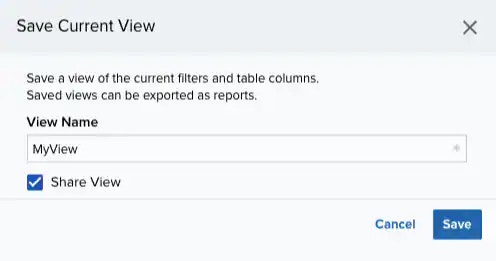
   The Save Current View dialog box opens.
   <Frame>
     <img src="https://mintcdn.com/levelblue-5324744e/cTvy_WdX_rVxbBkS/images/usm-anywhere/user-guide/alarms/sharedview.webp?fit=max&auto=format&n=cTvy_WdX_rVxbBkS&q=85&s=0eab471cce1be3aed825b133ca45fc6f" width="496" height="261" data-path="images/usm-anywhere/user-guide/alarms/sharedview.webp" />
   </Frame>

6. Enter a name for the view.

7. (Optional) Select **Share View** if you want to share your view with other users.

8. Click **Save**.

   The created view is already selected.

<Note>
  **Note:** Only users in the Analyst, Manager, or Investigator roles can create a view configuration.
</Note>

**To select a configured view**

1. From the ist view, click **View** above the filters.

2. Click **Saved Views**, and then select the view you want to see.

   <Note>
     **Note:** A shared view includes the <img src="https://mintcdn.com/levelblue-5324744e/jTImDFBjBH7kNNGB/images/central-any-app/buttons/users-new.svg?fit=max&auto=format&n=jTImDFBjBH7kNNGB&q=85&s=ab91bafda6bdfc0034c819ce14603f61" style={{ height: "1em", verticalAlign: "middle", display: "inline-block", margin: "0 0.25em" }} width="24" height="24" data-path="images/central-any-app/buttons/users-new.svg" /> icon next to its name.
   </Note>

3. Click **Apply**.

**To delete a configured view**

1. From the Events list view, click **View** above the filters.
2. Click **Saved Views**, and then click the <img src="https://mintcdn.com/levelblue-5324744e/jTImDFBjBH7kNNGB/images/central-any-app/buttons/trash-alt.svg?fit=max&auto=format&n=jTImDFBjBH7kNNGB&q=85&s=7fcb12066bec17b51a7ebd4cad626542" style={{ height: "1em", verticalAlign: "middle", display: "inline-block", margin: "0 0.25em" }} width="24" height="24" data-path="images/central-any-app/buttons/trash-alt.svg" /> icon next to the saved view you want to delete.
3. A Settings Delete dialog box opens to confirm the deletion.
4. Click **Accept**.

   <Warning>
     **Important:** The <img src="https://mintcdn.com/levelblue-5324744e/jTImDFBjBH7kNNGB/images/central-any-app/buttons/trash-alt.svg?fit=max&auto=format&n=jTImDFBjBH7kNNGB&q=85&s=7fcb12066bec17b51a7ebd4cad626542" style={{ height: "1em", verticalAlign: "middle", display: "inline-block", margin: "0 0.25em" }} width="24" height="24" data-path="images/central-any-app/buttons/trash-alt.svg" /> icon does not display if the view is selected.
   </Warning>

<Note>
  **Note:** Only Manager and Analyst users can delete any configured view. You can only delete the views you have created in an Investigator role.
</Note>

## Predefined Views

USM Anywhere includes several predefined views of events based on usual environments and technologies. These views have pre-defined column headers that show the most relevant event fields. You can see a summarized event view without having to spend the time creating a custom view.

These predefined views operate the same way as the views you can create yourself. Some of these views have also predefined filters.

**To open the predefined views**

1. Go to **Activity > Events**.
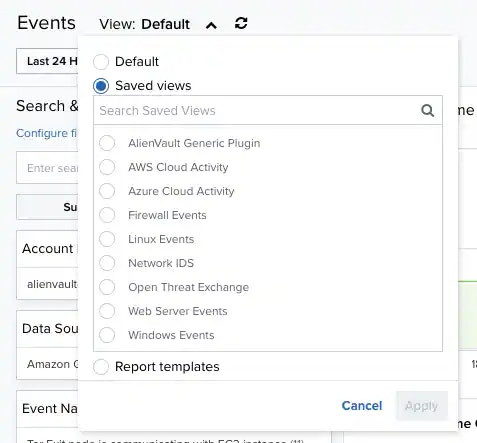
2. Open the View option and select **Saved Views**.

   <Frame>
     <img src="https://mintcdn.com/levelblue-5324744e/fC92IJE7ax567GE5/images/usm-anywhere/user-guide/events/predefinedviews.webp?fit=max&auto=format&n=fC92IJE7ax567GE5&q=85&s=355fa8dcb717e49a69ab10d3af1c9a9a" width="477" height="443" data-path="images/usm-anywhere/user-guide/events/predefinedviews.webp" />
   </Frame>

**Predefined Views for Events**

<table>
  <thead>
    <tr>
      <th>View</th>
      <th>Meaning</th>
    </tr>
  </thead>

  <tbody>
    <tr>
      <td>LevelBlue Generic Plugin</td>
      <td>Displays log data when the USM Anywhere Sensor is unable to match them with BlueApps based on hints and manual associations.</td>
    </tr>

    <tr>
      <td>AWS Cloud Activity</td>
      <td>Displays the most relevant event fields for <Tooltip tip="Suite of cloud computing services from Amazon that make up an on-demand computing platform.">AWS</Tooltip><Tooltip tip="AWS CloudTrail is a web service that records AWS API calls for your account and delivers log files to you.">CloudTrail</Tooltip>, AWS S3 Access, and <Tooltip tip="Elastic Load Balancing automatically distributes incoming application traffic across multiple Amazon EC2 instances in the cloud.">ELB</Tooltip> Access.</td>
    </tr>

    <tr>
      <td>Azure <Tooltip tip="The use of many computers connected over a network to run multiple programs or applications at the same time, instead of running them on a local device or network.">Cloud</Tooltip> Activity</td>
      <td>Displays  the most relevant event fields for <Tooltip tip="Microsoft Azure is a cloud computing platform and infrastructure created by Microsoft for building, deploying, and managing applications and services through a global network of Microsoft-managed data centers.">Azure</Tooltip> environmental logs.</td>
    </tr>

    <tr>
      <td>Firewall Events</td>
      <td>Displays the most relevant  fields for <Tooltip tip="Virtual or physical device designed to defend against unauthorized access to data, resources, or a private network. A firewall’s primary purpose is to create segregation between two or more network resources, blocking undesirable traffic between them.">firewall</Tooltip> events. For instance request URL, source username, destination username, etc. depending on the set of fields that is most common to the list of supported firewall BlueApps.</td>
    </tr>

    <tr>
      <td>Linux Events</td>
      <td>Displays the most relevant fields for Linux Events generated by the Linux CRON, <Tooltip tip="Program to securely log into another computer over a network, execute commands in a remote machine, and move files from one machine to another through Secure Copy (SCP).">SSH</Tooltip>, and <Tooltip tip="A program for UNIX-like computer operating systems that allows users to run programs with the security privileges of another user, by default the superuser.">SUDO</Tooltip> BlueApps.</td>
    </tr>

    <tr>
      <td>Network IDS</td>
      <td>Displays  the most relevant event fields for <Tooltip tip="Network Intrusion Dectection System (NIDS) monitors network traffic and events for suspicious or malicious activity using the sensors that provide management and network monitoring interfaces to networks and network devices.">NIDS</Tooltip>.</td>
    </tr>

    <tr>
      <td>Open Threat Exchange</td>
      <td>Displays the most relevant feeds that the pulse has matched.</td>
    </tr>

    <tr>
      <td>Web Server Events</td>
      <td>Displays the most relevant fields for Web Server Events, which include Apache, NGinx, and Windows IIS.</td>
    </tr>

    <tr>
      <td>Windows Events</td>

      <td>
        <p>Displays the most relevant fields for Windows Events forwarded by NXLog.</p>
      </td>
    </tr>
  </tbody>
</table>
