> ## Documentation Index
> Fetch the complete documentation index at: https://docs.levelblue.com/llms.txt
> Use this file to discover all available pages before exploring further.
# Evidence on Investigations
| | | | | |
| --------------------- | --------- | ------------ | ------- | ----------- |
| **Role Availability** | Read-Only | Investigator | Analyst | **Manager** |
This section displays the alarms, events, and files associated with the investigation.
On the **Investigations** page, click an Investigation to view the evidence associated to it.
 You can click an alarm or an event to go to the alarm or event. The asset name includes the
  icon if the asset is not in the system, or the
  icon if the asset has already been added to the system.
Click the icon to access the following options:
* **Add to current filter:** Use this option to add the asset name as a search filter. See [Searching Events](/documentation/usm-anywhere/user-guide/events/searching-events) for more information.
* **Find in events**: Use this option to execute a search of the asset name in the Events page. See [Searching Events](/documentation/usm-anywhere/user-guide/events/searching-events) for more information.
* **Look up in OTX**: This option searches the IP address of the source asset in the LevelBlue LevelBlue Labs Open Threat Exchange® (OTX™) page. See [Using OTX in USM Anywhere](/documentation/usm-anywhere/user-guide/otx/using-otx-in-anywhere) for more information.
* **Add asset to system**: Use this option to create the asset in the system. See [Adding Assets](/documentation/usm-anywhere/user-guide/asset-management/asset-administration/adding-assets) for more information.
Your access to these options may vary based on your user role. See [Role-Based Access Control (RBAC) in USM Anywhere](/documentation/usm-anywhere/user-guide/user-management/rbac) for more information.
Click the icon to access the following options:
* **Add to Current Filter**: Use this option to add the asset name as a search filter. See [Searching Events](/documentation/usm-anywhere/user-guide/events/searching-events) for more information.
* **Find in Events**: Use this option to execute a search of the asset name in the Events page. See [Searching Events](/documentation/usm-anywhere/user-guide/events/searching-events) for more information.
* **Look up in OTX**: This option searches the IP address of the asset in the OTX page. See [Using OTX in USM Anywhere](/documentation/usm-anywhere/user-guide/otx/using-otx-in-anywhere) for more information.
* **Full Details**: See [Viewing Assets Details](/documentation/usm-anywhere/user-guide/asset-management/asset-administration/viewing-asset-details) for more information.
* **Assign Credentials**: See [Managing Credentials](/documentation/usm-anywhere/user-guide/vulnerability-assessment/credentials) in USM Anywhere for more information.
* **Authenticated Scan**: This option displays depending on the USM Anywhere Sensor associated with the asset. See [Running Authenticated Asset Scans](/documentation/usm-anywhere/user-guide/asset-management/asset-administration/running-vuln-scan) for more information.
* **Scan with BlueApp**: This option enables you to run an asset scan through an BlueApp. See [Running Asset Scans Using a BlueApp](/documentation/usm-anywhere/user-guide/asset-management/asset-administration/scan-with-alienapp) for more information.
* **Configuration Issues**: This option opens the Asset Details page. The Configuration Issues tab is selected in the page. See [Viewing Assets Details](/documentation/usm-anywhere/user-guide/asset-management/asset-administration/viewing-asset-details) for more information.
* **Vulnerabilities**: This option opens the Asset Details page. The Vulnerabilities tab is selected in the page. See [Viewing Assets Details](/documentation/usm-anywhere/user-guide/asset-management/asset-administration/viewing-asset-details) for more information.
* **Alarms**: This option opens the Asset Details page. The Alarms tab is selected in the page. See [Viewing Assets Details](/documentation/usm-anywhere/user-guide/asset-management/asset-administration/viewing-asset-details.htm) for more information.
* **Events**: This option opens the Asset Details page. The Events tab is selected in the page. See [Viewing Assets Details](/documentation/usm-anywhere/user-guide/asset-management/asset-administration/viewing-asset-details.htm) for more information.
Your access to these options may vary based on your user role. See [Role-Based Access Control (RBAC) in USM Anywhere](/documentation/usm-anywhere/user-guide/user-management/rbac) for more information.
Linking an alarm to an investigation can be done via the **Activity > Alarms** or **Investigations** page.
**To link an alarm via the Activity > Alarms page:**
1. Go to **Activity > Alarms**.
2. Search for the alarm you want to add to the investigation. Refer to [Searching Alarms](/documentation/usm-anywhere/user-guide/alarms/searching-alarms) for more information.
3. Select the checkbox of the alarm to be linked.
4. Click **Add To Investigation**.
You can also click the alarm entry to open the Alarm Details pane on the right. Under the **Alarm Details** section, locate the **Investigations** field, and then click the
icon if the asset has already been added to the system.
Click the icon to access the following options:
* **Add to current filter:** Use this option to add the asset name as a search filter. See [Searching Events](/documentation/usm-anywhere/user-guide/events/searching-events) for more information.
* **Find in events**: Use this option to execute a search of the asset name in the Events page. See [Searching Events](/documentation/usm-anywhere/user-guide/events/searching-events) for more information.
* **Look up in OTX**: This option searches the IP address of the source asset in the LevelBlue LevelBlue Labs Open Threat Exchange® (OTX™) page. See [Using OTX in USM Anywhere](/documentation/usm-anywhere/user-guide/otx/using-otx-in-anywhere) for more information.
* **Add asset to system**: Use this option to create the asset in the system. See [Adding Assets](/documentation/usm-anywhere/user-guide/asset-management/asset-administration/adding-assets) for more information.
Your access to these options may vary based on your user role. See [Role-Based Access Control (RBAC) in USM Anywhere](/documentation/usm-anywhere/user-guide/user-management/rbac) for more information.
Click the icon to access the following options:
* **Add to Current Filter**: Use this option to add the asset name as a search filter. See [Searching Events](/documentation/usm-anywhere/user-guide/events/searching-events) for more information.
* **Find in Events**: Use this option to execute a search of the asset name in the Events page. See [Searching Events](/documentation/usm-anywhere/user-guide/events/searching-events) for more information.
* **Look up in OTX**: This option searches the IP address of the asset in the OTX page. See [Using OTX in USM Anywhere](/documentation/usm-anywhere/user-guide/otx/using-otx-in-anywhere) for more information.
* **Full Details**: See [Viewing Assets Details](/documentation/usm-anywhere/user-guide/asset-management/asset-administration/viewing-asset-details) for more information.
* **Assign Credentials**: See [Managing Credentials](/documentation/usm-anywhere/user-guide/vulnerability-assessment/credentials) in USM Anywhere for more information.
* **Authenticated Scan**: This option displays depending on the USM Anywhere Sensor associated with the asset. See [Running Authenticated Asset Scans](/documentation/usm-anywhere/user-guide/asset-management/asset-administration/running-vuln-scan) for more information.
* **Scan with BlueApp**: This option enables you to run an asset scan through an BlueApp. See [Running Asset Scans Using a BlueApp](/documentation/usm-anywhere/user-guide/asset-management/asset-administration/scan-with-alienapp) for more information.
* **Configuration Issues**: This option opens the Asset Details page. The Configuration Issues tab is selected in the page. See [Viewing Assets Details](/documentation/usm-anywhere/user-guide/asset-management/asset-administration/viewing-asset-details) for more information.
* **Vulnerabilities**: This option opens the Asset Details page. The Vulnerabilities tab is selected in the page. See [Viewing Assets Details](/documentation/usm-anywhere/user-guide/asset-management/asset-administration/viewing-asset-details) for more information.
* **Alarms**: This option opens the Asset Details page. The Alarms tab is selected in the page. See [Viewing Assets Details](/documentation/usm-anywhere/user-guide/asset-management/asset-administration/viewing-asset-details.htm) for more information.
* **Events**: This option opens the Asset Details page. The Events tab is selected in the page. See [Viewing Assets Details](/documentation/usm-anywhere/user-guide/asset-management/asset-administration/viewing-asset-details.htm) for more information.
Your access to these options may vary based on your user role. See [Role-Based Access Control (RBAC) in USM Anywhere](/documentation/usm-anywhere/user-guide/user-management/rbac) for more information.
Linking an alarm to an investigation can be done via the **Activity > Alarms** or **Investigations** page.
**To link an alarm via the Activity > Alarms page:**
1. Go to **Activity > Alarms**.
2. Search for the alarm you want to add to the investigation. Refer to [Searching Alarms](/documentation/usm-anywhere/user-guide/alarms/searching-alarms) for more information.
3. Select the checkbox of the alarm to be linked.
4. Click **Add To Investigation**.
You can also click the alarm entry to open the Alarm Details pane on the right. Under the **Alarm Details** section, locate the **Investigations** field, and then click the  icon.
5. On the **Select Investigation** dialog box, enter the investigation's title or keywords to search for the investigation you want to link the alarm. Matching results are displayed below, categorized as **Opened** or **Closed** accordingly.
icon.
5. On the **Select Investigation** dialog box, enter the investigation's title or keywords to search for the investigation you want to link the alarm. Matching results are displayed below, categorized as **Opened** or **Closed** accordingly.
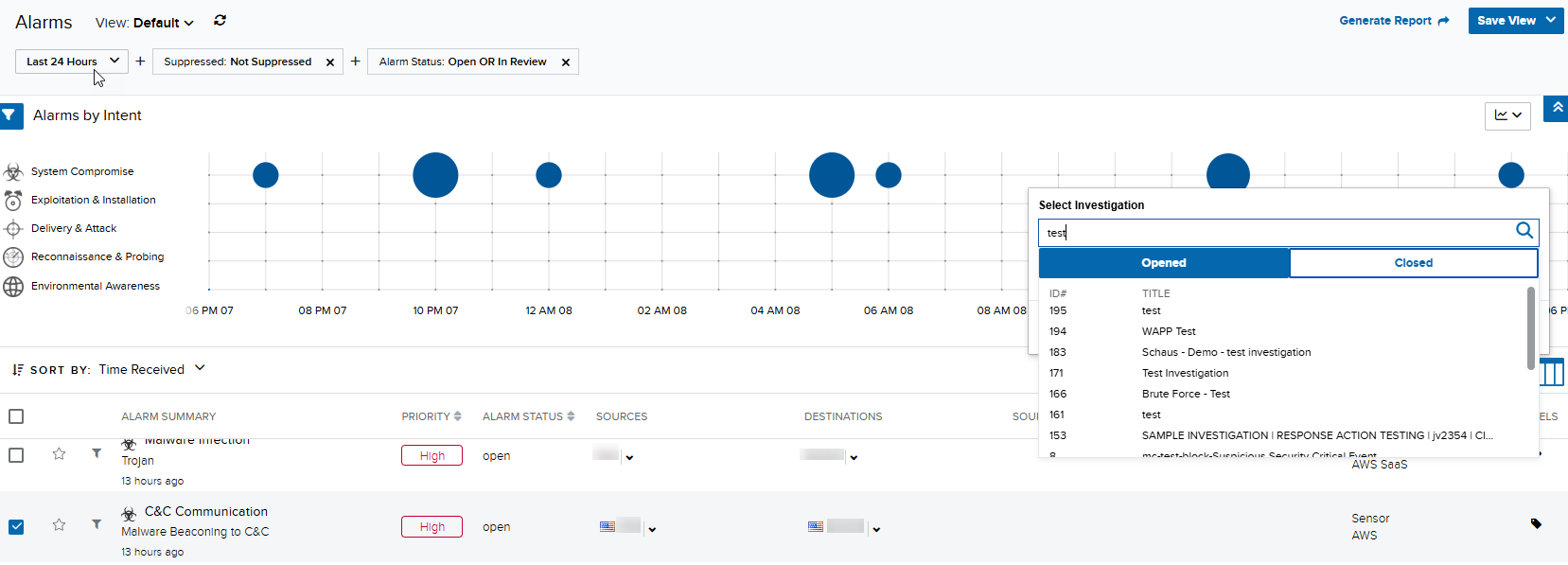 6. Select the investigation from the list, and then click **Apply**.
**To link an alarm via the Investigations page:**
1. Go to **Investigations**.
2. Search for an investigation. Refer to [Searching Investigations](/documentation/usm-anywhere/user-guide/investigations/searching-investigations) for more information.
3. Click on the investigation's **Title** to view its details.
4. Under **Evidence**, select the alarm you want to link and then click the alarm name to open its details on the right pane.
5. Under the **Alarm Details** section, locate the **Investigations** label and then click the icon.
6. On the **Select Investigation** dialog box, enter the investigation's title or keywords to search for the investigation you want to link the alarm. Matching results are displayed below, categorized as **Opened** or **Closed** accordingly.
7. Select an investigation, and then click **Apply**.
6. Select the investigation from the list, and then click **Apply**.
**To link an alarm via the Investigations page:**
1. Go to **Investigations**.
2. Search for an investigation. Refer to [Searching Investigations](/documentation/usm-anywhere/user-guide/investigations/searching-investigations) for more information.
3. Click on the investigation's **Title** to view its details.
4. Under **Evidence**, select the alarm you want to link and then click the alarm name to open its details on the right pane.
5. Under the **Alarm Details** section, locate the **Investigations** label and then click the icon.
6. On the **Select Investigation** dialog box, enter the investigation's title or keywords to search for the investigation you want to link the alarm. Matching results are displayed below, categorized as **Opened** or **Closed** accordingly.
7. Select an investigation, and then click **Apply**.
 You may also click **Create New Investigation** to set up a new one. See [Creating a New Investigation](/documentation/usm-anywhere/user-guide/investigations/creating-new-investigation) for more information.
You can link up to 100 alarms to an investigation.
1. Go to **Activity > Alarms**.
2. Search for the alarms you want to add to the investigation. See [Searching Alarms](/documentation/usm-anywhere/user-guide/alarms/searching-alarms) for more information.
3. Select the checkboxes of the alarms to be linked.
4. Click **Add to Investigation.**
5. On the **Select Investigation** dialog box, enter the investigation's title or keywords to search for the investigation you want to link to the alarms. Matching results are displayed below, categorized as **Opened** or **Closed** investigation accordingly.
You may also click **Create New Investigation** to set up a new one. See [Creating a New Investigation](/documentation/usm-anywhere/user-guide/investigations/creating-new-investigation) for more information.
You can link up to 100 alarms to an investigation.
1. Go to **Activity > Alarms**.
2. Search for the alarms you want to add to the investigation. See [Searching Alarms](/documentation/usm-anywhere/user-guide/alarms/searching-alarms) for more information.
3. Select the checkboxes of the alarms to be linked.
4. Click **Add to Investigation.**
5. On the **Select Investigation** dialog box, enter the investigation's title or keywords to search for the investigation you want to link to the alarms. Matching results are displayed below, categorized as **Opened** or **Closed** investigation accordingly.
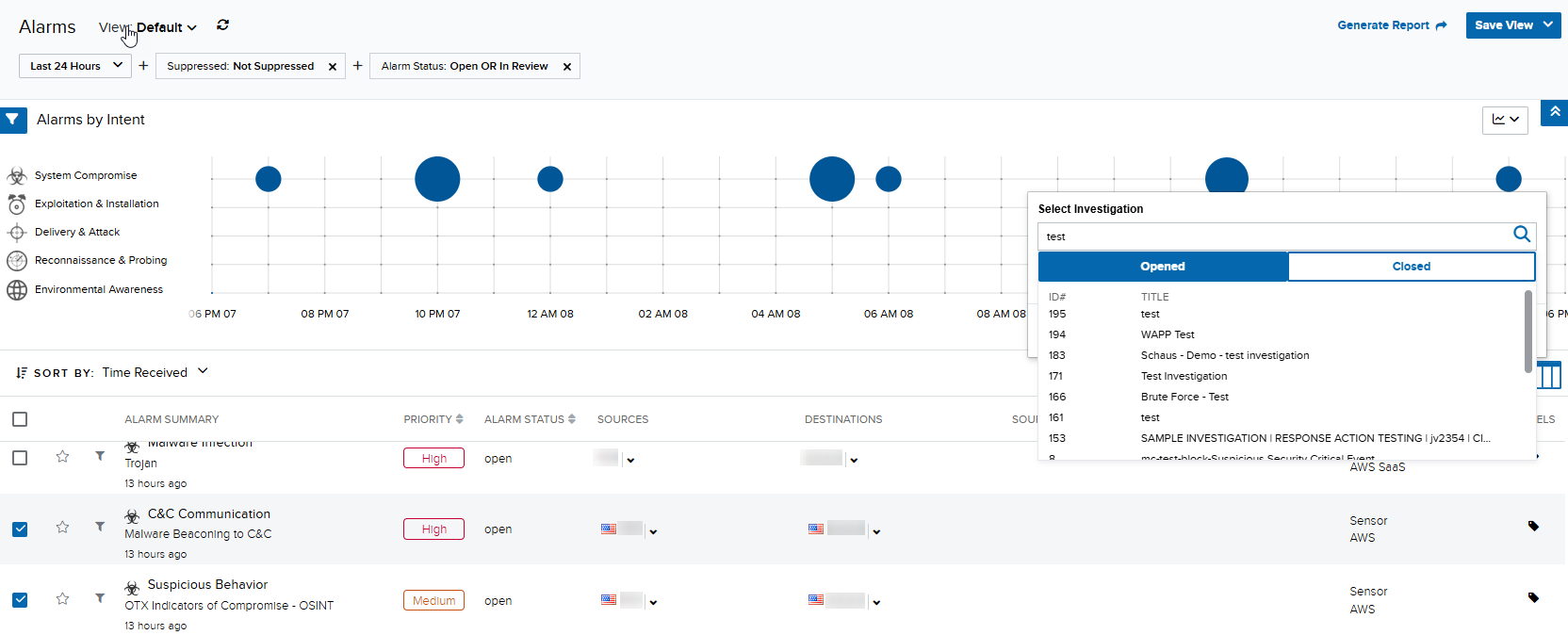 6. Select the investigation, and then click **Apply**.
You may also click **Create New Investigation** to set up a new one. See [Creating a New Investigation](/documentation/usm-anywhere/user-guide/investigations/creating-new-investigation) for more information.
1. Go to **Activity > Events**.
2. Search for the event you want to add to the investigation. Refer to [Searching Events](/documentation/usm-anywhere/user-guide/events/searching-events) for more information.
3. Select the checkbox of the event to be linked.
4. Click **Add To Investigation**.
You can also click the event entry to open the Event Details pane on the right. Under the **Event Details** section, locate the **Investigations** field, and then click the icon.
5. On the **Select Investigation** dialog box, enter the investigation's title or keywords to search for the investigation you want to link to the event. Matching results are displayed below, categorized as **Opened** or **Closed** investigation accordingly.
6. Select the investigation, and then click **Apply**.
You may also click **Create New Investigation** to set up a new one. See [Creating a New Investigation](/documentation/usm-anywhere/user-guide/investigations/creating-new-investigation) for more information.
1. Go to **Activity > Events**.
2. Search for the event you want to add to the investigation. Refer to [Searching Events](/documentation/usm-anywhere/user-guide/events/searching-events) for more information.
3. Select the checkbox of the event to be linked.
4. Click **Add To Investigation**.
You can also click the event entry to open the Event Details pane on the right. Under the **Event Details** section, locate the **Investigations** field, and then click the icon.
5. On the **Select Investigation** dialog box, enter the investigation's title or keywords to search for the investigation you want to link to the event. Matching results are displayed below, categorized as **Opened** or **Closed** investigation accordingly.
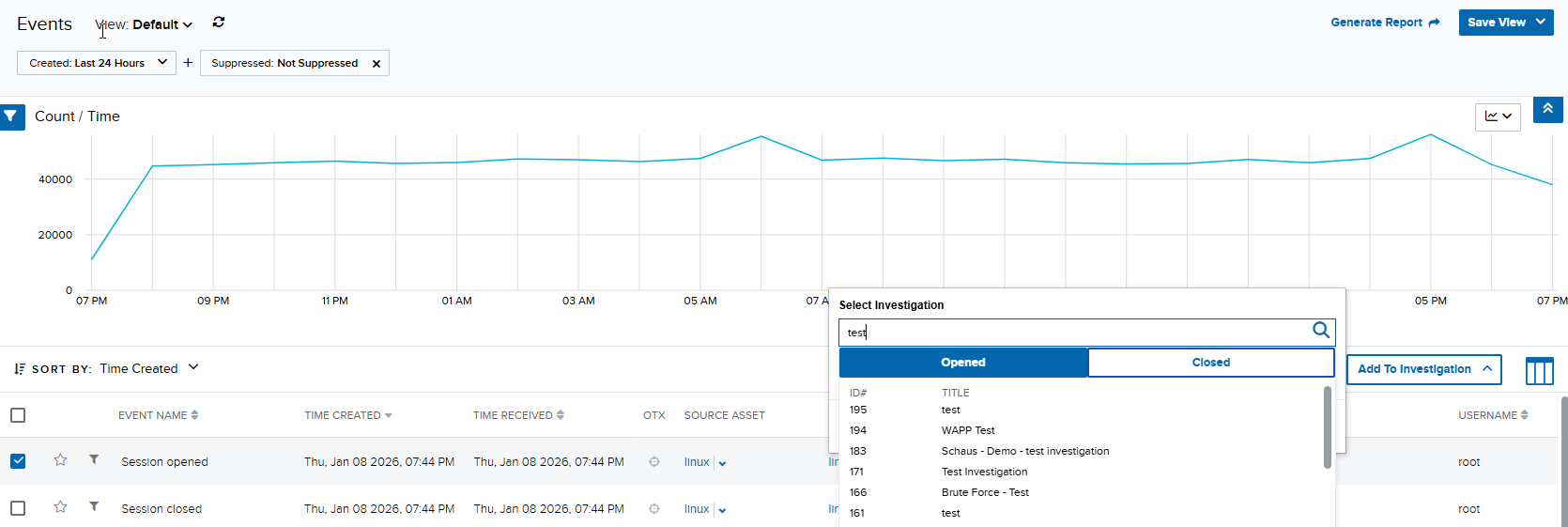 6. Select the investigation from the list, and then click **Apply**.
You may also click **Create New Investigation** to set up a new one. See [Creating a New Investigation](/documentation/usm-anywhere/user-guide/investigations/creating-new-investigation) for more information.
You can link up to 100 events to an investigation.
1. Go to **Activity > Events**.
2. Search for the events you want to add to the investigation. Refer to [Searching Events](/documentation/usm-anywhere/user-guide/events/searching-events) for more information.
3. Select the checkboxes of the events to be linked.
4. Click **Add To Investigation**.
5. On the **Select Investigation** dialog box, enter the investigation's title or keywords to search for the investigation you want to link the events. Matching results are displayed below, categorized as **Opened** or **Closed** investigation accordingly.
6. Select the investigation from the list, and then click **Apply**.
You may also click **Create New Investigation** to set up a new one. See [Creating a New Investigation](/documentation/usm-anywhere/user-guide/investigations/creating-new-investigation) for more information.
You can link up to 100 events to an investigation.
1. Go to **Activity > Events**.
2. Search for the events you want to add to the investigation. Refer to [Searching Events](/documentation/usm-anywhere/user-guide/events/searching-events) for more information.
3. Select the checkboxes of the events to be linked.
4. Click **Add To Investigation**.
5. On the **Select Investigation** dialog box, enter the investigation's title or keywords to search for the investigation you want to link the events. Matching results are displayed below, categorized as **Opened** or **Closed** investigation accordingly.
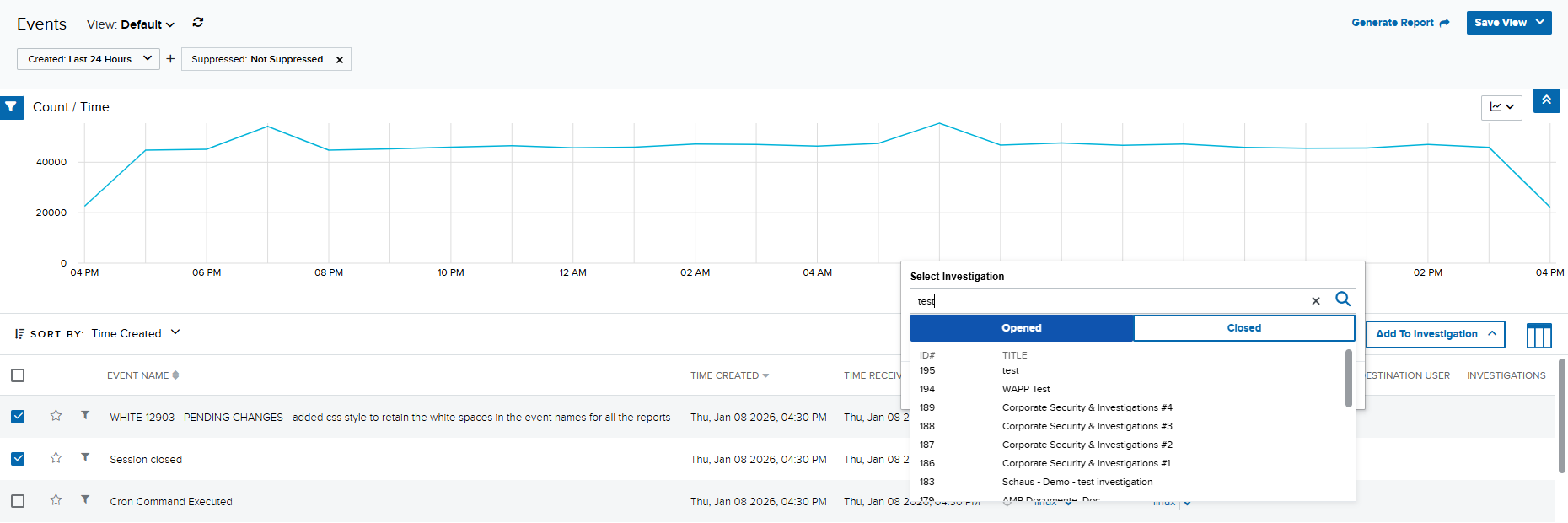 6. Select the investigation from the list, and then click **Apply**.
You may also click **Create New Investigation** to set up a new one. See [Creating a New Investigation](/documentation/usm-anywhere/user-guide/investigations/creating-new-investigation) for more information.
1. Go to **Investigations**.
2. Click the title of an investigation to display its details.
3. In the **Evidence** section, locate the alarm or the event that you want to remove from the investigation and click the
6. Select the investigation from the list, and then click **Apply**.
You may also click **Create New Investigation** to set up a new one. See [Creating a New Investigation](/documentation/usm-anywhere/user-guide/investigations/creating-new-investigation) for more information.
1. Go to **Investigations**.
2. Click the title of an investigation to display its details.
3. In the **Evidence** section, locate the alarm or the event that you want to remove from the investigation and click the  icon.
icon.
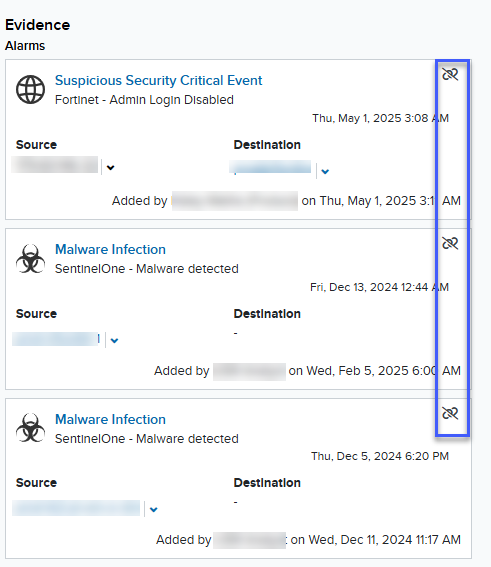 4. When prompted to confirm the action, click **Remove**.
1. Go to **Activity > Alarms** or **Activity > Events** depending on if you want to remove an alarm or an event.
2. Search for the alarm or event you want to remove. Refer to [Searching Alarms](/documentation/usm-anywhere/user-guide/alarms/searching-alarms) or [Searching Events](/documentation/usm-anywhere/user-guide/events/searching-events) for more information.
3. In the details pane, locate the Investigation field and then click the icon.
4. Select the investigation from which you want to remove the link.
5. Click **Unlink From Investigation**.
4. When prompted to confirm the action, click **Remove**.
1. Go to **Activity > Alarms** or **Activity > Events** depending on if you want to remove an alarm or an event.
2. Search for the alarm or event you want to remove. Refer to [Searching Alarms](/documentation/usm-anywhere/user-guide/alarms/searching-alarms) or [Searching Events](/documentation/usm-anywhere/user-guide/events/searching-events) for more information.
3. In the details pane, locate the Investigation field and then click the icon.
4. Select the investigation from which you want to remove the link.
5. Click **Unlink From Investigation**.
 6. In the confirmation dialog box, click **Unlink**.
You may add a file with a maximum size of 100 MB.
**To add a file to an investigation**
1. Go to **Investigations**.
2. Click the title of an investigation to display its details.
3. In the **Evidence** section, click **Select the file from your desktop** or drop your file in the section.
6. In the confirmation dialog box, click **Unlink**.
You may add a file with a maximum size of 100 MB.
**To add a file to an investigation**
1. Go to **Investigations**.
2. Click the title of an investigation to display its details.
3. In the **Evidence** section, click **Select the file from your desktop** or drop your file in the section.
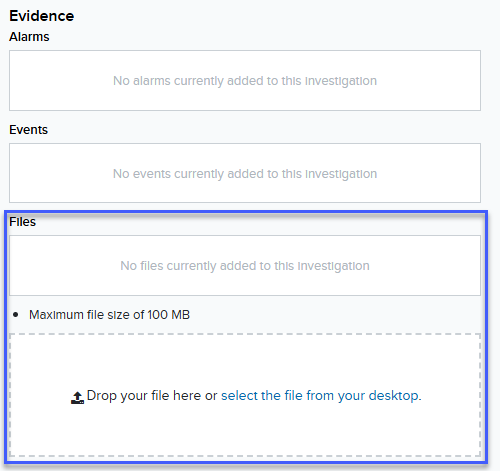 4. Select the file and click **Open**.
The added file is placed under the **Files** section.
If you want to open the added file, simply click the filename. To remove the file from the investigation, click the
4. Select the file and click **Open**.
The added file is placed under the **Files** section.
If you want to open the added file, simply click the filename. To remove the file from the investigation, click the  icon. When prompted, click **Remove**.