> ## Documentation Index
> Fetch the complete documentation index at: https://docs.levelblue.com/llms.txt
> Use this file to discover all available pages before exploring further.
# Notes on Investigations
| | | | | |
| --------------------- | --------- | ---------------- | ----------- | ----------- |
| **Role Availability** | Read-Only | **Investigator** | **Analyst** | **Manager** |
USM Anywhere enables you to add notes to your investigations.
**Important:** You can link up to 100 notes to each investigation.
**To add a note**
1. Go to **Investigations**.
2. Locate the investigation in the Investigations list.
3. Click the title of an investigation to display its details.
4. Click **Add Note**.
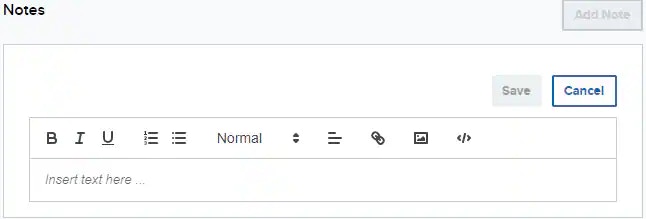 5. Enter the text you want to include.
**Note:** There is a maximum length of 4000 characters, which is about 600 words.
6. Click **Save**.
The new note displays in the details of the investigation.
**To edit a note**
1. Go to **Investigations**.
2. Locate the investigation in the Investigations list.
3. Click the title of an investigation to display its details.
4. Locate the note you want to edit and click the
5. Enter the text you want to include.
**Note:** There is a maximum length of 4000 characters, which is about 600 words.
6. Click **Save**.
The new note displays in the details of the investigation.
**To edit a note**
1. Go to **Investigations**.
2. Locate the investigation in the Investigations list.
3. Click the title of an investigation to display its details.
4. Locate the note you want to edit and click the  icon.
icon.
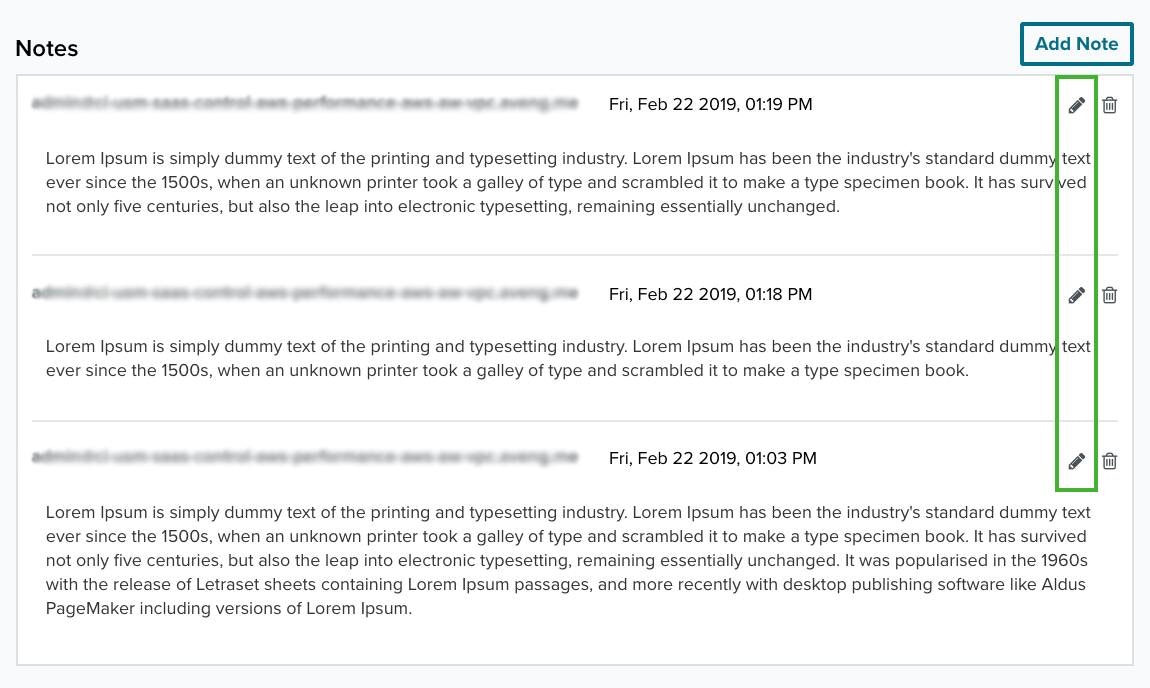 5. In the Edit Note dialog box, change the text for the note as needed.
6. Click **Save**.
**Note:** Users in the Analyst and Investigator roles can only edit notes they created.
**To delete a note**
1. Go to **Investigations**.
2. Locate the investigation in the Investigations list.
3. Click the title of an investigation to display its details.
4. Locate the note you want to delete and click the
5. In the Edit Note dialog box, change the text for the note as needed.
6. Click **Save**.
**Note:** Users in the Analyst and Investigator roles can only edit notes they created.
**To delete a note**
1. Go to **Investigations**.
2. Locate the investigation in the Investigations list.
3. Click the title of an investigation to display its details.
4. Locate the note you want to delete and click the  icon.
icon.
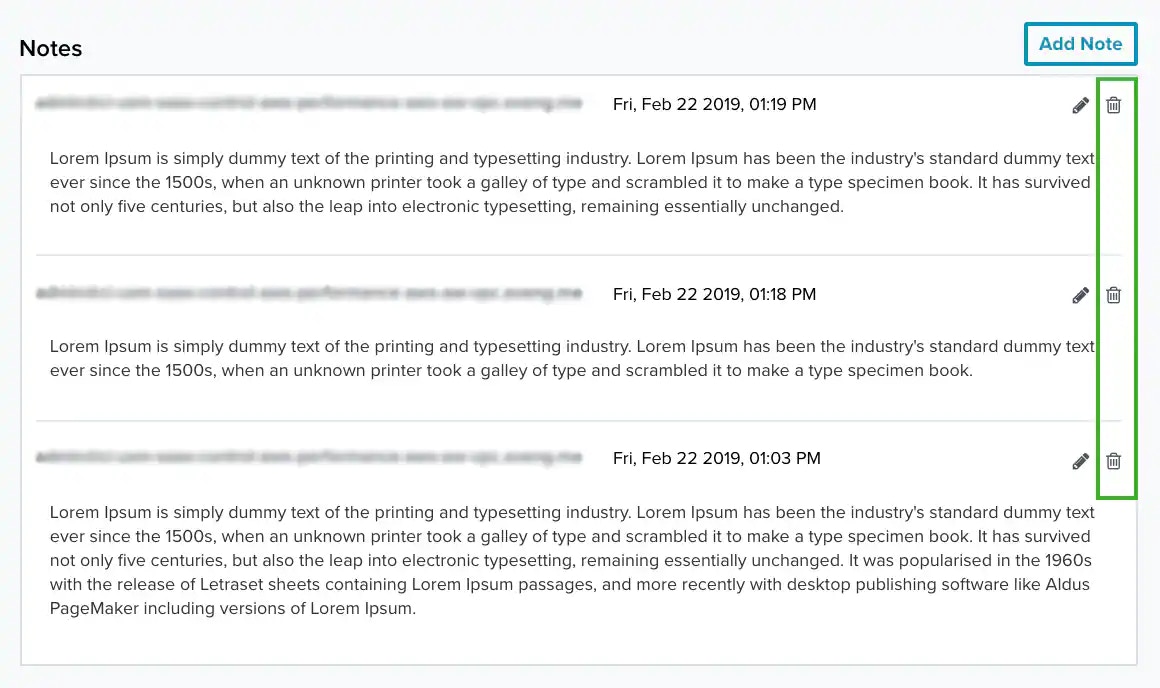 5. Click **Delete** in the confirmation dialog box.
**Note:** Only users in the Manager role can delete notes.
5. Click **Delete** in the confirmation dialog box.
**Note:** Only users in the Manager role can delete notes.