> ## Documentation Index
> Fetch the complete documentation index at: https://docs.levelblue.com/llms.txt
> Use this file to discover all available pages before exploring further.
# Notification Rule for Investigations
| | | | | |
| --------------------- | --------- | ------------ | ------- | ----------- |
| **Role Availability** | Read-Only | Investigator | Analyst | **Manager** |
USM Anywhere creates a default notification rule that sends an email notification when there is a change to an investigation.
This is a system rule, and the allowed actions are Enable, Disable, and Edit. If you try to delete it, the rule is restored during the next system update. Go to **Settings > Rules** to view this notification rule.
**Note:** By default, this rule is disabled.
**Note:** These rules use the *event\_severity* field with the values low, medium, high, and critical, and the *event\_action* field with the values created, deleted, and updated.
**To enable the notification rule for investigations**
1. Go to **Settings > Rules**.
2. Locate the USM Anywhere Investigations Notification rule and click the  icon. This turns the
  icon green. To disable the rule, toggle the icon to its original status.
 3. Click an investigation to display its details.
**To edit the notification rule for investigations**
1. Go to **Settings > Rules**.
2. Locate the USM Anywhere Investigations Notification rule and click the
3. Click an investigation to display its details.
**To edit the notification rule for investigations**
1. Go to **Settings > Rules**.
2. Locate the USM Anywhere Investigations Notification rule and click the  icon.
icon.
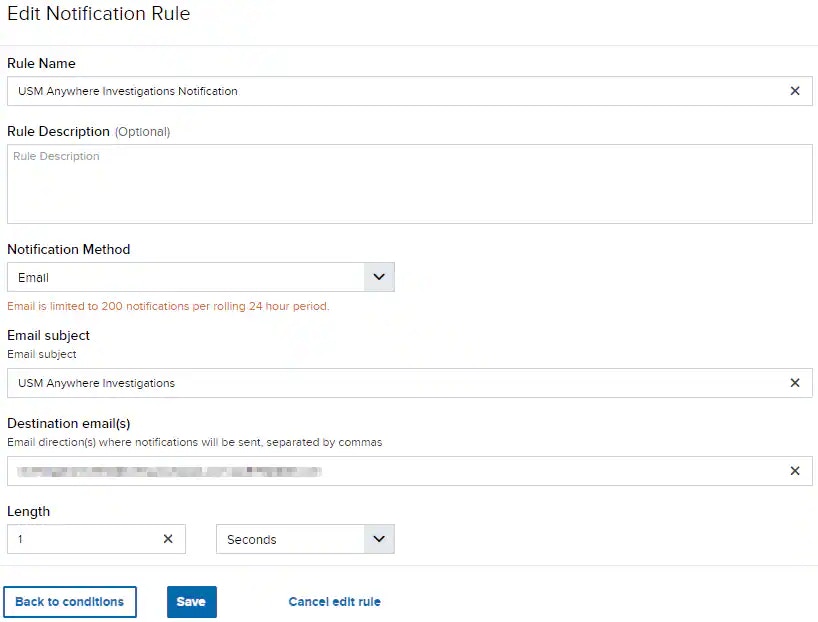 3. Make the changes as needed and click **Save Rule**. See [Notification Rules from the Orchestration Rules Page](https://cybersecurity.att.com/documentation/usm-anywhere/user-guide/rules-management/notification-rules) for more information on editing notification rules.
**Note:** The destination email field includes the emails of the users created in the environment as the role of Managers. See [Role-Based Access Control (RBAC) in USM Anywhere](https://cybersecurity.att.com/documentation/usm-anywhere/user-guide/user-management/rbac) for more information.
3. Make the changes as needed and click **Save Rule**. See [Notification Rules from the Orchestration Rules Page](https://cybersecurity.att.com/documentation/usm-anywhere/user-guide/rules-management/notification-rules) for more information on editing notification rules.
**Note:** The destination email field includes the emails of the users created in the environment as the role of Managers. See [Role-Based Access Control (RBAC) in USM Anywhere](https://cybersecurity.att.com/documentation/usm-anywhere/user-guide/user-management/rbac) for more information.