> ## Documentation Index
> Fetch the complete documentation index at: https://docs.levelblue.com/llms.txt
> Use this file to discover all available pages before exploring further.
# NIST CSC Control PR.IP-12: A Vulnerability Management Plan is Developed and Implemented
| | | | | |
| --------------------- | --------- | ---------------- | ----------- | ----------- |
| **Role Availability** | Read-Only | **Investigator** | **Analyst** | **Manager** |
**Information Protection Processes and Procedures (PR.IP)**: Security policies (that address purpose, scope, roles, responsibilities, management commitment, and coordination among organizational entities), processes, and procedures are maintained and used to manage protection of information systems and assets. This report shows that vulnerabilities are being identified, partially satisfying the control. An update policy needs to be in place for this to be fully satisfied.
**Associated Frameworks**: ISO/IEC 27001:2013 A.12.6.1, A.18.2.2, NIST SP 800-53 Rev. 4 RA-3, RA-5, SI-2
This report itemizes your practice's management plan in handling threats and vulnerabilities.
**Filters used by NIST CSC Control PR.IP-12: A Vulnerability Management Plan is Developed and Implemented**
| Filter | Value |
| ------ | -------- |
| Status | "Active" |
**To generate the NIST CSC Control PR.IP-12 report**
1. Go to **Reports > Compliance Templates**.
2. On the left navigation pane, click **NIST CSF**.
3. Click **Generate Report** on the specific line for this report. The **Configure Report** dialog box appears.
4. Click **Edit Filters** if you want to modify the selected filters, and then click **Continue to Filters**.
5. Make the required modifications, and then click **Edit Report**.
6. Click the date field if you want to choose a different date range. Select **Last Hour**, **Last 24 Hours**, **Last 7 Days**, **Last 30 Days**, **Last 90 Days**, or **Custom Range** to set a particular date range.
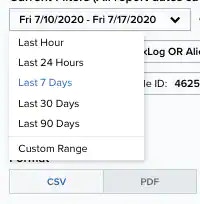 7. Select the **Format** of the report. It can either be **CSV** or **PDF**.
8. Select a **Schedule** for the report if you want to generate it again: **Daily**, **Weekly**, **Bi-weekly**, and **Monthly**. Otherwise, select **Never**.
9. Enter an email address in which to send the report. You may also select the **Send to my Email Address** option to add your email address automatically.
10. Select the **Enable link expiration** option.
This link is delivered by email and expires in 14 days.
11. Click **Next**.
12. In the **Report Name** field, enter a name for the report. This name will be displayed on the **Saved Reports** page.
13. **(OPTIONAL)** Enter a **Report Description**.
14. Under the **Number of Records** section, select the maximum number of records to include in the report: **20**, **50**, **100**, **500**, **1000**, or **2500**.
15. If you have previously chosen the **PDF** format, you will see the **Graphs** section, which you can use to include additional views. You can add to or remove graphs from the report by clicking the
7. Select the **Format** of the report. It can either be **CSV** or **PDF**.
8. Select a **Schedule** for the report if you want to generate it again: **Daily**, **Weekly**, **Bi-weekly**, and **Monthly**. Otherwise, select **Never**.
9. Enter an email address in which to send the report. You may also select the **Send to my Email Address** option to add your email address automatically.
10. Select the **Enable link expiration** option.
This link is delivered by email and expires in 14 days.
11. Click **Next**.
12. In the **Report Name** field, enter a name for the report. This name will be displayed on the **Saved Reports** page.
13. **(OPTIONAL)** Enter a **Report Description**.
14. Under the **Number of Records** section, select the maximum number of records to include in the report: **20**, **50**, **100**, **500**, **1000**, or **2500**.
15. If you have previously chosen the **PDF** format, you will see the **Graphs** section, which you can use to include additional views. You can add to or remove graphs from the report by clicking the  and
and  icons.
16. Click **Run** to run the report.
Click **Save & Run** if you wish to keep the report in your [Saved Reports on USM Anywhere](/documentation/usm-anywhere/user-guide/reports/saved-reports) page and receive the report in the indicated email.
icons.
16. Click **Run** to run the report.
Click **Save & Run** if you wish to keep the report in your [Saved Reports on USM Anywhere](/documentation/usm-anywhere/user-guide/reports/saved-reports) page and receive the report in the indicated email.