> ## Documentation Index
> Fetch the complete documentation index at: https://docs.levelblue.com/llms.txt
> Use this file to discover all available pages before exploring further.
# Saved Reports on USM Anywhere
| | | | | |
| --------------------- | ------------- | ---------------- | ----------- | ----------- |
| **Role Availability** | **Read-Only** | **Investigator** | **Analyst** | **Manager** |
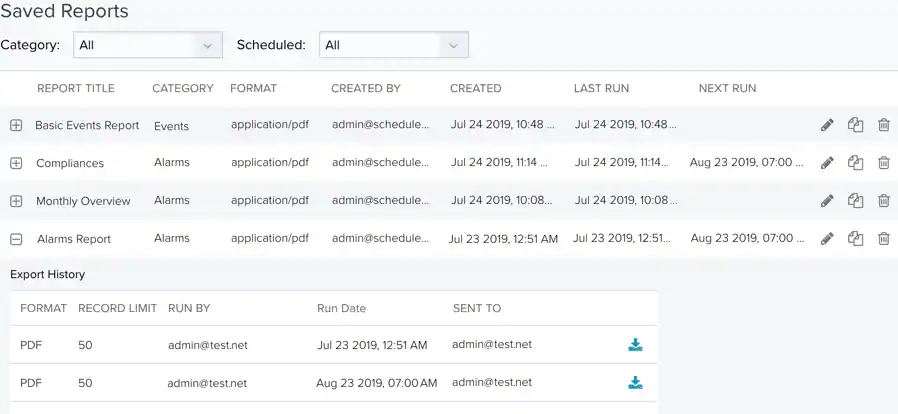
The Saved Reports page contains a list of all the reports that have been saved in USM Anywhere. From this page you can edit, copy, delete, or run any of the reports you have saved. The reports listed on the page can be filtered by category or scheduled status. You can also click the  icon next to any of the saved reports to view their export history or download a previously run report.
**Note:** Read Only users can view saved reports, but they cannot edit, copy, delete, or run reports.
**Note:** The report feature in LevelBlue TDR for Gov works differently compared to USM Anywhere. See [Reports in LevelBlue TDR for Gov](https://cybersecurity.att.com/documentation/resources/pdf/tdr-for-gov-reports.pdf) for more information.
icon next to any of the saved reports to view their export history or download a previously run report.
**Note:** Read Only users can view saved reports, but they cannot edit, copy, delete, or run reports.
**Note:** The report feature in LevelBlue TDR for Gov works differently compared to USM Anywhere. See [Reports in LevelBlue TDR for Gov](https://cybersecurity.att.com/documentation/resources/pdf/tdr-for-gov-reports.pdf) for more information.
 **To edit a saved report**
1. Click the
**To edit a saved report**
1. Click the  icon to edit the report.
2. Click **Edit Filters** to add any additional filters you want to include in the report.
3. Select the date range for the information included in the report.
You can select a predefined range of **Last Hour**, **Last 24 Hours**, **Last 7 Days**, or **Last 30 Days**, or you can set your own date range by clicking the
icon to edit the report.
2. Click **Edit Filters** to add any additional filters you want to include in the report.
3. Select the date range for the information included in the report.
You can select a predefined range of **Last Hour**, **Last 24 Hours**, **Last 7 Days**, or **Last 30 Days**, or you can set your own date range by clicking the  icon.
**Note:** This option is not available when generating reports for assets or asset groups.
4. Under Format, select either **CSV** or **PDF**.
5. Under Repeat, click the drop-down list to select how often you want the scheduled report to be generated.
If you don't want the report to be recurring, leave the selection as **Never**.
If you have selected a time interval for recurring reports to be generated, the First Run Date, Repeat On, and Time sections show up below the Repeat section:
**First Run Date:** Select the day you want the first report to be generated. **Schedule:** Define the frequency at which the report is generated. Options are Daily, Weekly, Bi-Weekly, Monthly, or Yearly. Select Never if you only want to run the report once. **Time:** Select the UTC time you want the reports to run on the days they're generated.
6. In the Email Addresses section, enter the email addresses of the people to whom you want the report to be sent when it is generated. Select Enable Link Expiration if you want the link to the report to expire after 14 days.
**Note:** The subject of these emails assumes the following format:
```
$SUBDOMAIN USM Report Notification: $REPORT_NAME
```
Where $SUBDOMAIN is the subdomain of your instance and $REPORT\_NAME is the name you specify for the report.
7. Click **Next** to go to the Format Output section.
8. In the Name field, enter a name for the report.
This name displays in the Saved Reports page. You can also add a description that will be included in the generated emails.
9. For Number of Records, choose the maximum number of records to be included in the report.
10. If you have chosen the PDF format, use the Graphs section to include additional views. You can add or remove graphs included in the report by clicking the
icon.
**Note:** This option is not available when generating reports for assets or asset groups.
4. Under Format, select either **CSV** or **PDF**.
5. Under Repeat, click the drop-down list to select how often you want the scheduled report to be generated.
If you don't want the report to be recurring, leave the selection as **Never**.
If you have selected a time interval for recurring reports to be generated, the First Run Date, Repeat On, and Time sections show up below the Repeat section:
**First Run Date:** Select the day you want the first report to be generated. **Schedule:** Define the frequency at which the report is generated. Options are Daily, Weekly, Bi-Weekly, Monthly, or Yearly. Select Never if you only want to run the report once. **Time:** Select the UTC time you want the reports to run on the days they're generated.
6. In the Email Addresses section, enter the email addresses of the people to whom you want the report to be sent when it is generated. Select Enable Link Expiration if you want the link to the report to expire after 14 days.
**Note:** The subject of these emails assumes the following format:
```
$SUBDOMAIN USM Report Notification: $REPORT_NAME
```
Where $SUBDOMAIN is the subdomain of your instance and $REPORT\_NAME is the name you specify for the report.
7. Click **Next** to go to the Format Output section.
8. In the Name field, enter a name for the report.
This name displays in the Saved Reports page. You can also add a description that will be included in the generated emails.
9. For Number of Records, choose the maximum number of records to be included in the report.
10. If you have chosen the PDF format, use the Graphs section to include additional views. You can add or remove graphs included in the report by clicking the  and
and  icons.
11. Select **Save & Run** to save your report and run it, or select **Run** if you don't wish to keep the report in your Saved Reports page.
icons.
11. Select **Save & Run** to save your report and run it, or select **Run** if you don't wish to keep the report in your Saved Reports page.