> ## Documentation Index
> Fetch the complete documentation index at: https://docs.levelblue.com/llms.txt
> Use this file to discover all available pages before exploring further.
# Correlation Lists
| | | | | |
| --------------------- | --------- | ---------------- | ----------- | ----------- |
| **Role Availability** | Read-Only | **Investigator** | **Analyst** | **Manager** |
USM Anywhere enables you to create correlation lists. Use a correlation list to group values together to apply to a single rule. Instead of creating a rule for each value, you can save time and effort by creating a correlation list and using it in a rule.
When creating correlation lists for rules, you can use a standard field, such as event\_name or event\_description. A helpful use for correlation lists is the creation of user denylists, allowlists, or both, like `event_names`.
To see an example of an alarm rule using a correlation list, see [Example: Creating an Alarm Rule Using a Correlation List](/documentation/usm-anywhere/user-guide/rules-management/ex-correlation-list).
**Note:** Correlation lists have the following limits:
* Maximum of 100 user-generated correlation lists
* Maximum of 1000 items per correlation list
* Maximum of 500 characters per correlation list item
**To create a correlation list manually**
1. Go to **Settings > Rules > All Correlation Lists**.
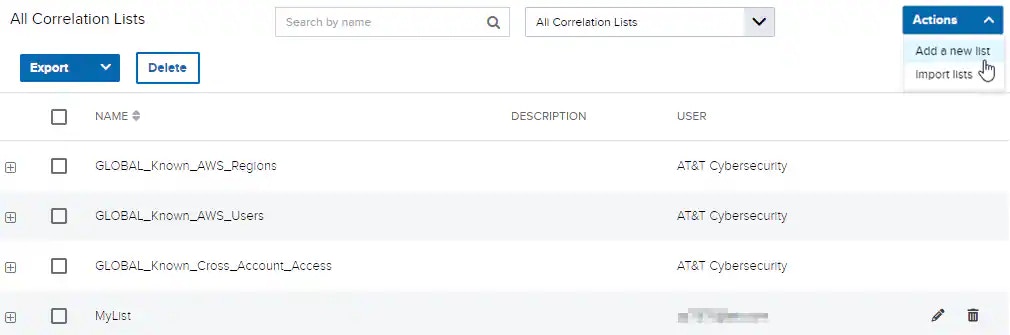 2. Enter a name for the correlation list in the Name field and, if desired, a description to clarify its use in the Description field.
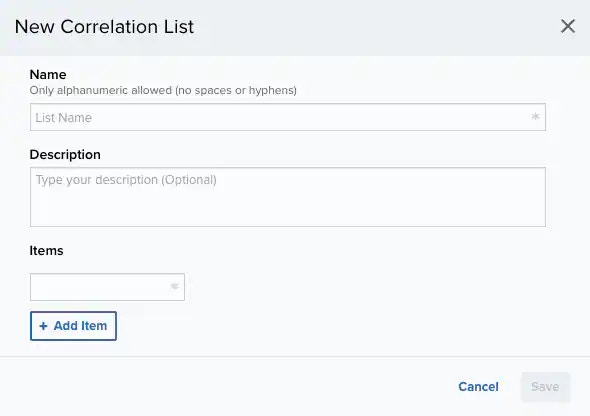 **Important:** The valid characters for the correlation list name are uppercase letters (A-Z), lowercase letters (a-z), numerical digits (0-9), and underscore (\_). You can enter up to 64 characters.
3. Click **Add Item** to include items in your list.
**Important:** The list items are restricted to a string format to match the formats of the tested event detail items. You can enter up to 500 characters.
4. Click **Save**.
**Note:** Only users in the Analyst and Manager roles can create correlation lists.
**To add a new item to a list**
1. Go to **Settings > Rules > All Correlation Lists**.
2. Click the list to expand the details of the list.
3. Click **Add Item**.
**Important:** The valid characters for the correlation list name are uppercase letters (A-Z), lowercase letters (a-z), numerical digits (0-9), and underscore (\_). You can enter up to 64 characters.
3. Click **Add Item** to include items in your list.
**Important:** The list items are restricted to a string format to match the formats of the tested event detail items. You can enter up to 500 characters.
4. Click **Save**.
**Note:** Only users in the Analyst and Manager roles can create correlation lists.
**To add a new item to a list**
1. Go to **Settings > Rules > All Correlation Lists**.
2. Click the list to expand the details of the list.
3. Click **Add Item**.
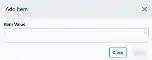
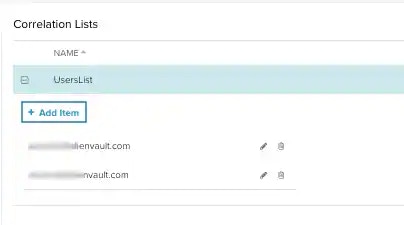 4. Enter the value and click **Save**.
 **To modify a correlation list**
1. Go to **Settings > Rules > All Correlation Lists**.
2. Click the
**To modify a correlation list**
1. Go to **Settings > Rules > All Correlation Lists**.
2. Click the  icon of the user-generated correlation list you want to modify.
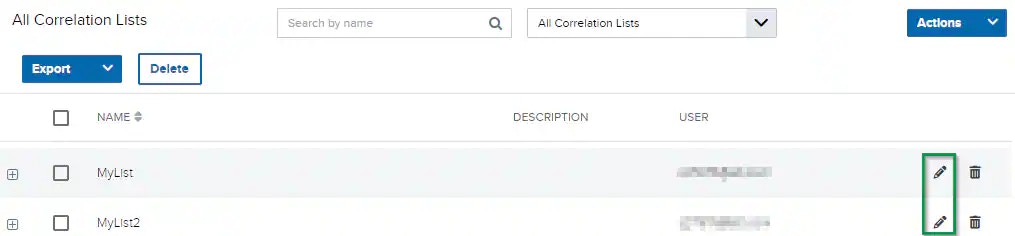 3. Modify the data of the items that need to be modified.
4. Click **Save**.
**Note:** Only users in the Analyst and Manager roles can modify correlation lists.
**To delete one or more correlation lists**
1. Go to **Settings > Rules > All Correlation Lists**.
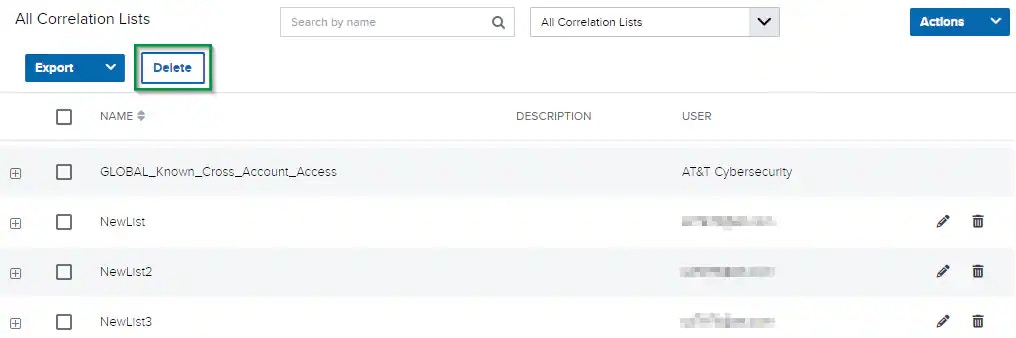
2. Select one or more checkboxes for the user-generated correlation lists you want to delete.
3. Click **Delete**. The delete dialog box opens.
Only user-generated lists can be deleted.
3. Modify the data of the items that need to be modified.
4. Click **Save**.
**Note:** Only users in the Analyst and Manager roles can modify correlation lists.
**To delete one or more correlation lists**
1. Go to **Settings > Rules > All Correlation Lists**.
2. Select one or more checkboxes for the user-generated correlation lists you want to delete.
3. Click **Delete**. The delete dialog box opens.
Only user-generated lists can be deleted.
 4. Click **Accept**.
**Note:** Only users in the Manager role can delete any correlation list. Users in the Analyst role can only delete correlation lists that they created.
**To import correlation lists using a file**
1. Go to **Settings > Rules > All Correlation Lists**.
2. Click **Actions > Import Lists**.
4. Click **Accept**.
**Note:** Only users in the Manager role can delete any correlation list. Users in the Analyst role can only delete correlation lists that they created.
**To import correlation lists using a file**
1. Go to **Settings > Rules > All Correlation Lists**.
2. Click **Actions > Import Lists**.
 3. Select a JSON or CSV file. File contents must be in the format described in the Import dialog box.
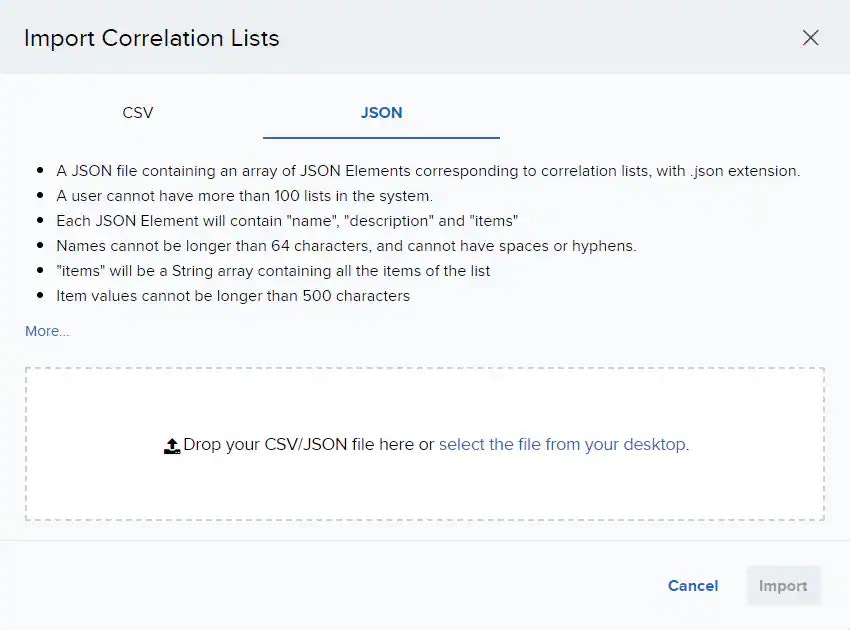 **Note:** Correlation lists do not support spaces in the names of lists.
4. Click **Import** to import new lists. If duplicate lists are found, select lists to replace, and then click **Replace**.
**Note:** Correlation lists that exceed character limits or have an invalid name will fail to import.
Invalid list items will be skipped during import. Add skipped items by correcting the errors and reimporting the list, or by manually adding these items via the **Add Item** button.
**To export a correlation list**
1. Go to **Settings > Rules > All Correlation Lists**.
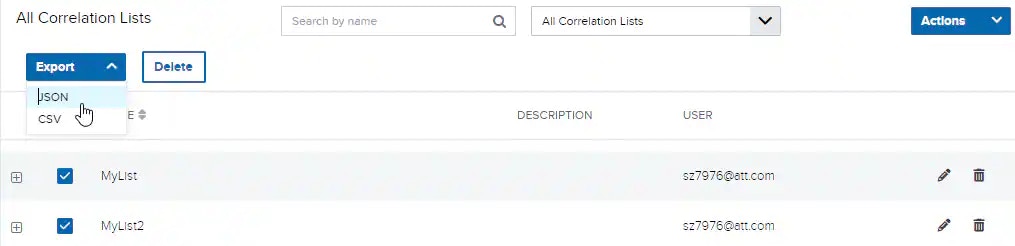
2. Select the checkbox for the correlation lists you want to export.
3. Click **Export**.
This file can be modified and reused to import correlation lists.
**Note:** Correlation lists do not support spaces in the names of lists.
4. Click **Import** to import new lists. If duplicate lists are found, select lists to replace, and then click **Replace**.
**Note:** Correlation lists that exceed character limits or have an invalid name will fail to import.
Invalid list items will be skipped during import. Add skipped items by correcting the errors and reimporting the list, or by manually adding these items via the **Add Item** button.
**To export a correlation list**
1. Go to **Settings > Rules > All Correlation Lists**.
2. Select the checkbox for the correlation lists you want to export.
3. Click **Export**.
This file can be modified and reused to import correlation lists.
 **To filter correlation lists**
1. Go to **Settings > Rules > All Correlation Lists**.
2. Select the type of correlation list to filter by in the left menu.
**To modify an item of a list**
1. Go to **Settings > Rules > All Correlation Lists**.
2. Click the list to expand the details of the list.
3. Click the
**To filter correlation lists**
1. Go to **Settings > Rules > All Correlation Lists**.
2. Select the type of correlation list to filter by in the left menu.
**To modify an item of a list**
1. Go to **Settings > Rules > All Correlation Lists**.
2. Click the list to expand the details of the list.
3. Click the  icon of the item you want to modify.
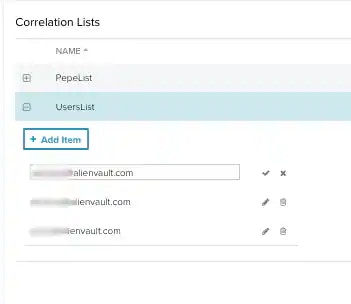 4. Modify the item, and then click the
  icon.
**To delete an item of a list**
1. Go to **Settings > Rules > All Correlation Lists**.
2. Click the list to expand the details of the user-generated list.
3. Click the
icon.
**To delete an item of a list**
1. Go to **Settings > Rules > All Correlation Lists**.
2. Click the list to expand the details of the user-generated list.
3. Click the  icon of the item you want to delete.
4. Click **Delete**.
icon of the item you want to delete.
4. Click **Delete**.