> ## Documentation Index
> Fetch the complete documentation index at: https://docs.levelblue.com/llms.txt
> Use this file to discover all available pages before exploring further.
# Example: Creating a Suppression Rule for Sudo Events
| | | | | |
| --------------------- | --------- | ------------ | ----------- | ----------- |
| **Role Availability** | Read-Only | Investigator | **Analyst** | **Manager** |
In this example, we are going to create a suppression rule to avoid having a lot of sudo events. You can create this rule whenever you trust the origin host, or because you need to do maintenance. This way you will avoid noise in your list of events.
**Note:** You can also create your own rules from the Events page, which is an easier way to configure the matching conditions. See [Creating Suppression Rules from the Events Page](/documentation/usm-anywhere/user-guide/events/supression-rule) for more information.
**To create a suppression rule for avoiding Sudo events**
1. Go to **Settings > Rules**.
2. Select **Create Orchestration Rule > Suppression Rule**.
3. Select a Boolean operator.
The options are AND, OR, AND NOT, and OR NOT.
4. Select a packet type in the Match drop-down list.
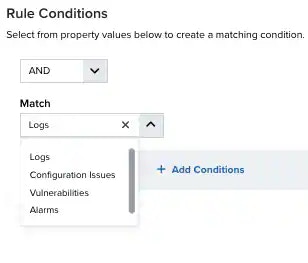 * **Logs:** Use this packet type for event-based rules.
* **Configuration Issues:** Use this packet type for configuration issues-based rules1.
* **Vulnerabilities:** Use this packet type for vulnerabilities-based rules.
* **Alarms:** Use this packet type for console user alarms-based rules.
5. Select these property values:
* **Logs:** Use this packet type for event-based rules.
* **Configuration Issues:** Use this packet type for configuration issues-based rules1.
* **Vulnerabilities:** Use this packet type for vulnerabilities-based rules.
* **Alarms:** Use this packet type for console user alarms-based rules.
5. Select these property values:
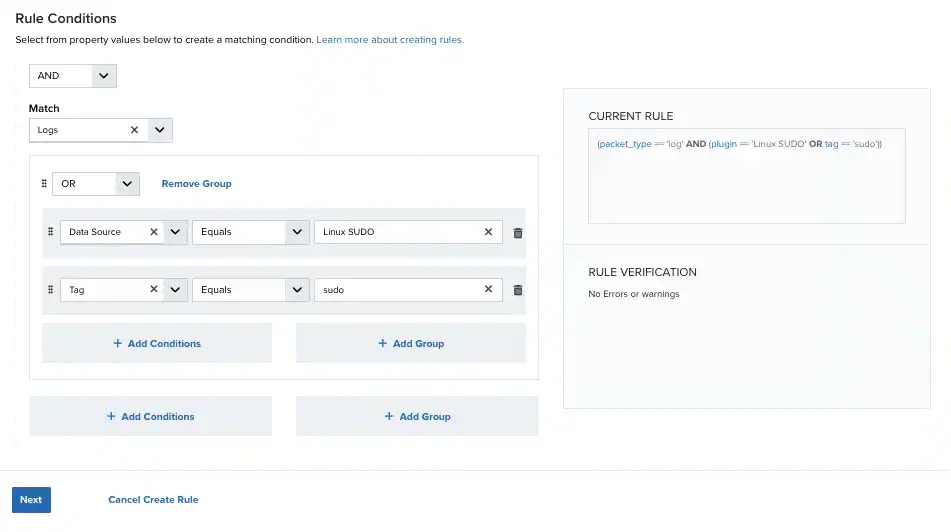 6. (Optional.) Click **Add Group** to group your conditions.
**Note:** See [Operators in the Orchestration Rules](/documentation/usm-anywhere/user-guide/rules-management/orchestration-rules-operators) for more information.
7. In the **Occurrences** text box, enter the number of event occurrences that you want to produce a match on the conditional expression to trigger the rule.
You can enter the number of occurrences or use the arrows to scroll the value up or down. You can enter a number between 1 and 100.
8. Click **Next**.
6. (Optional.) Click **Add Group** to group your conditions.
**Note:** See [Operators in the Orchestration Rules](/documentation/usm-anywhere/user-guide/rules-management/orchestration-rules-operators) for more information.
7. In the **Occurrences** text box, enter the number of event occurrences that you want to produce a match on the conditional expression to trigger the rule.
You can enter the number of occurrences or use the arrows to scroll the value up or down. You can enter a number between 1 and 100.
8. Click **Next**.
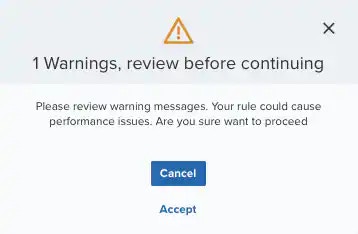 **Important:** A dialog box opens if there are warning messages. Click **Cancel** to review the warning messages, or click **Accept** to continue creating the rule.
9. Enter a name for the rule.
10. (Optional.) Enter a description for identifying this rule.
11. In the **Length** text box, specify the timespan that you want to use to identify a match for multiple occurrences. Enter the number in the text box, and then use the drop-down menu to select a value of seconds, minutes, or hours.
This duration identifies the amount of time that transpires from the beginning to the end of the occurrence. If the number of occurrences is not met within this period, the rule is not a match.
**Note:** Your defined length and occurrences function together to specify the number of occurrences within a time period that will produce a match for the rule. For example, you can define a rule to trigger an alarm for an unauthorized access attempt when a failed SSH login occurs three times within a five-minute window.
12. Click Save.
The created rule displays in the list of rules. You can see it from **Settings > Rules**. See [Suppression Rules from the Orchestration Rules Page](/documentation/usm-anywhere/user-guide/rules-management/suppression-rules) for more information.
**Important:** It takes a few minutes for an orchestration rule to become active.
**Important:** A dialog box opens if there are warning messages. Click **Cancel** to review the warning messages, or click **Accept** to continue creating the rule.
9. Enter a name for the rule.
10. (Optional.) Enter a description for identifying this rule.
11. In the **Length** text box, specify the timespan that you want to use to identify a match for multiple occurrences. Enter the number in the text box, and then use the drop-down menu to select a value of seconds, minutes, or hours.
This duration identifies the amount of time that transpires from the beginning to the end of the occurrence. If the number of occurrences is not met within this period, the rule is not a match.
**Note:** Your defined length and occurrences function together to specify the number of occurrences within a time period that will produce a match for the rule. For example, you can define a rule to trigger an alarm for an unauthorized access attempt when a failed SSH login occurs three times within a five-minute window.
12. Click Save.
The created rule displays in the list of rules. You can see it from **Settings > Rules**. See [Suppression Rules from the Orchestration Rules Page](/documentation/usm-anywhere/user-guide/rules-management/suppression-rules) for more information.
**Important:** It takes a few minutes for an orchestration rule to become active.