> ## Documentation Index
> Fetch the complete documentation index at: https://docs.levelblue.com/llms.txt
> Use this file to discover all available pages before exploring further.
# Notification Rules from the Orchestration Rules Page
| | | | | |
| --------------------- | --------- | ------------ | ----------- | ----------- |
| **Role Availability** | Read-Only | Investigator | **Analyst** | **Manager** |
Notification rules are a mechanism to generate a specified notification method when the match criteria is met. One major difference between notification rules and other rules is that it does not have the mute operator available. These rules always generate a notification whenever the match criteria is met and never go silent.
You can create your own notification rules from the Orchestration rules page or from the Events details page, which is the easiest way to configure the matching conditions. See [Creating Notification Rules from the Events Page](https://cybersecurity.att.com/documentation/usm-anywhere/user-guide/events/notification-rule) for more information.
**To create a notification rule from the Orchestration rules page**
1. Go to **Settings > Rules**.
2. Select **Create Orchestration Rule > Notification Rule**.
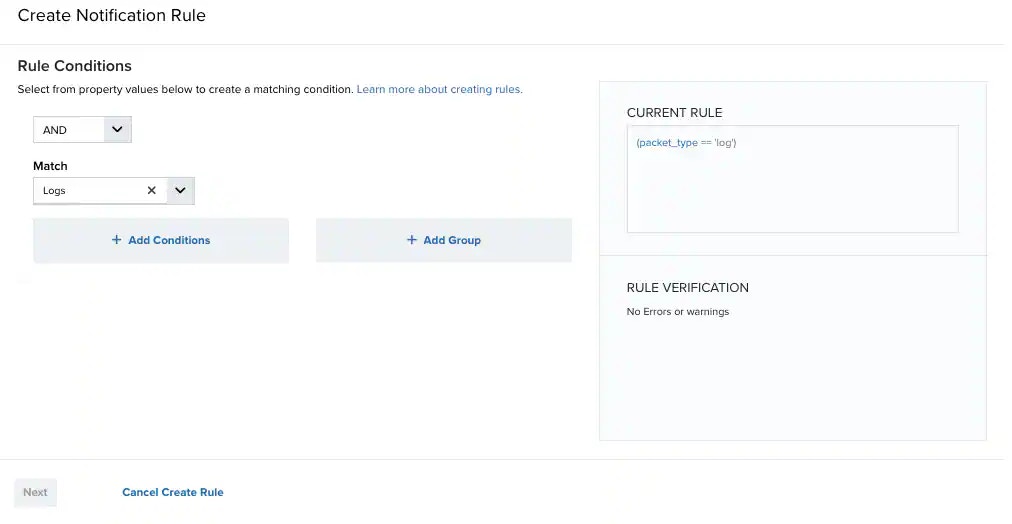 3. Select a Boolean operator.
The options are AND, OR, AND NOT, and OR NOT.
4. Select a packet type in the Match drop-down list.
3. Select a Boolean operator.
The options are AND, OR, AND NOT, and OR NOT.
4. Select a packet type in the Match drop-down list.
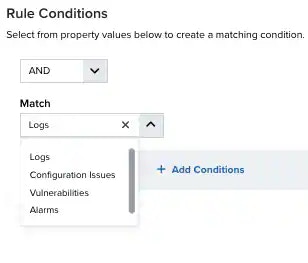 * **Logs:** Use this packet type for event-based rules.
* **Configuration Issues:** Use this packet type for configuration issues-based rules1.
* **Vulnerabilities:** Use this packet type for vulnerabilities-based rules.
* **Alarms:** Use this packet type for console user alarms-based rules.
5. Click **Add Conditions** and select the property values you want to include in the rule to create a matching condition.
**Note:** If the field is related to the name of a country, you should use the country code defined by the [ISO 3166](https://www.iso.org/iso-3166-country-codes.html).
**Note:** The Sources or Destinations field needs to match the universally unique identifier (UUID) of the event or alarm. You can use the Source Name or Destination Name field instead.
**Important:** Instead of using the `equals` and `equals`, `case insensitive` operators for array fields, LevelBlue recommends the use of the in or contains operators.
**Note:** If you need to add a property value that maps with a property key, you need to know the mapping of the field. See [Determining the Mapping](/documentation/usm-anywhere/user-guide/rules-management/mapping-field) of a Field for more information.
6. (Optional.) Click **Add Group** to group your conditions.
**Note:** See [Operators in the Orchestration Rules](/documentation/usm-anywhere/user-guide/rules-management/orchestration-rules-operators) for more information.
7. In the **Occurrences** text box, enter the number of event occurrences that you want to produce a match on the conditional expression to trigger the rule.
You can enter the number of occurrences or use the arrows to scroll the value up or down. You can enter a number between 1 and 100.
**Note:** The current rule box shows you the syntax of your rule, and the rule verification box reviews that syntax before saving the rule.
8. Click **Next**.
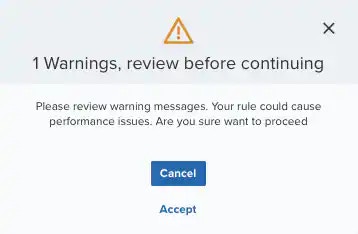
**Important:** A dialog box opens if there are warning messages. Click **Cancel** to review the warning messages, or click **Accept** to continue creating the rule.
* **Logs:** Use this packet type for event-based rules.
* **Configuration Issues:** Use this packet type for configuration issues-based rules1.
* **Vulnerabilities:** Use this packet type for vulnerabilities-based rules.
* **Alarms:** Use this packet type for console user alarms-based rules.
5. Click **Add Conditions** and select the property values you want to include in the rule to create a matching condition.
**Note:** If the field is related to the name of a country, you should use the country code defined by the [ISO 3166](https://www.iso.org/iso-3166-country-codes.html).
**Note:** The Sources or Destinations field needs to match the universally unique identifier (UUID) of the event or alarm. You can use the Source Name or Destination Name field instead.
**Important:** Instead of using the `equals` and `equals`, `case insensitive` operators for array fields, LevelBlue recommends the use of the in or contains operators.
**Note:** If you need to add a property value that maps with a property key, you need to know the mapping of the field. See [Determining the Mapping](/documentation/usm-anywhere/user-guide/rules-management/mapping-field) of a Field for more information.
6. (Optional.) Click **Add Group** to group your conditions.
**Note:** See [Operators in the Orchestration Rules](/documentation/usm-anywhere/user-guide/rules-management/orchestration-rules-operators) for more information.
7. In the **Occurrences** text box, enter the number of event occurrences that you want to produce a match on the conditional expression to trigger the rule.
You can enter the number of occurrences or use the arrows to scroll the value up or down. You can enter a number between 1 and 100.
**Note:** The current rule box shows you the syntax of your rule, and the rule verification box reviews that syntax before saving the rule.
8. Click **Next**.
**Important:** A dialog box opens if there are warning messages. Click **Cancel** to review the warning messages, or click **Accept** to continue creating the rule.
 9. Enter a name for the rule.
10. (Optional.) Enter a description for identifying this rule.
11. Select a notification method:
* **Amazon SNS:** This method requires the setup of the Amazon Simple Notification Service (SNS) API call from the USM Anywhere server. There is no limit to the number of Amazon SNS endpoint notifications sent. However, this method requires having an Amazon Web Services (AWS) account for setup and use. The Amazon SNS allows the [first 1000 email notifications per month to fall into the free messaging tier](https://aws.amazon.com/sns/pricing/). See [Sending Notifications Through Amazon SNS](https://cybersecurity.att.com/documentation/usm-anywhere/deployment-guide/notifications/amazon-sns-messaging) for more information.
* **Datadog:** This method requires the creation of a Datadog API key and additional steps. See [Sending USM Anywhere Notifications to Datadog](https://cybersecurity.att.com/documentation/usm-anywhere/deployment-guide/notifications/datadog-events) for more information.
* **Email:** This method sends notifications by email. The email subject line is the only information that can be customized. Enter information for the email subject and enter a destination email address. Select Sanitize Email Content to replace detailed email contents with a generic message and a link that requires user authentication to view further information.
* **Email-Conditional:** This method sends email notifications based on the sensor from which an event is generated. Use the **Add Conditions** option to select and pair individual sensors to one or more destination emails.\
Email options use a built-in integration with the Amazon Simple Email Service (SES) function and are limited to a maximum of 200 emails per rolling 24-hour period.
**Note:** The rolling 24-hour, 200-email limit refers to all email accounts. For example, you can have a rule with multiple emails, which counts as a single email delivery. Alternately, if you have several rules with several emails, each of these counts as an individual email account. Sensor-disconnect emails do not count against this number because they are critical and are only sent to users in the Manager role.
* **PagerDuty:** This method is performed using an integration in the product, and user setup is required. See Sending USM Anywhere Notifications to PagerDuty for more information.
* **Slack:** This method makes use of a user-created Slack Webhook integration. Slack integration can also be performed using Amazon SNS. See Sending USM Anywhere Notifications to Slack for more information.
12. Modify these two options:
* **Occurrences:** Specify the number of event occurrences that produce a match on the conditional expression to trigger the rule. You can enter the number of occurrences or use the arrows to scroll the value up or down. Enter a number between 1 and 100.
* **Length:** Specify the length of time used to identify a match for multiple occurrences. Enter the number and choose a value of seconds, minutes, or hours. This duration identifies the amount of time that transpires from the beginning to the end of the occurrence. If the number of occurrences is not met within this period, the rule is not a match.
**Note:** Your defined length and occurrences function together to specify the number of occurrences within a time period that will produce a match for the rule. For example, you can define a rule to trigger an alarm for an unauthorized access attempt when a failed SSH login occurs three times within a five-minute window.
13. Click **Save**.
The created rule displays in the list of rules. You can see it from **Settings > Rules**. See [Orchestration Rules](https://cybersecurity.att.com/documentation/usm-anywhere/user-guide/rules-management/orchestration-rules) for more information.
**Important:** It takes a few minutes for an orchestration rule to become active.
**To filter notification rules by name**
1. Go to **Settings > Rules**.
2. Enter your search in the Name search box.
**To filter notification rules by rule status**
1. Go to **Settings > Rules**.
2. Click the combo box next to Rule Status.
3. Select **All Rules**, **Enabled**, or **Disabled**.
**To edit a notification rule**
1. Go to **Settings > Rules**.
2. Click the
9. Enter a name for the rule.
10. (Optional.) Enter a description for identifying this rule.
11. Select a notification method:
* **Amazon SNS:** This method requires the setup of the Amazon Simple Notification Service (SNS) API call from the USM Anywhere server. There is no limit to the number of Amazon SNS endpoint notifications sent. However, this method requires having an Amazon Web Services (AWS) account for setup and use. The Amazon SNS allows the [first 1000 email notifications per month to fall into the free messaging tier](https://aws.amazon.com/sns/pricing/). See [Sending Notifications Through Amazon SNS](https://cybersecurity.att.com/documentation/usm-anywhere/deployment-guide/notifications/amazon-sns-messaging) for more information.
* **Datadog:** This method requires the creation of a Datadog API key and additional steps. See [Sending USM Anywhere Notifications to Datadog](https://cybersecurity.att.com/documentation/usm-anywhere/deployment-guide/notifications/datadog-events) for more information.
* **Email:** This method sends notifications by email. The email subject line is the only information that can be customized. Enter information for the email subject and enter a destination email address. Select Sanitize Email Content to replace detailed email contents with a generic message and a link that requires user authentication to view further information.
* **Email-Conditional:** This method sends email notifications based on the sensor from which an event is generated. Use the **Add Conditions** option to select and pair individual sensors to one or more destination emails.\
Email options use a built-in integration with the Amazon Simple Email Service (SES) function and are limited to a maximum of 200 emails per rolling 24-hour period.
**Note:** The rolling 24-hour, 200-email limit refers to all email accounts. For example, you can have a rule with multiple emails, which counts as a single email delivery. Alternately, if you have several rules with several emails, each of these counts as an individual email account. Sensor-disconnect emails do not count against this number because they are critical and are only sent to users in the Manager role.
* **PagerDuty:** This method is performed using an integration in the product, and user setup is required. See Sending USM Anywhere Notifications to PagerDuty for more information.
* **Slack:** This method makes use of a user-created Slack Webhook integration. Slack integration can also be performed using Amazon SNS. See Sending USM Anywhere Notifications to Slack for more information.
12. Modify these two options:
* **Occurrences:** Specify the number of event occurrences that produce a match on the conditional expression to trigger the rule. You can enter the number of occurrences or use the arrows to scroll the value up or down. Enter a number between 1 and 100.
* **Length:** Specify the length of time used to identify a match for multiple occurrences. Enter the number and choose a value of seconds, minutes, or hours. This duration identifies the amount of time that transpires from the beginning to the end of the occurrence. If the number of occurrences is not met within this period, the rule is not a match.
**Note:** Your defined length and occurrences function together to specify the number of occurrences within a time period that will produce a match for the rule. For example, you can define a rule to trigger an alarm for an unauthorized access attempt when a failed SSH login occurs three times within a five-minute window.
13. Click **Save**.
The created rule displays in the list of rules. You can see it from **Settings > Rules**. See [Orchestration Rules](https://cybersecurity.att.com/documentation/usm-anywhere/user-guide/rules-management/orchestration-rules) for more information.
**Important:** It takes a few minutes for an orchestration rule to become active.
**To filter notification rules by name**
1. Go to **Settings > Rules**.
2. Enter your search in the Name search box.
**To filter notification rules by rule status**
1. Go to **Settings > Rules**.
2. Click the combo box next to Rule Status.
3. Select **All Rules**, **Enabled**, or **Disabled**.
**To edit a notification rule**
1. Go to **Settings > Rules**.
2. Click the  icon of the rule you want to edit.
3. Modify the data of the items that need to be modified.
4. Click **Next**.
5. Click **Save**.
**To delete a notification rule**
1. Go to **Settings > Rules**.
2. Click the
icon of the rule you want to edit.
3. Modify the data of the items that need to be modified.
4. Click **Next**.
5. Click **Save**.
**To delete a notification rule**
1. Go to **Settings > Rules**.
2. Click the  icon of the rule you want to delete.
3. Click **Accept** to confirm.
**To enable a notification rule**
1. Go to **Settings > Rules**.
2. Click the
icon of the rule you want to delete.
3. Click **Accept** to confirm.
**To enable a notification rule**
1. Go to **Settings > Rules**.
2. Click the  icon of the rule you want to enable.
**To disable a notification rule**
1. Go to **Settings > Rules**.
2. Click the
icon of the rule you want to enable.
**To disable a notification rule**
1. Go to **Settings > Rules**.
2. Click the  icon of the rule you want to disable.
**To enable all notification rules**
1. Go to **Settings > Rules**.
2. In the list of rules, select the first checkbox in the first column to select all the rules.
3. Click **Enable All Rules**.
**To disable all notification rules**
1. Go to **Settings > Rules**.
2. In the list of rules, select the first checkbox in the first column to select all the rules.
3. Click **Disable All Rules**.
4. Click **Accept** to confirm.
icon of the rule you want to disable.
**To enable all notification rules**
1. Go to **Settings > Rules**.
2. In the list of rules, select the first checkbox in the first column to select all the rules.
3. Click **Enable All Rules**.
**To disable all notification rules**
1. Go to **Settings > Rules**.
2. In the list of rules, select the first checkbox in the first column to select all the rules.
3. Click **Disable All Rules**.
4. Click **Accept** to confirm.