> ## Documentation Index
> Fetch the complete documentation index at: https://docs.levelblue.com/llms.txt
> Use this file to discover all available pages before exploring further.
# Archiving Your Playbooks
| | | | | |
| --------------------- | --------- | ------------ | ------- | ----------- |
| **Role Availability** | Read-Only | Investigator | Analyst | **Manager** |
USM Anywhere enables users to archive playbooks they do not wish to use or that are no longer valid. Archiving gives users the ability to temporarily deactivate or permanently delete their playbooks.
Once a playbook is archived, it will no longer appear as a response option for associated alarms. This reduces the list of available playbooks on an alarm down to only playbooks users want to see and use. Any automated playbooks that are archived will also not be executed. While archived playbooks will not be visible as an option to run, users can still access their archived playbooks' details and execution history in the History tab. Users can also filter to view a list of all playbooks that are currently archived.
**Important:** Users can recover an archived playbook if they wish to reinstate it as an option. Archived playbooks and their execution history will be permanently deleted from USM Anywhere 180 days after being archived unless they are recovered before then.
**To archive a playbook**
1. Go to **Settings > Playbooks**.
2. Click the  icon of the playbook you want to archive.
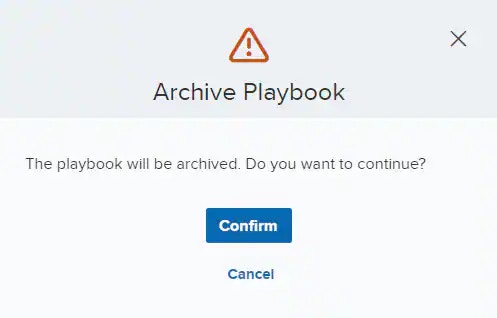
The Archive Playbook dialog box opens.
3. Click **Confirm**.
icon of the playbook you want to archive.
The Archive Playbook dialog box opens.
3. Click **Confirm**.
 A dialog box opens confirming your playbook has been archived.
4. Click **OK**.
**To archive multiple playbooks**
1. Go to **Settings > Playbooks**.
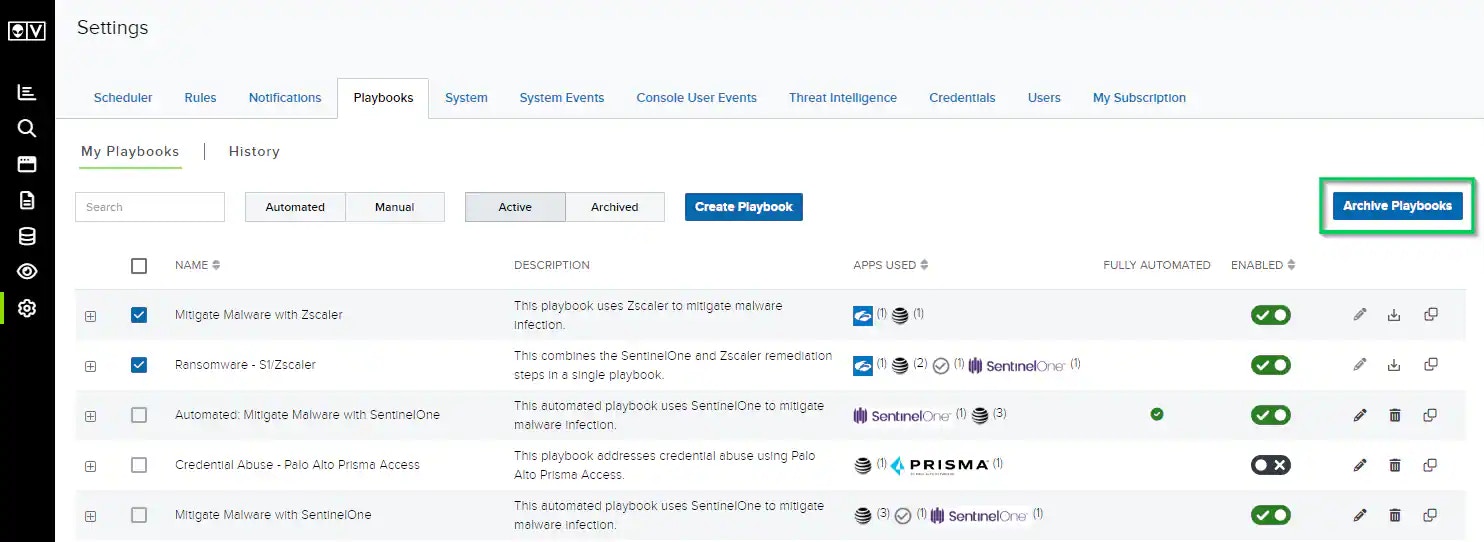
2. Select the playbooks you want to archive.
3. Click **Archive Playbooks**.
A dialog box opens confirming your playbook has been archived.
4. Click **OK**.
**To archive multiple playbooks**
1. Go to **Settings > Playbooks**.
2. Select the playbooks you want to archive.
3. Click **Archive Playbooks**.
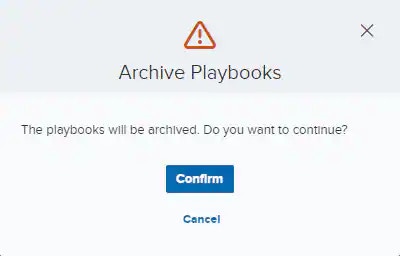
 The Archive Playbooks dialog box opens.
4. Click **Confirm**.
The Archive Playbooks dialog box opens.
4. Click **Confirm**.
 A dialog box opens confirming your playbook has been archived.
5. Click **OK**.
**To view archived playbooks**
1. Go to **Settings > Playbooks**.
2. Click the Archived filter.
A dialog box opens confirming your playbook has been archived.
5. Click **OK**.
**To view archived playbooks**
1. Go to **Settings > Playbooks**.
2. Click the Archived filter.
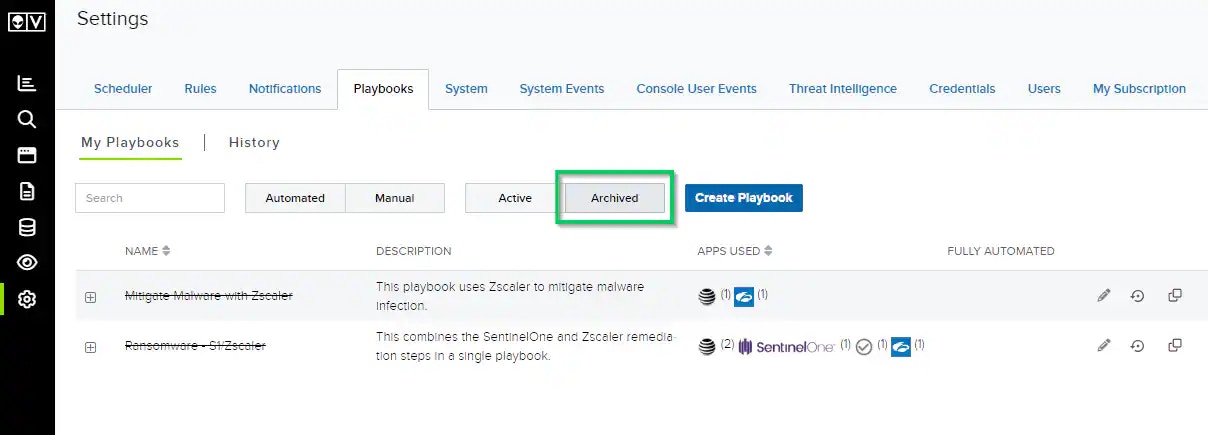 **Note:** The name of an archived playbook will display with a strikethrough. You can see the date and time a playbook was archived by hovering your cursor over the playbook name.
**To recover an archived playbook**
1. Go to **Settings > Playbooks**.
2. Click the Archived filter.
3. Click the
**Note:** The name of an archived playbook will display with a strikethrough. You can see the date and time a playbook was archived by hovering your cursor over the playbook name.
**To recover an archived playbook**
1. Go to **Settings > Playbooks**.
2. Click the Archived filter.
3. Click the  icon of the playbook you want to recover.
A message will briefly appear in the upper-right corner confirming your playbook was recovered.
4. Click the **Active** filter to go back to your active playbooks.
5. Enable the playbook you just recovered by clicking the toggle in the Enabled column.
**Note:** A playbook is automatically disabled when it is recovered. The playbook must be enabled after it is recovered to reinstate it as an option.
**To recover multiple archived playbooks**
1. Go to **Settings > Playbooks**.
2. Click the **Archived** filter.
3. Select the playbooks you want to recover.
4. Click **Recover Playbooks**.
icon of the playbook you want to recover.
A message will briefly appear in the upper-right corner confirming your playbook was recovered.
4. Click the **Active** filter to go back to your active playbooks.
5. Enable the playbook you just recovered by clicking the toggle in the Enabled column.
**Note:** A playbook is automatically disabled when it is recovered. The playbook must be enabled after it is recovered to reinstate it as an option.
**To recover multiple archived playbooks**
1. Go to **Settings > Playbooks**.
2. Click the **Archived** filter.
3. Select the playbooks you want to recover.
4. Click **Recover Playbooks**.
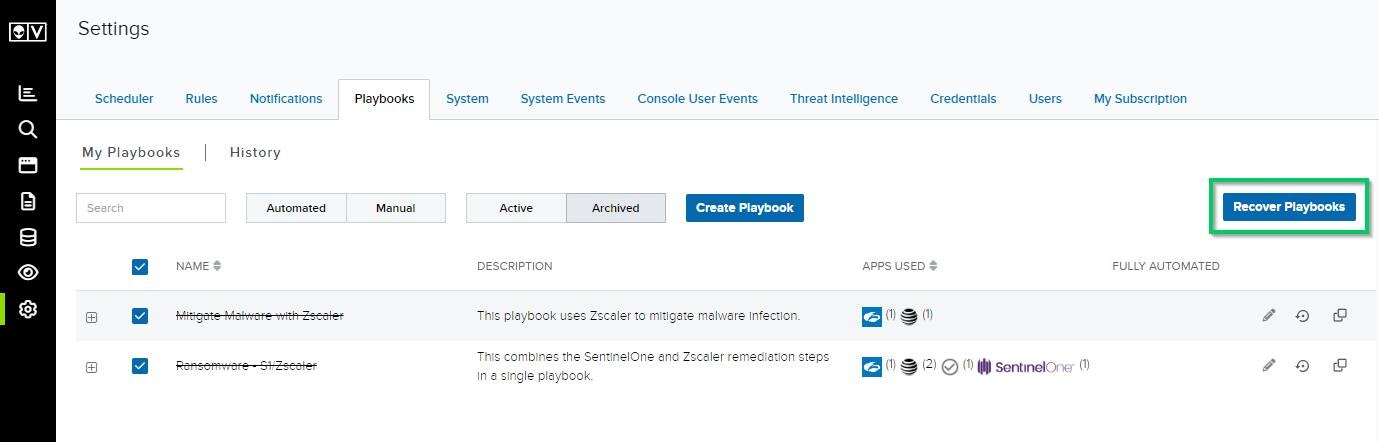 A message will briefly appear in the upper-right corner confirming your playbooks were recovered.
5. Click the **Active** filter to go back to your active playbooks.
6. Enable the playbooks you just recovered by clicking each toggle in the Enabled column.
**Note:** A playbook is automatically disabled when it is recovered. The playbook must be enabled after it is recovered to reinstate it as an option.
A message will briefly appear in the upper-right corner confirming your playbooks were recovered.
5. Click the **Active** filter to go back to your active playbooks.
6. Enable the playbooks you just recovered by clicking each toggle in the Enabled column.
**Note:** A playbook is automatically disabled when it is recovered. The playbook must be enabled after it is recovered to reinstate it as an option.