> ## Documentation Index
> Fetch the complete documentation index at: https://docs.levelblue.com/llms.txt
> Use this file to discover all available pages before exploring further.
# Creating a Playbook
| | | | | |
| --------------------- | --------- | ------------ | ------- | ----------- |
| **Role Availability** | Read-Only | Investigator | Analyst | **Manager** |
Users in the Manager role can create playbooks. Each playbook contains one or more actions and is associated with one or more alarm rules.
Automated playbooks run automatically when an alarm is triggered based off an alarm rule, while manual playbooks require users to manually execute the actions within the playbook as part of their response to an alarm. You can also configure an automated playbook to require manual initiation by a user. See Executing a Playbook for more information on how to initiate and run actions for playbooks.
**To create a playbook**
1. Go to **Settings > Playbooks**.
2. From the My Playbooks tab, click **Create Playbook**.
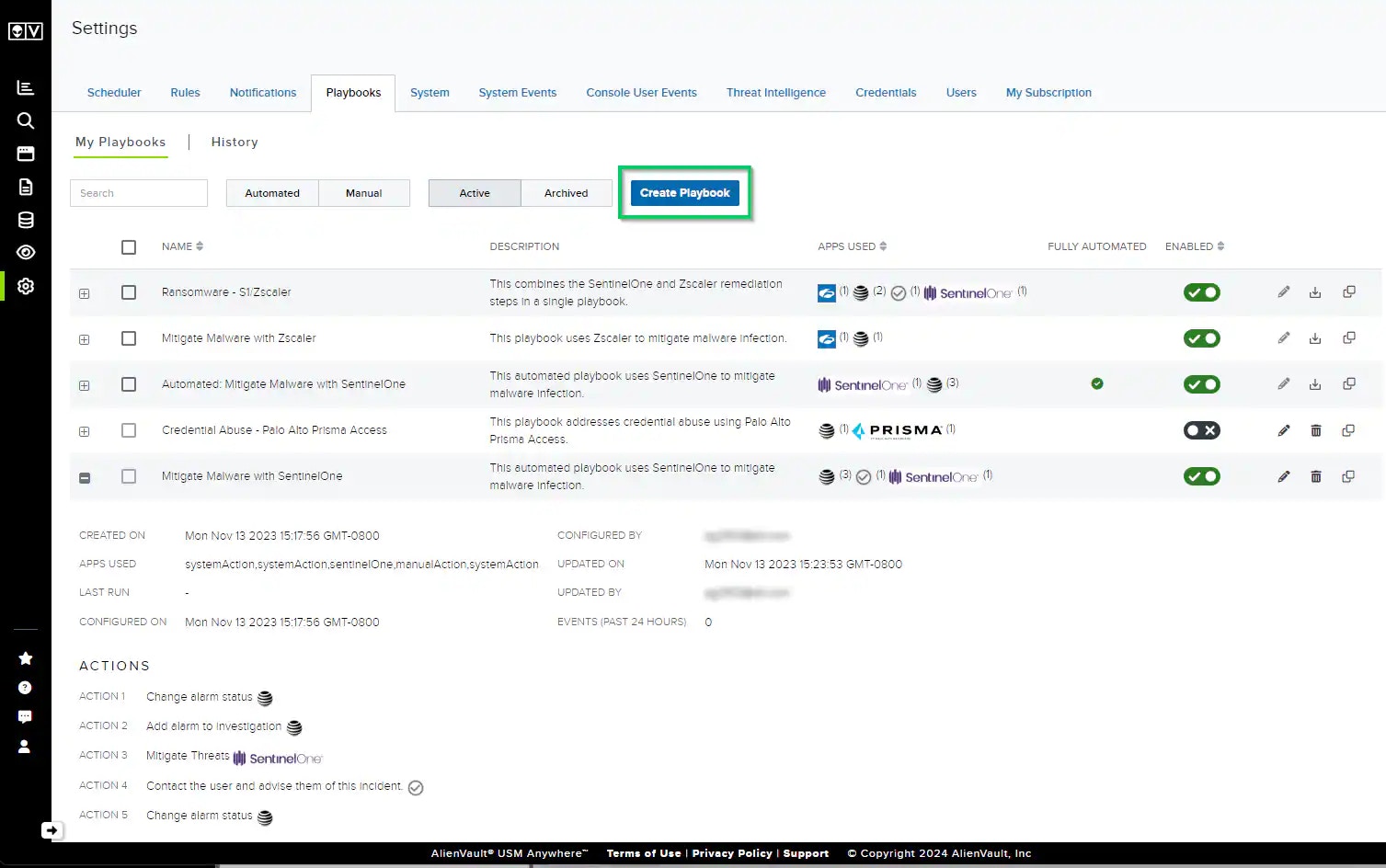 3. Enter a name and description for your playbook.
4. Select one of the following options depending on the type of playbook you want to create:
* To create an automated playbook with automated initiation, select **Is It an Automated Playbook** and **Automated Initiation**.
* To create an automated playbook that requires manual initiation, select **Is It an Automated Playbook**.
* To create a manual playbook with manual initiation, do not select either option.
3. Enter a name and description for your playbook.
4. Select one of the following options depending on the type of playbook you want to create:
* To create an automated playbook with automated initiation, select **Is It an Automated Playbook** and **Automated Initiation**.
* To create an automated playbook that requires manual initiation, select **Is It an Automated Playbook**.
* To create a manual playbook with manual initiation, do not select either option.
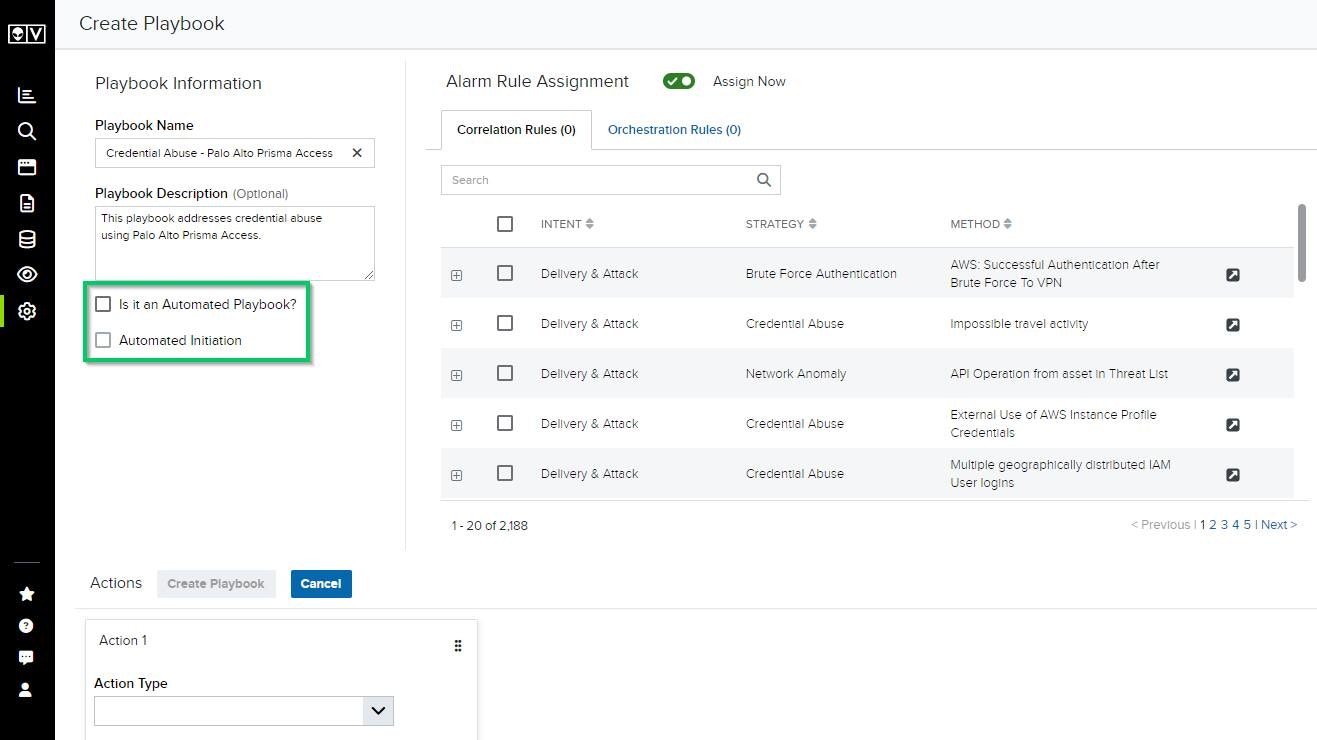 5. Use the Alarm Rule Assignment to choose which alarm rules your playbook will be available for.
Your playbooks will be available to execute on the selected alarms, and any fully automated playbooks will run automatically when one of the selected alarms is triggered.
**Note:** It is required to assign at least one alarm rule when creating automated playbooks, but this step is optional for manual playbooks. If you would like to skip this step for your manual playbook, toggle the **Assign Now** button to **Assign Later**. The playbook will then be available on all alarms.
To view only the selected alarms for the playbook, click **View Selected Only** in the respective Correlation Rules and Orchestration Rules tabs.
![]()
Click **View All Rules** to return to the list of all available rules.
6. Under the Actions section, assign an action to your playbook.
The Create Playbook button will be disabled until you add at least one action.
**Action Types for Use in a Playbook**
| Column | Description |
| ------------ | ---------------------------------------------------------------------------------------------------------------------------------------------------------------------------------------------------------------------------------------------------------- |
| App-Specific | Actions that USM Anywhere will execute through or on behalf of a specific BlueApp.
5. Use the Alarm Rule Assignment to choose which alarm rules your playbook will be available for.
Your playbooks will be available to execute on the selected alarms, and any fully automated playbooks will run automatically when one of the selected alarms is triggered.
**Note:** It is required to assign at least one alarm rule when creating automated playbooks, but this step is optional for manual playbooks. If you would like to skip this step for your manual playbook, toggle the **Assign Now** button to **Assign Later**. The playbook will then be available on all alarms.
To view only the selected alarms for the playbook, click **View Selected Only** in the respective Correlation Rules and Orchestration Rules tabs.
![]()
Click **View All Rules** to return to the list of all available rules.
6. Under the Actions section, assign an action to your playbook.
The Create Playbook button will be disabled until you add at least one action.
**Action Types for Use in a Playbook**
| Column | Description |
| ------------ | ---------------------------------------------------------------------------------------------------------------------------------------------------------------------------------------------------------------------------------------------------------- |
| App-Specific | Actions that USM Anywhere will execute through or on behalf of a specific BlueApp.
You can only select actions associated with apps that are enabled in your instance. |
| Manual | Actions that a user must complete manually.
These actions appear in USM Anywhere as text descriptions of the action the user must execute.
Since these actions must be completed manually, this option is not available for automated playbooks. |
| System | Actions related to USM Anywhere system events that the product will execute. |
* To assign an app-specific action:
1. Use the Action Type drop-down to select the appropriate BlueApp from the list.
2. Use the App Action drop-down to select an action from the list of actions available for that app.
* To assign a manual action:
1. Use the Action Type drop-down to select **Manual Action**.
2. Use the App Action text field to type a description of the manual action that a user should take at this step.
* To assign a system action:
1. Use the Action Type drop-down to select **System Action**.
2. Use the App Action drop-down to select a system action from the list.
**Warning:** Actions in a playbook must be completed in the order in which they are configured. Take care when assigning actions to your playbook to ensure that they are in the correct sequence.
You can drag and drop individual actions within the Actions section to ensure that they are in the right order before creating your playbook, or you can edit an existing playbook to change the order of its actions if that playbook hasn't been executed yet. If a playbook has been executed, you must clone the existing playbook and then edit the clone to change the order of its actions. See [Cloning a Playbook](/documentation/usm-anywhere/user-guide/rules-management/playbooks-clone) for more details.
7. (Optional.) Click **Add Action** to add another action to your playbook.
8. When you have completed all of your actions, click **Create Playbook**.
Your new playbook will now be visible in the My Playbooks tab.