> ## Documentation Index
> Fetch the complete documentation index at: https://docs.levelblue.com/llms.txt
> Use this file to discover all available pages before exploring further.
# Editing a Playbook
| | | | | |
| --------------------- | --------- | ------------ | ------- | ----------- |
| **Role Availability** | Read-Only | Investigator | Analyst | **Manager** |
Users in the Manager role can edit a playbook to make any desired changes as long as the playbook has not already been executed.
**Note:** A playbook cannot be edited once it has been executed. A playbook that has already been executed will need to be cloned to make changes. See [Cloning a Playbook](https://cybersecurity.att.com/documentation/usm-anywhere/user-guide/rules-management/playbooks-clone) for more details.
**To edit a playbook**
1. Go to **Settings > Playbooks**, and then navigate to the My Playbooks tab.
2. Click the  icon of the playbook that you want to edit.
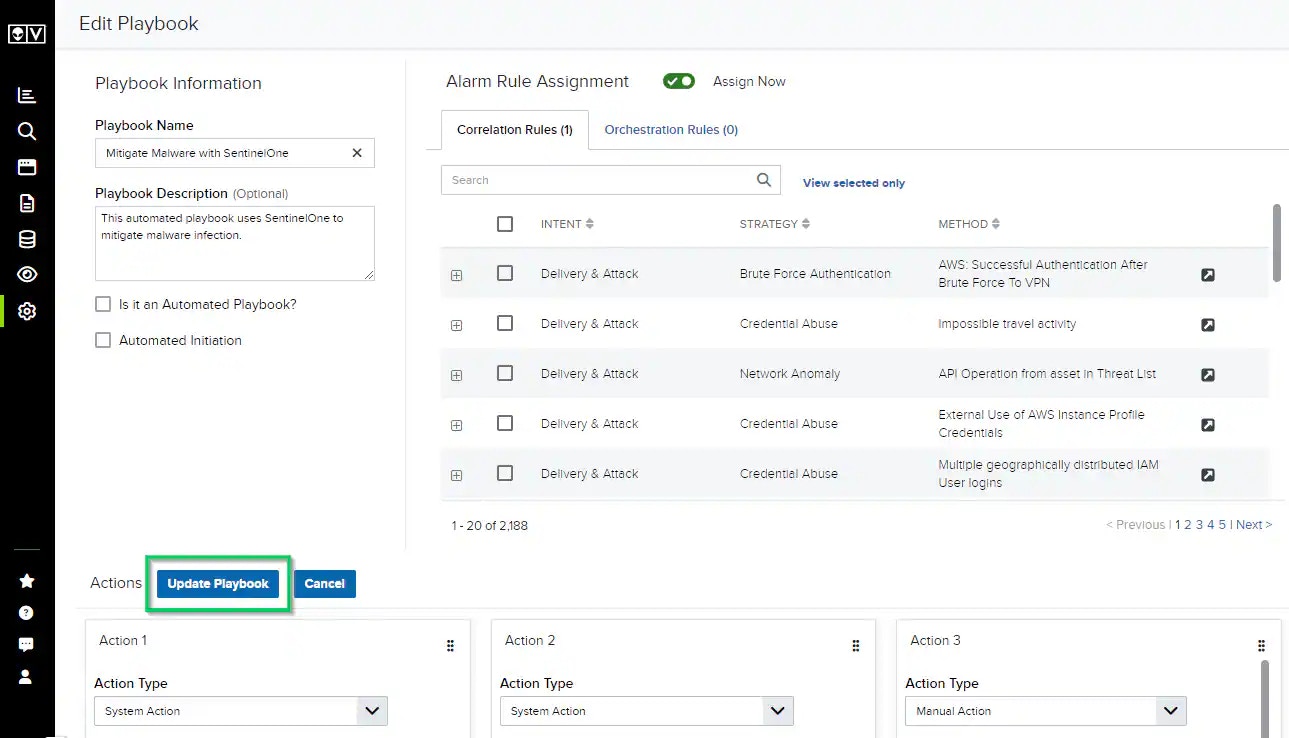
This opens the Edit Playbook page.
3. Make any desired edits for the playbook, and then click **Update Playbook**.
icon of the playbook that you want to edit.
This opens the Edit Playbook page.
3. Make any desired edits for the playbook, and then click **Update Playbook**.