> ## Documentation Index
> Fetch the complete documentation index at: https://docs.levelblue.com/llms.txt
> Use this file to discover all available pages before exploring further.
# Executing a Playbook
| | | | | |
| --------------------- | --------- | ---------------- | ----------- | ----------- |
| **Role Availability** | Read-Only | **Investigator** | **Analyst** | **Manager** |
Each playbook contains one or more actions that are associated with one or more alarms in USM Anywhere. When an alarm is triggered, users will have the option to execute any corresponding playbooks.
Manual playbooks require users to run each action in a playbook by hand. Automated playbooks can be set up to either automatically initiate or require manual initiation by a user before all actions are executed without further user intervention.
Automated playbooks configured with automated initiation will execute and complete actions on their own when an alarm is triggered based off an alarm rule. Users can manually rerun these automated playbooks after they have been previously executed.
**Note:** You can view a history of all of your executed playbooks in the [Playbooks History](/documentation/usm-anywhere/user-guide/rules-management/playbooks-navigation) tab. A list of all playbooks created in your instance can be found in the [My Playbooks](/documentation/usm-anywhere/user-guide/rules-management/playbooks-navigation) tab.
## Executing a Manual Playbook
When an alarm associated with an active manual playbook is triggered, users will have the option to run that playbook by executing the actions within it. Once an action is executed, that playbook is considered In Progress. Once all of a playbook's actions have been executed, the playbook is considered Complete.
**To execute a manual playbook**
1. Go to **Activity > Alarms**, and then select an alarm to open its detail pane.
This must be an alarm generated from an alarm rule associated with a playbook, unless you have active playbooks that apply to all alarms.
2. Click **Run Playbook** to open a list of all playbooks available for that alarm, and then select the manual playbook you want to execute.
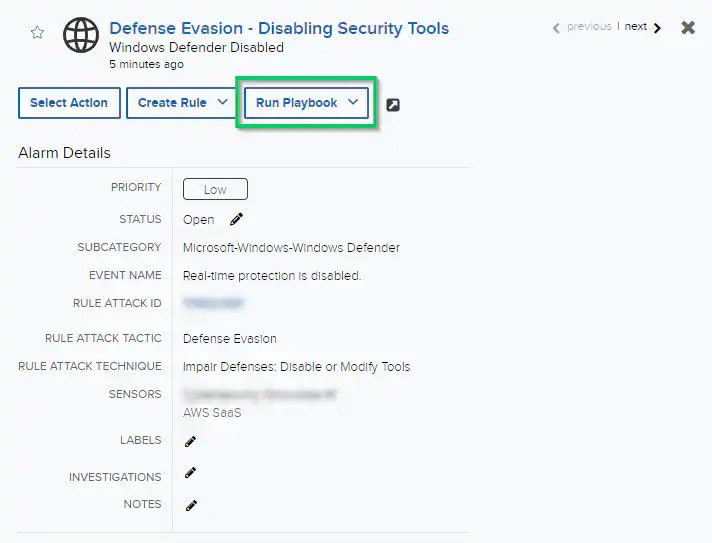 **Note:** If this drop-down is not shown, then there are no playbooks available for this alarm.
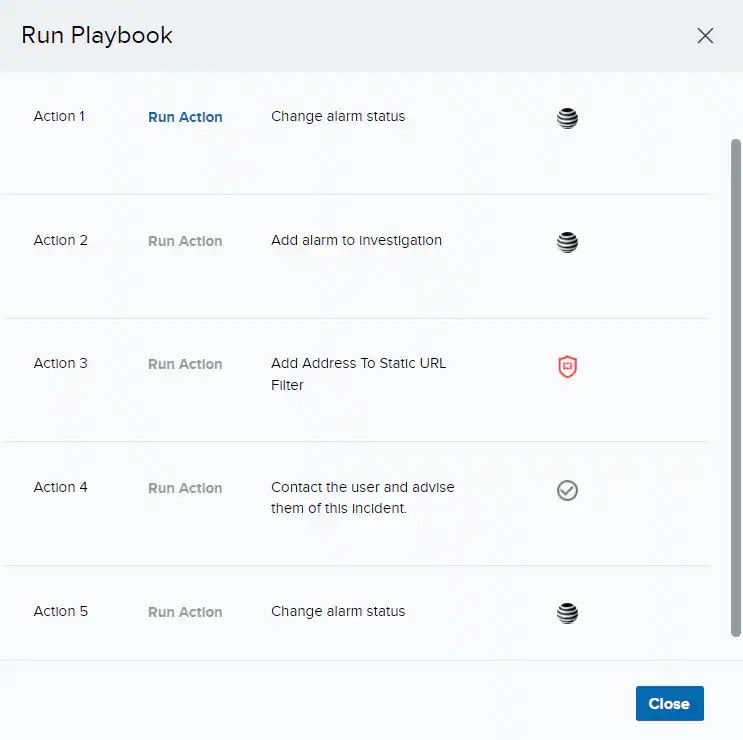
The Run Playbook dialog box opens and lists all of the actions for the selected playbook.
3. Click **Run Action** to execute the current action.
Since actions are configured sequentially, actions can only be executed in order.
* If this playbook has not yet been executed for this alarm, only the first action will be available.
* If this playbook is already in progress for this alarm, the next action that has not yet been run will be available.
**Note:** If this drop-down is not shown, then there are no playbooks available for this alarm.
The Run Playbook dialog box opens and lists all of the actions for the selected playbook.
3. Click **Run Action** to execute the current action.
Since actions are configured sequentially, actions can only be executed in order.
* If this playbook has not yet been executed for this alarm, only the first action will be available.
* If this playbook is already in progress for this alarm, the next action that has not yet been run will be available.
 **Important:** One of the action types available includes a Manual Action option. This type of action lists text instructions for a user to complete. To complete a Manual Action, perform the action described, click **Run Action**, and then mark it as complete.
Once you have executed an action, you will see a notification message in the upper-right corner of your USM Anywhere indicating whether the action was successfully executed. If it was, the status of that action will change to Completed and the next action's Run Action button will be enabled.
4. (Optional.) Continue executing the remaining actions in this playbook.
If the Run Playbook dialog box is closed before all actions are successfully executed, the playbook remains In Progress. Once all actions in a playbook are successfully executed, the playbook is considered Completed.
## Executing an Automated Playbook
An automated playbook requires no user intervention to complete its contained actions and can either be automatically or manually triggered. Automated playbooks that are configured with automated initiation will execute and complete all actions on their own. Automated playbooks configured with manual initiation will need to be manually initiated by a user, and then all the actions will automatically run on their own. You can manually initiate an automated playbook from the Alarms page or rerun an automated playbook that has already been executed from the Playbooks History tab.
**To manually initiate an automated playbook from the Alarms page**
1. Go to **Activity > Alarms**.
2. Select the alarm associated with the automated playbook to open its detail pane.
3. Click **Run Playbook** to open a list of all playbooks available for that alarm, and then select the automated playbook you want to manually initiate.
The Run Playbook dialog box opens.
4. Click **Run All**.
All the listed actions will run automatically.
**To manually rerun an automated playbook from the Playbooks History tab**
1. Go to **Settings > Playbooks > History**.
2. Select the automated playbook execution that you want to rerun.
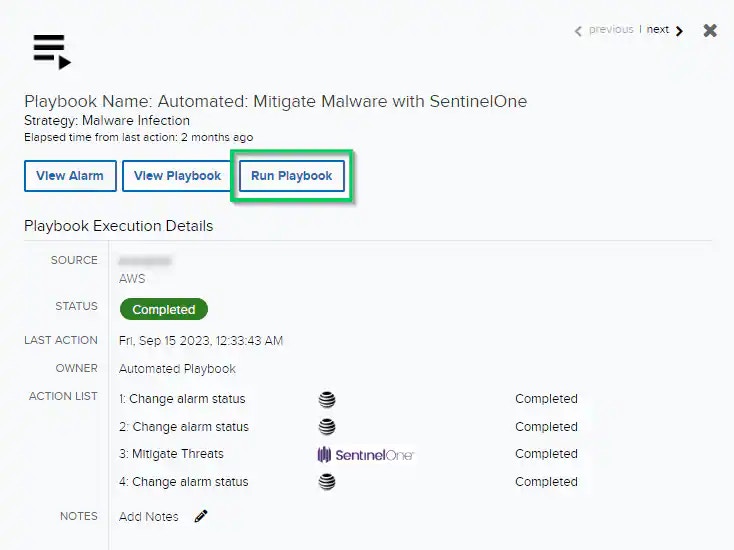
The Playbook Execution Details page opens.
3. Click **Run Playbook**.
**Important:** One of the action types available includes a Manual Action option. This type of action lists text instructions for a user to complete. To complete a Manual Action, perform the action described, click **Run Action**, and then mark it as complete.
Once you have executed an action, you will see a notification message in the upper-right corner of your USM Anywhere indicating whether the action was successfully executed. If it was, the status of that action will change to Completed and the next action's Run Action button will be enabled.
4. (Optional.) Continue executing the remaining actions in this playbook.
If the Run Playbook dialog box is closed before all actions are successfully executed, the playbook remains In Progress. Once all actions in a playbook are successfully executed, the playbook is considered Completed.
## Executing an Automated Playbook
An automated playbook requires no user intervention to complete its contained actions and can either be automatically or manually triggered. Automated playbooks that are configured with automated initiation will execute and complete all actions on their own. Automated playbooks configured with manual initiation will need to be manually initiated by a user, and then all the actions will automatically run on their own. You can manually initiate an automated playbook from the Alarms page or rerun an automated playbook that has already been executed from the Playbooks History tab.
**To manually initiate an automated playbook from the Alarms page**
1. Go to **Activity > Alarms**.
2. Select the alarm associated with the automated playbook to open its detail pane.
3. Click **Run Playbook** to open a list of all playbooks available for that alarm, and then select the automated playbook you want to manually initiate.
The Run Playbook dialog box opens.
4. Click **Run All**.
All the listed actions will run automatically.
**To manually rerun an automated playbook from the Playbooks History tab**
1. Go to **Settings > Playbooks > History**.
2. Select the automated playbook execution that you want to rerun.
The Playbook Execution Details page opens.
3. Click **Run Playbook**.
 The Run Playbook dialog box opens and lists all of the actions for the playbook.
4. Click **Run All**.
All the listed actions will run automatically.
The Run Playbook dialog box opens and lists all of the actions for the playbook.
4. Click **Run All**.
All the listed actions will run automatically.