> ## Documentation Index
> Fetch the complete documentation index at: https://docs.levelblue.com/llms.txt
> Use this file to discover all available pages before exploring further.
# Adding a New Sensor
| | | | | |
| --------------------- | --------- | ---------------- | ------- | ----------- |
| **Role Availability** | Read-Only | **Investigator** | Analyst | **Manager** |
After your USM Anywhere service is provisioned and running, you can add and deploy new sensors as needed. For these sensors, instead of receiving an authentication code from LevelBlue, you must generate the license key for any new sensor you intend to add from within the USM Anywhere web user interface (UI). The rest of the sensor deployment process is the same as the first one.
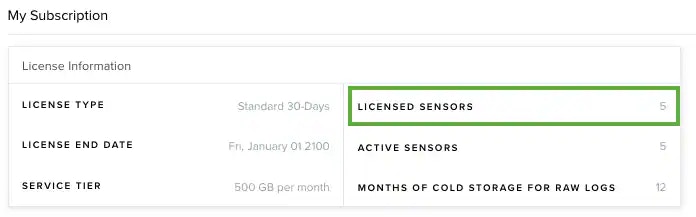
**Note:** The number of sensors that you can add to your environment depends on your USM Anywhere license. You can go to **Settings > My Subscription** to view the number of licensed sensors. See [Subscription Management](/documentation/usm-anywhere/user-guide/subscription-management/my-subscription) for more information.
**To check your allowed USM Anywhere Sensors**
1. Go to **Settings > My Subscription** to open the page.
2. Check the allowed sensors you have and the license end date. The displayed date depends on your computer's time zone.
 **Note:** If you want to modify your USM Anywhere license, please contact the LevelBlue Sales department.
**To add a new sensor**
1. Deploy your sensor.
Follow the instructions based on your sensor type:
* **AWS Sensor:** See [Deploy the AWS Sensor](/documentation/usm-anywhere/deployment-guide/aws/deploying-aws-sensor) for more information.
* **Azure Sensor:** See [Deploy the USM Anywhere Sensor from the Azure Marketplace](/documentation/usm-anywhere/deployment-guide/azure/deploying-azure-sensor-1) for more information.
* **GCP Sensor:** See [Deploy the GCP Sensor](/documentation/usm-anywhere/deployment-guide/gcp/manually-deploying-gcp-sensor) for more information.
* **Hyper-V Sensor:** See [Create the Hyper-V Virtual Machine](/documentation/usm-anywhere/deployment-guide/hyperv/creating-hyper-v-virtual-machine) for more information.
* **VMware Sensor:** See [Create the VMware Virtual Machine](/documentation/usm-anywhere/deployment-guide/vmware/importing-ovf) for more information.
2. Obtain an authentication code for the new sensor.
a. In USM Anywhere, go to **Data Sources > Sensors**.
b. Click **New Sensor**.
**Note:** Users in an Investigator role are restricted from creating more than one sensor. If your USM Anywhere License does not allow you to create more sensors, this button will remain inactive.
The dialog box displays an authentication code for the new sensor. This code starts with an "S".
**Note:** If you want to modify your USM Anywhere license, please contact the LevelBlue Sales department.
**To add a new sensor**
1. Deploy your sensor.
Follow the instructions based on your sensor type:
* **AWS Sensor:** See [Deploy the AWS Sensor](/documentation/usm-anywhere/deployment-guide/aws/deploying-aws-sensor) for more information.
* **Azure Sensor:** See [Deploy the USM Anywhere Sensor from the Azure Marketplace](/documentation/usm-anywhere/deployment-guide/azure/deploying-azure-sensor-1) for more information.
* **GCP Sensor:** See [Deploy the GCP Sensor](/documentation/usm-anywhere/deployment-guide/gcp/manually-deploying-gcp-sensor) for more information.
* **Hyper-V Sensor:** See [Create the Hyper-V Virtual Machine](/documentation/usm-anywhere/deployment-guide/hyperv/creating-hyper-v-virtual-machine) for more information.
* **VMware Sensor:** See [Create the VMware Virtual Machine](/documentation/usm-anywhere/deployment-guide/vmware/importing-ovf) for more information.
2. Obtain an authentication code for the new sensor.
a. In USM Anywhere, go to **Data Sources > Sensors**.
b. Click **New Sensor**.
**Note:** Users in an Investigator role are restricted from creating more than one sensor. If your USM Anywhere License does not allow you to create more sensors, this button will remain inactive.
The dialog box displays an authentication code for the new sensor. This code starts with an "S".
 **Important:** This code will expire in 24 hours.
**Note:** While the authentication code used for the very first sensor you create begins with a "C", any additional sensors are authenticated with codes beginning with "S".
c. Click the
**Important:** This code will expire in 24 hours.
**Note:** While the authentication code used for the very first sensor you create begins with a "C", any additional sensors are authenticated with codes beginning with "S".
c. Click the  icon to copy the code to your clipboard.
3. Register your sensor.
Click or enter the URL of your sensor to get to the setup page. It prompts you to provide the following information:
a. Enter a name and description for the sensor.
b. In the field with the key icon (
icon to copy the code to your clipboard.
3. Register your sensor.
Click or enter the URL of your sensor to get to the setup page. It prompts you to provide the following information:
a. Enter a name and description for the sensor.
b. In the field with the key icon ( ), paste the sensor authentication code you copied.
c. In the field with the computer icon (
), paste the sensor authentication code you copied.
c. In the field with the computer icon ( ), copy and paste the URL of your existing instance.
For example, if the subdomain with which you registered with LevelBlue was "mycompany", the URL would be `mycompany.alienvault.cloud` for USM Anywhere, or `mycompany.gov.alienvault.us` for LevelBlue TDR for Gov.
), copy and paste the URL of your existing instance.
For example, if the subdomain with which you registered with LevelBlue was "mycompany", the URL would be `mycompany.alienvault.cloud` for USM Anywhere, or `mycompany.gov.alienvault.us` for LevelBlue TDR for Gov.
 d. Click **Start Setup**.
A progress dialog box displays a status message.
```
Connecting USM Anywhere Sensor
```
When the connection is complete, a confirmation message opens.
d. Click **Start Setup**.
A progress dialog box displays a status message.
```
Connecting USM Anywhere Sensor
```
When the connection is complete, a confirmation message opens.
 e. Click the link to open the USM Anywhere web UI.
Upon login, this displays the USM Anywhere Sensor Configuration page with the connected sensor listed in the page.
4. Configure your sensor.
Follow the instructions based on your sensor type:
* **AWS Sensor:** See [Complete the AWS Sensor Setup](https://cybersecurity.att.com/documentation/usm-anywhere/deployment-guide/aws/configure-sensor-aws) for more information.
* **Azure Sensor:** See [Complete the Azure Sensor Setup](https://cybersecurity.att.com/documentation/usm-anywhere/deployment-guide/azure/configure-sensor-azure) for more information.
* **GCP Sensor:** See [Complete the GCP Sensor Setup](https://cybersecurity.att.com/documentation/usm-anywhere/deployment-guide/gcp/configure-sensor-gcp) for more information.
* **Hyper-V Sensor:** See [Complete the Hyper-V Sensor Setup](https://cybersecurity.att.com/documentation/usm-anywhere/deployment-guide/hyperv/configuring-sensor-hyper-v) for more information.
* **VMware Sensor:** See Complete the [VMware Sensor Setup](https://cybersecurity.att.com/documentation/usm-anywhere/deployment-guide/vmware/configuring-vmware) for more information.
**Note:** If you do not want to complete the sensor setup immediately, you can click **Start Using USM Anywhere** at the bottom of the page. However, LevelBlue strongly recommends that you do so now, because you must complete the sensor setup before you can use it.
5. Go to **Data Sources > Sensors** to open the page.
6. Check in the list of sensors that your new sensor is on the list, ready, and well-configured.
##
e. Click the link to open the USM Anywhere web UI.
Upon login, this displays the USM Anywhere Sensor Configuration page with the connected sensor listed in the page.
4. Configure your sensor.
Follow the instructions based on your sensor type:
* **AWS Sensor:** See [Complete the AWS Sensor Setup](https://cybersecurity.att.com/documentation/usm-anywhere/deployment-guide/aws/configure-sensor-aws) for more information.
* **Azure Sensor:** See [Complete the Azure Sensor Setup](https://cybersecurity.att.com/documentation/usm-anywhere/deployment-guide/azure/configure-sensor-azure) for more information.
* **GCP Sensor:** See [Complete the GCP Sensor Setup](https://cybersecurity.att.com/documentation/usm-anywhere/deployment-guide/gcp/configure-sensor-gcp) for more information.
* **Hyper-V Sensor:** See [Complete the Hyper-V Sensor Setup](https://cybersecurity.att.com/documentation/usm-anywhere/deployment-guide/hyperv/configuring-sensor-hyper-v) for more information.
* **VMware Sensor:** See Complete the [VMware Sensor Setup](https://cybersecurity.att.com/documentation/usm-anywhere/deployment-guide/vmware/configuring-vmware) for more information.
**Note:** If you do not want to complete the sensor setup immediately, you can click **Start Using USM Anywhere** at the bottom of the page. However, LevelBlue strongly recommends that you do so now, because you must complete the sensor setup before you can use it.
5. Go to **Data Sources > Sensors** to open the page.
6. Check in the list of sensors that your new sensor is on the list, ready, and well-configured.
##  Related Video Content
To view other related training videos, [click here](https://cybersecurity.att.com/training/self-paced-training).
Related Video Content
To view other related training videos, [click here](https://cybersecurity.att.com/training/self-paced-training).