> ## Documentation Index
> Fetch the complete documentation index at: https://docs.levelblue.com/llms.txt
> Use this file to discover all available pages before exploring further.

# Editing a Sensor

|                       |           |                  |         |             |
| --------------------- | --------- | ---------------- | ------- | ----------- |
| **Role Availability** | Read-Only | **Investigator** | Analyst | **Manager** |

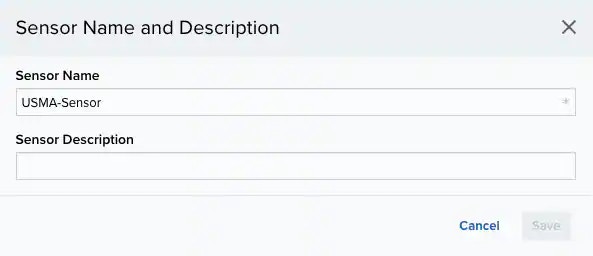
This option enables you to change the sensor name and the description of a <Tooltip tip="Sensors are deployed into an on-premises, cloud, or multi-cloud environment to collect logs and other security-related data. This data is normalized and then securely forwarded to USM Anywhere for analysis and correlation.">sensors</Tooltip>.

**To edit a sensor**

1. Go to **Data Sources > Sensors** to open the page.

2. Click the <img src="https://mintcdn.com/levelblue-5324744e/2zcwC17_yhGqZqy4/images/usm-anywhere/pencil-new.svg?fit=max&auto=format&n=2zcwC17_yhGqZqy4&q=85&s=3fe3fa0ee6ce2b44857bf81d5ab975d9" className="inline" width="24" height="24" data-path="images/usm-anywhere/pencil-new.svg" /> icon of the sensor you want to edit.

3. Modify the sensor name or the sensor description.
   <Frame>
     <img src="https://mintcdn.com/levelblue-5324744e/3onSl9Btf_NxCVCb/images/usm-anywhere/editsensor.webp?fit=max&auto=format&n=3onSl9Btf_NxCVCb&q=85&s=bc9c691beaf431dd3e1581669e7eeb18" alt="" width="593" height="256" data-path="images/usm-anywhere/editsensor.webp" />
   </Frame>

4. Click **Save**.
