> ## Documentation Index
> Fetch the complete documentation index at: https://docs.levelblue.com/llms.txt
> Use this file to discover all available pages before exploring further.
# Connecting a USM Anywhere to a USM Central
| | | | | |
| --------------------- | --------- | ------------ | ------- | ----------- |
| **Role Availability** | Read-Only | Investigator | Analyst | **Manager** |
The My Subscription page displays if your deployment has been connected to a USM Central or if there are no connections.
## Deployment Status
USM Central is a unified console that gives you a single place to monitor and manage multiple USM deployments. USM Anywhere displays if you have your deployment connected to a USM Central, the status of that connection, the domain, and when it was connected.
**Deployment Status Types**
| Status | Description |
| ----------------------- | -------------------------------------------------------------------------------------------------------------------------------------------------------------------------------------------------------------------------- |
| Connected | The deployment is connected to the USM Central environment. |
| Not Connected | The deployment is not currently connected to USM Central. |
| Connection Denied | A connection request was initiated from the deployment and the request was denied from the USM Central console. |
| Connection Request Sent | A connection request was initiated from the deployment and is awaiting an acceptance or denial.
You can [accept](/documentation/Default) or [decline](/documentation/Default) the request in the USM Central console. |
| Connecting | The USM Central is waiting for a USM Anywhere connection. |
**To connect a USM Anywhere to USM Central**
1. Go to **Settings > My Subscription**.
2. Go to the License Information section and click **Configure MSSP Service**.
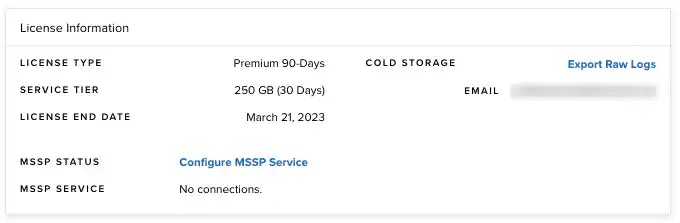 The Connection to USM Central dialog box opens.
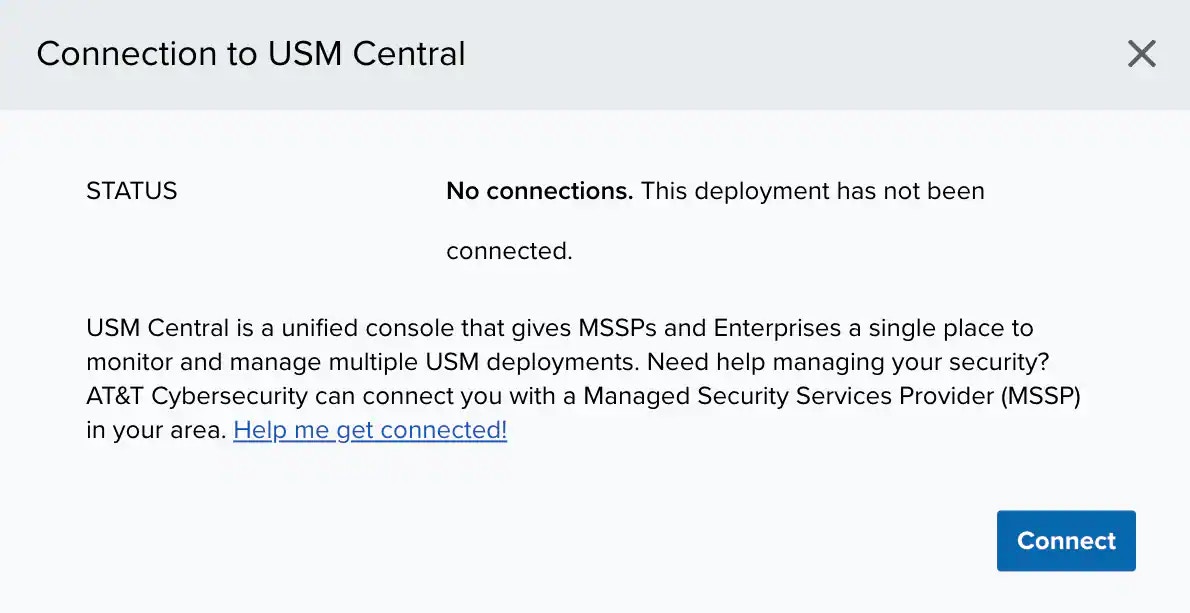 3. Click **Connect**.
4. Enter the domain for the USM Central instance.
5. Click **Connect**.
The system sends a request to USM Central.
3. Click **Connect**.
4. Enter the domain for the USM Central instance.
5. Click **Connect**.
The system sends a request to USM Central.
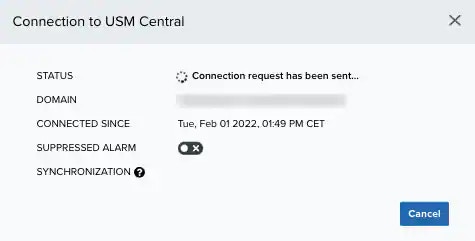 The connection is not complete until the user accepts the connection request. See [USM Central Connections](/documentation/usm-central/connections/connections) for more information.
Once the request has been accepted, the deployment has been connected.
The connection is not complete until the user accepts the connection request. See [USM Central Connections](/documentation/usm-central/connections/connections) for more information.
Once the request has been accepted, the deployment has been connected.