> ## Documentation Index
> Fetch the complete documentation index at: https://docs.levelblue.com/llms.txt
> Use this file to discover all available pages before exploring further.
# Viewing Full User Details
**To view a user's full details**
1. Go to **Environment > Users**.
2. Next to the user-name whose details you want to review, click the  icon.
3. Select **Full Details**.
icon.
3. Select **Full Details**.
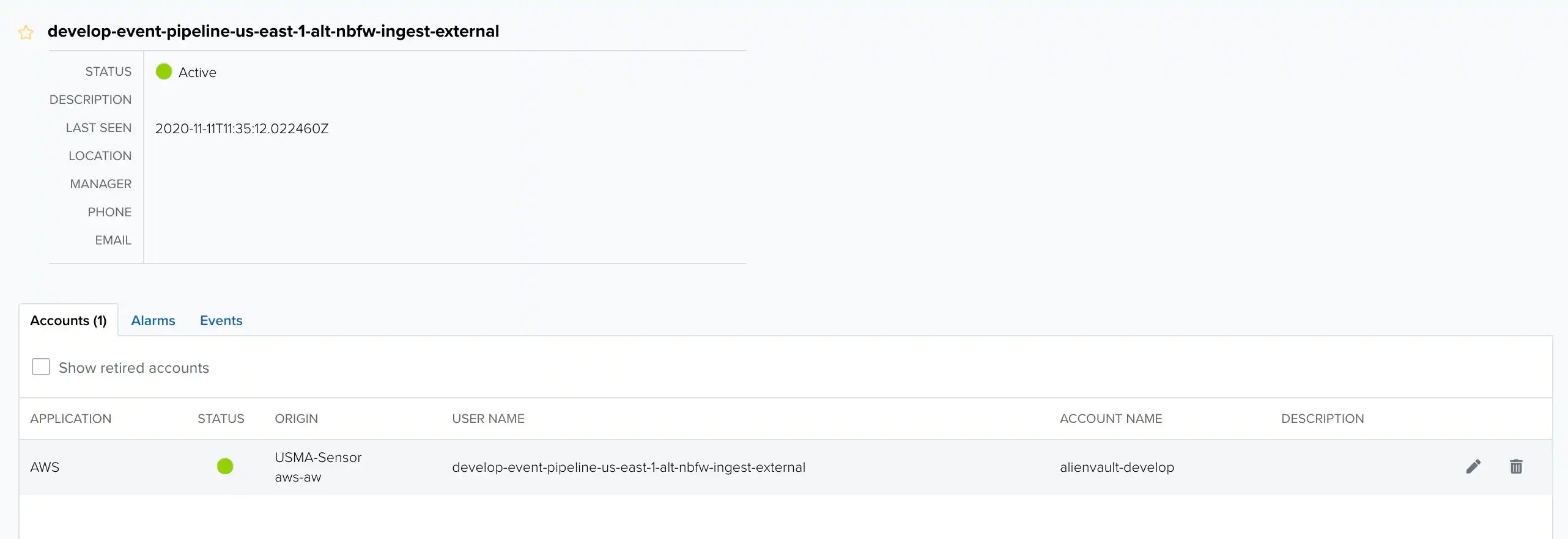 In the upper left side of the page, you see the details for the user entity, including their description, last seen datestamp, location, manager, phone number, and emails. On any user that has been merged, you will see a list of emails.
Across the bottom of the page, you see the accounts, alarms, and events for your asset.
## User Accounts
You will find all of this user's accounts listed under the Accounts tab.
* **Application**: The application in which this user account is active.
* **Status**: The status of the user account. A green circle indicates that the account is active, while a gray circle indicates that the account is inactive. See [Understanding User Status in User Data Sources](user-status-in-data-sources) for more information about these statuses.
* **Origin**: The name of the sensor in which this user account was discovered.
* **User Name**: The username or service account name associated with this user account.
* **Account Name**: The organizational account in which this user account exists.
* **Description**: This description comes from the user account source and is not editable in USM Anywhere.
## User Alarms
You will find all of the alarms related to this user account under the Alarms tab. An alarm may be related to a user if that user was the source of the action (the source user) or was acted upon (the destination user).
**Note:** You can filter the alarms list by limiting the Created Date using the dropdown on the right.
**To view a user's alarms**
1. Go to **Environment > Users**.
2. Next to the name of the user whose events or alarms you want to view, click the icon.
3. Select **Full User Details**.
4. Click the **Alarms** tab to view this user's alarms.
In the upper left side of the page, you see the details for the user entity, including their description, last seen datestamp, location, manager, phone number, and emails. On any user that has been merged, you will see a list of emails.
Across the bottom of the page, you see the accounts, alarms, and events for your asset.
## User Accounts
You will find all of this user's accounts listed under the Accounts tab.
* **Application**: The application in which this user account is active.
* **Status**: The status of the user account. A green circle indicates that the account is active, while a gray circle indicates that the account is inactive. See [Understanding User Status in User Data Sources](user-status-in-data-sources) for more information about these statuses.
* **Origin**: The name of the sensor in which this user account was discovered.
* **User Name**: The username or service account name associated with this user account.
* **Account Name**: The organizational account in which this user account exists.
* **Description**: This description comes from the user account source and is not editable in USM Anywhere.
## User Alarms
You will find all of the alarms related to this user account under the Alarms tab. An alarm may be related to a user if that user was the source of the action (the source user) or was acted upon (the destination user).
**Note:** You can filter the alarms list by limiting the Created Date using the dropdown on the right.
**To view a user's alarms**
1. Go to **Environment > Users**.
2. Next to the name of the user whose events or alarms you want to view, click the icon.
3. Select **Full User Details**.
4. Click the **Alarms** tab to view this user's alarms.
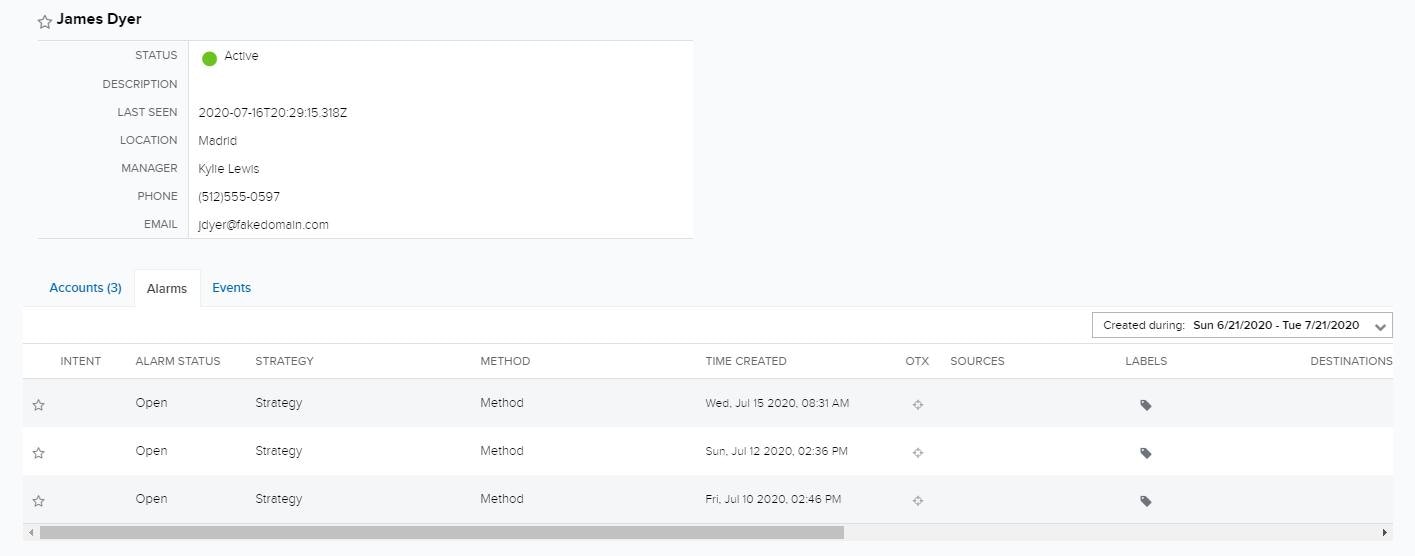 The columns in the Alarms table are automatically populated from the alarms. See [Alarm Management](../alarms/alarms-management) for more information about these alarm details.
## User Events
You will find all of the events related to this user account under the Eventstab. An event may be related to a user if that user was the source of the action (the source user) or was acted upon (the destination user).
**Note:** You can filter the events list by limiting the Created Date using the drop-down on the right.
**To view a user's events**
1. Go to **Environment > Users**.
2. Next to the name of the user whose events or alarms you want to view, click the icon.
3. Select **Full User Details**.
4. Click the **Events** tab to view this user's events.
The columns in the Alarms table are automatically populated from the alarms. See [Alarm Management](../alarms/alarms-management) for more information about these alarm details.
## User Events
You will find all of the events related to this user account under the Eventstab. An event may be related to a user if that user was the source of the action (the source user) or was acted upon (the destination user).
**Note:** You can filter the events list by limiting the Created Date using the drop-down on the right.
**To view a user's events**
1. Go to **Environment > Users**.
2. Next to the name of the user whose events or alarms you want to view, click the icon.
3. Select **Full User Details**.
4. Click the **Events** tab to view this user's events.
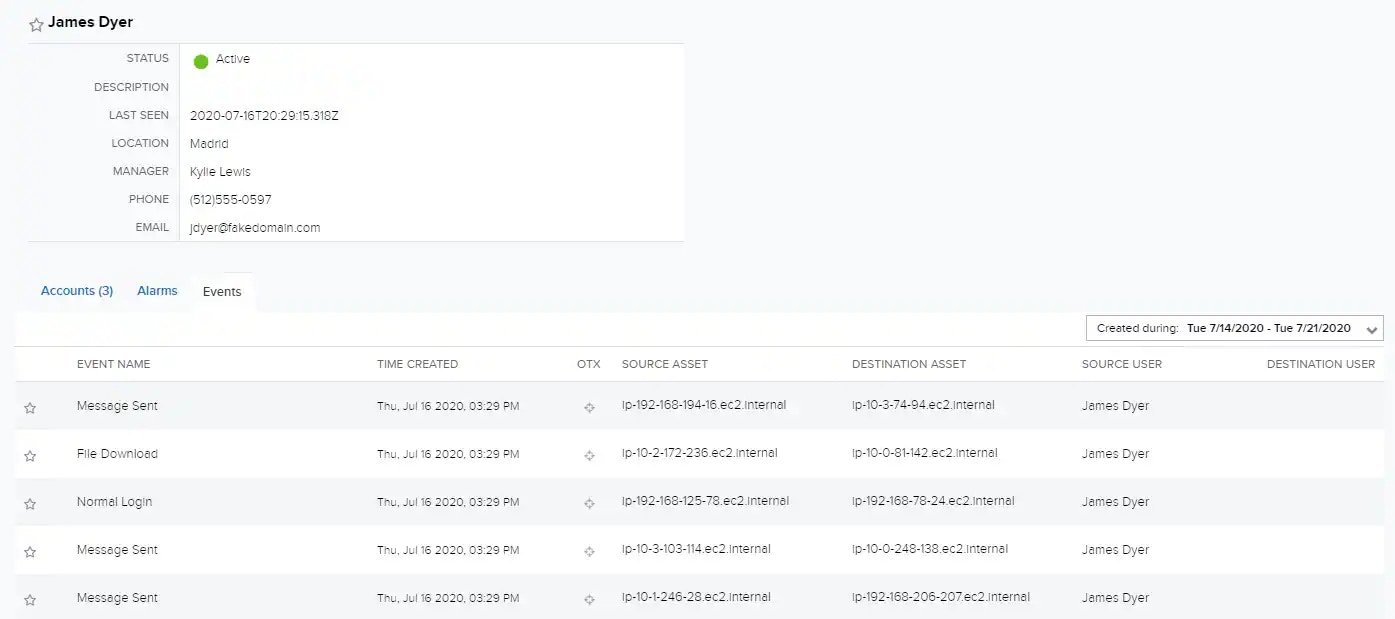 The columns in the Events table are automatically populated from the events. See [Event Management](../events/events-management) for more information about these event details.