> ## Documentation Index
> Fetch the complete documentation index at: https://docs.levelblue.com/llms.txt
> Use this file to discover all available pages before exploring further.

# User Discovery

USM Anywhere automatically discovers users in your environment with the user discovery jobs you have configured. See [Scheduling User Discovery Jobs from the Job Scheduler Page](../scheduler/managing-uba-scheduler-jobs) to learn about these jobs and how to configure them.

## Users Discovered in Your Environment

USM Anywhere uses the user discovery jobs you have configured to extract and maintain an updated list of the users who are active in your environment. User accounts are discovered and matched by comparing specific fields from your environment, that differ between user authentication mechanisms. This means that the fields USM Anywhere uses to detect and resolve discovered users in Amazon Web Services (AWS) will differ from the fields used in Google Cloud Platform (GCP) or Okta. The following table outlines which fields are used in each user source.

**Possible User Entity and Account States**

<table>
  <thead>
    <tr>
      <th>User Source</th>
      <th>User Account Data</th>
    </tr>
  </thead>

  <tbody>
    <tr>
      <td>AWS</td>
      <td>SOURCE\_USERNAME and SOURCE\_ACCOUNT</td>
    </tr>

    <tr>
      <td>AD</td>

      <td>
        <p>SOURCE\_USERNAME</p>
        <p>DESTINATION\_USERNAME</p>
        <p>SOURCE\_USERNAME and SOURCE\_NTDOMAIN</p>
        <p>DESTINATION\_USERNAME and DESTINATION\_NTDOMAIN</p>
      </td>
    </tr>

    <tr>
      <td>Azure AD and Office 365</td>

      <td>
        <p>SOURCE\_USERNAME</p>
        <p>DESTINATION\_USERNAME</p>
      </td>
    </tr>

    <tr>
      <td>Okta</td>

      <td>
        <p>SOURCE\_USERNAME</p>
        <p>DESTINATION\_USERNAME                  </p>
      </td>
    </tr>

    <tr>
      <td>G Suite and GCP</td>

      <td>
        <p>SOURCE\_USERNAME</p>
        <p>SOURCE\_USER\_EMAIL</p>
        <p>DESTINATION\_USERNAME</p>
        <p>DESTINATION\_USER\_EMAIL</p>
      </td>
    </tr>
  </tbody>
</table>

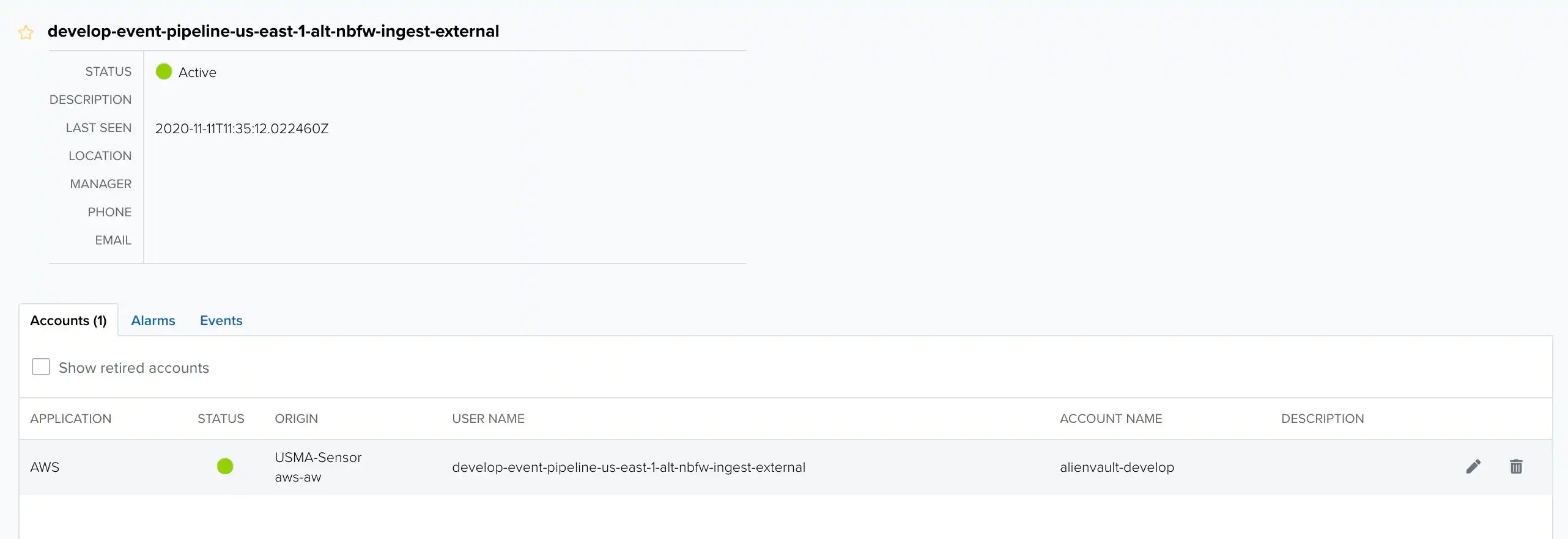
**To see a list of the users active in your environment and their accounts**

1. Go to **Environment > Users**.

   All of your discovered users are listed here.

   <Note>
     **Note:** By default, inactive users are not shown. You can use this list's filters to view them.
   </Note>

2. Click the name (or the chevron next to the name) of a user whose accounts you want to view, and then click **Full User Details**.

   This user's accounts are listed under the Accounts tab.

   <Frame>
     <img src="https://mintcdn.com/levelblue-5324744e/LRsr4s1iGr_CM6ff/images/usm-anywhere/user-guide/user-behavior-analytics/full-user-details-trimmed.webp?fit=max&auto=format&n=LRsr4s1iGr_CM6ff&q=85&s=2c1f59cbc2be026a78643295ba001d27" width="2564" height="882" data-path="images/usm-anywhere/user-guide/user-behavior-analytics/full-user-details-trimmed.webp" />
   </Frame>

## Active and Inactive Users

In addition to detecting which users are active in each environment, USM Anywhere carefully tracks users and user accounts that have become inactive. This enables USM Anywhere advanced threat detection capabilities, which take a user's activity and account status into consideration in generating and prioritizing alarms.

While different user authentication mechanisms each approach users' active status differently, USM Anywhere normalizes all of those disparate approaches to present one unified and unambiguous reporting of the status of each user entity and all of its accounts.

<Note>
  **Note:** See [Understanding User Status in the User Data Source](user-status-in-data-sources) to read more about how each user authentication mechanism handles users' statuses.
</Note>

To view a user entity's or account's status, check the dot next to the username or account name. When the dot is green, the user or account it represents is active. If it is gray, the user or account it represents is in a status other than active.

<Frame>
  <img src="https://mintcdn.com/levelblue-5324744e/HGmP1muJoLfdGhKM/images/usm-anywhere/user-guide/user-behavior-analytics/user-state-dots.webp?fit=max&auto=format&n=HGmP1muJoLfdGhKM&q=85&s=066bd453cc5b2d7fe39a59a875fcc059" width="2570" height="432" data-path="images/usm-anywhere/user-guide/user-behavior-analytics/user-state-dots.webp" />
</Frame>

These are the possible user entity and account states:

**Possible User Entity and Account States**

<table>
  <thead>
    <tr>
      <th> </th>
      <th>State</th>
      <th>Description</th>
    </tr>
  </thead>

  <tbody>
    <tr>
      <td rowspan="2">User Entity</td>
      <td>Active</td>
      <td>If any of the user's accounts are active, the user is active.</td>
    </tr>

    <tr>
      <td>Inactive</td>
      <td>If all of the user's accounts are in a status other than active, the user is inactive.</td>
    </tr>

    <tr>
      <td rowspan="3">User Account</td>
      <td>Active</td>
      <td>A user account is active when it's validated and reported by the provider API.</td>
    </tr>

    <tr>
      <td>Disabled</td>
      <td>When a user account is disabled by the provider but still reported by the provider API, that user account is considered disabled.                    </td>
    </tr>

    <tr>
      <td>Retired</td>

      <td>
        <p>When a user account no longer exists in the provider system, that account is considered retired.</p>
        <p><Note>**Note:** Due to the information provided by AWS, AWS user accounts are marked "retired" when they have not appeared in any scans for 30 days.</Note></p>
      </td>
    </tr>
  </tbody>
</table>