> ## Documentation Index
> Fetch the complete documentation index at: https://docs.levelblue.com/llms.txt
> Use this file to discover all available pages before exploring further.

# User List View

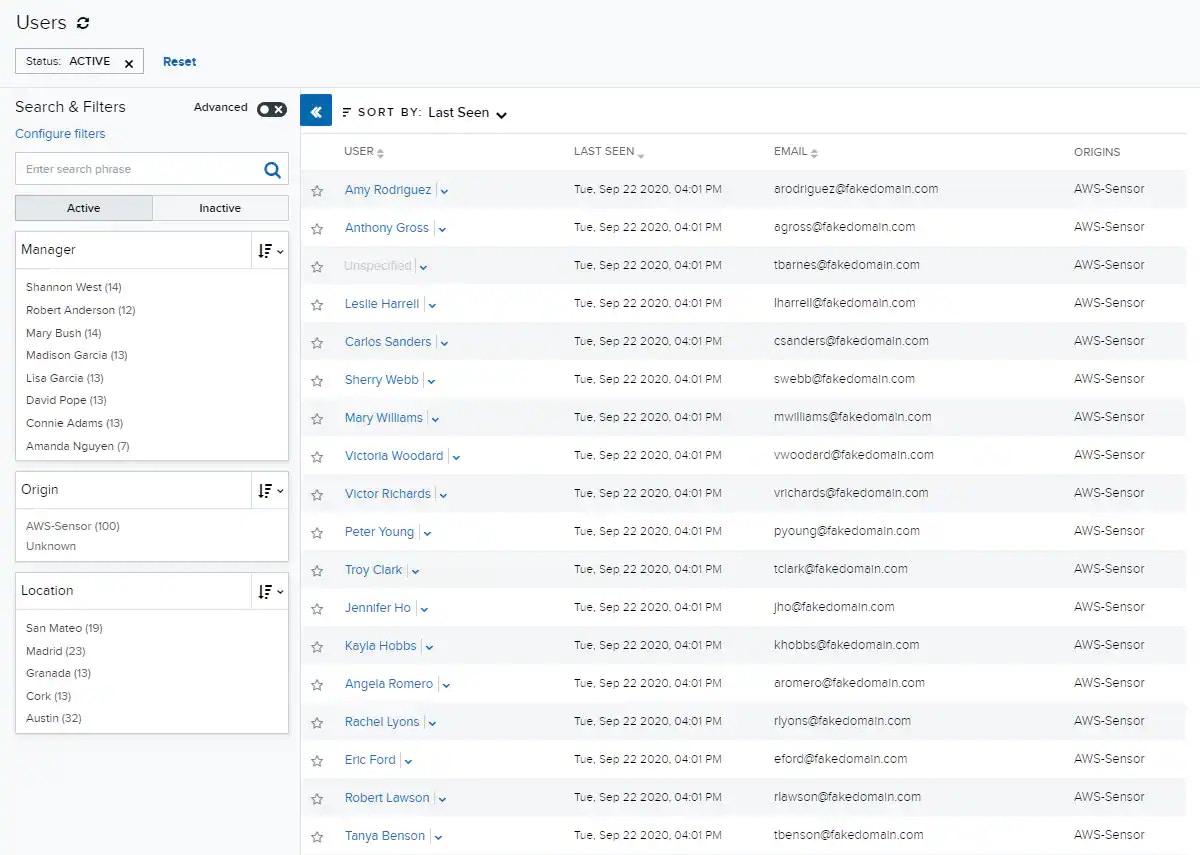
USM Anywhere provides a centralized view of users in your environment. To view the user list, go to **Environment > Users**.

The Users main page displays user inventory and information on those users. On the left side of the page, you can find the search and filter options. At the top of the page, you can see any filters you have applied. The main part of the page is the list of users, where each row describes an individual user.

<Frame>
  <img src="https://mintcdn.com/levelblue-5324744e/HGmP1muJoLfdGhKM/images/usm-anywhere/user-guide/user-behavior-analytics/user-list-updated.webp?fit=max&auto=format&n=HGmP1muJoLfdGhKM&q=85&s=aac16e88ea287bb15f004542eb0c5815" width="1200" height="855" data-path="images/usm-anywhere/user-guide/user-behavior-analytics/user-list-updated.webp" />
</Frame>

If you want to analyze the data and see the additional columns without having to scroll left and right, you can maximize the screen and hide the filter pane. Click the <img src="https://mintlify.s3.us-west-1.amazonaws.com/levelblue-5324744e/images/central-any-app/buttons/to-close-filter-sidebar.svg" style={{ height: "1em", verticalAlign: "middle", display: "inline-block", margin: "0 0.25em" }} /> icon to hide the filter pane. Click the <img src="https://mintcdn.com/levelblue-5324744e/L0uo3frxKf03lkfc/images/central-any-app/buttons/to-open-filter-sidebar.svg?fit=max&auto=format&n=L0uo3frxKf03lkfc&q=85&s=a2b105a32651fb994bfbbba0d85db9e1" style={{ height: "1em", verticalAlign: "middle", display: "inline-block", margin: "0 0.25em" }} width="20" height="20" data-path="images/central-any-app/buttons/to-open-filter-sidebar.svg" /> icon to expand the filter pane.

<Note>
  **Note:** User entities with no name or service account in their name field appear as "Unspecified".
</Note>

The following table lists the default columns that appear in the user list view, and their descriptions.

**List of the Default User List Fields**

<table>
  <thead>
    <tr>
      <th>Column Field Name</th>
      <th>Description</th>
    </tr>
  </thead>

  <tbody>
    <tr>
      <td>User</td>
      <td>An actor (person or service account) active in your environment (sometimes referred to as the *user entity*).</td>
    </tr>

    <tr>
      <td>Last Seen</td>
      <td>The date and time on which that user was last active in your environment.</td>
    </tr>

    <tr>
      <td>Email</td>
      <td>A list of the email addresses associated with that user entity.</td>
    </tr>

    <tr>
      <td>Origins</td>
      <td>The name of each sensor in which one of this user's accounts was discovered.</td>
    </tr>
  </tbody>
</table>

Click the <img src="https://mintcdn.com/levelblue-5324744e/T1hrc0hK0aza_DCc/images/central-any-app/buttons/chevron-down.svg?fit=max&auto=format&n=T1hrc0hK0aza_DCc&q=85&s=417e8bbfd7386ba83a4b629d5a935a80" style={{ height: "1em", verticalAlign: "middle", display: "inline-block", margin: "0 0.25em" }} width="20" height="20" data-path="images/central-any-app/buttons/chevron-down.svg" /> icon to access the following options. Your access to these options may vary based on your user role. See [Role-Based Access Control (RBAC) in USM Anywhere](../user-management/rbac) for more information:

* **Full Details**: Navigate to this user's Full Details page.
* **Configure User**: Open the Configure User dialog box.
* **Merge User**: Open the Merge User dialog box.
* **Delete User**: Delete this user.

<Warning>
  **Important:** Deleting a user is a permanent action and cannot be undone.
</Warning>
