> ## Documentation Index
> Fetch the complete documentation index at: https://docs.levelblue.com/llms.txt
> Use this file to discover all available pages before exploring further.
# Events, Alarms, and Notifications Created When a User's Status Changes
USM Anywhere enables you to configure alarms to alert you when a user's entity or account status changes. USM Anywhere generates monitoring events that display in the Events List View page. See [Events List View](../events/events-list-view) for more information. You can see two types of monitoring events related to User Behavior Analytics (UBA) user status: *user status changed* and *account status changed*. From these events, you may configure alarm rules to alert you when these status changes trigger events.
**To see events created when a user entity or account status changes**
1. Go to **Settings > System Events**.
2. Locate the Event Name filter and select either **User Status Changed** or **Account Status Changed**.
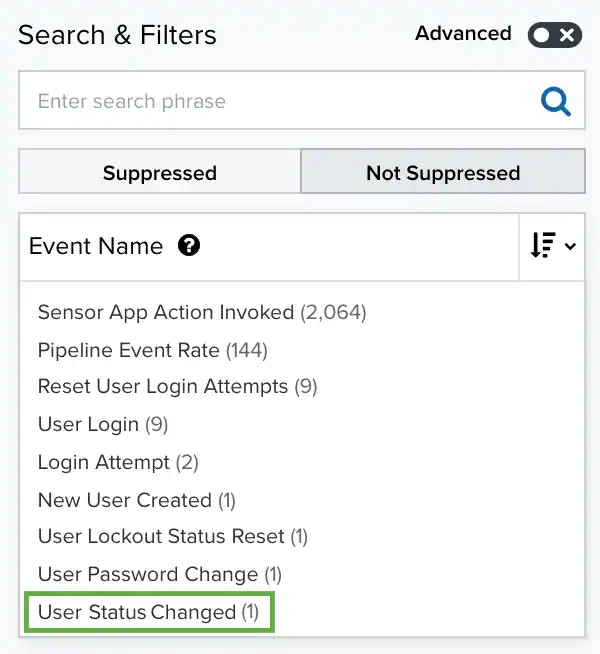 The result displays the filtered events.
3. Click the event to see its details.
**To create alarm rules when a user entity or account status changes**
1. Go to **Settings > Rules** and either:
* Click **Create Orchestration Rule > Create Alarm Rule**.
* Or click **Alarm Rules**, and then click **Create Alarm Rule**.
2. Populate the new alarm rule as described in [Alarm Rules](../rules-management/alarm-rules).
3. Under Rule Condition, use the Match drop-down list to select system\_events.
4. Click **Add Condition**.
5. Select **Event Name**, then **Equals**, and then either **User Status Changed** or **Account Status Changed**.
The result displays the filtered events.
3. Click the event to see its details.
**To create alarm rules when a user entity or account status changes**
1. Go to **Settings > Rules** and either:
* Click **Create Orchestration Rule > Create Alarm Rule**.
* Or click **Alarm Rules**, and then click **Create Alarm Rule**.
2. Populate the new alarm rule as described in [Alarm Rules](../rules-management/alarm-rules).
3. Under Rule Condition, use the Match drop-down list to select system\_events.
4. Click **Add Condition**.
5. Select **Event Name**, then **Equals**, and then either **User Status Changed** or **Account Status Changed**.
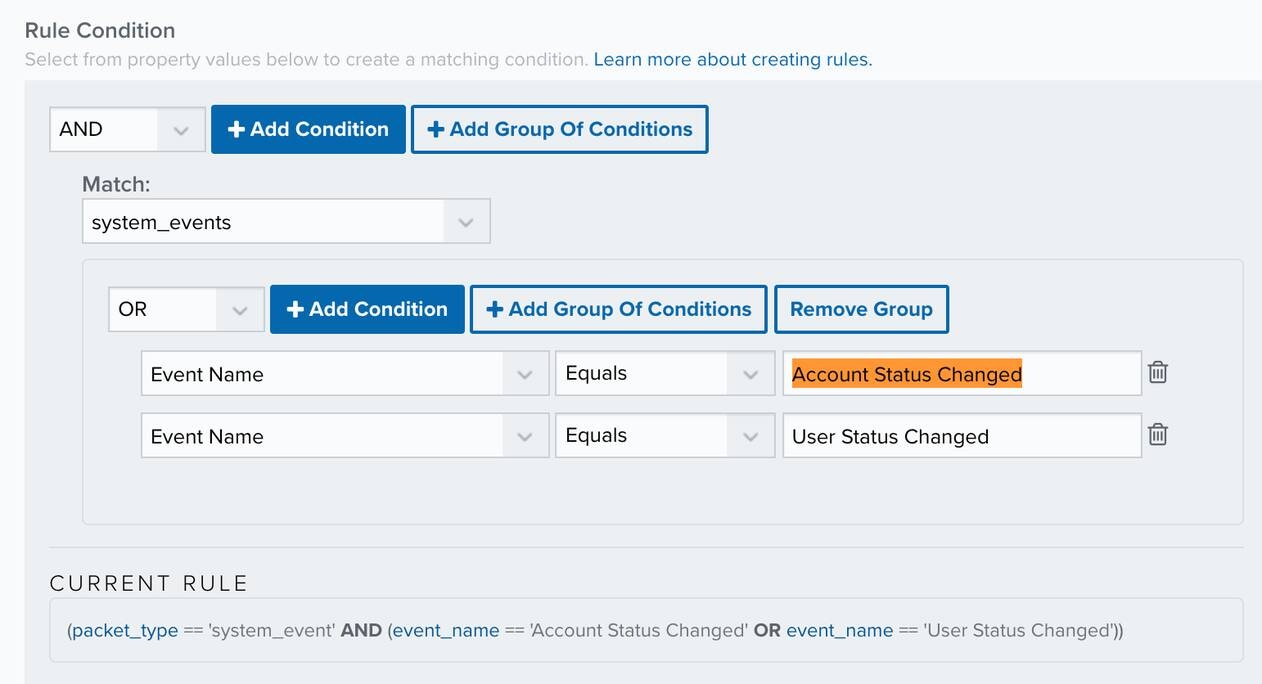 6. Click **Save Rule**.
The alarm rule has been created. You can see it from **Settings > Rules**. See [Alarm Rules from the Orchestration Rules Page](../rules-management/alarm-rules) for more information.
**Important:** It takes a few minutes for an orchestration rule to become active.
6. Click **Save Rule**.
The alarm rule has been created. You can see it from **Settings > Rules**. See [Alarm Rules from the Orchestration Rules Page](../rules-management/alarm-rules) for more information.
**Important:** It takes a few minutes for an orchestration rule to become active.