> ## Documentation Index
> Fetch the complete documentation index at: https://docs.levelblue.com/llms.txt
> Use this file to discover all available pages before exploring further.
# Editing Users
| | | | | |
| --------------------- | --------- | ------------ | ------- | ----------- |
| **Role Availability** | Read-Only | Investigator | Analyst | **Manager** |
Assuming the Manager role, you can modify several items for the account of another user. For example, if users are unable to login because they forgot their password or no longer have an authentication mobile device, you can perform a reset for their account.
**To edit a user account**
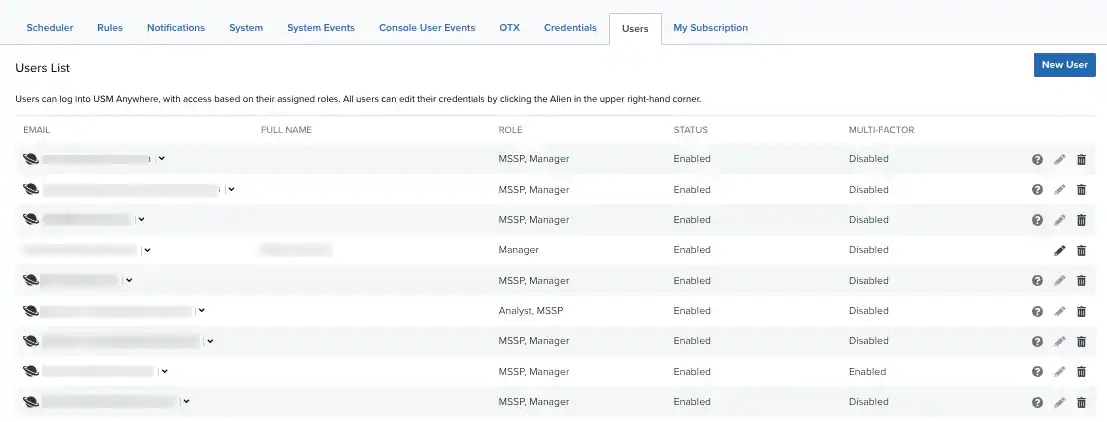
1. Go to **Settings > Users** to open the page that displays the list of user accounts in your USM Anywhere environment.
 **Note:** Sometimes a
  displays in the Status column. This icon means that the user account is locked for 30 minutes after 3 failed login attempts within 15 minutes. You can unlock the account by sending the user a password reset email (see Send Password Reset below).
If your own user account is locked, you can wait 30 minutes and try again or contact LevelBlue [Technical Support](https://cybersecurity.att.com/support) for assistance.
2. In the row for the user account, click the
displays in the Status column. This icon means that the user account is locked for 30 minutes after 3 failed login attempts within 15 minutes. You can unlock the account by sending the user a password reset email (see Send Password Reset below).
If your own user account is locked, you can wait 30 minutes and try again or contact LevelBlue [Technical Support](https://cybersecurity.att.com/support) for assistance.
2. In the row for the user account, click the  icon.
3. Make changes to the account parameters, as needed.
icon.
3. Make changes to the account parameters, as needed.
 **Note:** If you click the of your own user, the Profile page displays. See [Managing Your Profile Settings](/documentation/usm-anywhere/user-guide/user-management/profile-settings) for more information.
* Change the email address for the account.
* Change the full name for the account.
* Change the role for the account. See [Role-Based Access Control (RBAC) in USM Anywhere](/documentation/usm-anywhere/user-guide/user-management/rbac) for more information
* Change the status for the account. If you need to temporarily disable a user account, you can set the status to **Disabled**. This is a best practice for revoking access and usually a better alternative to deleting a user account.
* Click **Send Password Reset** to reset the password for the user. When you do a password reset, the user receives an email with a link to set a new password for the account.
* Click **Reset Multi-Factor Authentication** to reset the code used to pair a mobile device with the account. See [Using Multifactor Authentication](/documentation/usm-anywhere/user-guide/introduction/multifactor-authentication) for more information.
* Select **Enable Multi-Factor Authentication** to enable MFA. See [Using Multifactor Authentication](/documentation/usm-anywhere/user-guide/introduction/multifactor-authentication) for more information.
4. Click **Save**.
**Note:** If you click the of your own user, the Profile page displays. See [Managing Your Profile Settings](/documentation/usm-anywhere/user-guide/user-management/profile-settings) for more information.
* Change the email address for the account.
* Change the full name for the account.
* Change the role for the account. See [Role-Based Access Control (RBAC) in USM Anywhere](/documentation/usm-anywhere/user-guide/user-management/rbac) for more information
* Change the status for the account. If you need to temporarily disable a user account, you can set the status to **Disabled**. This is a best practice for revoking access and usually a better alternative to deleting a user account.
* Click **Send Password Reset** to reset the password for the user. When you do a password reset, the user receives an email with a link to set a new password for the account.
* Click **Reset Multi-Factor Authentication** to reset the code used to pair a mobile device with the account. See [Using Multifactor Authentication](/documentation/usm-anywhere/user-guide/introduction/multifactor-authentication) for more information.
* Select **Enable Multi-Factor Authentication** to enable MFA. See [Using Multifactor Authentication](/documentation/usm-anywhere/user-guide/introduction/multifactor-authentication) for more information.
4. Click **Save**.