> ## Documentation Index
> Fetch the complete documentation index at: https://docs.levelblue.com/llms.txt
> Use this file to discover all available pages before exploring further.
# Labeling the Vulnerabilities
| | | | | |
| --------------------- | --------- | ------------ | ----------- | ----------- |
| **Role Availability** | Read-Only | Investigator | **Analyst** | **Manager** |
USM Anywhere includes a set of labels that you can use to classify your vulnerabilities, to track the status of the vulnerabilities, and to search vulnerabilities using them as a filter. See [Searching Vulnerabilities](/documentation/usm-anywhere/user-guide/vulnerability-assessment/searching-vuln) for more information on how to search vulnerabilities.
You can't edit or delete the set of default labels:
* In Progress
* Closed
* Open
* false positives
USM Anywhere enables you to create, edit, and delete your own labels. You can apply a label to one or more vulnerabilities. You can also apply multiple labels to the same vulnerability.
**To label a vulnerability from the vulnerabilities main page**
1. Go to **Environment > Vulnerabilities**.
2. Search for the vulnerability or vulnerabilities to which you want to apply a label. See [Searching Vulnerabilities](/documentation/usm-anywhere/user-guide/vulnerability-assessment/searching-vuln) for more information.
3. Do one of these options:
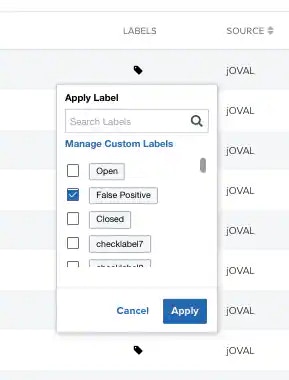
* Click the  icon in the labels column of the vulnerability you want to label, select the label, and click **Apply**.
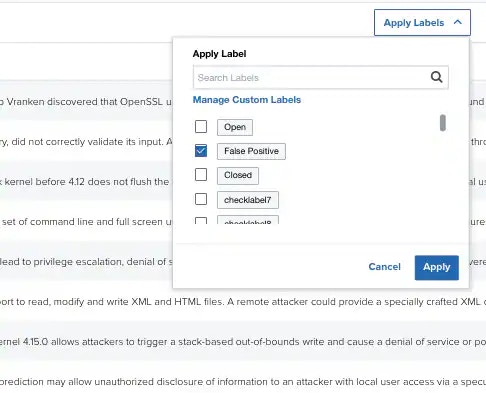
 * Select the checkbox to the left of a vulnerability, click **Apply Labels**, select the label, and click **Apply**.
 **To label a vulnerability from the vulnerabilities details page**
1. Go to **Environment > Vulnerabilities**.
2. Search for the vulnerability to which you want to apply a label. See [Searching Vulnerabilities](/documentation/usm-anywhere/user-guide/vulnerability-assessment/searching-vuln) for more information.
3. Click the vulnerability.
4. In the **Labels** field, click the
**To label a vulnerability from the vulnerabilities details page**
1. Go to **Environment > Vulnerabilities**.
2. Search for the vulnerability to which you want to apply a label. See [Searching Vulnerabilities](/documentation/usm-anywhere/user-guide/vulnerability-assessment/searching-vuln) for more information.
3. Click the vulnerability.
4. In the **Labels** field, click the  icon to select a label.
 5. Click **Save**.
**To create a new label**
1. Go to **Environment > Vulnerabilities.**
2. Select the checkbox to the left of the vulnerability.
3. Click **Apply Labels**.
4. Click **Manage Custom Labels**.
5. Click **Create New Label**.
5. Click **Save**.
**To create a new label**
1. Go to **Environment > Vulnerabilities.**
2. Select the checkbox to the left of the vulnerability.
3. Click **Apply Labels**.
4. Click **Manage Custom Labels**.
5. Click **Create New Label**.
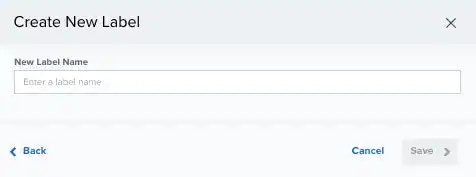 6. Enter a name for the label.
7. Click **Save**.
**To edit a label**
1. Go to **Environment > Vulnerabilities**.
2. Select the checkbox to the left of the vulnerability.
3. Click **Apply Labels**.
4. Click **Manage Custom Labels**.
5. Click the icon next to the label you want to edit.
6. Modify the name of the label.
7. Click the
6. Enter a name for the label.
7. Click **Save**.
**To edit a label**
1. Go to **Environment > Vulnerabilities**.
2. Select the checkbox to the left of the vulnerability.
3. Click **Apply Labels**.
4. Click **Manage Custom Labels**.
5. Click the icon next to the label you want to edit.
6. Modify the name of the label.
7. Click the  icon to apply the changes.
**To remove a label from a vulnerability**
1. Go to **Environment > Vulnerabilities**.
2. Select the checkbox to the left of a vulnerability. You can also select several vulnerabilities or select all vulnerabilities at the same time by selecting the first checkbox in the column.
3. Click **Remove Vulnerabilities Labels**.
4. Select the label or labels you want to remove.
5. Click **Remove**.
**To remove a label from a vulnerability**
1. Go to **Environment > Vulnerabilities**.
2. Do one of these options:
* Select the checkbox to the left of a vulnerability. You can also select several vulnerabilities or select all vulnerabilities at the same time by selecting the first checkbox in the column. Then click **Remove Vulnerabilities Labels**, click the label, and click **Remove**.
* In the labels column of the vulnerability from which you want to remove the label, click the
icon to apply the changes.
**To remove a label from a vulnerability**
1. Go to **Environment > Vulnerabilities**.
2. Select the checkbox to the left of a vulnerability. You can also select several vulnerabilities or select all vulnerabilities at the same time by selecting the first checkbox in the column.
3. Click **Remove Vulnerabilities Labels**.
4. Select the label or labels you want to remove.
5. Click **Remove**.
**To remove a label from a vulnerability**
1. Go to **Environment > Vulnerabilities**.
2. Do one of these options:
* Select the checkbox to the left of a vulnerability. You can also select several vulnerabilities or select all vulnerabilities at the same time by selecting the first checkbox in the column. Then click **Remove Vulnerabilities Labels**, click the label, and click **Remove**.
* In the labels column of the vulnerability from which you want to remove the label, click the  icon next to the label.