> ## Documentation Index
> Fetch the complete documentation index at: https://docs.levelblue.com/llms.txt
> Use this file to discover all available pages before exploring further.
# Removing Credentials from Assets
| | | | | |
| --------------------- | --------- | ------------ | ----------- | ----------- |
| **Role Availability** | Read-Only | Investigator | **Analyst** | **Manager** |
USM Anywhere enables you to remove credentials from your environment.
## Removing a credential from the Credentials page
1. Go to **Settings > Credentials** to open the credentials main page.
2. Click the  icon in the line of the credential you want to remove the association from.
 **Note:** You can use the
  icon from the main credentials page to check the assets assigned to the credential. Once you delete the credential, the association between the asset and the credential finishes.
3. Click **Accept** to confirm the process or click **Cancel** to exit.
## Removing a credential associated with an asset from the Assets page
1. Go to **Environment > Assets**.
2. Select the asset. See [Selecting Assets in Asset List View](/documentation/usm-anywhere/user-guide/asset-management/asset-administration/selecting-assets) for more information.
3. Click the
icon from the main credentials page to check the assets assigned to the credential. Once you delete the credential, the association between the asset and the credential finishes.
3. Click **Accept** to confirm the process or click **Cancel** to exit.
## Removing a credential associated with an asset from the Assets page
1. Go to **Environment > Assets**.
2. Select the asset. See [Selecting Assets in Asset List View](/documentation/usm-anywhere/user-guide/asset-management/asset-administration/selecting-assets) for more information.
3. Click the  icon you want to remove the credential from and select **Assign Credentials**.
4. Click Remove **Current Credentials From Asset**.
icon you want to remove the credential from and select **Assign Credentials**.
4. Click Remove **Current Credentials From Asset**.
 **Note:** You can also remove a credential from the assets details page. See Viewing Assets Details for more information.
5. Click **Save**.
## Remove a Credential Associated with an Asset Group from the Asset Groups Page
1. Go to **Environment > Asset Groups**.
2. Locate the asset group that you want to remove the credential from and click the icon and select **Full Details**.
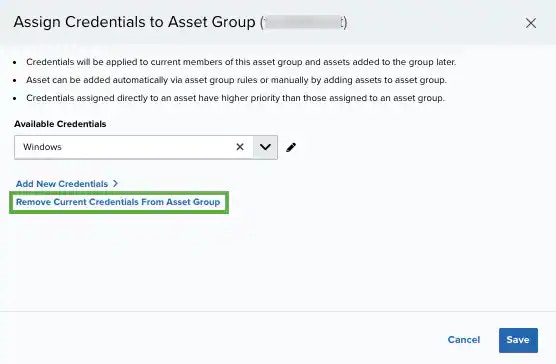
3. Click **Modify Credentials** to open the Assign Credentials to Asset Group dialog box.
4. Click **Remove Current Credentials From Asset Group.**
**Note:** You can also remove a credential from the assets details page. See Viewing Assets Details for more information.
5. Click **Save**.
## Remove a Credential Associated with an Asset Group from the Asset Groups Page
1. Go to **Environment > Asset Groups**.
2. Locate the asset group that you want to remove the credential from and click the icon and select **Full Details**.
3. Click **Modify Credentials** to open the Assign Credentials to Asset Group dialog box.
4. Click **Remove Current Credentials From Asset Group.**
 5. Click **Save**