> ## Documentation Index
> Fetch the complete documentation index at: https://docs.levelblue.com/llms.txt
> Use this file to discover all available pages before exploring further.

# Tenable Sensor Deployment for Hyper-V

**To deploy the Tenable sensor for Hyper-V**

1. Go to **Data Sources > Blue Apps > Available BlueApps** tab.
2. Filter by **Scanner**, and then select **LevelBlue Vulnerability Scanner Powered by Tenable**.
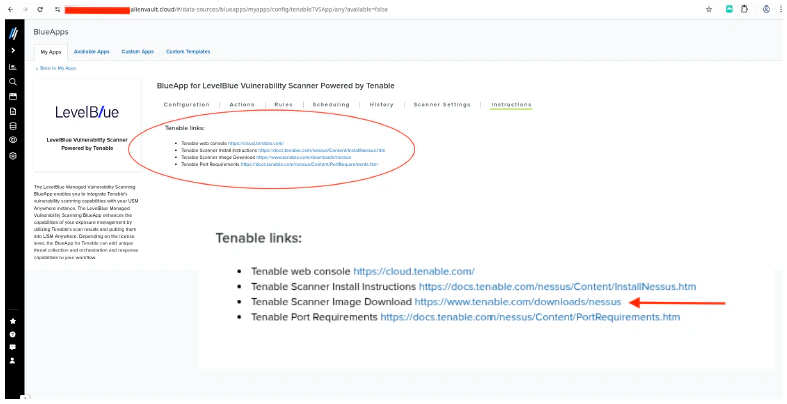
3. On the **My Apps** tab, click the **Tenable Scanner Image** link. This directs you to the [Tenable Nessus](https://www.tenable.com/downloads/nessus) page.
   <Frame>
     <img src="https://mintcdn.com/levelblue-5324744e/m89bevhI6tblGQax/images/usm-anywhere/HyperV_TenableLink.png?fit=max&auto=format&n=m89bevhI6tblGQax&q=85&s=bd914150091dc1936c8d05476c20fcd0" alt="Hyper V Tenable Link" width="787" height="404" data-path="images/usm-anywhere/HyperV_TenableLink.png" />
   </Frame>
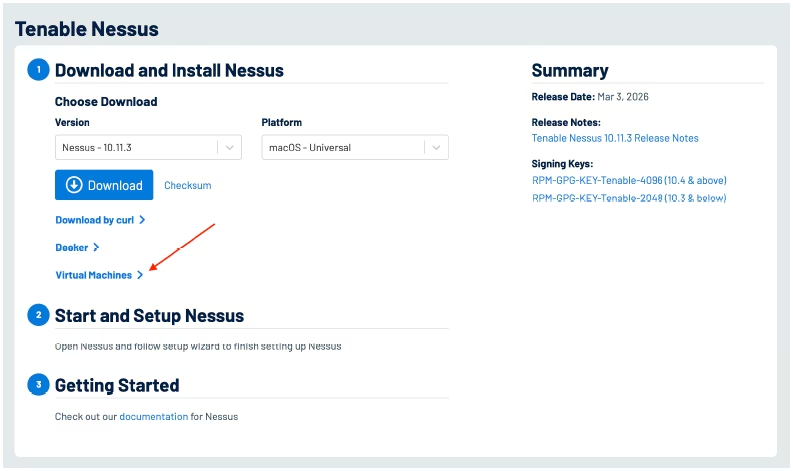
4. Under **Download and Install Nessus**, expand the **Virtual Machines** section, and select the **View Tenable Core + Nessus Virtual Appliance** option.
   <Frame>
     <img src="https://mintcdn.com/levelblue-5324744e/YkIdbcABeK3EmZmy/images/usm-anywhere/HyperV_DLTenableNessus.png?fit=max&auto=format&n=YkIdbcABeK3EmZmy&q=85&s=d00cdd6944578afe57329ffba0217907" alt="Hyper V DL Tenable Nessus" width="793" height="471" data-path="images/usm-anywhere/HyperV_DLTenableNessus.png" />
   </Frame>
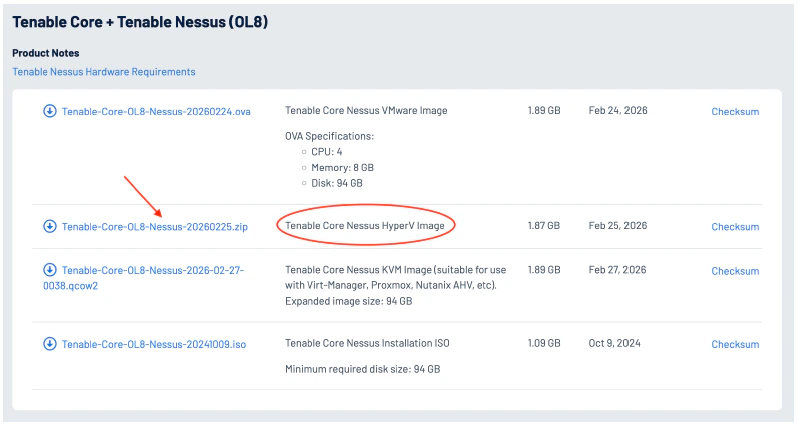
5. Download the zip file (as shown on the screenshot below), and extract the OVA for Hyper-V (OS.vhd file).
   <Frame>
     <img src="https://mintcdn.com/levelblue-5324744e/YkIdbcABeK3EmZmy/images/usm-anywhere/HyperV_TenableOVAFile.png?fit=max&auto=format&n=YkIdbcABeK3EmZmy&q=85&s=db07de864d3c154d1fadc968b12a4575" alt="Hyper V Tenable OVA File" width="798" height="425" data-path="images/usm-anywhere/HyperV_TenableOVAFile.png" />
   </Frame>
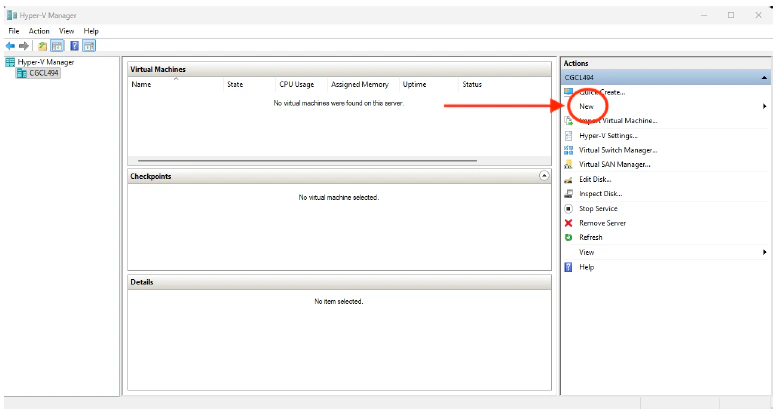
6. Log into Hyper-V Manager.
7. In the **Actions** pane, click **New** to create a new virtual machine (VM).
   <Frame>
     <img src="https://mintcdn.com/levelblue-5324744e/YkIdbcABeK3EmZmy/images/usm-anywhere/HyperV_CreateVM.png?fit=max&auto=format&n=YkIdbcABeK3EmZmy&q=85&s=a2d8acbaad1027472ddd95704ebe86d5" alt="Hyper V Create VM" width="777" height="413" data-path="images/usm-anywhere/HyperV_CreateVM.png" />
   </Frame>
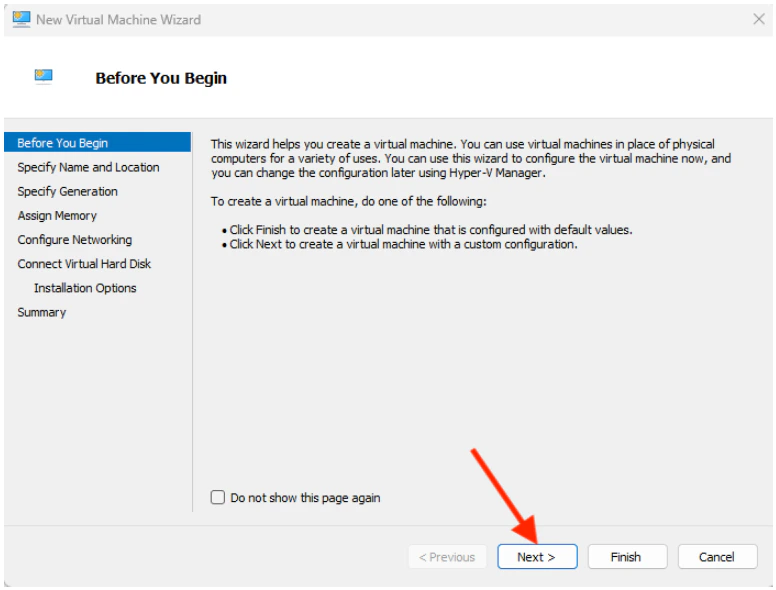
8. When the **New Virtual Machine Wizard** opens, click **Next** to initiate the set up of the new VM.
   <Frame>
     <img src="https://mintcdn.com/levelblue-5324744e/YkIdbcABeK3EmZmy/images/usm-anywhere/HyperV_NewVMWizard.png?fit=max&auto=format&n=YkIdbcABeK3EmZmy&q=85&s=a54757990b292d607cf73a0d82d929f1" alt="Hyper V New VM Wizard" width="776" height="590" data-path="images/usm-anywhere/HyperV_NewVMWizard.png" />
   </Frame>
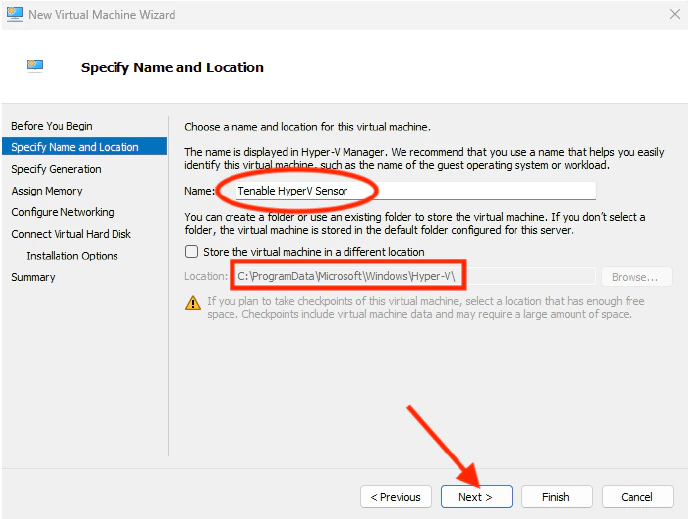
9. Specify the **Name** and **Location** of the VM, and then click **Next**.
   <Frame>
     <img src="https://mintcdn.com/levelblue-5324744e/YkIdbcABeK3EmZmy/images/usm-anywhere/HyperV_VMNameLoc.png?fit=max&auto=format&n=YkIdbcABeK3EmZmy&q=85&s=cb7d08102e1fc810f2ba6657dbc0b6b7" alt="Hyper V VM Name Loc" width="694" height="519" data-path="images/usm-anywhere/HyperV_VMNameLoc.png" />
   </Frame>
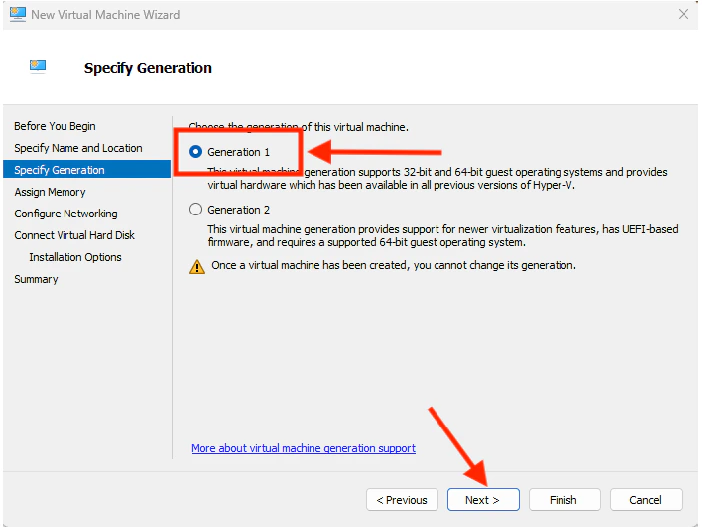
10. Select **Generation 1** as the VM generation, and then click **Next**.
    <Frame>
      <img src="https://mintcdn.com/levelblue-5324744e/YkIdbcABeK3EmZmy/images/usm-anywhere/HyperV_Generation.png?fit=max&auto=format&n=YkIdbcABeK3EmZmy&q=85&s=84e5b03d6252b975312dfdd41413621e" alt="Hyper V Generation" width="702" height="527" data-path="images/usm-anywhere/HyperV_Generation.png" />
    </Frame>
11. Assign a memory for the VM, and then click **Next**.
    <Frame>
      <img src="https://mintcdn.com/levelblue-5324744e/YkIdbcABeK3EmZmy/images/usm-anywhere/HyperV_Memory.png?fit=max&auto=format&n=YkIdbcABeK3EmZmy&q=85&s=cd35d3688709f6c621a873a7679a3247" alt="Hyper V Memory" width="708" height="533" data-path="images/usm-anywhere/HyperV_Memory.png" />
    </Frame>
    <Note>
      The **Startup memory** should at least be 8 GB.
    </Note>
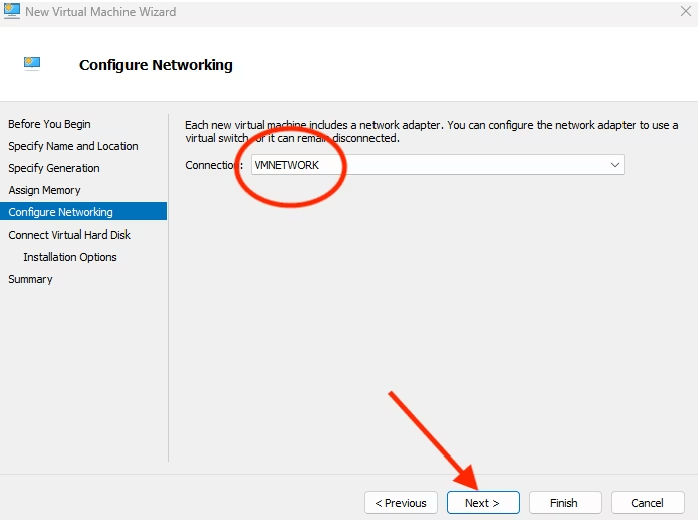
12. Select the VM's network connection, and then click **Next**.
    <Frame>
      <img src="https://mintcdn.com/levelblue-5324744e/YkIdbcABeK3EmZmy/images/usm-anywhere/HyperV_NetworkConnect.png?fit=max&auto=format&n=YkIdbcABeK3EmZmy&q=85&s=bf4af7766a5b1bc5908d66a0bbf167ca" alt="Hyper V Network Connect" width="699" height="520" data-path="images/usm-anywhere/HyperV_NetworkConnect.png" />
    </Frame>
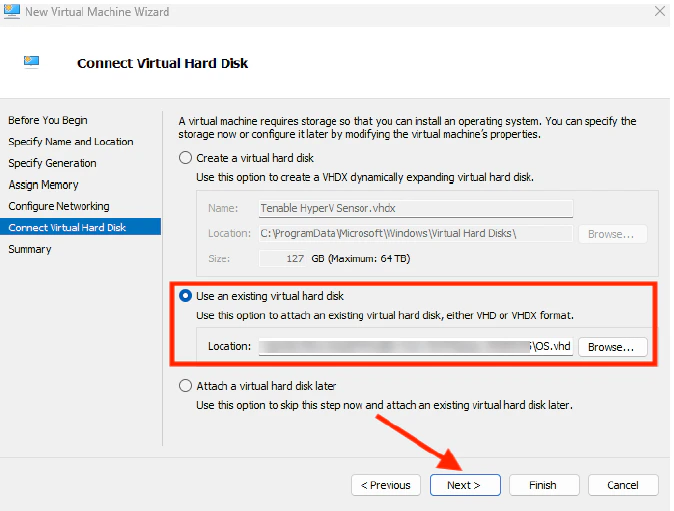
13. Select to **Use an existing virtual hard disk**.
14. Click **Browse** to locate the OS.vhd file that has been downloaded from Tenable.
    <Frame>
      <img src="https://mintcdn.com/levelblue-5324744e/YkIdbcABeK3EmZmy/images/usm-anywhere/HyperV_VirtualHD.png?fit=max&auto=format&n=YkIdbcABeK3EmZmy&q=85&s=2f8fa6e1257137e504b9dcdf3f2698a4" alt="Hyper V Virtual HD" width="674" height="511" data-path="images/usm-anywhere/HyperV_VirtualHD.png" />
    </Frame>
15. Click **Next**.
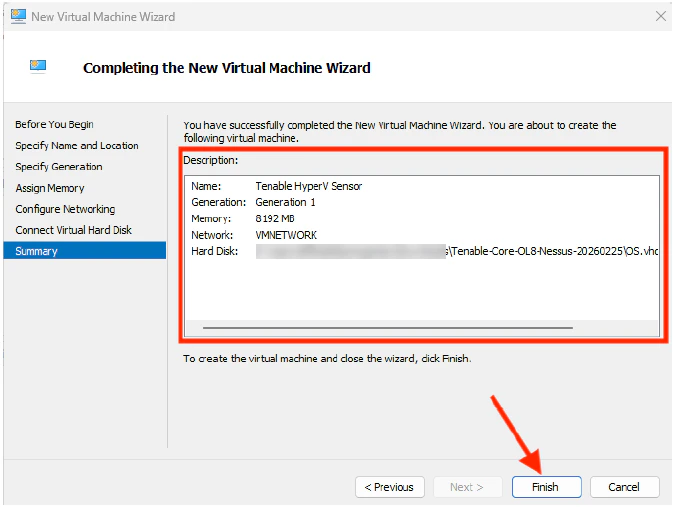
16. Review the VM details, and then click **Finish** to complete the process.
    <Frame>
      <img src="https://mintcdn.com/levelblue-5324744e/YkIdbcABeK3EmZmy/images/usm-anywhere/HyperV_NewVM.png?fit=max&auto=format&n=YkIdbcABeK3EmZmy&q=85&s=93cec3753c1f5505a6efffb35b561f87" alt="Hyper V New VM" width="673" height="507" data-path="images/usm-anywhere/HyperV_NewVM.png" />
    </Frame>
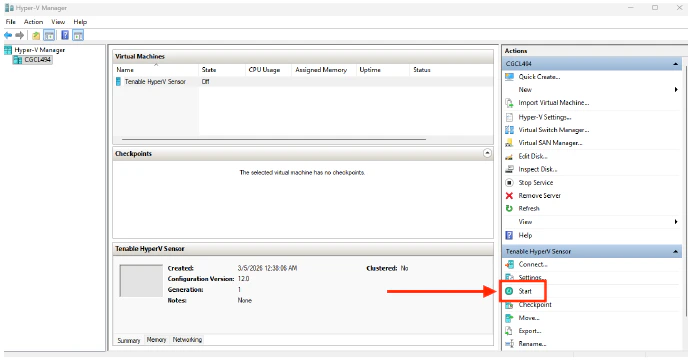
17. In the **Tenable Hyper-V Sensor** pane, click **Start** to launch the Hyper-V VM.
    <Frame>
      <img src="https://mintcdn.com/levelblue-5324744e/YkIdbcABeK3EmZmy/images/usm-anywhere/HyperV_StartVM.png?fit=max&auto=format&n=YkIdbcABeK3EmZmy&q=85&s=c2db0164d25e80e4bfd8127bb27e0fdc" alt="Hyper V Start VM" width="693" height="360" data-path="images/usm-anywhere/HyperV_StartVM.png" />
    </Frame>
18. Verify that the VM is running.
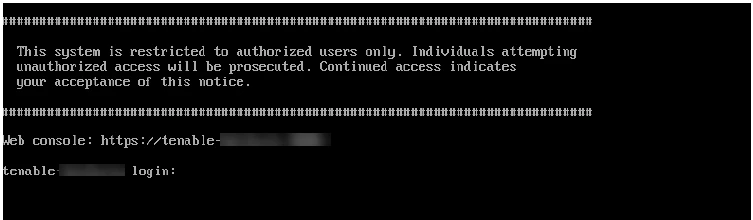
19. Open the web console of the Tenable sensor.
    <Frame>
      <img src="https://mintcdn.com/levelblue-5324744e/YkIdbcABeK3EmZmy/images/usm-anywhere/HyperV_WebConsole.png?fit=max&auto=format&n=YkIdbcABeK3EmZmy&q=85&s=1d3d3a23216e5504d10e390d3b7b1c99" alt="Hyper V Web Console" width="753" height="220" data-path="images/usm-anywhere/HyperV_WebConsole.png" />
    </Frame>
20. Log into the Tenable sensor using the default credentials: **username**: wizard / **password**: admin

    <Frame>
      <img src="https://mintcdn.com/levelblue-5324744e/YkIdbcABeK3EmZmy/images/usm-anywhere/HyperV_ConsoleLogin.png?fit=max&auto=format&n=YkIdbcABeK3EmZmy&q=85&s=afa46926438e1254e91d512bf63e52f2" alt="Hyper V Console Login" width="713" height="205" data-path="images/usm-anywhere/HyperV_ConsoleLogin.png" />
    </Frame>

    <Note>
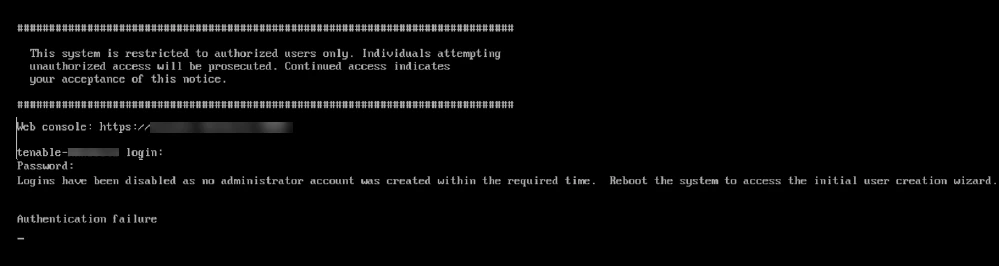
      Reboot the sensor if you cannot log in and the following error appears: *"Logins have been disabled as no administrator account was created within the required time. Reboot the system to access the initial user creation wizard."*
      <Frame>
        <img src="https://mintcdn.com/levelblue-5324744e/YkIdbcABeK3EmZmy/images/usm-anywhere/HyperV_ConsoleReboot.png?fit=max&auto=format&n=YkIdbcABeK3EmZmy&q=85&s=8bcdf6c1cd6dc196dacfb69a3818a033" alt="Hyper V Console Reboot" width="999" height="266" data-path="images/usm-anywhere/HyperV_ConsoleReboot.png" />
      </Frame>
    </Note>
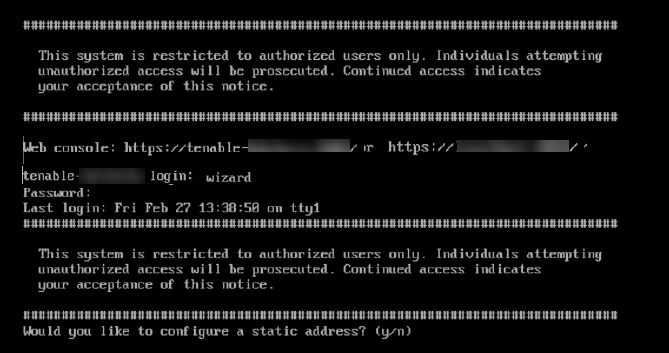
21. When prompted to configure a Tenable sensor IP (**static address**), type **y**.
    <Frame>
      <img src="https://mintcdn.com/levelblue-5324744e/YkIdbcABeK3EmZmy/images/usm-anywhere/HyperV_ConsoleIPConfig.png?fit=max&auto=format&n=YkIdbcABeK3EmZmy&q=85&s=05a1125ebc9e538c0f325f0a5dd3c598" alt="Hyper V Console IP Config" width="669" height="353" data-path="images/usm-anywhere/HyperV_ConsoleIPConfig.png" />
    </Frame>
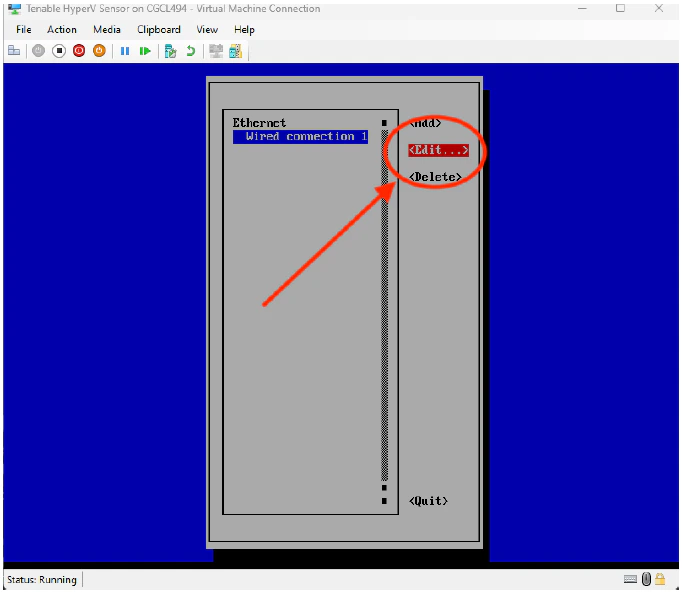
22. Select the **Wired connection** option, and then click **Edit**.
    <Frame>
      <img src="https://mintcdn.com/levelblue-5324744e/YkIdbcABeK3EmZmy/images/usm-anywhere/HyperV_WiredConnect.png?fit=max&auto=format&n=YkIdbcABeK3EmZmy&q=85&s=130c17977a6bf62271f69181b0c9e3bc" alt="Hyper V Wired Connect" width="682" height="593" data-path="images/usm-anywhere/HyperV_WiredConnect.png" />
    </Frame>
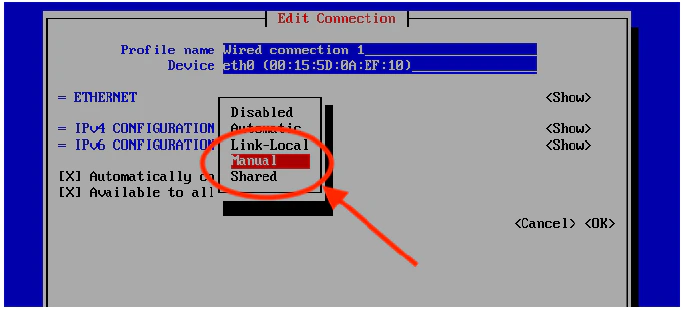
23. Click **Manual**.
    <Frame>
      <img src="https://mintcdn.com/levelblue-5324744e/YkIdbcABeK3EmZmy/images/usm-anywhere/HyperV_ManualEdit.png?fit=max&auto=format&n=YkIdbcABeK3EmZmy&q=85&s=9348ddcd5e3ccee7b72cc5567fa1c76c" alt="Hyper V Manual Edit" width="682" height="310" data-path="images/usm-anywhere/HyperV_ManualEdit.png" />
    </Frame>
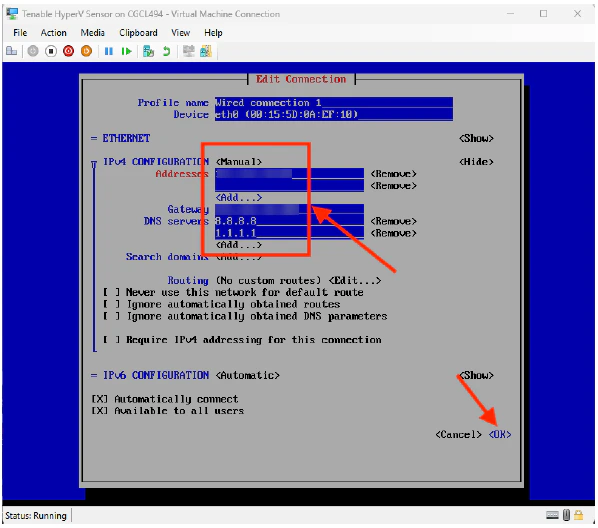
24. Assign the **IP Address**, **Gateway**, and **DNS Servers**.
25. Once done, click **OK**.
    <Frame>
      <img src="https://mintcdn.com/levelblue-5324744e/YkIdbcABeK3EmZmy/images/usm-anywhere/HyperV_IPConfig.png?fit=max&auto=format&n=YkIdbcABeK3EmZmy&q=85&s=e9e7126489a4734ae6ff97741ca0055e" alt="Hyper V IP Config" width="598" height="528" data-path="images/usm-anywhere/HyperV_IPConfig.png" />
    </Frame>
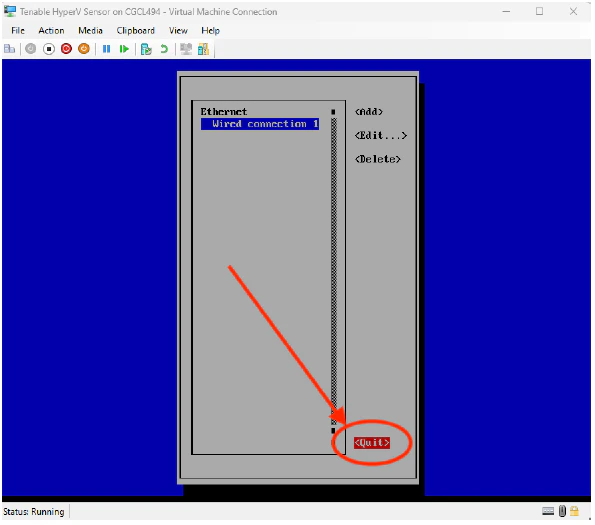
26. Click **Quit**.
    <Frame>
      <img src="https://mintcdn.com/levelblue-5324744e/YkIdbcABeK3EmZmy/images/usm-anywhere/HyperV_QuitConnect.png?fit=max&auto=format&n=YkIdbcABeK3EmZmy&q=85&s=29ddbf1194611f38f53687e7064088f9" alt="Hyper V Quit Connect" width="595" height="525" data-path="images/usm-anywhere/HyperV_QuitConnect.png" />
    </Frame>
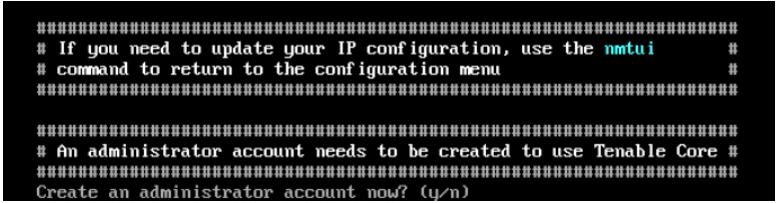
27. Return to the web console, and when prompted to create an **administrator account**, type **y**.
    <Frame>
      <img src="https://mintcdn.com/levelblue-5324744e/YkIdbcABeK3EmZmy/images/usm-anywhere/HyperV_CreateAdminAcct.png?fit=max&auto=format&n=YkIdbcABeK3EmZmy&q=85&s=579b8057217dca6f64bcdb38fa7eb1ac" alt="Hyper V Create Admin Acct" width="777" height="203" data-path="images/usm-anywhere/HyperV_CreateAdminAcct.png" />
    </Frame>
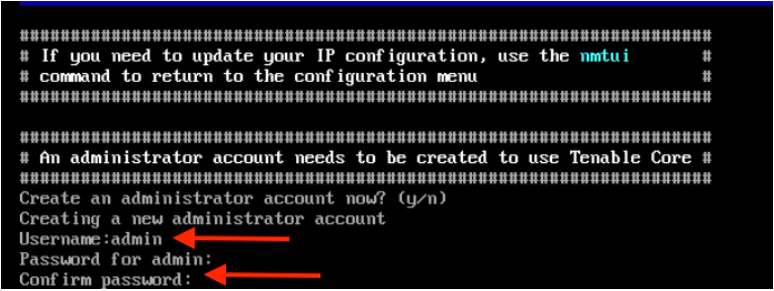
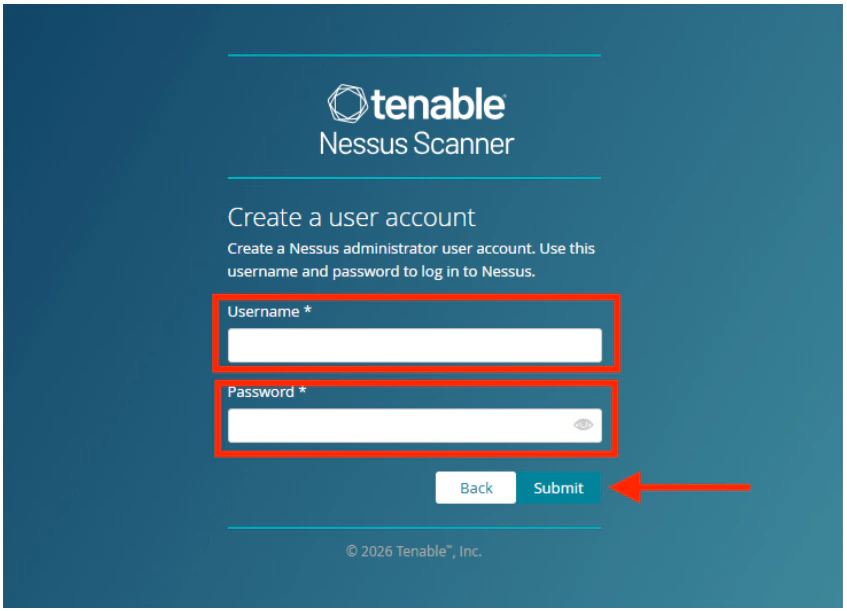
28. Type a **Username** and **Password** for the admin account.
29. Confirm the password.
    <Frame>
      <img src="https://mintcdn.com/levelblue-5324744e/YkIdbcABeK3EmZmy/images/usm-anywhere/HyperV_AdminLogin.png?fit=max&auto=format&n=YkIdbcABeK3EmZmy&q=85&s=ab52cfdd992b12f0f0f35a633ae673fe" alt="Hyper V Admin Login" width="774" height="291" data-path="images/usm-anywhere/HyperV_AdminLogin.png" />
    </Frame>
30. Check that the new admin account can log into the Tenable web console.
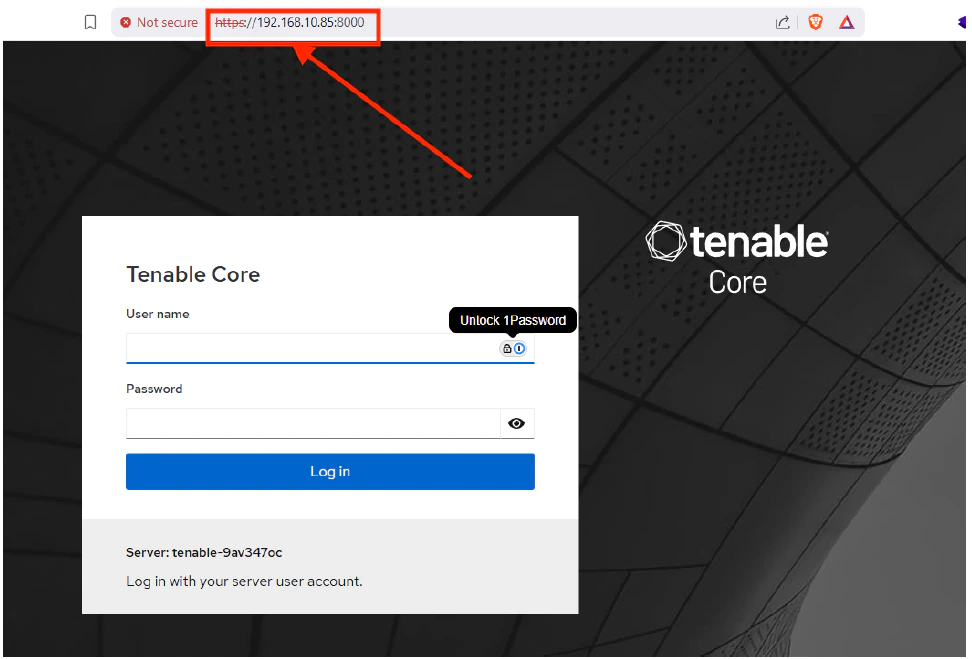
31. Using the configured IP, use your web browser to connect to Tenable sensor to port 8000.
32. Log in using the admin account credentials.
    <Frame>
      <img src="https://mintcdn.com/levelblue-5324744e/YkIdbcABeK3EmZmy/images/usm-anywhere/HyperV_TenableCoreLogin.png?fit=max&auto=format&n=YkIdbcABeK3EmZmy&q=85&s=cdcc3092f9abe3849818c8cbe10e3135" alt="Hyper V Tenable Core Login" width="972" height="659" data-path="images/usm-anywhere/HyperV_TenableCoreLogin.png" />
    </Frame>
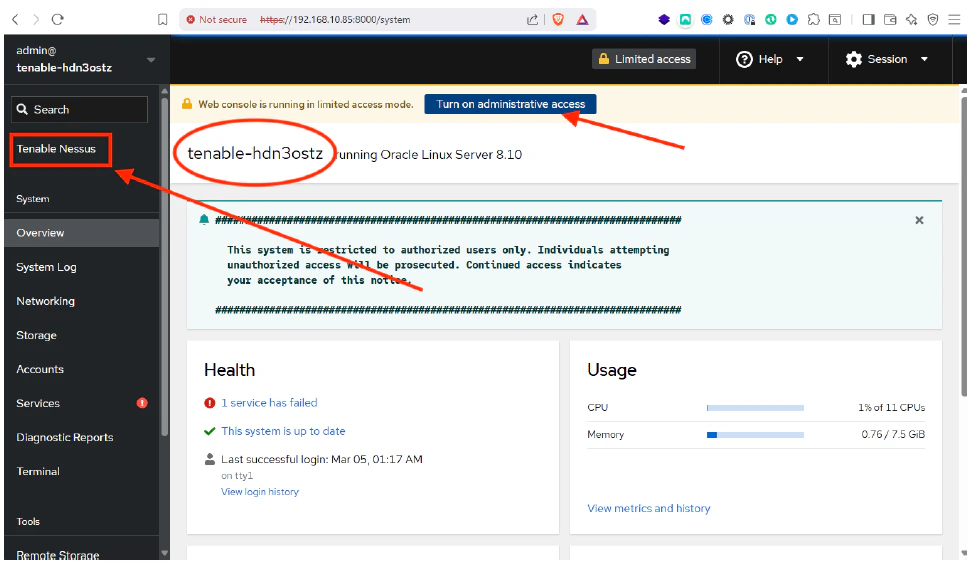
33. Once you are logged in, you can see the name of the Tenable Sensor. Click **Turn on administrative access**.
    <Frame>
      <img src="https://mintcdn.com/levelblue-5324744e/YkIdbcABeK3EmZmy/images/usm-anywhere/HyperV_TenableDashboard.png?fit=max&auto=format&n=YkIdbcABeK3EmZmy&q=85&s=e66f258ccbbcb90ee28aafb226a23682" alt="Hyper V Tenable Dashboard" width="972" height="566" data-path="images/usm-anywhere/HyperV_TenableDashboard.png" />
    </Frame>
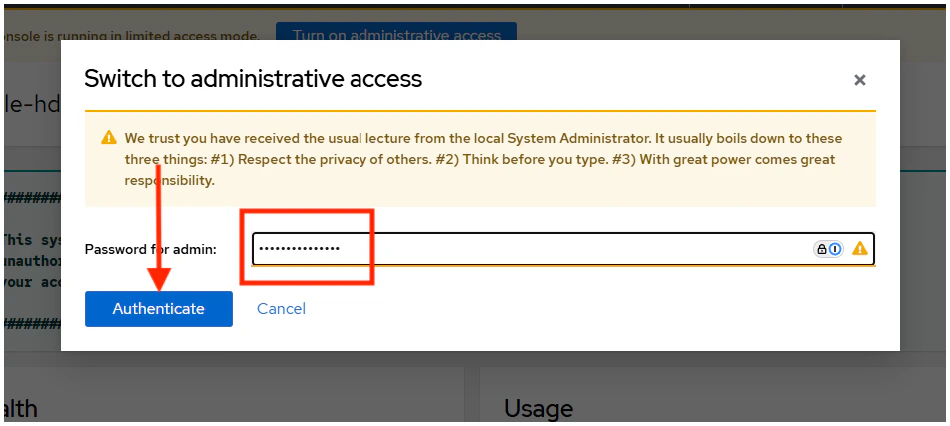
34. Click **Authenticate**.
    <Frame>
      <img src="https://mintcdn.com/levelblue-5324744e/YkIdbcABeK3EmZmy/images/usm-anywhere/HyperV_AuthenticateAdmin.png?fit=max&auto=format&n=YkIdbcABeK3EmZmy&q=85&s=bac3158e1ece2b19b4c0579cbb0f250a" alt="Hyper V Authenticate Admin" width="950" height="426" data-path="images/usm-anywhere/HyperV_AuthenticateAdmin.png" />
    </Frame>
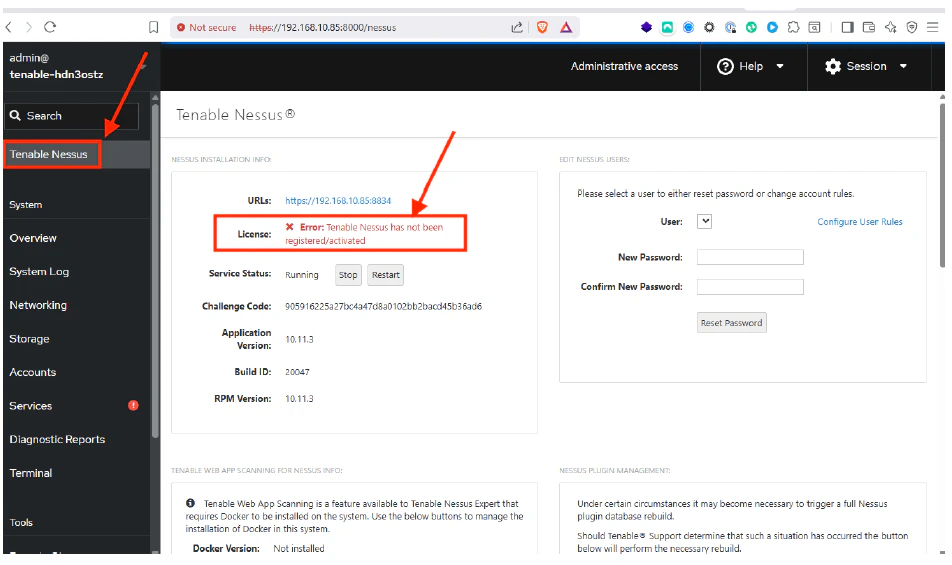
35. Check the **License** of the sensor, and verify that there is no license linking the sensor to the cloud tenant.
    <Frame>
      <img src="https://mintcdn.com/levelblue-5324744e/YkIdbcABeK3EmZmy/images/usm-anywhere/HyperV_TenableLicense.png?fit=max&auto=format&n=YkIdbcABeK3EmZmy&q=85&s=1b010705beb27fb059097ad8f030a8b8" alt="Hyper V Tenable License" width="952" height="565" data-path="images/usm-anywhere/HyperV_TenableLicense.png" />
    </Frame>
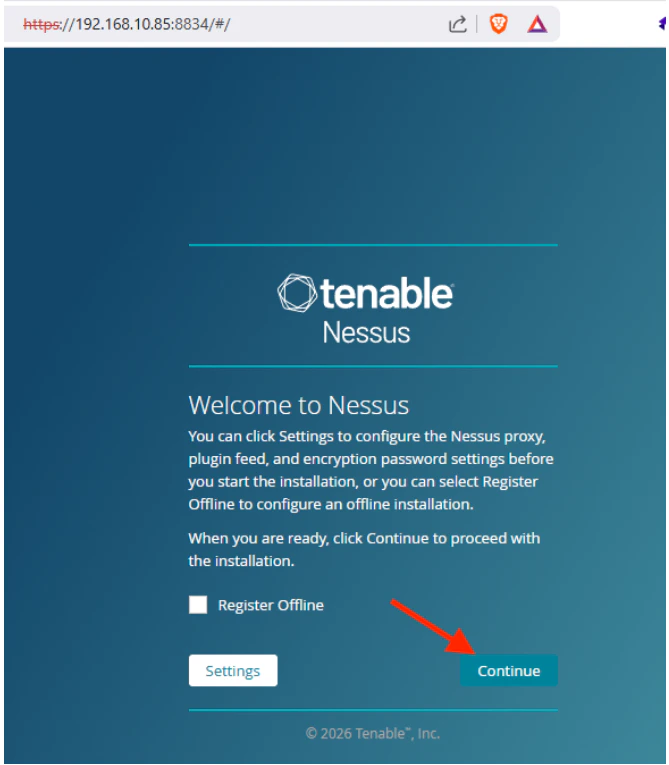
36. Connect to the Tenable sensor using your web browser on port 8834, and then click **Continue**.
    <Frame>
      <img src="https://mintcdn.com/levelblue-5324744e/YkIdbcABeK3EmZmy/images/usm-anywhere/HyperV_TenableLogin.png?fit=max&auto=format&n=YkIdbcABeK3EmZmy&q=85&s=bbafc74f47534e7864dc67bd8b68ce49" alt="Hyper V Tenable Login" className="mx-auto" style={{ width:"80%" }} width="669" height="765" data-path="images/usm-anywhere/HyperV_TenableLogin.png" />
    </Frame>
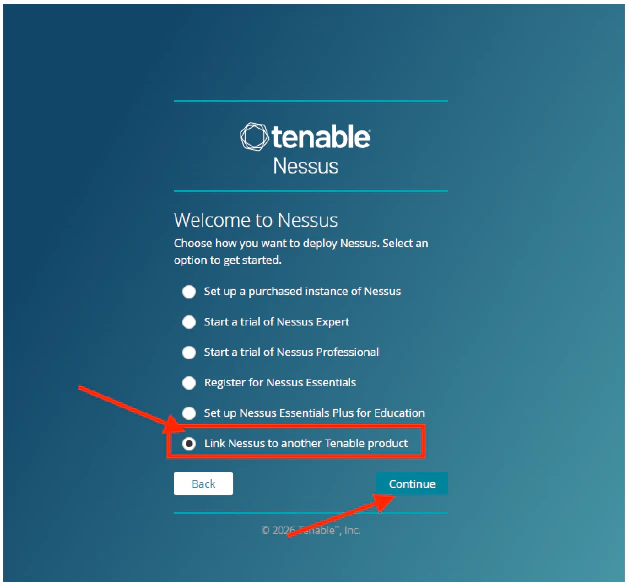
37. Select the **Link Nessus to another Tenable product** option, and then click **Continue**.
    <Frame>
      <img src="https://mintcdn.com/levelblue-5324744e/YkIdbcABeK3EmZmy/images/usm-anywhere/HyperV_TenableLinkScanner.png?fit=max&auto=format&n=YkIdbcABeK3EmZmy&q=85&s=26f52e52ea2e7d014abe4598db487d99" alt="Hyper V Tenable Link Scanner" title="Hyper V Tenable Link Scanner" className="mx-auto" style={{ width:"85%" }} width="629" height="585" data-path="images/usm-anywhere/HyperV_TenableLinkScanner.png" />
    </Frame>
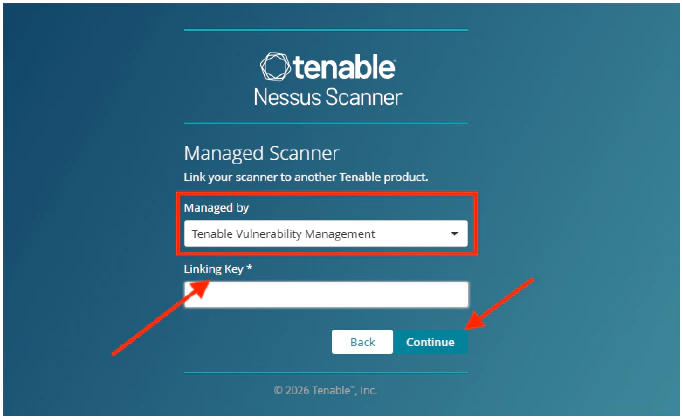
38. Select the **Tenable Vulnerability Management** option to manage your linked scanner.
39. Enter the **Linking Key**. (See **Obtain Linking Key** section below for details.)
    <Frame>
      <img src="https://mintcdn.com/levelblue-5324744e/YkIdbcABeK3EmZmy/images/usm-anywhere/HyperV_ManagedScanner.png?fit=max&auto=format&n=YkIdbcABeK3EmZmy&q=85&s=f33955887d9e6198d68df8314d2b9dc8" alt="Hyper V Managed Scanner" className="mx-auto" style={{ width:"88%" }} width="682" height="419" data-path="images/usm-anywhere/HyperV_ManagedScanner.png" />
    </Frame>

    <br />

    <Accordion title="Obtain Linking Key">
      You may get the Linking Key from Tenable cloud:

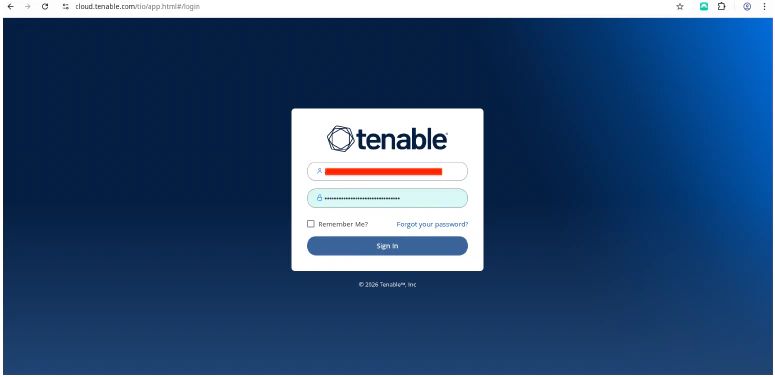
      * Log into [cloud.tenable.com](http://cloud.tenable.com) 
          <Frame>
            <img src="https://mintcdn.com/levelblue-5324744e/rZYqRuu8SvxP90bm/images/usm-anywhere/GCP_TenableCloud.png?fit=max&auto=format&n=rZYqRuu8SvxP90bm&q=85&s=d38dfed116ebc3dd0e6f9a643c4ab52d" alt="GCP Tenable Cloud" title="GCP Tenable Cloud" className="mx-auto" style={{ width:"81%" }} width="775" height="377" data-path="images/usm-anywhere/GCP_TenableCloud.png" />
          </Frame>
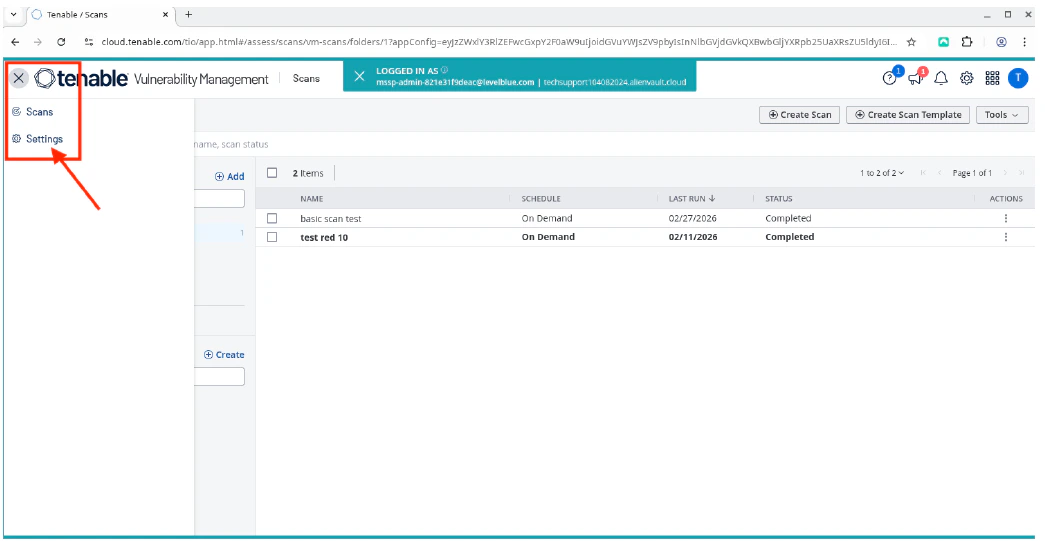
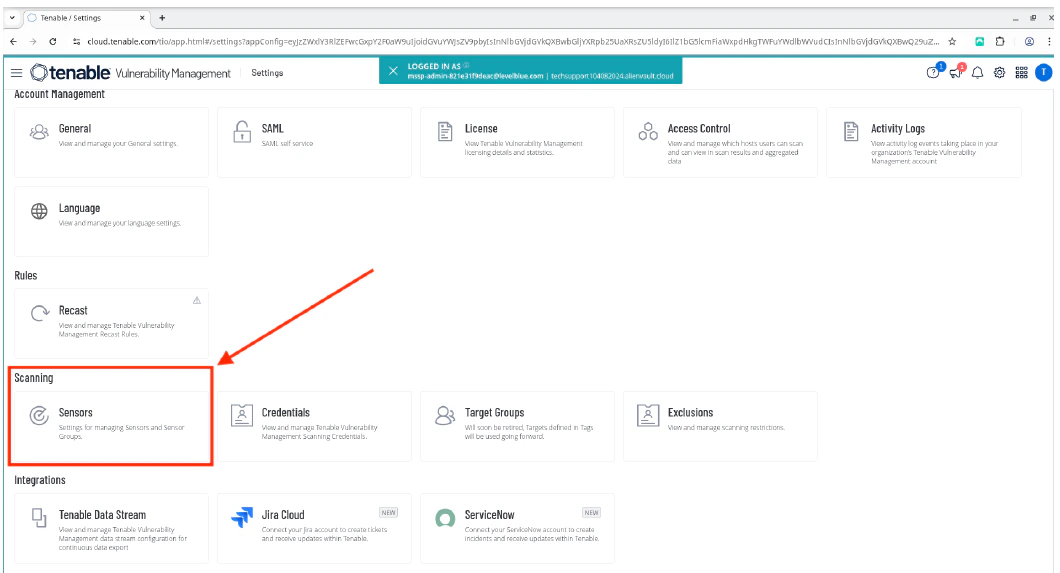
      * Click the burger menu, and then select **Settings**.

          <Frame>
            <img src="https://mintcdn.com/levelblue-5324744e/gU7T8wrJm1xDJZ8S/images/usm-anywhere/Azure_burgermenu.png?fit=max&auto=format&n=gU7T8wrJm1xDJZ8S&q=85&s=26b9f8983c6f70e606e1387cc672f917" alt="Azure Burgermenu" width="777" height="153" data-path="images/usm-anywhere/Azure_burgermenu.png" />
          </Frame>
          <Frame>
            <img src="https://mintcdn.com/levelblue-5324744e/YkIdbcABeK3EmZmy/images/usm-anywhere/HyperV_TenableCloud.png?fit=max&auto=format&n=YkIdbcABeK3EmZmy&q=85&s=2330448bc7bd75e3377aff6097bb42a5" alt="Hyper V Tenable Cloud" title="Hyper V Tenable Cloud" className="mx-auto" style={{ width:"83%" }} width="1045" height="541" data-path="images/usm-anywhere/HyperV_TenableCloud.png" />
          </Frame>
      * Select **Sensors**.
          <Frame>
            <img src="https://mintcdn.com/levelblue-5324744e/YkIdbcABeK3EmZmy/images/usm-anywhere/HyperV_TenableCloudSensors.png?fit=max&auto=format&n=YkIdbcABeK3EmZmy&q=85&s=21fb00910c942f497f8912ccd4e34195" alt="Hyper V Tenable Cloud Sensors" title="Hyper V Tenable Cloud Sensors" className="mx-auto" style={{ width:"87%" }} width="1060" height="573" data-path="images/usm-anywhere/HyperV_TenableCloudSensors.png" />
          </Frame>
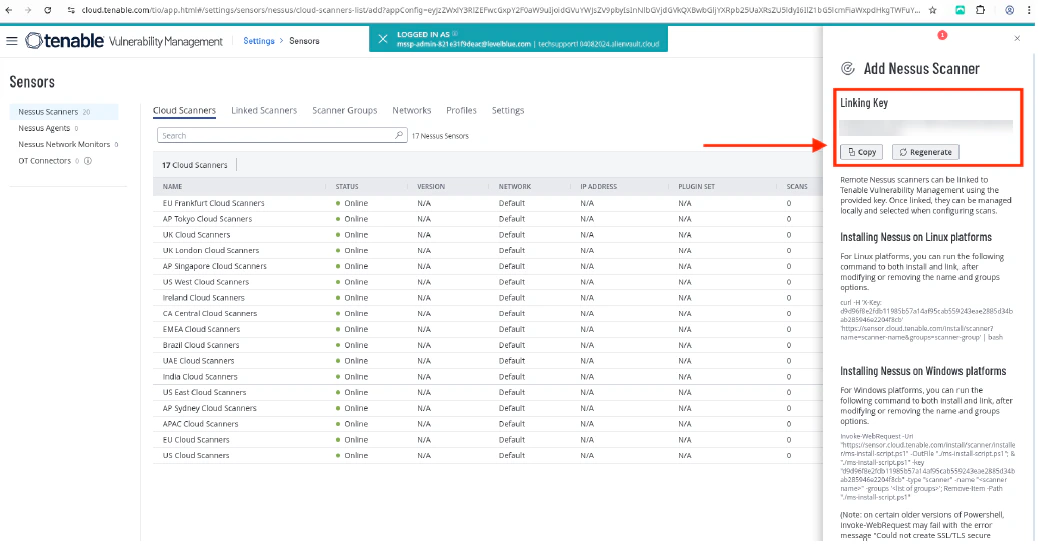
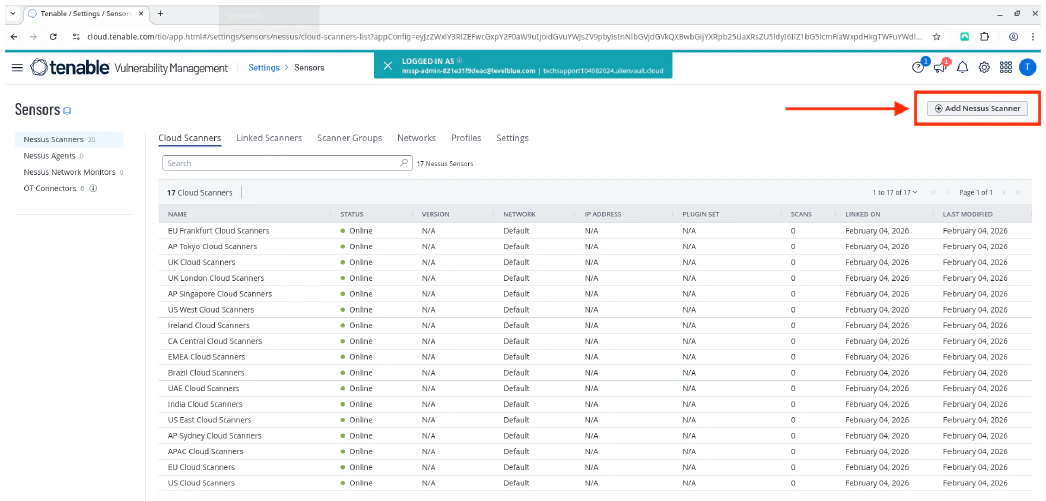
      * Click **Add Nessus Scanner** to view the Linking Key.
          <Frame>
            <img src="https://mintcdn.com/levelblue-5324744e/YkIdbcABeK3EmZmy/images/usm-anywhere/HyperV_AddNessusScanner.png?fit=max&auto=format&n=YkIdbcABeK3EmZmy&q=85&s=09386c25a7d3dbd75e1312cc6c001ba3" alt="Hyper V Add Nessus Scanner" title="Hyper V Add Nessus Scanner" className="mx-auto" style={{ width:"90%" }} width="1046" height="501" data-path="images/usm-anywhere/HyperV_AddNessusScanner.png" />
          </Frame>
      * Copy the **Linking Key**.
          <Frame>
            <img src="https://mintcdn.com/levelblue-5324744e/tubUKQ2fVKKngwCT/images/usm-anywhere/HyperV_CopyLinkingKey1.png?fit=max&auto=format&n=tubUKQ2fVKKngwCT&q=85&s=0d268f117316f4d33b84e0c60680ac56" alt="Hyper V Copy Linking Key" title="Hyper V Copy Linking Key" className="dark:hidden mx-auto" style={{ width:"93%" }} lightAlt="Hyper V Copy Linking Key" darkAlt="Hyper V Copy Linking Key" width="1038" height="547" data-path="images/usm-anywhere/HyperV_CopyLinkingKey1.png" />
          </Frame>
    </Accordion>
40. Once you have entered the Linking Key, click **Continue**.
41. Enter a **Username** and **Password** to create a Nessus administrator user account.
    <Frame>
      <img src="https://mintcdn.com/levelblue-5324744e/YkIdbcABeK3EmZmy/images/usm-anywhere/HyperV_NessusUserAcct.png?fit=max&auto=format&n=YkIdbcABeK3EmZmy&q=85&s=baf54d50b079006b1bec52cc31050f66" alt="Hyper V Nessus User Acct" className="mx-auto" style={{ width:"87%" }} width="847" height="611" data-path="images/usm-anywhere/HyperV_NessusUserAcct.png" />
    </Frame>
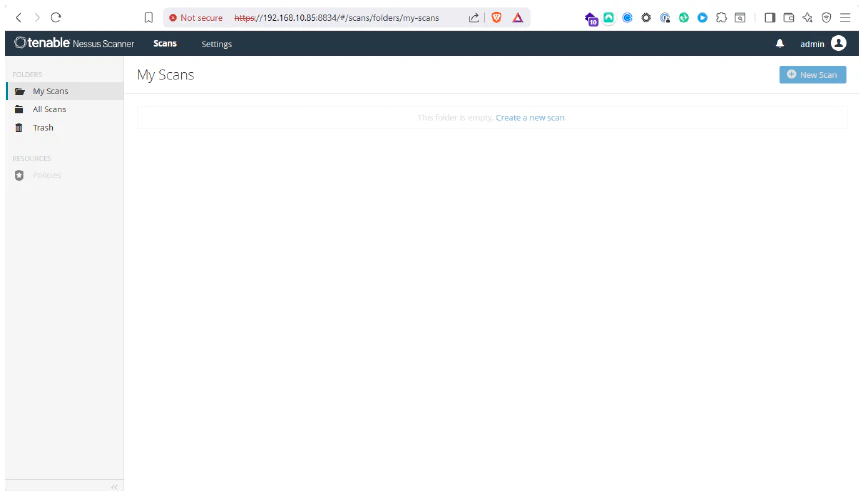
42. Click **Submit**. The sensor's **My Scans** page opens.
    <Frame>
      <img src="https://mintcdn.com/levelblue-5324744e/YkIdbcABeK3EmZmy/images/usm-anywhere/HyperV_MyScans.png?fit=max&auto=format&n=YkIdbcABeK3EmZmy&q=85&s=19c7452c45def8d4f6a9f9d07ffe0c7e" alt="Hyper V My Scans" width="862" height="500" data-path="images/usm-anywhere/HyperV_MyScans.png" />
    </Frame>
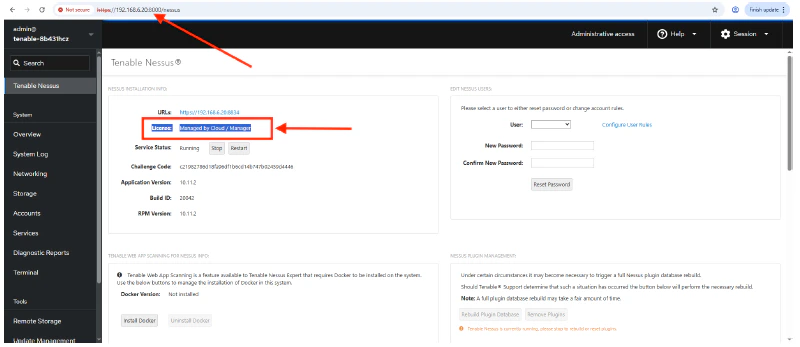
43. Re-connect to the sensor using a web browser to port 8000, and then check the License of the Tenable sensor.
    <Frame>
      <img src="https://mintcdn.com/levelblue-5324744e/tubUKQ2fVKKngwCT/images/usm-anywhere/VMware_TenableLicenseValid.png?fit=max&auto=format&n=tubUKQ2fVKKngwCT&q=85&s=a5d78c3f7fcae32f8692f8b4197ad2f5" alt="V Mware Tenable License Valid" width="800" height="347" data-path="images/usm-anywhere/VMware_TenableLicenseValid.png" />
    </Frame>
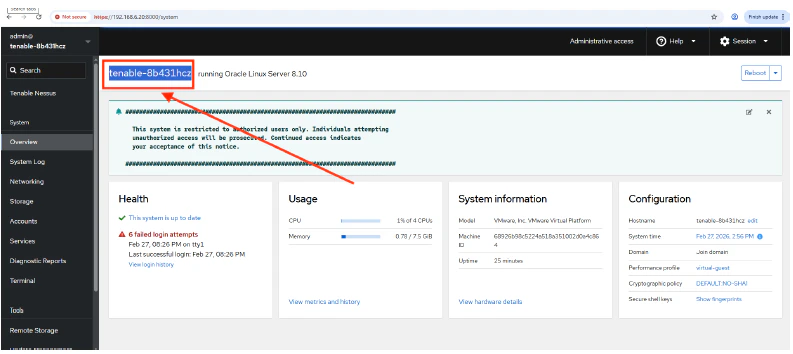
44. Get the name of the deployed Tenable sensor.
    <Frame>
      <img src="https://mintcdn.com/levelblue-5324744e/tubUKQ2fVKKngwCT/images/usm-anywhere/VMware_TenableName.png?fit=max&auto=format&n=tubUKQ2fVKKngwCT&q=85&s=4bf31da803a2f715c3751786dd011a31" alt="V Mware Tenable Name" width="793" height="354" data-path="images/usm-anywhere/VMware_TenableName.png" />
    </Frame>
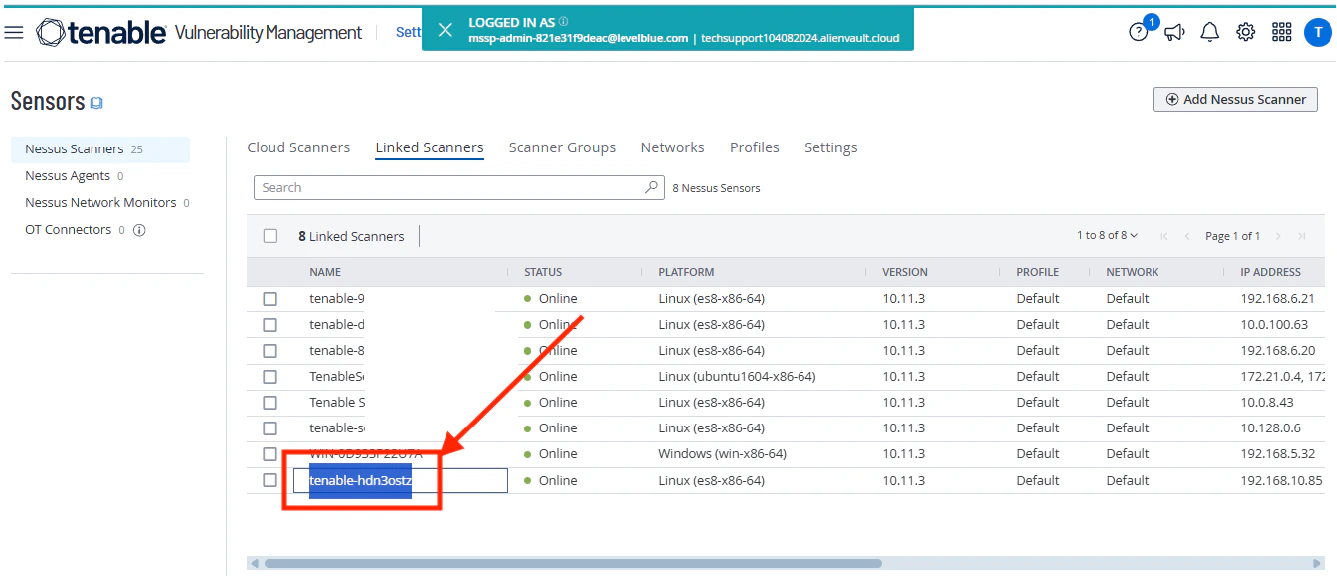
45. Return to the Tenable cloud page, and verify that the Tenable sensor is linked correctly and is in **Online** status.
    <Frame>
      <img src="https://mintcdn.com/levelblue-5324744e/YkIdbcABeK3EmZmy/images/usm-anywhere/HyperV_TenabledLinkedSensor.png?fit=max&auto=format&n=YkIdbcABeK3EmZmy&q=85&s=f74a9fe3e8bf2a5487f92889a056f2cf" alt="Hyper V Tenabled Linked Sensor" width="1337" height="576" data-path="images/usm-anywhere/HyperV_TenabledLinkedSensor.png" />
    </Frame>

<Warning>
  **VERIFICATION / TROUBLESHOOTING**

  * If the sensor does not link properly:
    * Re-check the outbound TCP 443 access to [sensor.cloud.tenable.com](http://sensor.cloud.tenable.com) and [plugins.nessus.org](http://plugins.nessus.org).
    * Make sure the Linking Key is correct and not expired.
  * If the scans do not find hosts:
    * Confirm that the scanner can reach the target network (routing, security groups/NSGs, and target host firewalls).
    * For credential scans, confirm that the credentials work and the required auth ports are reachable.
</Warning>