> ## Documentation Index
> Fetch the complete documentation index at: https://docs.levelblue.com/llms.txt
> Use this file to discover all available pages before exploring further.

# Tenable Sensor Deployment for AWS

**To deploy the Tenable sensor for AWS**

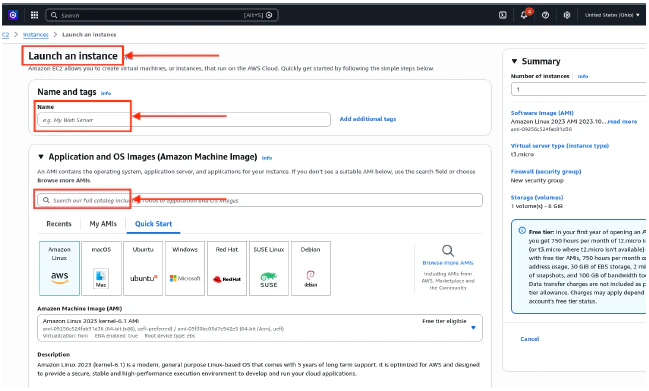
1. Log into AWS, and launch a new EC2 instance.
   * Enter a **Name and tags** for the instance.
   * Search for and select the **Application and OS Images** for the instance.
   <Frame>
     <img src="https://mintcdn.com/levelblue-5324744e/gU7T8wrJm1xDJZ8S/images/usm-anywhere/AWS_EC2Instance.png?fit=max&auto=format&n=gU7T8wrJm1xDJZ8S&q=85&s=2a5233e1b8fc9bfc5e2affceb525c9f8" alt="AWS Ec2instance" width="649" height="391" data-path="images/usm-anywhere/AWS_EC2Instance.png" />
   </Frame>
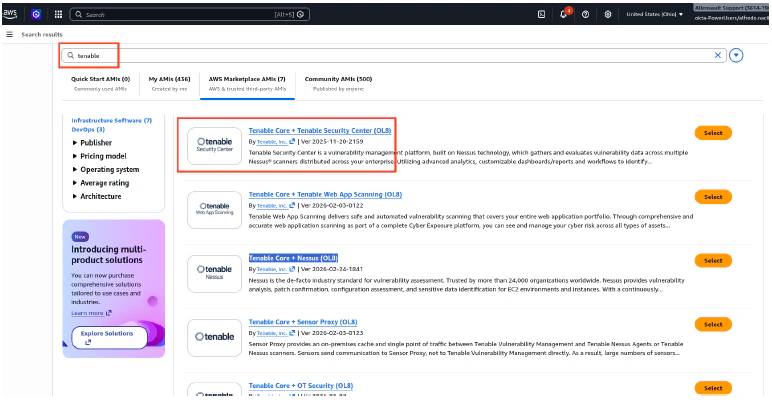
2. Select **Tenable Core + Tenable Security Center (OL8)**.
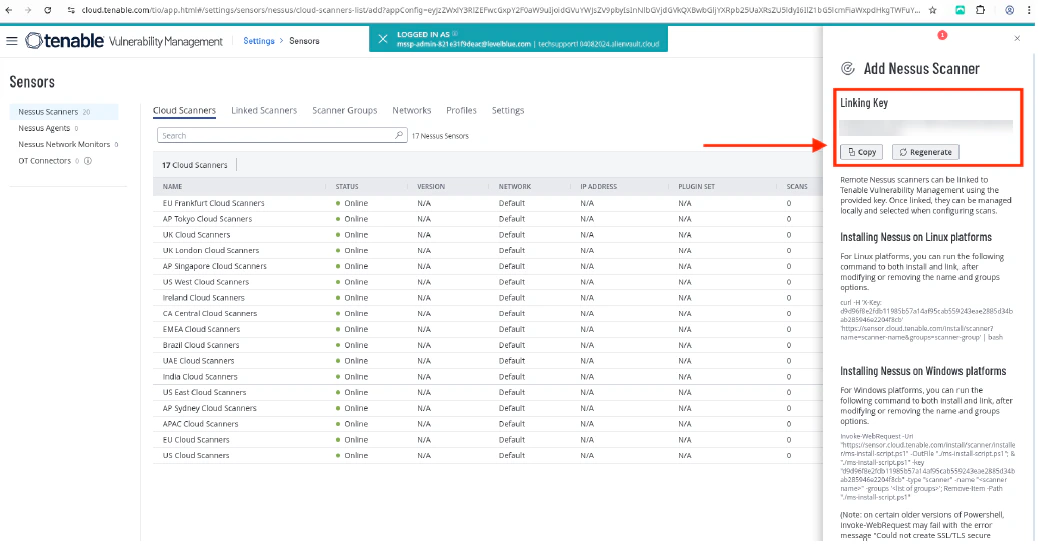
   <Frame>
     <img src="https://mintcdn.com/levelblue-5324744e/gU7T8wrJm1xDJZ8S/images/usm-anywhere/AWS_TenableCore.png?fit=max&auto=format&n=gU7T8wrJm1xDJZ8S&q=85&s=62b23f9e6da506759d0839296182f2f2" alt="AWS Tenable Core" width="772" height="403" data-path="images/usm-anywhere/AWS_TenableCore.png" />
   </Frame>
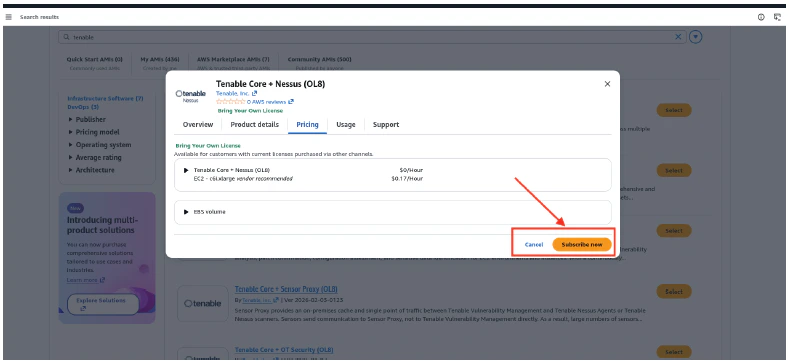
3. Select **Subscribe Now**.
   <Frame>
     <img src="https://mintcdn.com/levelblue-5324744e/gU7T8wrJm1xDJZ8S/images/usm-anywhere/AWS_TenableSubscribe.png?fit=max&auto=format&n=gU7T8wrJm1xDJZ8S&q=85&s=adc27fbfb2f4207dba730e16e792ea4f" alt="AWS Tenable Subscribe" width="789" height="361" data-path="images/usm-anywhere/AWS_TenableSubscribe.png" />
   </Frame>
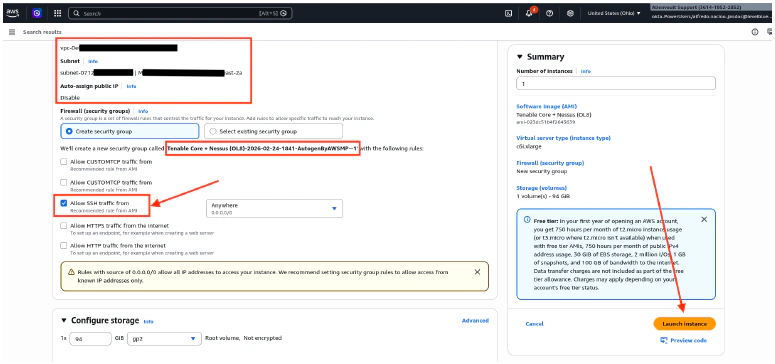
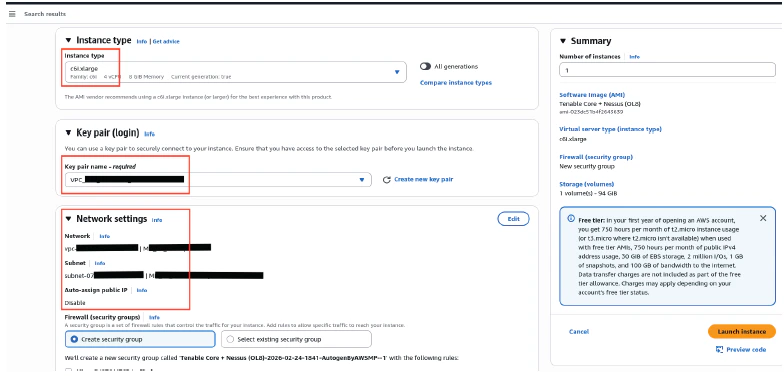
4. Set the following configuration:
   * Select the **Instance Type**.
   * Select the **Key Pair** name. This is needed to connect to the instance.
   * Enter the **VPC** and **Subnet** for the **Network Settings**.
   * Enable the **Auto-assign Public IP**.
   * Enable **SSH** to access the Tenable sensor.
5. Once done, click **Launch Instance**.
   <Frame>
     <img src="https://mintcdn.com/levelblue-5324744e/gU7T8wrJm1xDJZ8S/images/usm-anywhere/AWS_InstanceConfig.png?fit=max&auto=format&n=gU7T8wrJm1xDJZ8S&q=85&s=2725196ee91547d8b86532ec102d7145" alt="AWS Instance Config" width="784" height="379" data-path="images/usm-anywhere/AWS_InstanceConfig.png" />
   </Frame>
   <Frame>
     <img src="https://mintcdn.com/levelblue-5324744e/gU7T8wrJm1xDJZ8S/images/usm-anywhere/AWS_InstanceConfig2.png?fit=max&auto=format&n=gU7T8wrJm1xDJZ8S&q=85&s=1e09af09013bd9256e96018c3744f11f" alt="AWS Instance Config2" width="775" height="364" data-path="images/usm-anywhere/AWS_InstanceConfig2.png" />
   </Frame>
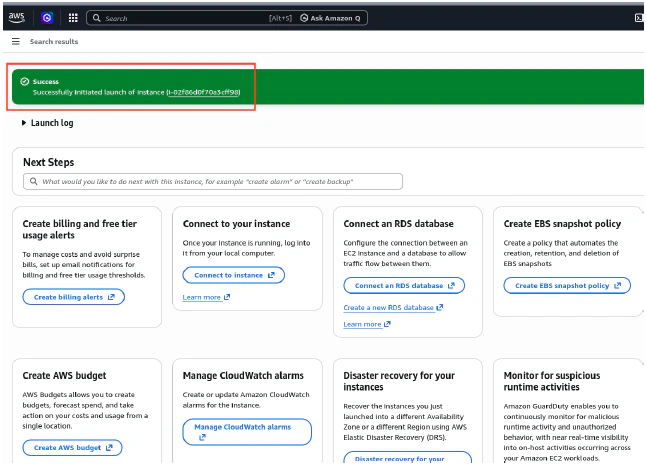
6. Continue creating the VM until you get a successful confirmation message.
   <Frame>
     <img src="https://mintcdn.com/levelblue-5324744e/gU7T8wrJm1xDJZ8S/images/usm-anywhere/AWS_CreatedVM.png?fit=max&auto=format&n=gU7T8wrJm1xDJZ8S&q=85&s=68849dfa0bdb0148e17366fab5d64b7f" alt="AWS Created VM" width="646" height="475" data-path="images/usm-anywhere/AWS_CreatedVM.png" />
   </Frame>
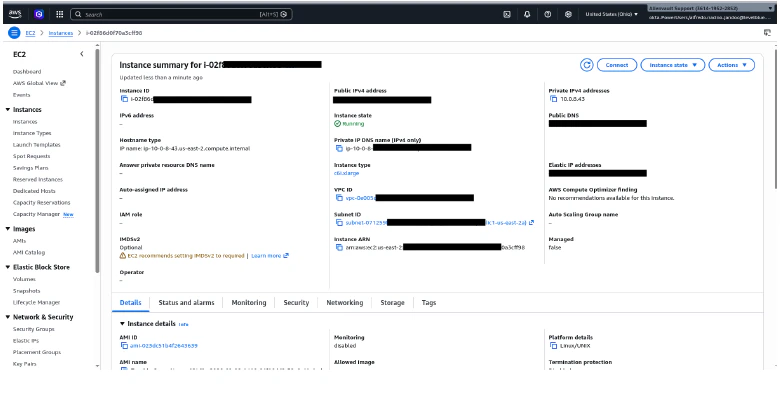
7. Take note of the **Public** and **Private IP** addresses of the deployed VM.
   <Frame>
     <img src="https://mintcdn.com/levelblue-5324744e/gU7T8wrJm1xDJZ8S/images/usm-anywhere/AWS_IP.png?fit=max&auto=format&n=gU7T8wrJm1xDJZ8S&q=85&s=4b921a41074372f3eb6bd8e5602ff4e6" alt="AWS IP" width="780" height="399" data-path="images/usm-anywhere/AWS_IP.png" />
   </Frame>
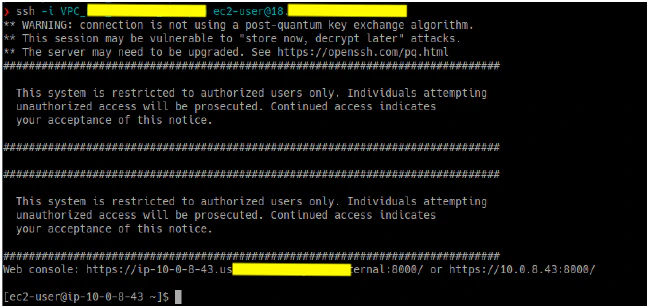
8. Connect to the Tenable sensor via SSH.
   <Frame>
     <img src="https://mintcdn.com/levelblue-5324744e/gU7T8wrJm1xDJZ8S/images/usm-anywhere/AWS_SSH.png?fit=max&auto=format&n=gU7T8wrJm1xDJZ8S&q=85&s=3033d25ac5183e7ee1363540023d3502" alt="AWS SSH" width="650" height="308" data-path="images/usm-anywhere/AWS_SSH.png" />
   </Frame>
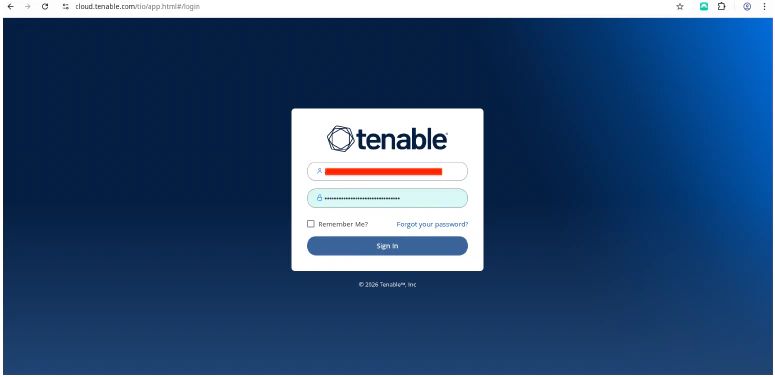
9. Log into [cloud.tenable.com](http://cloud.tenable.com) to get the Linking Key.
   <Frame>
     <img src="https://mintcdn.com/levelblue-5324744e/rZYqRuu8SvxP90bm/images/usm-anywhere/GCP_TenableCloud.png?fit=max&auto=format&n=rZYqRuu8SvxP90bm&q=85&s=d38dfed116ebc3dd0e6f9a643c4ab52d" alt="GCP Tenable Cloud" width="775" height="377" data-path="images/usm-anywhere/GCP_TenableCloud.png" />
   </Frame>
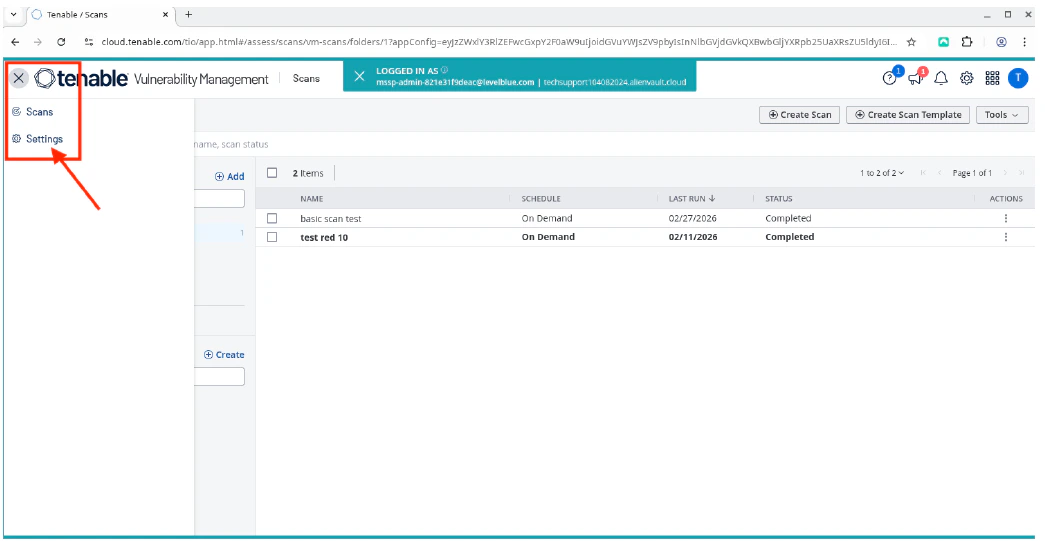
10. Click the burger menu, and then select **Settings**.

    <Frame>
      <img src="https://mintcdn.com/levelblue-5324744e/gU7T8wrJm1xDJZ8S/images/usm-anywhere/Azure_burgermenu.png?fit=max&auto=format&n=gU7T8wrJm1xDJZ8S&q=85&s=26b9f8983c6f70e606e1387cc672f917" alt="Azure Burgermenu" width="777" height="153" data-path="images/usm-anywhere/Azure_burgermenu.png" />
    </Frame>
    <Frame>
      <img src="https://mintcdn.com/levelblue-5324744e/YkIdbcABeK3EmZmy/images/usm-anywhere/HyperV_TenableCloud.png?fit=max&auto=format&n=YkIdbcABeK3EmZmy&q=85&s=2330448bc7bd75e3377aff6097bb42a5" alt="Hyper V Tenable Cloud" title="Hyper V Tenable Cloud" className="mx-auto" style={{ width:"83%" }} width="1045" height="541" data-path="images/usm-anywhere/HyperV_TenableCloud.png" />
    </Frame>
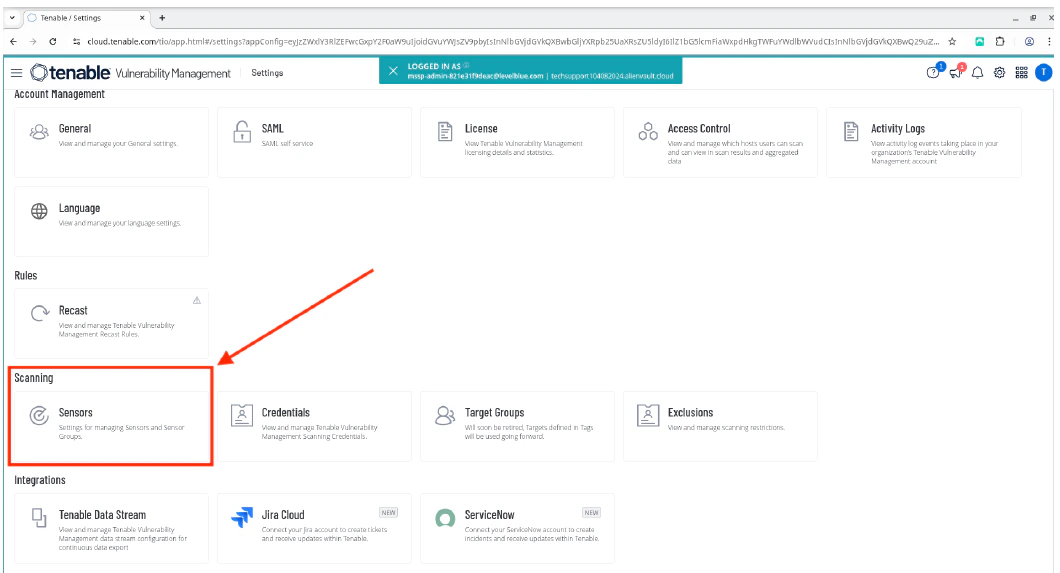
11. Select **Sensors**.
    <Frame>
      <img src="https://mintcdn.com/levelblue-5324744e/YkIdbcABeK3EmZmy/images/usm-anywhere/HyperV_TenableCloudSensors.png?fit=max&auto=format&n=YkIdbcABeK3EmZmy&q=85&s=21fb00910c942f497f8912ccd4e34195" alt="Hyper V Tenable Cloud Sensors" title="Hyper V Tenable Cloud Sensors" className="mx-auto" style={{ width:"87%" }} width="1060" height="573" data-path="images/usm-anywhere/HyperV_TenableCloudSensors.png" />
    </Frame>
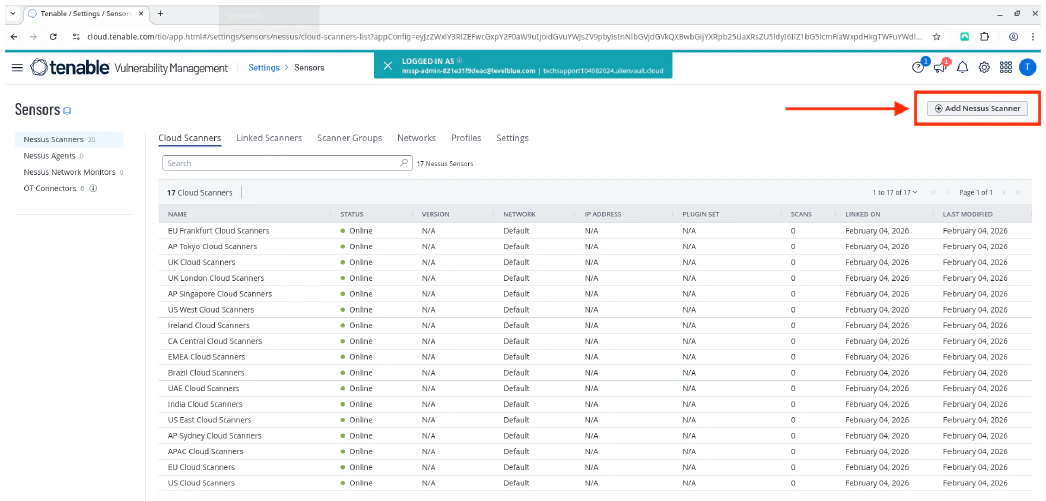
12. Click **Add Nessus Scanner** to view the Linking Key.
    <Frame>
      <img src="https://mintcdn.com/levelblue-5324744e/YkIdbcABeK3EmZmy/images/usm-anywhere/HyperV_AddNessusScanner.png?fit=max&auto=format&n=YkIdbcABeK3EmZmy&q=85&s=09386c25a7d3dbd75e1312cc6c001ba3" alt="Hyper V Add Nessus Scanner" title="Hyper V Add Nessus Scanner" className="mx-auto" style={{ width:"90%" }} width="1046" height="501" data-path="images/usm-anywhere/HyperV_AddNessusScanner.png" />
    </Frame>
13. Copy the **Linking Key**.
    <Frame>
      <img src="https://mintcdn.com/levelblue-5324744e/tubUKQ2fVKKngwCT/images/usm-anywhere/HyperV_CopyLinkingKey1.png?fit=max&auto=format&n=tubUKQ2fVKKngwCT&q=85&s=0d268f117316f4d33b84e0c60680ac56" alt="Hyper V Copy Linking Key" title="Hyper V Copy Linking Key" className="mx-auto" style={{ width:"93%" }} width="1038" height="547" data-path="images/usm-anywhere/HyperV_CopyLinkingKey1.png" />
    </Frame>
14. In the Tenable sensor CLI, use the Linking Key to link the Tenable sensor.
    ```text theme={null}
    sudo /opt/nessus/sbin/nessuscli managed link --key=”Linking Key” –cloud
    ```

    <Frame>
      <img src="https://mintcdn.com/levelblue-5324744e/gU7T8wrJm1xDJZ8S/images/usm-anywhere/AWS_TenableLink.png?fit=max&auto=format&n=gU7T8wrJm1xDJZ8S&q=85&s=300968a04e968b3e14db69a47dba22ec" alt="AWS Tenable Link" width="653" height="50" data-path="images/usm-anywhere/AWS_TenableLink.png" />
    </Frame>
    Once done, you should see a "**Successfully linked**" message.

    <Frame>
      <img src="https://mintcdn.com/levelblue-5324744e/gU7T8wrJm1xDJZ8S/images/usm-anywhere/AWS_TenableLinkOK.png?fit=max&auto=format&n=gU7T8wrJm1xDJZ8S&q=85&s=1caf64989855087a8bdef6c9a02fcb14" alt="AWS Tenable Link OK" width="656" height="44" data-path="images/usm-anywhere/AWS_TenableLinkOK.png" />
    </Frame>
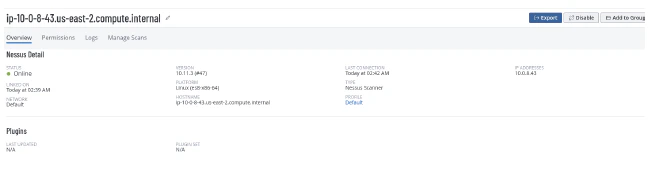
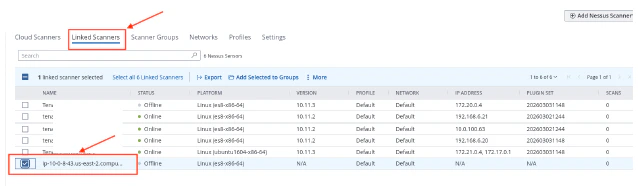
15. Return to the Tenable cloud page, and verify that the Tenable sensor is linked correctly and is in **Online** status.
    <Frame>
      <img src="https://mintcdn.com/levelblue-5324744e/gU7T8wrJm1xDJZ8S/images/usm-anywhere/AWS_TenableOnline.png?fit=max&auto=format&n=gU7T8wrJm1xDJZ8S&q=85&s=60c329a71aaf1ce64cf8af1b7ddb406c" alt="AWS Tenable Online" width="638" height="186" data-path="images/usm-anywhere/AWS_TenableOnline.png" />
    </Frame>
    <Frame>
      <img src="https://mintcdn.com/levelblue-5324744e/gU7T8wrJm1xDJZ8S/images/usm-anywhere/AWS_TenableOnline2.png?fit=max&auto=format&n=gU7T8wrJm1xDJZ8S&q=85&s=ff05a2d30aa1430e71a24e6bd5340e91" alt="AWS Tenable Online2" width="651" height="172" data-path="images/usm-anywhere/AWS_TenableOnline2.png" />
    </Frame>

<Warning>
  **VERIFICATION / TROUBLESHOOTING**

  * If the sensor does not link properly:
    * Re-check the outbound TCP 443 access to [sensor.cloud.tenable.com](http://sensor.cloud.tenable.com) and [plugins.nessus.org](http://plugins.nessus.org).
    * Make sure the Linking Key is correct and not expired.
  * If the scans do not find hosts:
    * Confirm that the scanner can reach the target network (routing, security groups/NSGs, and target host firewalls).
    * For credential scans, confirm that the credentials work and the required auth ports are reachable.
</Warning>