> ## Documentation Index
> Fetch the complete documentation index at: https://docs.levelblue.com/llms.txt
> Use this file to discover all available pages before exploring further.

# Tenable Sensor Deployment for Azure

**To deploy the Tenable sensor for Microsoft Azure**

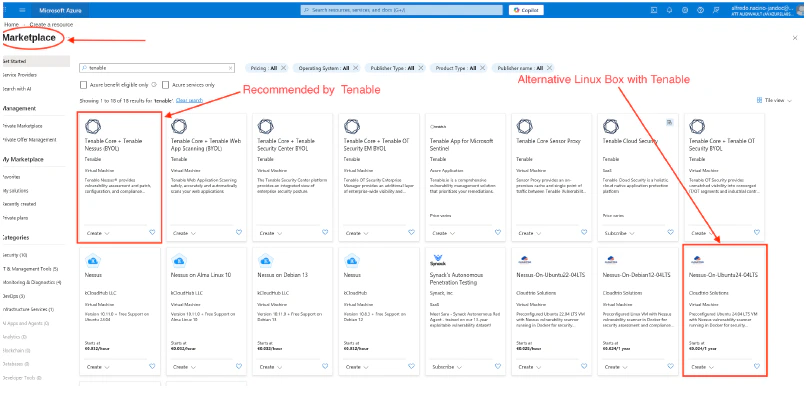
1. Log into [Microsoft Marketplace](https://marketplace.microsoft.com/en-us/), and search for **Tenable**.
   <Frame>
     <img src="https://mintcdn.com/levelblue-5324744e/gU7T8wrJm1xDJZ8S/images/usm-anywhere/Azure_Marketplace.png?fit=max&auto=format&n=gU7T8wrJm1xDJZ8S&q=85&s=fe983b0d2f8978711da215dc8e645f60" alt="Azure Marketplace" width="806" height="393" data-path="images/usm-anywhere/Azure_Marketplace.png" />
   </Frame>
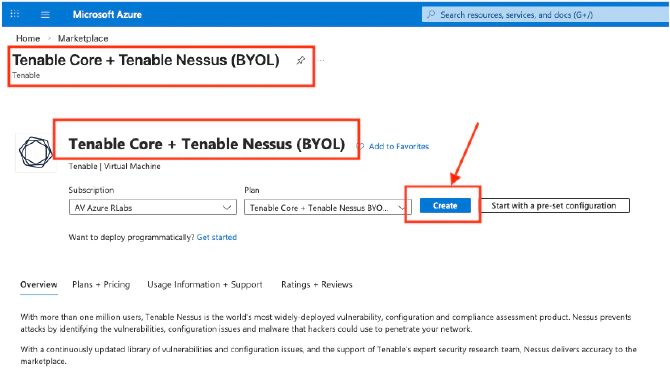
2. Select **Tenable Core + Tenable Nessus (BYOL)**.
3. Click **Create**.
   <Frame>
     <img src="https://mintcdn.com/levelblue-5324744e/gU7T8wrJm1xDJZ8S/images/usm-anywhere/Azure_CreateTenableCore.png?fit=max&auto=format&n=gU7T8wrJm1xDJZ8S&q=85&s=dff113ba675808d2e3b439f58cd8cb08" alt="Azure Create Tenable Core" width="670" height="379" data-path="images/usm-anywhere/Azure_CreateTenableCore.png" />
   </Frame>
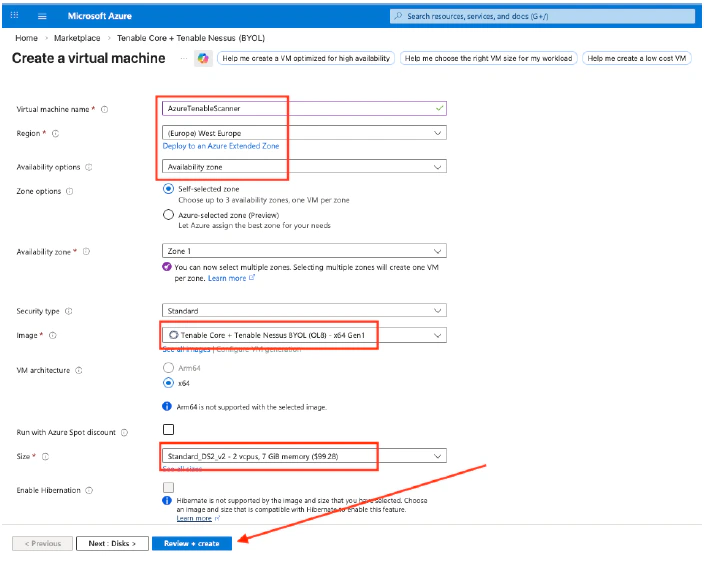
4. Enter a **Virtual Machine Name**, and review the populated information.
5. Click **Review + Create**.
   <Frame>
     <img src="https://mintcdn.com/levelblue-5324744e/gU7T8wrJm1xDJZ8S/images/usm-anywhere/Azure_CreateVM.png?fit=max&auto=format&n=gU7T8wrJm1xDJZ8S&q=85&s=a5697b3b5cc00ddc8096486c743caccb" alt="Azure Create VM" width="704" height="564" data-path="images/usm-anywhere/Azure_CreateVM.png" />
   </Frame>
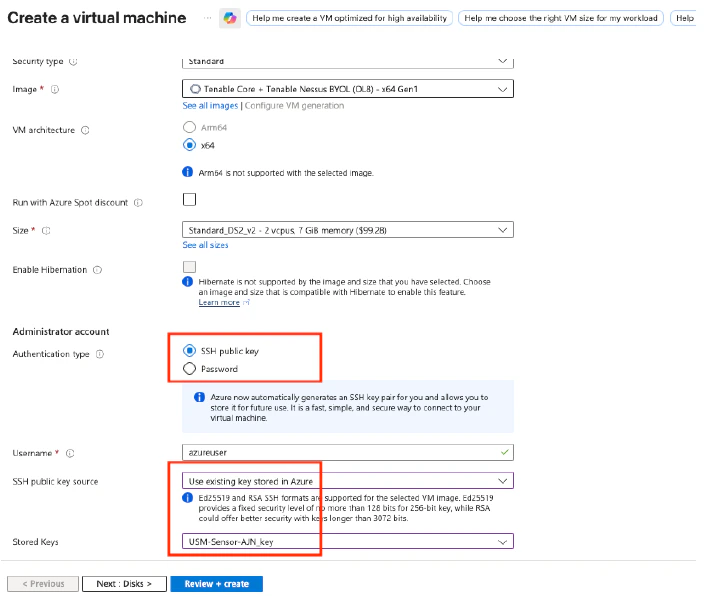
6. Adjust the rest of the configuration according to the VM's authentication method.
   <Frame>
     <img src="https://mintcdn.com/levelblue-5324744e/gU7T8wrJm1xDJZ8S/images/usm-anywhere/Azure_CreateVM2.png?fit=max&auto=format&n=gU7T8wrJm1xDJZ8S&q=85&s=343d36d0397288293afd8327152473b5" alt="Azure Create VM2" width="707" height="597" data-path="images/usm-anywhere/Azure_CreateVM2.png" />
   </Frame>
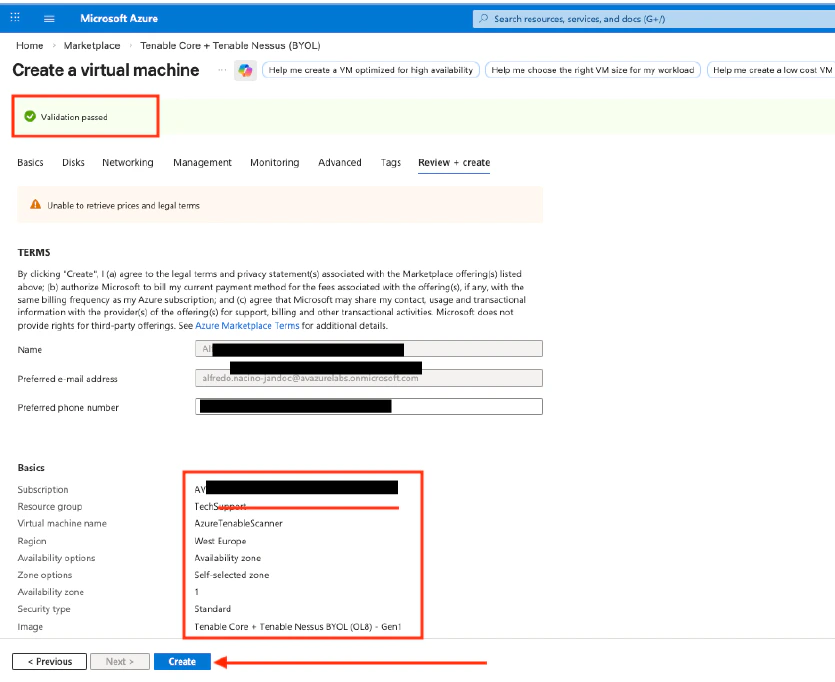
7. Once the validation is passed, you may proceed to create the VM.
   <Frame>
     <img src="https://mintcdn.com/levelblue-5324744e/gU7T8wrJm1xDJZ8S/images/usm-anywhere/Azure_ValidationOK.png?fit=max&auto=format&n=gU7T8wrJm1xDJZ8S&q=85&s=080b7f0bd824770496f395dbf4036120" alt="Azure Validation OK" width="835" height="682" data-path="images/usm-anywhere/Azure_ValidationOK.png" />
   </Frame>
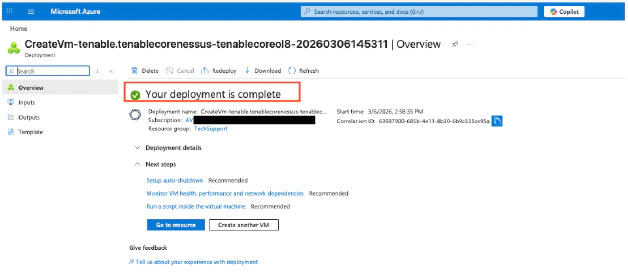
8. Wait until the deployment is complete.
   <Frame>
     <img src="https://mintcdn.com/levelblue-5324744e/gU7T8wrJm1xDJZ8S/images/usm-anywhere/Azure_DeploymentOK.png?fit=max&auto=format&n=gU7T8wrJm1xDJZ8S&q=85&s=678c3a2c3212d6e78ff3c22683be61db" alt="Azure Deployment OK" width="628" height="274" data-path="images/usm-anywhere/Azure_DeploymentOK.png" />
   </Frame>
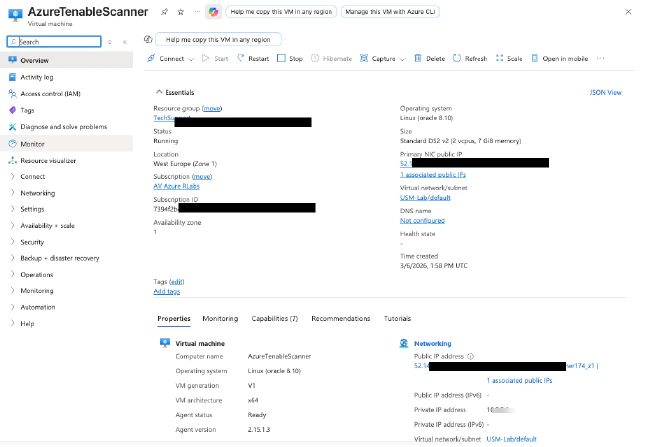
9. Take note of the **Public** and **Private IP** addresses of the deployed VM.
   <Frame>
     <img src="https://mintcdn.com/levelblue-5324744e/gU7T8wrJm1xDJZ8S/images/usm-anywhere/Azure_IP.png?fit=max&auto=format&n=gU7T8wrJm1xDJZ8S&q=85&s=f6b1efb566a314e4dc8fce9c06b67b00" alt="Azure IP" width="659" height="447" data-path="images/usm-anywhere/Azure_IP.png" />
   </Frame>
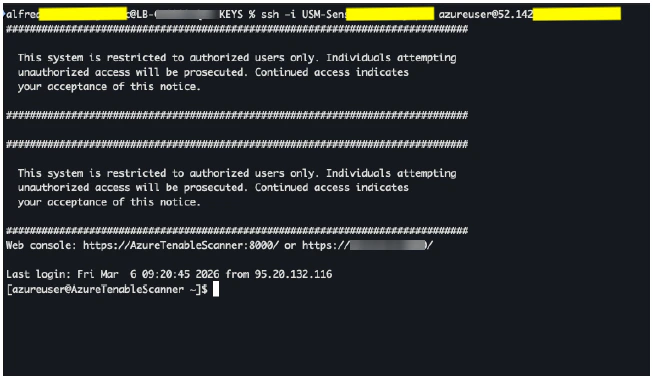
10. Connect to the Tenable sensor via SSH.
    <Frame>
      <img src="https://mintcdn.com/levelblue-5324744e/gU7T8wrJm1xDJZ8S/images/usm-anywhere/Azure_TenableSensor.png?fit=max&auto=format&n=gU7T8wrJm1xDJZ8S&q=85&s=0547c0a6edb049db046ce80009826725" alt="Azure Tenable Sensor" width="652" height="378" data-path="images/usm-anywhere/Azure_TenableSensor.png" />
    </Frame>
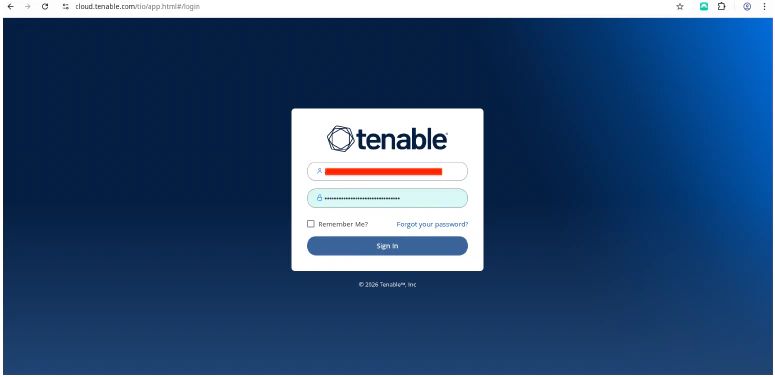
11. Log into [cloud.tenable.com](http://cloud.tenable.com) to get the Linking Key.
    <Frame>
      <img src="https://mintcdn.com/levelblue-5324744e/rZYqRuu8SvxP90bm/images/usm-anywhere/GCP_TenableCloud.png?fit=max&auto=format&n=rZYqRuu8SvxP90bm&q=85&s=d38dfed116ebc3dd0e6f9a643c4ab52d" alt="GCP Tenable Cloud" width="775" height="377" data-path="images/usm-anywhere/GCP_TenableCloud.png" />
    </Frame>
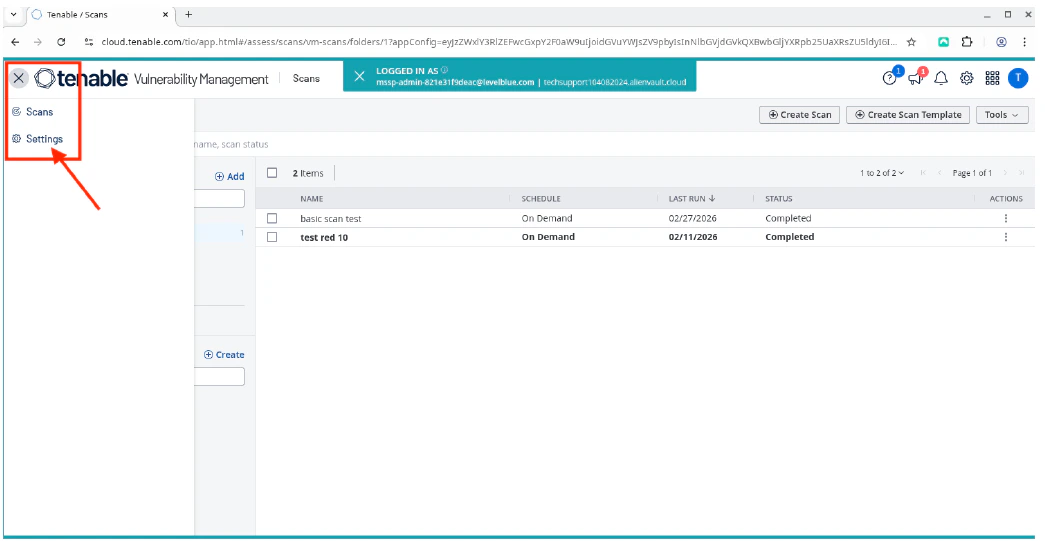
12. Click the burger menu, and then select **Settings**.

    <Frame>
      <img src="https://mintcdn.com/levelblue-5324744e/gU7T8wrJm1xDJZ8S/images/usm-anywhere/Azure_burgermenu.png?fit=max&auto=format&n=gU7T8wrJm1xDJZ8S&q=85&s=26b9f8983c6f70e606e1387cc672f917" alt="Azure Burgermenu" width="777" height="153" data-path="images/usm-anywhere/Azure_burgermenu.png" />
    </Frame>
    <Frame>
      <img src="https://mintcdn.com/levelblue-5324744e/YkIdbcABeK3EmZmy/images/usm-anywhere/HyperV_TenableCloud.png?fit=max&auto=format&n=YkIdbcABeK3EmZmy&q=85&s=2330448bc7bd75e3377aff6097bb42a5" alt="Hyper V Tenable Cloud" title="Hyper V Tenable Cloud" className="mx-auto" style={{ width:"83%" }} width="1045" height="541" data-path="images/usm-anywhere/HyperV_TenableCloud.png" />
    </Frame>
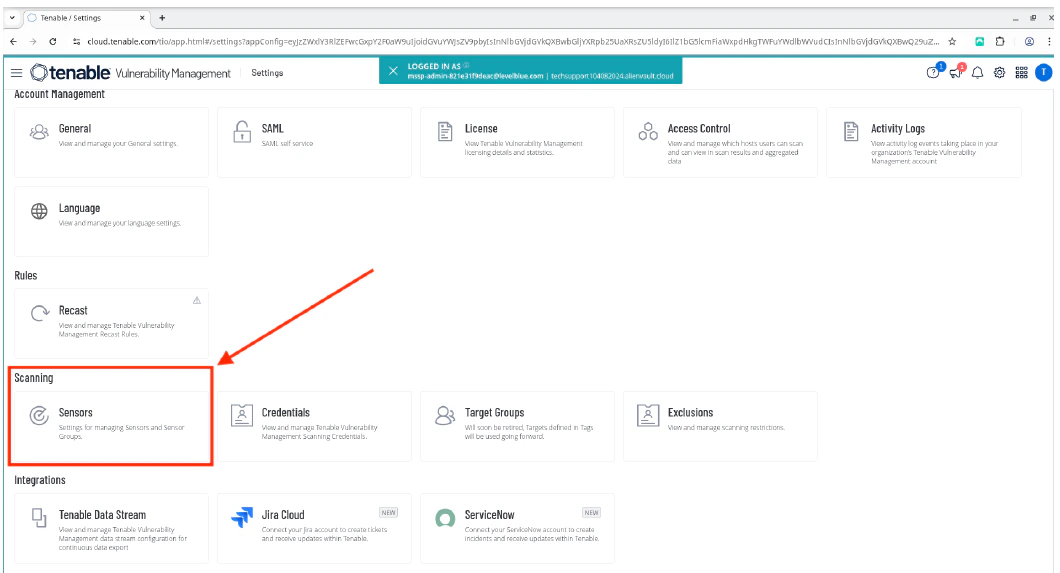
13. Select **Sensors**.
    <Frame>
      <img src="https://mintcdn.com/levelblue-5324744e/YkIdbcABeK3EmZmy/images/usm-anywhere/HyperV_TenableCloudSensors.png?fit=max&auto=format&n=YkIdbcABeK3EmZmy&q=85&s=21fb00910c942f497f8912ccd4e34195" alt="Hyper V Tenable Cloud Sensors" title="Hyper V Tenable Cloud Sensors" className="mx-auto" style={{ width:"87%" }} width="1060" height="573" data-path="images/usm-anywhere/HyperV_TenableCloudSensors.png" />
    </Frame>
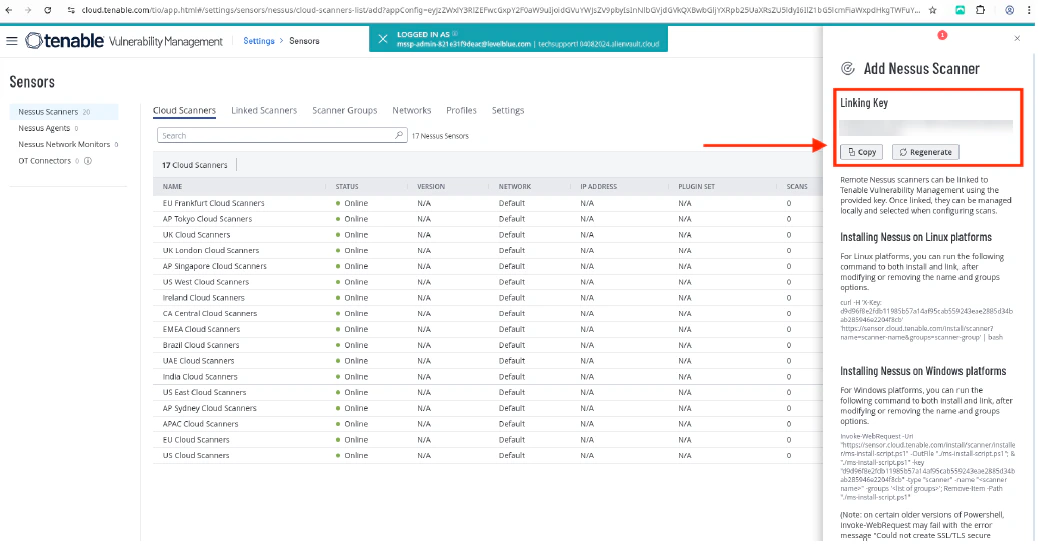
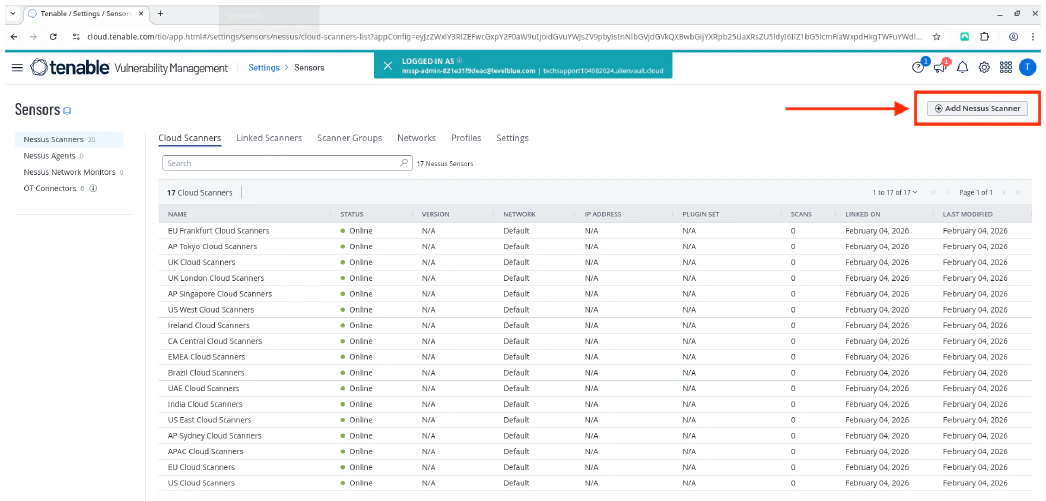
14. Click **Add Nessus Scanner** to view the Linking Key.
    <Frame>
      <img src="https://mintcdn.com/levelblue-5324744e/YkIdbcABeK3EmZmy/images/usm-anywhere/HyperV_AddNessusScanner.png?fit=max&auto=format&n=YkIdbcABeK3EmZmy&q=85&s=09386c25a7d3dbd75e1312cc6c001ba3" alt="Hyper V Add Nessus Scanner" title="Hyper V Add Nessus Scanner" className="mx-auto" style={{ width:"90%" }} width="1046" height="501" data-path="images/usm-anywhere/HyperV_AddNessusScanner.png" />
    </Frame>
15. Copy the **Linking Key**.
    <Frame>
      <img src="https://mintcdn.com/levelblue-5324744e/tubUKQ2fVKKngwCT/images/usm-anywhere/HyperV_CopyLinkingKey1.png?fit=max&auto=format&n=tubUKQ2fVKKngwCT&q=85&s=0d268f117316f4d33b84e0c60680ac56" alt="Hyper V Copy Linking Key" title="Hyper V Copy Linking Key" className="mx-auto" style={{ width:"93%" }} width="1038" height="547" data-path="images/usm-anywhere/HyperV_CopyLinkingKey1.png" />
    </Frame>
16. In the Tenable sensor CLI, use the Linking Key to link the Tenable sensor.
    ```text theme={null}
    sudo /opt/nessus/sbin/nessuscli managed link --key=”Linking Key” –cloud
    ```

    <Frame>
      <img src="https://mintcdn.com/levelblue-5324744e/gU7T8wrJm1xDJZ8S/images/usm-anywhere/Azure_TenableSensorLink.png?fit=max&auto=format&n=gU7T8wrJm1xDJZ8S&q=85&s=b6f4177ead168e14206ca754286b2d21" alt="Azure Tenable Sensor Link" width="796" height="122" data-path="images/usm-anywhere/Azure_TenableSensorLink.png" />
    </Frame>
    Once done, you should see a "**Successfully linked**" message.
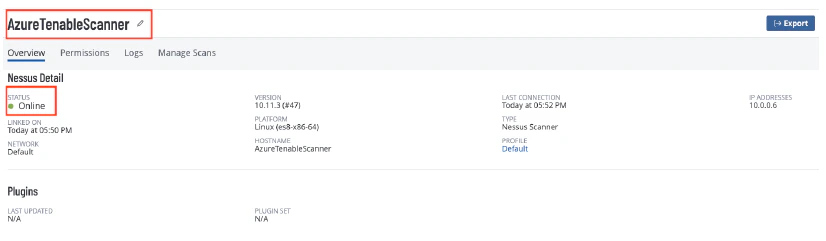
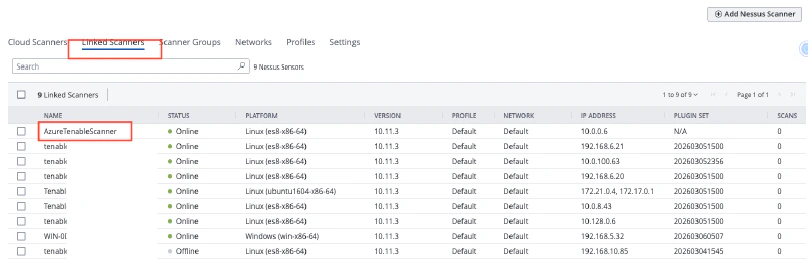
17. Return to the Tenable cloud page, and verify that the Tenable sensor is linked correctly and is in **Online** status.
    <Frame>
      <img src="https://mintcdn.com/levelblue-5324744e/gU7T8wrJm1xDJZ8S/images/usm-anywhere/Azure_SensorOnline.png?fit=max&auto=format&n=gU7T8wrJm1xDJZ8S&q=85&s=33892dfe72a48418181274dad8cf47f7" alt="Azure Sensor Online" width="812" height="271" data-path="images/usm-anywhere/Azure_SensorOnline.png" />
    </Frame>
    <Frame>
      <img src="https://mintcdn.com/levelblue-5324744e/gU7T8wrJm1xDJZ8S/images/usm-anywhere/Azure_SensorOnline2.png?fit=max&auto=format&n=gU7T8wrJm1xDJZ8S&q=85&s=f60ec8afc07019f7c6cb599d717d2f4f" alt="Azure Sensor Online2" width="826" height="241" data-path="images/usm-anywhere/Azure_SensorOnline2.png" />
    </Frame>

<Warning>
  **VERIFICATION / TROUBLESHOOTING**

  * If the sensor does not link properly:
    * Re-check the outbound TCP 443 access to [sensor.cloud.tenable.com](http://sensor.cloud.tenable.com) and [plugins.nessus.org](http://plugins.nessus.org).
    * Make sure the Linking Key is correct and not expired.
  * If the scans do not find hosts:
    * Confirm that the scanner can reach the target network (routing, security groups/NSGs, and target host firewalls).
    * For credential scans, confirm that the credentials work and the required auth ports are reachable.
</Warning>