> ## Documentation Index
> Fetch the complete documentation index at: https://docs.levelblue.com/llms.txt
> Use this file to discover all available pages before exploring further.
# Viewing Vulnerabilities Details
| | | | | |
| --------------------- | ------------- | ---------------- | ----------- | ----------- |
| **Role Availability** | **Read-Only** | **Investigator** | **Analyst** | **Manager** |
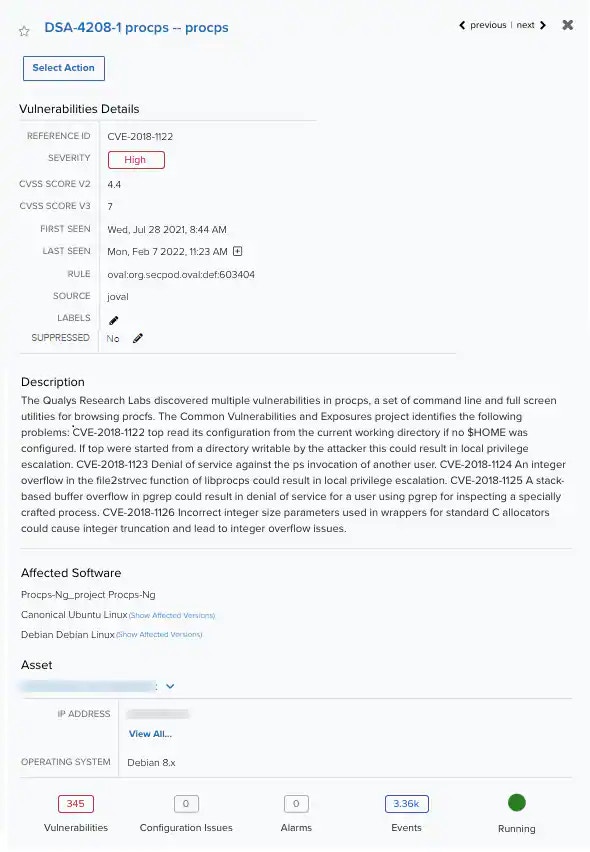
The vulnerabilities details page provides in-depth information on vulnerabilities.
**To view the details of a vulnerability**
1. Go to **Environment > Vulnerabilities**.
2. Click the vulnerability to display a summary view, and then click the vulnerability name to open the full details of the vulnerability.
 Click the
  icon to bookmark an item for quick access.
**Note:** You can view your bookmarked items by going to the secondary menu and clicking the
icon to bookmark an item for quick access.
**Note:** You can view your bookmarked items by going to the secondary menu and clicking the  icon. This will display all of your bookmarked items and provide direct links to each of them.
The Vulnerabilities Details page includes the Select Action button that is supported for your assigned user role. Use this button to launch an authenticated asset scan. See [Applying Actions to Vulnerabilities](/documentation/usm-anywhere/user-guide/vulnerability-assessment/actions-to-vulns) for more information.
You can see the vulnerabilities details, then a description, the affected software, and the associated asset. If you want more information, click the
icon. This will display all of your bookmarked items and provide direct links to each of them.
The Vulnerabilities Details page includes the Select Action button that is supported for your assigned user role. Use this button to launch an authenticated asset scan. See [Applying Actions to Vulnerabilities](/documentation/usm-anywhere/user-guide/vulnerability-assessment/actions-to-vulns) for more information.
You can see the vulnerabilities details, then a description, the affected software, and the associated asset. If you want more information, click the  icon. See [Viewing Assets Details](/documentation/usm-anywhere/user-guide/asset-management/asset-administration/viewing-asset-details) for more information.
The Labels field indicates if the vulnerability has been classified by using a label. You can click the
icon. See [Viewing Assets Details](/documentation/usm-anywhere/user-guide/asset-management/asset-administration/viewing-asset-details) for more information.
The Labels field indicates if the vulnerability has been classified by using a label. You can click the  icon to manage the labels of the vulnerability. See [Labeling the Vulnerabilities](/documentation/usm-anywhere/user-guide/vulnerability-assessment/labeling-vulnerabilities) for more information.
The Suppressed field enables you to indicate whether this vulnerability has been suppressed. You can click the icon to select a suppression option (Yes or No). A vulnerability marked Yes will continue to be marked as suppressed on all future scans or until this field is updated.
3. In the upper right corner, click **Previous** and **Next** to navigate between items.
4. Click the
icon to manage the labels of the vulnerability. See [Labeling the Vulnerabilities](/documentation/usm-anywhere/user-guide/vulnerability-assessment/labeling-vulnerabilities) for more information.
The Suppressed field enables you to indicate whether this vulnerability has been suppressed. You can click the icon to select a suppression option (Yes or No). A vulnerability marked Yes will continue to be marked as suppressed on all future scans or until this field is updated.
3. In the upper right corner, click **Previous** and **Next** to navigate between items.
4. Click the  icon to close the dialog box.
5. Click the vulnerability title to expand its details.
icon to close the dialog box.
5. Click the vulnerability title to expand its details.