> ## Documentation Index
> Fetch the complete documentation index at: https://docs.levelblue.com/llms.txt
> Use this file to discover all available pages before exploring further.
# Vulnerabilities Views
| | | | | |
| --------------------- | ------------- | ---------------- | ----------- | ----------- |
| **Role Availability** | **Read-Only** | **Investigator** | **Analyst** | **Manager** |
You can configure the view you want for the list of items in the page.
**To create a view configuration**
1. From the list view, select the filters you want to apply.
2. Go to **Save View > Save As**.
The Save Current View dialog box opens.
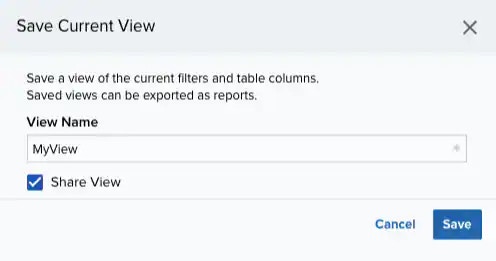 3. Enter a name for the view.
4. (Optional.) Select **Share View** if you want to share your view with other users.
5. Click **Save**.
The created view is already selected.
**To select a configured view**
1. From the ist view, click **View** above the filters.
2. Click **Saved Views**, and then select the view you want to see.
**Note:** A shared view includes the
3. Enter a name for the view.
4. (Optional.) Select **Share View** if you want to share your view with other users.
5. Click **Save**.
The created view is already selected.
**To select a configured view**
1. From the ist view, click **View** above the filters.
2. Click **Saved Views**, and then select the view you want to see.
**Note:** A shared view includes the  icon next to its name.
3. Click **Apply**.
**To delete a configured view**
1. From the Vulnerabilities list view, click **View** above the filters.
2. Click **Saved Views**, and then click the
icon next to its name.
3. Click **Apply**.
**To delete a configured view**
1. From the Vulnerabilities list view, click **View** above the filters.
2. Click **Saved Views**, and then click the  icon next to the saved view you want to delete.
A Settings Delete dialog box opens to confirm the deletion.
3. Click **Accept**.
**Important:** The icon does not display if the view is selected.
Note: . You can only delete the views you have created .
icon next to the saved view you want to delete.
A Settings Delete dialog box opens to confirm the deletion.
3. Click **Accept**.
**Important:** The icon does not display if the view is selected.
Note: . You can only delete the views you have created .