> ## Documentation Index
> Fetch the complete documentation index at: https://docs.levelblue.com/llms.txt
> Use this file to discover all available pages before exploring further.
# Priority Field for Alarms
Role Availability | ✔️ Read-Only ✔️ Analyst ✔️ Manager
In USM Central, all alarms have a Priority field, which indicates the importance of the alarm. This is a measurement to determine the impact of the alarm in the network.
The Priority field can display Low, Medium, or High. This text comes from correlation and orchestration rules. When you create an orchestration rule, you must enter a priority value between 0 and 100. LevelBlue Labs™ creates the correlation rules and include a value. The LevelBlue Labs team sets the value for the correlation rules depending on how critical the alarm is.
The displayed text in the column of alarms depends on the value that the rule has according to this table:
**Priority Field for Alarms**
| Displayed text | Value in the rule |
| -------------- | ------------------ |
| Low | Between 0 and 33 |
| Medium | Between 34 and 66 |
| High | Between 67 and 100 |
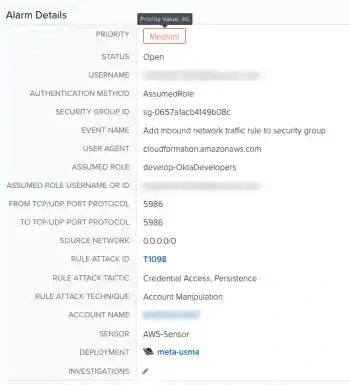
Open the details of an alarm to learn the exact value of the priority level. See [View Alarm Details](/documentation/usm-central/alarms/view-alarms-details) for more information. After you are in the Alarm Details page, hover over the priority text and a dialog box will show you the exact value.
 See [Correlation Rules](/documentation/usm-anywhere/user-guide/rules-management/correlation-rules) and [Orchestration Rules Management](/documentation/usm-central/rules-management/rules-management) for more information.