> ## Documentation Index
> Fetch the complete documentation index at: https://docs.levelblue.com/llms.txt
> Use this file to discover all available pages before exploring further.
# Searching Alarms
Role Availability | ✔️ Read-Only ✔️ Analyst ✔️ Manager
USM Central includes the option of searching items of interest on the page. There are several filters displayed by default. You can either filter your search or enter what you are looking for in the search field.
You can configure more filters and change which filters to display by clicking the **Configure Filters** link located in the upper-left side of the page. The management of filters is similar to that for assets. See [Managing Filters](/documentation/usm-anywhere/user-guide/asset-management/asset-administration/managing-filters) for more information.
The following table lists the filters you see on the page.
**Filters Displayed by Default in the Main Alarms Page**
| Filter Name | Meaning |
| --------------------- | -------------------------------------------------------------------------------------------------------------------------------------------------------------------------------------------------------------------------------------------------------------------------------------------------------------------------------------------------------------------------------------------------------------------------------------------------------------------------------------------------------------------------------------------------------------------------------------------------------------------------------------------------------- |
| Last 24 Hours | Identify alarms triggered in the last hour, 24 hours, 7 days, 30 days, or 90 days. You can also configure your own period of time by clicking the **Custom Range** option. This option enables you to customize a range. When you click **Custom Range**, a calendar opens. You can choose the first and last day to delimit your search by clicking the days on the calendar or entering the days directly. Then select the hours, minutes, and seconds by clicking the specific box. Finally, select **AM** or **PM**. |
| Open/In Review/Closed | Filter alarms by Alarm Status. See [Alarm Status](/documentation/usm-central/alarms/alarm-status) for more information. |
| Suppressed | Filter suppressed alarms. |
| Not Suppressed | Filter hidden suppressed alarms. The suppressed alarms are hidden by default. |
| Deployment | Filter alarms by the connected individual instances of USM Anywhere or USM Appliance. |
| Labels | Filter alarms by the applied labels. See [Labeling the Alarms](/documentation/usm-central/alarms/labeling-alarms) for more information. |
| Intent | Filter alarms by the purpose of the alarm. It can be Delivery & Attack, Environmental Awareness, Exploitation & Installation, Reconnaissance & Probing, and System Compromise. See [Intent](/documentation/usm-anywhere/user-guide/rules-management/correlation-rules#intent) for more information. |
| Strategy | Filter alarms by the type of attack. See [Strategy](/documentation/usm-anywhere/user-guide/rules-management/correlation-rules#strategy) for more information. |
| Method | If known, filter alarms by the method of attack or infiltration associated with the indicator that generated the alarm. See [Method](/documentation/usm-anywhere/user-guide/rules-management/correlation-rules#method) for more information. |
| Sensors | Filter alarms by the associated USM Anywhere Sensor. See [USM Anywhere Sensor Management](/documentation/usm-anywhere/user-guide/sensor-management/sensor-management) for more information. |
The number between brackets displayed by each filter indicates the number of items that matches the filter. You can also use the filter controls to provide a method of organizing your search and filtered results.
The following table shows the icons displayed with each filter box.
**Icons Next to the Filter Title**
| Icon | Meaning |
| ------------------------------------------------------------------------------------------------------------------------------------------------------------------------------------------------------------------------------------------------------------------------------------------------------------------------------------------------------------------------------------------------------------------------------------------------------------------------------------------------------------------------------------------------------------------------------------------------------------------------------------------------------------------------------------------------------------------------------------------------------------------------------------------------------------------------------------------------------------------------------------------------------------------------------------------------------------------------------------------------------------------------------------------------------------------------------------------------------------------------------------------------------------------------------------------------------------------------------------------------------------------------------------------------------------------------------------------------------------------------------------------------------------------------------------------------------------------------------------------------------------------------------------------------------------------------------------------------------------------------------------------------------------------------------------------------------------------------------------------------------------------------------------------------------------------------------------------------------------------------------------------------------------------------------------------------------------------------------------------------------------------------------------------------------------------------------------------------------------------------------------------------------------------------------------------------------------------------------------------------------------------------------------------------------------------------------------------------------------------------------------------------------------------------------------------------------------------------------------------------------------------------------------------------------------------------------------------------------------------------------------------------------------------------------------------------------------------------------------------------------------------------------------------------------------------------------------------------------------------------------------------------------------------------------------------------------------------------------------------------------------------------------------------------------------------------------------------------------ | ----------------------------------------------------- |
| 
 | Sort the filters alphabetically. |
|
| Sort the filters alphabetically. |
| 
 | Sort the filters by number of items that matches them |
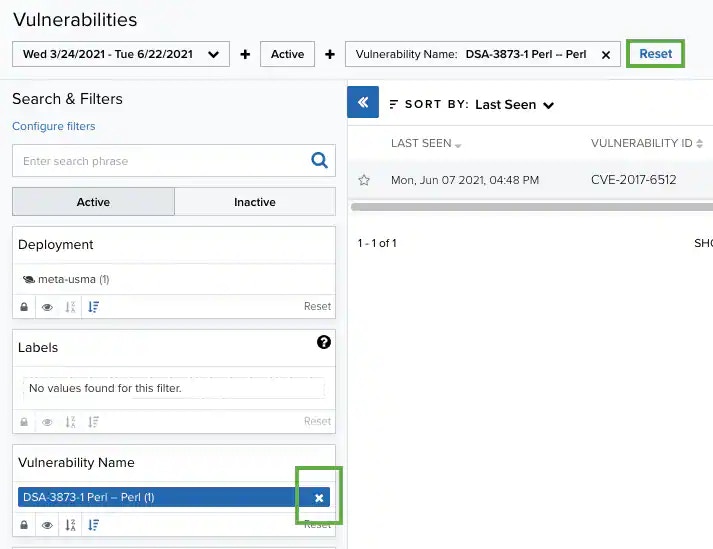
In the upper-left side of the page, you can see any filters you have applied. Remove filters by clicking the
| Sort the filters by number of items that matches them |
In the upper-left side of the page, you can see any filters you have applied. Remove filters by clicking the  icon next to the filter. Or clear all filters by clicking **Reset**.
 When applying filters, the search uses the logical AND operator if the used filters are different. However, when the filter is of the same type, the search uses the logical OR operator.
Those filters that have more than 10 options include a Filter Value search field for writing text and making the search easier.
## Filtering Alarms by Row Fields
USM Central includes a column with the
When applying filters, the search uses the logical AND operator if the used filters are different. However, when the filter is of the same type, the search uses the logical OR operator.
Those filters that have more than 10 options include a Filter Value search field for writing text and making the search easier.
## Filtering Alarms by Row Fields
USM Central includes a column with the  icon in the list view in the alarms page. Use this icon to add filters to your search. When you click this icon, a dialog box opens with the specific fields of that row.
**To filter alarms by row fields**
1. Go to **Alarms** to open the list view in the Alarms List View page.
2. Click the
icon in the list view in the alarms page. Use this icon to add filters to your search. When you click this icon, a dialog box opens with the specific fields of that row.
**To filter alarms by row fields**
1. Go to **Alarms** to open the list view in the Alarms List View page.
2. Click the  icon of the row to which you want to add the filters.
The Add Filters dialog box opens.
icon of the row to which you want to add the filters.
The Add Filters dialog box opens.
 3. Select the fields that you want to filter during your search and click **Equals** or **Not** to limit your search.
4. Click **Apply**.
The result of your search displays with the filters applied.
**To search for Alarms using the search field**
1. Go to **Alarms**.
2. Enter your query in the search field.
If you want to search for an exact phrase having two or more words, you need to put quotation marks around the words in the phrase. This includes email addresses (for example, "[bob@mycompany.com](mailto:bob@mycompany.com)").
Wildcard characters are considered as literal characters.
3. Click the
3. Select the fields that you want to filter during your search and click **Equals** or **Not** to limit your search.
4. Click **Apply**.
The result of your search displays with the filters applied.
**To search for Alarms using the search field**
1. Go to **Alarms**.
2. Enter your query in the search field.
If you want to search for an exact phrase having two or more words, you need to put quotation marks around the words in the phrase. This includes email addresses (for example, "[bob@mycompany.com](mailto:bob@mycompany.com)").
Wildcard characters are considered as literal characters.
3. Click the  icon.
icon.
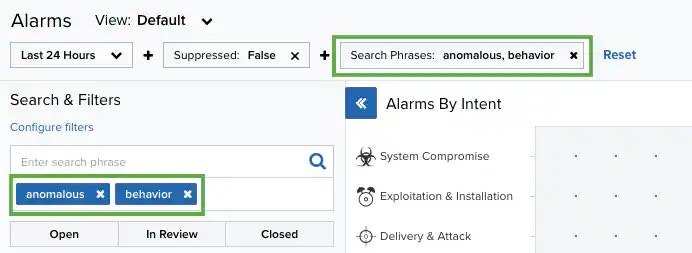 The result of your search displays with the items identified.
## Filtering Alarms
You can use filters to delimit the number of alarms that display in the List view in the Alarms page. You can also save filter views to easily use later. Your active filters will be used for reports exports.
**To search alarms using a filter**
1. Go to **Alarms**.
2. Click a filter.
The result of your search displays the identified alarms.
**To save a filter configuration**
1. Go to **Alarms** and select the filters you want to use in your saved view.
2. Select the **Save View** drop-down list and then click **Save as**.
3. Enter a name for the view and click **Save**. You can now load this view from the View drop-down list.
The result of your search displays with the items identified.
## Filtering Alarms
You can use filters to delimit the number of alarms that display in the List view in the Alarms page. You can also save filter views to easily use later. Your active filters will be used for reports exports.
**To search alarms using a filter**
1. Go to **Alarms**.
2. Click a filter.
The result of your search displays the identified alarms.
**To save a filter configuration**
1. Go to **Alarms** and select the filters you want to use in your saved view.
2. Select the **Save View** drop-down list and then click **Save as**.
3. Enter a name for the view and click **Save**. You can now load this view from the View drop-down list.
 If you have changed the configuration of the alarms within the List view columns, this configuration will also be saved together with the filter configuration. See [Alarms List View](/documentation/usm-central/alarms/alarms-list-view) for more information.
**To add or delete filters from the Search & Filters area**
1. Go to **Alarms**.
2. Click the **Configure Filters** link at the bottom of the Search & Filters sidebar to open the Filters Configuration window.
3. Click the arrow icons (
If you have changed the configuration of the alarms within the List view columns, this configuration will also be saved together with the filter configuration. See [Alarms List View](/documentation/usm-central/alarms/alarms-list-view) for more information.
**To add or delete filters from the Search & Filters area**
1. Go to **Alarms**.
2. Click the **Configure Filters** link at the bottom of the Search & Filters sidebar to open the Filters Configuration window.
3. Click the arrow icons ( ) and (
 ) to pass the items from the Available Filters and Selected Filters columns, and then click **Apply**.
