> ## Documentation Index
> Fetch the complete documentation index at: https://docs.levelblue.com/llms.txt
> Use this file to discover all available pages before exploring further.

# Searching Events from the Details of an Alarm

USM Central enables you to search for events from the details of an alarm using the selected value as a filter in the search.

## The HTTP Hostname or the DNS RR Name fields

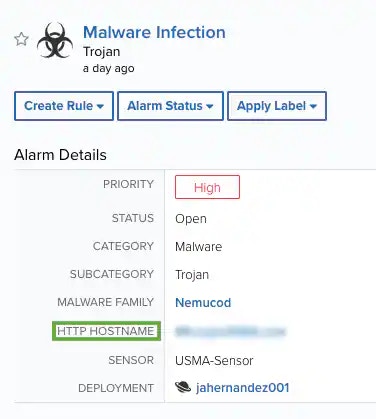
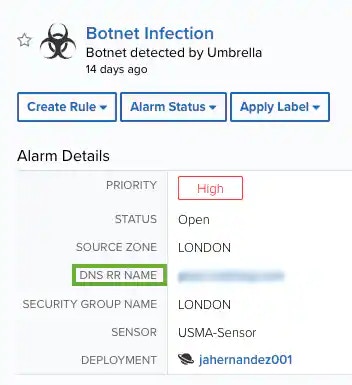
All alarms that include the fields HTTP Hostname or the DNS RR Name give you the option of searching for events by using these fields. The alarm needs to include these fields.

**To configure the HTTP Hostname or the DNS RR Name filters**

1. Go to **Alarms**.
   <Frame>
     <img src="https://mintcdn.com/levelblue-5324744e/jQPcuDOyVbjBzeJd/images/usm-central/httphostname.webp?fit=max&auto=format&n=jQPcuDOyVbjBzeJd&q=85&s=990f2ff8607c918e54d6229a1a226478" alt="" width="376" height="419" data-path="images/usm-central/httphostname.webp" />
   </Frame>

   <Frame>
     <img src="https://mintcdn.com/levelblue-5324744e/jQPcuDOyVbjBzeJd/images/usm-central/dnsrrname.webp?fit=max&auto=format&n=jQPcuDOyVbjBzeJd&q=85&s=7661ecaffe284b89e327e58f4179915b" alt="" width="352" height="385" data-path="images/usm-central/dnsrrname.webp" />
   </Frame>

**To configure the HTTP Hostname or the DNS RR Name filters**

1. Go to **Alarms**.
2. In the upper-left side of the page, click the **Configure Filters** link.

   <Frame>
     <img src="https://mintcdn.com/levelblue-5324744e/jQPcuDOyVbjBzeJd/images/usm-central/filtersconfiguration_thumb_0_60.webp?fit=max&auto=format&n=jQPcuDOyVbjBzeJd&q=85&s=5d622d6a4dc7df30e0984ec6b1b494f0" alt="" width="94" height="60" data-path="images/usm-central/filtersconfiguration_thumb_0_60.webp" />
   </Frame>

3. In the search filters box, enter **HTTP** or **DNS** and select the desired filter.

4. Use the <img src="https://mintcdn.com/levelblue-5324744e/yWllrh2N4cA-lI7S/images/usm-central/arrow-right.svg?fit=max&auto=format&n=yWllrh2N4cA-lI7S&q=85&s=558f83c8d1a7110038a61733d2fadff3" className="inline m-0" width="20" height="20" data-path="images/usm-central/arrow-right.svg" /> and <img src="https://mintcdn.com/levelblue-5324744e/yWllrh2N4cA-lI7S/images/usm-central/arrow-left.svg?fit=max&auto=format&n=yWllrh2N4cA-lI7S&q=85&s=8f4b65fc211f85dc8cd76980562ac066" className="inline m-0" width="20" height="20" data-path="images/usm-central/arrow-left.svg" /> icons to pass the items from one column to the other.

5. Click **Apply**.

   The selected filters display.

   <Frame>
     <img src="https://mintcdn.com/levelblue-5324744e/jQPcuDOyVbjBzeJd/images/usm-central/httpdnsselected_thumb_0_60.webp?fit=max&auto=format&n=jQPcuDOyVbjBzeJd&q=85&s=881a4aae72ece59d1d0636f672515107" alt="" width="30" height="60" data-path="images/usm-central/httpdnsselected_thumb_0_60.webp" />
   </Frame>
