> ## Documentation Index
> Fetch the complete documentation index at: https://docs.levelblue.com/llms.txt
> Use this file to discover all available pages before exploring further.
# Selecting Alarms in Alarm List View
Role Availability | ❌ Read-Only ✔️ Analyst ✔️ Manager
USM Central enables you to select an alarm or multiple alarms to add a label to the selected alarms.
**To select a single alarm**
* Select the checkbox to the left of the alarm.
**To select multiple alarms**
* Select the checkbox of each alarm that you want to include.
* You can go to the next page and select more alarms. USM Central does not preserve the selection on the previous page.
**To select all the alarms on the same page**
* Select the checkbox in the first column of the header row.
**To select all the alarms returned from a search or all the alarms in the system**
1. Select all the alarms on the page.
Text similar to the following example displays above the alarm table:
`All 20 alarms on this page are selected. Select all 121 related to this filter`
where
121 is the number of alarms in the system.
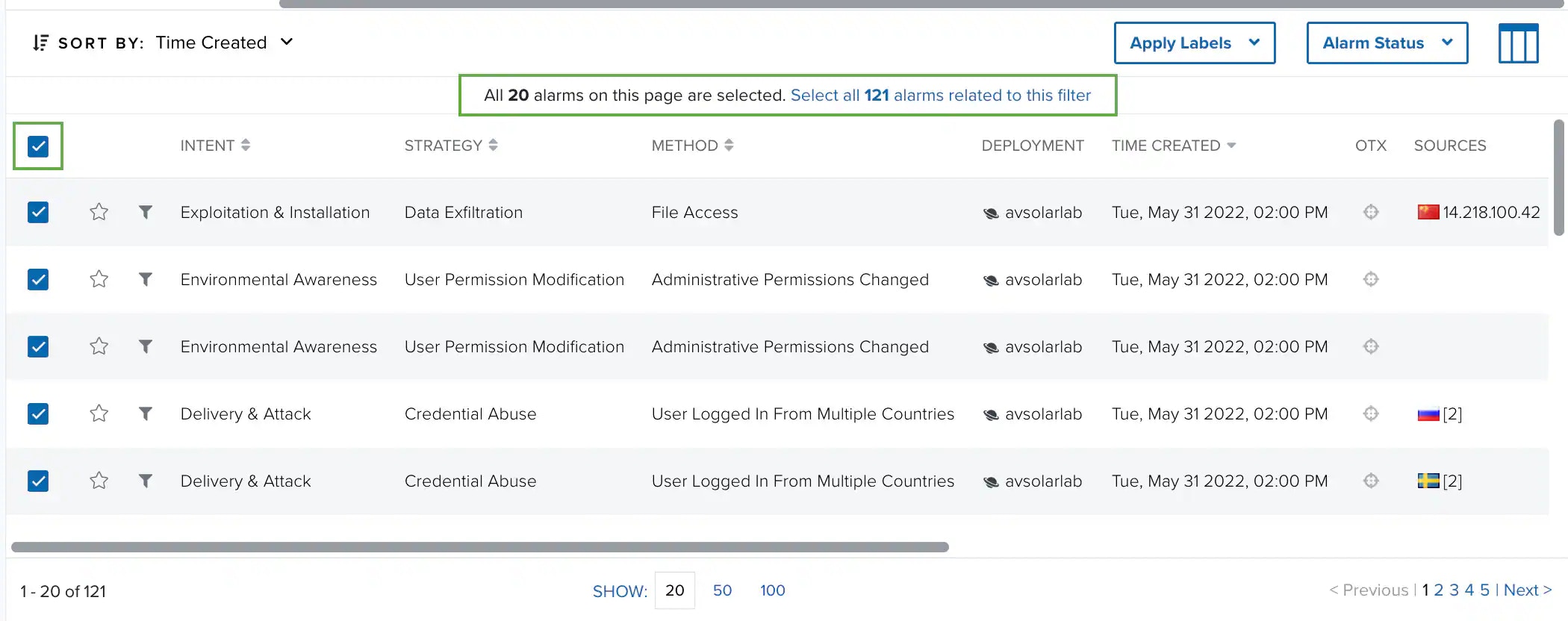 2. To select all the alarms, click **Select all 121 related to this filter**.