> ## Documentation Index
> Fetch the complete documentation index at: https://docs.levelblue.com/llms.txt
> Use this file to discover all available pages before exploring further.
# Alarms Views
Role Availability | ✔️ Read-Only ✔️ Analyst ✔️ Manager
You can configure the view you want for the list of items in the page.
**To create a view configuration**
1. From the list view, click the  icon.
2. Use the
icon.
2. Use the  and
and  icons to pass the items from one column to another and select the columns you want to see.
3. Click **Apply**.
4. If you want to delimit the search, select the filters you want to apply.
5. Go to **Save View > Save As**.
The Save Current View dialog box opens.
icons to pass the items from one column to another and select the columns you want to see.
3. Click **Apply**.
4. If you want to delimit the search, select the filters you want to apply.
5. Go to **Save View > Save As**.
The Save Current View dialog box opens.
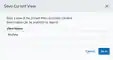 6. Enter a name for the view.
7. Click Save.
The created view is already selected.
**To select a configured view**
1. From the ist view, click **View** above the filters.
2. Click\*\* Saved Views\*\*, and then select the view you want to see.
3. Click **Apply**.
**To delete a configured view**
1. From the Alarms list view, click **View** above the filters.
2. Click **Saved Views**, and then click the
6. Enter a name for the view.
7. Click Save.
The created view is already selected.
**To select a configured view**
1. From the ist view, click **View** above the filters.
2. Click\*\* Saved Views\*\*, and then select the view you want to see.
3. Click **Apply**.
**To delete a configured view**
1. From the Alarms list view, click **View** above the filters.
2. Click **Saved Views**, and then click the  icon next to the saved view you want to delete.
A Settings Delete dialog box opens to confirm the deletion.
3. Click **Accept**.
The icon does not display if the view is selected.
You can only delete the views you have created .
icon next to the saved view you want to delete.
A Settings Delete dialog box opens to confirm the deletion.
3. Click **Accept**.
The icon does not display if the view is selected.
You can only delete the views you have created .