> ## Documentation Index
> Fetch the complete documentation index at: https://docs.levelblue.com/llms.txt
> Use this file to discover all available pages before exploring further.
# Configuration Issues List View
USM Central provides a centralized view of all configuration issues identified in your connected deployments. The configuration issues main page lists configuration issues in reverse chronological order (the most recent item is displayed first). Go to **Configuration Issues**.
The Configuration Issues page displays information on configuration issues. These are the different parts of the page:
On the left side of the page are the search and filters options. Use filters to delimit your search.
At the top of the page, you can see any filters you have applied, and you have the option to create and select different views of the .
The main part of the page is the list of , where each row describes an individual . Click an to open a summary view. See for more information.
If you want to analyze the data, you can maximize the screen and hide the filter pane. Click the  icon to hide the filter pane. Click the
  icon to expand the filter pane.
The following table displays the list of the default columns found in the List view.
**List of the Default Columns in Configuration Issues**
| Column / Field Name | Description |
| ------------------- | ------------------------------------------------------------------------------------------------------------------------- |
| Last Seen | Last date on which the configuration issue was seen in the asset. The displayed date depends on your computer's time zone |
| Category | Category of the configuration issue. Issues with similar impacts have the same category |
| Subcategory | Sub-category of the configuration issue. The sub-category explains the detail of the issue |
| Deployment | Name of the deployment on which the configuration issue has been identified |
| Asset | Asset associated with the configuration issue |
| Severity | Severity of the issue (values are Low, Medium, or High) |
| Description | Text for identifying the configuration issue |
| First Seen | Date of detection of the configuration issue in the asset (the displayed date depends on your computer's time zone) |
Click the
icon to expand the filter pane.
The following table displays the list of the default columns found in the List view.
**List of the Default Columns in Configuration Issues**
| Column / Field Name | Description |
| ------------------- | ------------------------------------------------------------------------------------------------------------------------- |
| Last Seen | Last date on which the configuration issue was seen in the asset. The displayed date depends on your computer's time zone |
| Category | Category of the configuration issue. Issues with similar impacts have the same category |
| Subcategory | Sub-category of the configuration issue. The sub-category explains the detail of the issue |
| Deployment | Name of the deployment on which the configuration issue has been identified |
| Asset | Asset associated with the configuration issue |
| Severity | Severity of the issue (values are Low, Medium, or High) |
| Description | Text for identifying the configuration issue |
| First Seen | Date of detection of the configuration issue in the asset (the displayed date depends on your computer's time zone) |
Click the  icon to access these options:
* **Add to current filter**: Use this option to add the asset name as a search filter.
* **Look up in OTX**: This option searches the IP address of the asset in the LevelBlue LevelBlue Labs Open Threat Exchange® (OTX™) page. See [Using OTX in USM Anywhere](/usm-anywhere/user-guide/otx/using-otx-in-anywhere) for more information.
* **Full Details**: See [Viewing Assets Details](/usm-anywhere/user-guide/asset-management/asset-administration/viewing-asset-details) for more information.
You can choose the number of items to display by selecting **20**, **50**, or **100** below the table. You can classify some columns by clicking the icons to the right side of the heading. You can sort the item information in ascending or descending order.
You can configure the view you want for the list of configuration issues. See [Views](/usm-central/configuration-issues/config-issues-list-view) for more information.
Click **Generate Report** to open the Configure Report dialog box. See[ Create Configuration Issues Report](/usm-central/configuration-issues/exporting-confissues) for more details.
Click the
icon to access these options:
* **Add to current filter**: Use this option to add the asset name as a search filter.
* **Look up in OTX**: This option searches the IP address of the asset in the LevelBlue LevelBlue Labs Open Threat Exchange® (OTX™) page. See [Using OTX in USM Anywhere](/usm-anywhere/user-guide/otx/using-otx-in-anywhere) for more information.
* **Full Details**: See [Viewing Assets Details](/usm-anywhere/user-guide/asset-management/asset-administration/viewing-asset-details) for more information.
You can choose the number of items to display by selecting **20**, **50**, or **100** below the table. You can classify some columns by clicking the icons to the right side of the heading. You can sort the item information in ascending or descending order.
You can configure the view you want for the list of configuration issues. See [Views](/usm-central/configuration-issues/config-issues-list-view) for more information.
Click **Generate Report** to open the Configure Report dialog box. See[ Create Configuration Issues Report](/usm-central/configuration-issues/exporting-confissues) for more details.
Click the  icon to bookmark an item for quick access.
You can view your bookmarked items by going to the secondary menu and clicking the icon. This will display all of your bookmarked items and provide direct links to each of them.
From the list of configuration issues, you can click any individual configuration issue row to display more information on the selected configuration issue, including asset(s) that are related to the configuration issue. See [Viewing Configuration Issues Details](/usm-central/configuration-issues/view-config-issues-details) for more information.
## Views
USM Central enables you to define and save a custom Configuration Issues view to have your own selected filters.
You can configure the view you want for the list of items in the page.
**To create a view configuration**
1. From the list view, select the filters you want to apply.
2. Go to **Save View > Save As**.
The Save Current View dialog box opens.
icon to bookmark an item for quick access.
You can view your bookmarked items by going to the secondary menu and clicking the icon. This will display all of your bookmarked items and provide direct links to each of them.
From the list of configuration issues, you can click any individual configuration issue row to display more information on the selected configuration issue, including asset(s) that are related to the configuration issue. See [Viewing Configuration Issues Details](/usm-central/configuration-issues/view-config-issues-details) for more information.
## Views
USM Central enables you to define and save a custom Configuration Issues view to have your own selected filters.
You can configure the view you want for the list of items in the page.
**To create a view configuration**
1. From the list view, select the filters you want to apply.
2. Go to **Save View > Save As**.
The Save Current View dialog box opens.
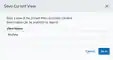 3. Enter a name for the view.
4. Click **Save**.
The created view is already selected.
**To select a configured view**
1. From the ist view, click **View** above the filters.
2. Click **Saved Views**, and then select the view you want to see.
3. Click **Apply**.
**To delete a configured view**
1. From the Configuration Issues list view, click **View** above the filters.
2. Click **Saved Views**, and then click the
3. Enter a name for the view.
4. Click **Save**.
The created view is already selected.
**To select a configured view**
1. From the ist view, click **View** above the filters.
2. Click **Saved Views**, and then select the view you want to see.
3. Click **Apply**.
**To delete a configured view**
1. From the Configuration Issues list view, click **View** above the filters.
2. Click **Saved Views**, and then click the  icon next to the saved view you want to delete.
A Settings Delete dialog box opens to confirm the deletion.
3. Click **Accept**.
The icon does not display if the view is selected.
You can only delete the views you have created.
icon next to the saved view you want to delete.
A Settings Delete dialog box opens to confirm the deletion.
3. Click **Accept**.
The icon does not display if the view is selected.
You can only delete the views you have created.