> ## Documentation Index
> Fetch the complete documentation index at: https://docs.levelblue.com/llms.txt
> Use this file to discover all available pages before exploring further.
# USM Appliance Connections
To add a USM Appliance deployment connection to a USM Central instance, you must initiate a connection from the USM Appliance web UI. The connection request from a USM Appliance deployment requires a token that you generate in the USM Central instance.
Version 5.4.3 or later is required to add a USM Appliance deployment connection. Port 443 must be open between a USM Appliance and a USM Central instance.
**To generate a token for a USM Appliance connection**
1. In USM Central, go to **Settings > Deployments**.
2. Click **Connect to Existing Deployment**.
The Connect to Existing Deployment dialog box opens.
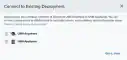 3. Click the
  icon next to USM Appliance.
4. Enter a name for the deployment that you want to connect.
5. Click **Generate Token**.
6. Click the
icon next to USM Appliance.
4. Enter a name for the deployment that you want to connect.
5. Click **Generate Token**.
6. Click the  icon to copy the token to your clipboard.
 7. Paste the token into a secured file and send it to the user that is responsible for the USM Appliance deployment.
8. Click **Got it, close**.
**To initiate a connection to USM Central from USM Appliance**
1. In the USM Appliance web UI, go to **Configuration > Deployment > Components > Servers**.
2. Click the **Connect to USM Central** link.
3. Enter the token generated from USM Central.
7. Paste the token into a secured file and send it to the user that is responsible for the USM Appliance deployment.
8. Click **Got it, close**.
**To initiate a connection to USM Central from USM Appliance**
1. In the USM Appliance web UI, go to **Configuration > Deployment > Components > Servers**.
2. Click the **Connect to USM Central** link.
3. Enter the token generated from USM Central.
 4. Click **Connect**.
The system sends a request to the USM Central.
Upon acceptance, your USM Appliance deployment is automatically connected.
To view other related training videos, [click here](https://cybersecurity.att.com/training/self-paced-training).
## Disconnect a Connection
USM Appliance and USM Central enable you the option of disconnecting a connection.
**To disconnect a connection from the USM Central web UI**
1. Go to **Settings > Deployments**.
2. Click the
4. Click **Connect**.
The system sends a request to the USM Central.
Upon acceptance, your USM Appliance deployment is automatically connected.
To view other related training videos, [click here](https://cybersecurity.att.com/training/self-paced-training).
## Disconnect a Connection
USM Appliance and USM Central enable you the option of disconnecting a connection.
**To disconnect a connection from the USM Central web UI**
1. Go to **Settings > Deployments**.
2. Click the  icon.
The Disconnect Deployment dialog box opens.
icon.
The Disconnect Deployment dialog box opens.
 3. Choose one of these options:
* **Yes, disconnect deployment and purge all data**: Use this option to disconnect the deployment and purge all historical data.
* **Yes, disconnect deployment BUT DO NOT purge all data**: Use this option to disconnect the deployment. Alarms remain and your USM Anywhere shows them in the alarm list. The alarms are available if you connect the deployment again.
* **No, do not disconnect**: Use this option to exit this dialog box without disconnecting the deployment.
**To disconnect a connection from the USM Appliance web UI**
1. In the USM Appliance web UI, go to **Configuration > Deployment > Components > Servers**.
3. Choose one of these options:
* **Yes, disconnect deployment and purge all data**: Use this option to disconnect the deployment and purge all historical data.
* **Yes, disconnect deployment BUT DO NOT purge all data**: Use this option to disconnect the deployment. Alarms remain and your USM Anywhere shows them in the alarm list. The alarms are available if you connect the deployment again.
* **No, do not disconnect**: Use this option to exit this dialog box without disconnecting the deployment.
**To disconnect a connection from the USM Appliance web UI**
1. In the USM Appliance web UI, go to **Configuration > Deployment > Components > Servers**.
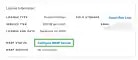 2. Click **Disable Connection**.
The Connection to USM Central dialog box opens.
2. Click **Disable Connection**.
The Connection to USM Central dialog box opens.
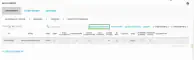 A dialog box opens.
 3. Click **Yes, Disconnect**.