> ## Documentation Index
> Fetch the complete documentation index at: https://docs.levelblue.com/llms.txt
> Use this file to discover all available pages before exploring further.
# USM Anywhere Connections
To add a USM Anywhere deployment connection to a USM Central instance, you must initiate a connection from the USM Anywhere user interface (UI). If another user initiates the deployment connection, you must provide the domain for your USM Central instance.
**To initiate a connection to USM Central from USM Anywhere**
1. In USM Anywhere, go to **Settings > My Subscription**.
2. Go to the License Information section.
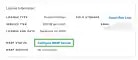 3. Click **Configure MSSP Service**.
The Connect deployment to USM Central dialog box displays.
3. Click **Configure MSSP Service**.
The Connect deployment to USM Central dialog box displays.
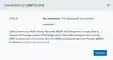 4. Click **Connect** and enter the domain for the USM Central instance.
 5. Click **Connect**.
From USM Anywhere, you see this dialog box.
5. Click **Connect**.
From USM Anywhere, you see this dialog box.
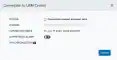 The system sends a request to the USM Central. The connection is not complete until a USM Central user accepts the connection request.
 6. Click **Accept**.
7. After several seconds, the deployment displays as **Connected** in USM Central.
6. Click **Accept**.
7. After several seconds, the deployment displays as **Connected** in USM Central.
 This dialog box displays in USM Anywhere.
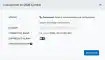 Enable the suppressed alarm field to enable you to view and manage suppressed alarms in USM Central. If you enable this option, the load on USM Central increases.
## Related Video Content
To view other related training videos, [click here](https://cybersecurity.att.com/training/self-paced-training).
## Accept a Deployment Connection
As a user of USM Central, you can accept the connections initiated from a USM Anywhere deployment. This request is available in the USM Central web UI.
When you accept the connection, the deployment displays in your USM Central Deployments dashboard.
Your USM Central will receive alarms, vulnerabilities, and configuration issues from USM Anywhere connections.
**To accept a connection in the USM Central web UI**
1. Go to **Settings > Deployments**.
The new deployment displays.
2. Click **Accept**.
After several seconds, the deployment displays as *Connected*.
## Decline a Connection
If you receive a request for connection by mistake or if there is some issue with making the connection, you can decline the connection request.
**To decline a connection in the USM Central web UI**
1. Go to **Settings > Deployments**.
The new deployment displays.
2. Click **Deny**.
Enable the suppressed alarm field to enable you to view and manage suppressed alarms in USM Central. If you enable this option, the load on USM Central increases.
## Related Video Content
To view other related training videos, [click here](https://cybersecurity.att.com/training/self-paced-training).
## Accept a Deployment Connection
As a user of USM Central, you can accept the connections initiated from a USM Anywhere deployment. This request is available in the USM Central web UI.
When you accept the connection, the deployment displays in your USM Central Deployments dashboard.
Your USM Central will receive alarms, vulnerabilities, and configuration issues from USM Anywhere connections.
**To accept a connection in the USM Central web UI**
1. Go to **Settings > Deployments**.
The new deployment displays.
2. Click **Accept**.
After several seconds, the deployment displays as *Connected*.
## Decline a Connection
If you receive a request for connection by mistake or if there is some issue with making the connection, you can decline the connection request.
**To decline a connection in the USM Central web UI**
1. Go to **Settings > Deployments**.
The new deployment displays.
2. Click **Deny**.
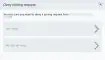 The connection doesn't display on the Deployments page of USM Central.
3. Go to your USM Anywhere instance and see that the status of the connections to USM Central dialog box changes.
The connection doesn't display on the Deployments page of USM Central.
3. Go to your USM Anywhere instance and see that the status of the connections to USM Central dialog box changes.
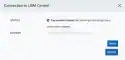 4. Click **Retry** if you want to try it again, or click **Cancel**.
## Disconnect a Connection
USM Anywhere and USM Central enable you to disconnect a connection.
**To disconnect a connection from the USM Central web UI**
1. Go to **Settings > Deployments**.
Click the
4. Click **Retry** if you want to try it again, or click **Cancel**.
## Disconnect a Connection
USM Anywhere and USM Central enable you to disconnect a connection.
**To disconnect a connection from the USM Central web UI**
1. Go to **Settings > Deployments**.
Click the  icon.
The Disconnect Deployment dialog box opens.
icon.
The Disconnect Deployment dialog box opens.
 2. Choose one of these options:
* **Yes, disconnect deployment and purge all data**: Use this option to disconnect the deployment and purge all historical data.
* **Yes, disconnect deployment BUT DO NOT purge all data**: Use this option to disconnect the deployment. Alarms remain and your USM Anywhere shows them in the alarm list. The alarms are available if you connect the deployment again.
* **No, do not disconnect**: Use this option to exit this dialog box without disconnecting the deployment.
**To disconnect a connection from the USM Anywhere web UI**
1. Go to **Settings > My Subscription**.
Go to the License Information section.
2. Click **Configure MSSP Service**.
The Connection to USM Central dialog box opens.
3. Click **Disconnect**.
The Disconnect Deployment dialog box opens.
2. Choose one of these options:
* **Yes, disconnect deployment and purge all data**: Use this option to disconnect the deployment and purge all historical data.
* **Yes, disconnect deployment BUT DO NOT purge all data**: Use this option to disconnect the deployment. Alarms remain and your USM Anywhere shows them in the alarm list. The alarms are available if you connect the deployment again.
* **No, do not disconnect**: Use this option to exit this dialog box without disconnecting the deployment.
**To disconnect a connection from the USM Anywhere web UI**
1. Go to **Settings > My Subscription**.
Go to the License Information section.
2. Click **Configure MSSP Service**.
The Connection to USM Central dialog box opens.
3. Click **Disconnect**.
The Disconnect Deployment dialog box opens.
 4. Click **Yes, Disconnect**.