> ## Documentation Index
> Fetch the complete documentation index at: https://docs.levelblue.com/llms.txt
> Use this file to discover all available pages before exploring further.
# Filtering Rules from the Orchestration Rules Page
Role Availability | ❌ Read-Only ✔️ Analyst ✔️ Manager
USM Anywhere enables you to make the sensor drop future events that match the rule. These future events are neither correlated nor stored. Through these rules, you are able to define which event data you are going to store in USM Anywhere. You pay for the data you use, so discarded event information is not stored and does not count against the service-level tier of an account. This rule runs on a sensor and control node. The action of this rule has no recovery, so you must be careful when creating the rule. This action can cause a user-generated data loss environment.
Filtering rules are not retroactive. The rule applies to future items, but not to previous items even if those items follow the rule.
**To create a rule for filtering events**
1. Go to **Settings > Rules**.
2. Select **Create Orchestration Rule > Filtering Rule**.
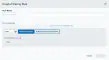 3. Enter a name for the rule.
4. Select a deployment.
5. Select the property values you want to include in the rule to create a matching condition.
6. Click **Add Condition** or **Add Group Of Conditions**. See [Operators in the Orchestration Rules](/usm-anywhere/user-guide/rules-management/orchestration-rules-operators) for more information.
If the field is related to the name of a country, you should use the country code defined by the [ISO 3166](https://www.iso.org/iso-3166-country-codes.html).
7. Click **Save Rule**.
The created rule displays in the list of rules.
It takes a few minutes for an orchestration rule to become active.
**To filter filtering rules by name**
1. Go to **Settings > Rules**.
2. Click the box next to Filter By.
3. Enter your search.
**To filter filtering rules by deployment**
1. Go to **Settings > Rules**.
2. In the left navigation pane, click **Filtering Rules**.
3. Click the box **Deployment**.
4. Select **All Rules**, **Enabled**, or **Disabled**.
**To filter filtering rules by rule status**
1. Go to **Settings > Rules**.
2. Click the combo box next to Rule Status.
3. Select **All Rules**, **Enabled**, or **Disabled**.
**To edit a filtering rule**
1. Go to **Settings > Rules**.
2. On the left navigation pane, click **Filtering Rules**.
3. Click the
3. Enter a name for the rule.
4. Select a deployment.
5. Select the property values you want to include in the rule to create a matching condition.
6. Click **Add Condition** or **Add Group Of Conditions**. See [Operators in the Orchestration Rules](/usm-anywhere/user-guide/rules-management/orchestration-rules-operators) for more information.
If the field is related to the name of a country, you should use the country code defined by the [ISO 3166](https://www.iso.org/iso-3166-country-codes.html).
7. Click **Save Rule**.
The created rule displays in the list of rules.
It takes a few minutes for an orchestration rule to become active.
**To filter filtering rules by name**
1. Go to **Settings > Rules**.
2. Click the box next to Filter By.
3. Enter your search.
**To filter filtering rules by deployment**
1. Go to **Settings > Rules**.
2. In the left navigation pane, click **Filtering Rules**.
3. Click the box **Deployment**.
4. Select **All Rules**, **Enabled**, or **Disabled**.
**To filter filtering rules by rule status**
1. Go to **Settings > Rules**.
2. Click the combo box next to Rule Status.
3. Select **All Rules**, **Enabled**, or **Disabled**.
**To edit a filtering rule**
1. Go to **Settings > Rules**.
2. On the left navigation pane, click **Filtering Rules**.
3. Click the  icon of the rule you want to edit.
4. Modify the data of the items that need to be modified.
5. Click **Save Rule**.
**To delete a filtering rule**
1. Go to **Settings > Rules**.
2. On the left navigation pane, click **Filtering Rules**.
3. Click the
icon of the rule you want to edit.
4. Modify the data of the items that need to be modified.
5. Click **Save Rule**.
**To delete a filtering rule**
1. Go to **Settings > Rules**.
2. On the left navigation pane, click **Filtering Rules**.
3. Click the  icon of the rule you want to delete.
4. Confirm by clicking Accept.
**To enable a filtering rule**
1. Go to **Settings > Rules**.
2. On the left navigation pane, click **Filtering Rules**.
3. Click the
icon of the rule you want to delete.
4. Confirm by clicking Accept.
**To enable a filtering rule**
1. Go to **Settings > Rules**.
2. On the left navigation pane, click **Filtering Rules**.
3. Click the  icon of the rule you want to enable.
**To disable a filtering rule**
1. Go to **Settings > Rules**.
2. On the left navigation pane, click **Filtering Rules**.
3. Click the
icon of the rule you want to enable.
**To disable a filtering rule**
1. Go to **Settings > Rules**.
2. On the left navigation pane, click **Filtering Rules**.
3. Click the  icon of the rule you want to disable.
**To enable all filtering rules**
1. Go to **Settings > Rules**.
2. On the left navigation pane, click **Filtering Rules**.
3. In the list of rules, select the first checkbox in the first column to select all the rules.
4. Click **Enable All Rules**.
**To disable all filtering rules**
1. Go to **Settings > Rules**.
2. On the left navigation pane, click **Filtering Rules**.
3. In the list of rules, select the first checkbox in the first column to select all the rules.
4. Click **Disable All Rules**.
5. Confirm by clicking **Accept**.
icon of the rule you want to disable.
**To enable all filtering rules**
1. Go to **Settings > Rules**.
2. On the left navigation pane, click **Filtering Rules**.
3. In the list of rules, select the first checkbox in the first column to select all the rules.
4. Click **Enable All Rules**.
**To disable all filtering rules**
1. Go to **Settings > Rules**.
2. On the left navigation pane, click **Filtering Rules**.
3. In the list of rules, select the first checkbox in the first column to select all the rules.
4. Click **Disable All Rules**.
5. Confirm by clicking **Accept**.