

Understanding TRACEnet
The TRACEnet feature is a “zero day” protection framework supported by the LevelBlue Security Labs team. TRACEnet identifies malicious URLs and allows you to block access to these sites. The Security Labs team provides frequent updates to the listed URLs, based on data from a number of sources. This framework gives protection against “blended” threats and new risks. When TRACEnet is enabled, it receives updated URL information from LevelBlue. The TRACEnet digest collator reports summary data about blocked threats to LevelBlue over a secure Web connection. The Security Labs team uses the reported data as part of the threat identification process that feeds back in to TRACEnet updates. TRACEnet initially provides four categories:- Spam sites (URLs offering products or services, that are promoted through spam email)
- Phishing sites (URLs hosting fraudulent attempts to harvest personal information)
- Anonymous proxies (sites that allow users to bypass security by retransmitting web requests)
- Malicious sites (sites hosting malware or exploits)
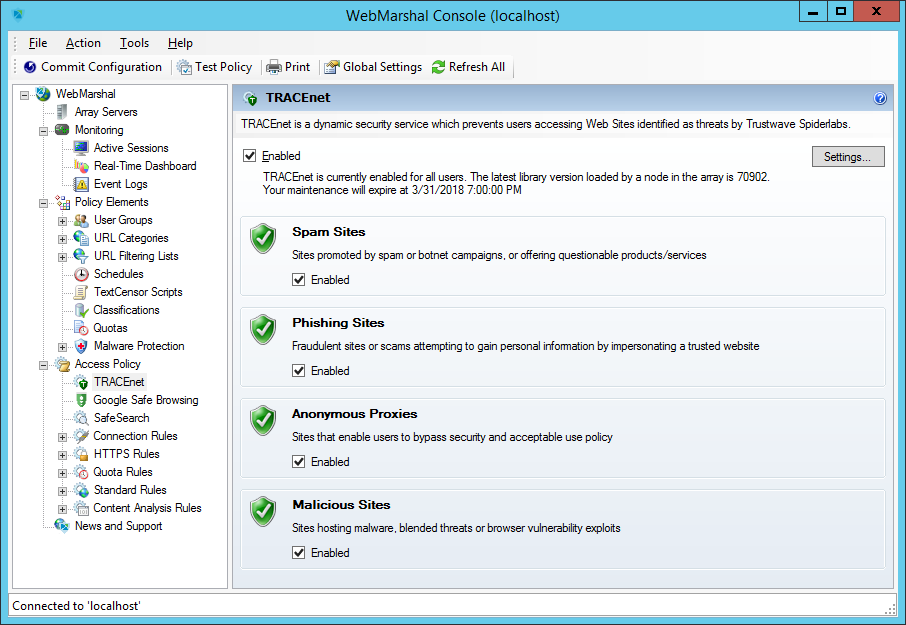
WebMarshal Console, TRACEnet window
Understanding Google Web Risk integration
Web Risk is a Google service that lets client applications check URLs against Google’s constantly updated lists of unsafe web resources. To configure Web Risk integration, in the left pane of the WebMarshal Console expand Access Policy and select Google Web Risk. For full information about the options, see Help.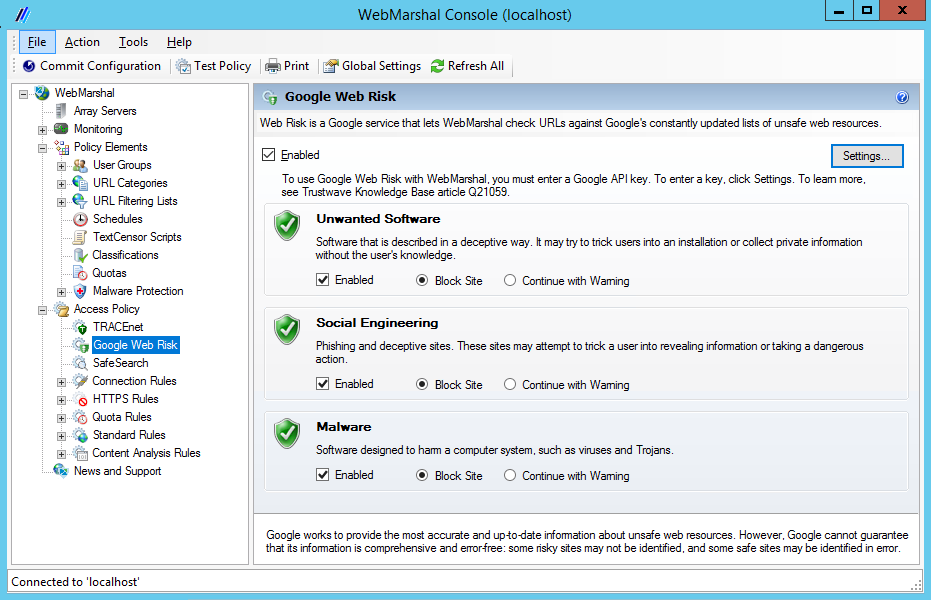
WebMarshal Console, Google Web Risk window
Enforcing SafeSearch
WebMarshal allows you to enforce use of the “Strict Safe Search” function that some search engines provide. At this release, WebMarshal Safe Search supports Google, Yahoo!, and Bing safe search, as well as YouTube Safety Mode. This feature adds the “safe search” parameter to each request that a user makes to the supported search engines or sites.- To enable or disable the feature, check or clear the box on the main Safe Search page.
- You can choose to exclude one or more User Groups from this feature. To configure User Group exclusions, at the top right of the main Safe Search page click Settings. For more information, see Help.
Understanding rules
The main feature of WebMarshal Access Policy is the Rules. Each rule is defined with a set of conditions, and a set of actions that WebMarshal takes if a Web request meets the conditions. The Access Policy can also use Rule Containers. A Container allows you to group a set of rules that share common conditions (for instance, user matching or request direction). Rules within a Container only apply when a request meets the conditions defined for the container. Each WebMarshal Rule has three parts: User Matching, Conditions and Actions.- User Matching allows you to specify the server groups where the rule applies, and the users or workstations that the rule applies to.
- If the request meets the User Matching criteria, it is evaluated using the Conditions.
- If the request meets the Conditions, WebMarshal performs the Actions.
Understanding rule types
WebMarshal rules are divided into five types: Connection Rules, HTTPS Rules, Quota Rules, Standard (Site) Rules, and Content Analysis Rules. Within each type you can create Rules and Rule Containers.Connection rules
Connection Rules are evaluated when WebMarshal receives a request from a user. Connection Rules allow you to implement policy based control of HTTP connections from many Instant Messaging and Streaming Media applications such as Windows Live Messenger or Real Media, as well as the WebSocket protocol.- Before you can use Connection Rules, you must enable this functionality in the WebMarshal Global Settings. For more information, see Configuring connection rule processing.
HTTPS rules
HTTPS rules are evaluated when a user connects to a website that uses HTTPS (Secure HTTP). HTTPS Rules allow you to implement policy based on the encryption protocol and the security certificate used. HTTPS Rules also allow you to scan the content of selected HTTPS traffic. HTTPS traffic to be scanned is decrypted, and then re-encrypted for transfer to the destination.- When HTTPS rules are enabled, content is always secured when transmitted over the network.
- HTTPS traffic that does not match a rule requiring scanning is not decrypted.
Quota rules
Quota rules are evaluated when WebMarshal receives a request for a Web resource from a browser session, and if necessary after the response has been returned from the Web. These rules allow users specific amounts of web browsing time and/or volume for a period such as a day or week. Quota rules can have conditions based on time of day or day of the week, file type, URL category, and the protocol or application. For information about managing Quotas, see Configuring access using quotas. For a full list of conditions and actions, see Help for the Quota Rules window in the WebMarshal Console.Standard rules
Standard rules are evaluated when WebMarshal receives a request from a browser session. Standard rules allow you to permit or deny access to URL categories by user groups. Standard rules also allow you to match or rewrite the headers of a web request or response. Standard rules can have conditions based on time of day or day of the week, file name, file type, presence of cookies, and the request direction (upload or download). Depending on the outcome of rule evaluation, WebMarshal can permit or deny access to the resource, and optionally require the user to acknowledge a warning.Content analysis rules
Content Analysis rules are evaluated when WebMarshal receives the content of the Web request. This type of rule allows you to base policy on the actual results of a specific request, including new or dynamically generated files.- Some Content Analysis rules require WebMarshal to fully scan the response files before returning them to the user. If you configure complex rules and scripts, the user may experience a delay during scanning. To minimize the delay, in most cases a TextCensor rule that blocks a request should also add the URL to a category. WebMarshal can then use a standard rule to block future requests for the URL quickly, using a Standard rule.
- To reduce the delay due to processing, in some cases WebMarshal begins to return a file to the user. A small part of the file is held back from the user until WebMarshal has completely received and processed the file. If the page triggers the rule, the download is aborted. For information about configuring this feature, see Configuring download options.
- Request direction (upload or download)
- Transfer size
- File type
- Content type (based on MIME type, such as MPEG)
- Text content (TextCensor lexical analysis)
- Malware scanning results
- Permit or block the request
- Display a warning page and require the user to acknowledge
- Write a log classification for the file or the request domain
- Add the user to a group
- Add the request URL to a URL category
- Notify the administrator
Working with access policy
To work with rules in the WebMarshal Console, ensure that the menu item Access Policy is expanded.Creating a rule or rule container
WebMarshal Rules and Rule Containers have many elements in common. The procedure below illustrates the creation of an example rule. The available options are covered in the following sections.- In the left pane of the Console, expand Access Policy. Select a rule type.
- If you want to create the rule within a container, double-click the container in the right pane to open it.
- Click the New Rule icon in the taskpad.
- Click Next to continue to the User Matching Conditions page.
- On the User Matching Conditions page, check the boxes in the top pane to select the conditions you want to include in the rule. The items you select items display in the rule description pane, at the bottom of the page.
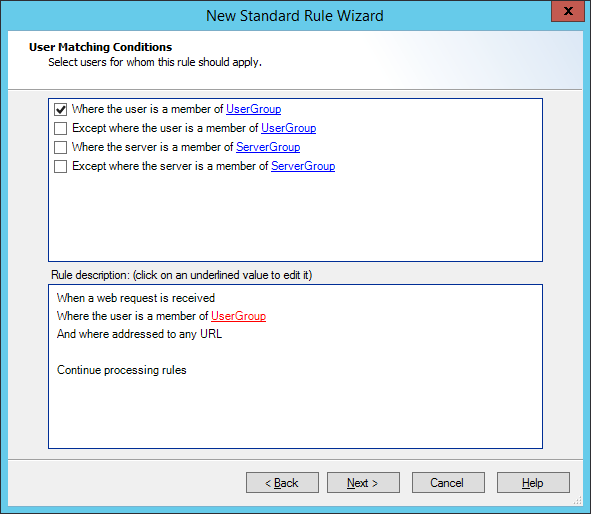
New Standard Rule Wizard, User Matching Conditions page
- If you can specify details for a condition, each item that requires details includes a hyperlink. The hyperlink text is red if you must enter a value, or blue if a value is already specified. Click any hyperlink to enter or change the detail information. For more information about the specific expressions, see User matching conditions.
- For instance, if you select where the user is a member of User Group, the text UserGroup in the rule description is a red link. Click this link to display the Select User Groups window.
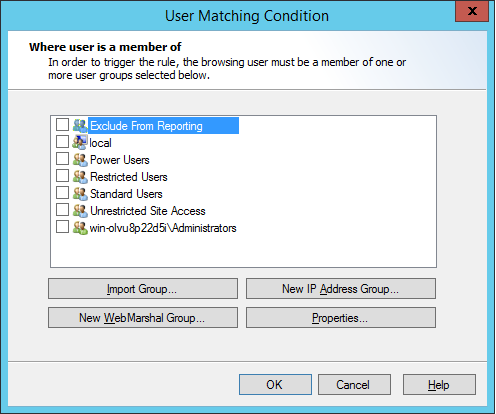
User Matching Condition window
- Click Next to continue to the Rule Conditions page.
- Select conditions and enter details on this page in the same way as for step 5. See Rule conditions for details on options for the specific conditions.
- When you have entered all the details on the Rule Conditions page, click Next to continue to the Rule Actions page.
- Select actions and enter details on this page in the same way as for step 5. The actions that you can select vary depending on the type of rule. See Rule actions for details on options for the specific actions.
- When you have entered all details on the Rule Actions page, click Next to continue to the Rule Completion page.
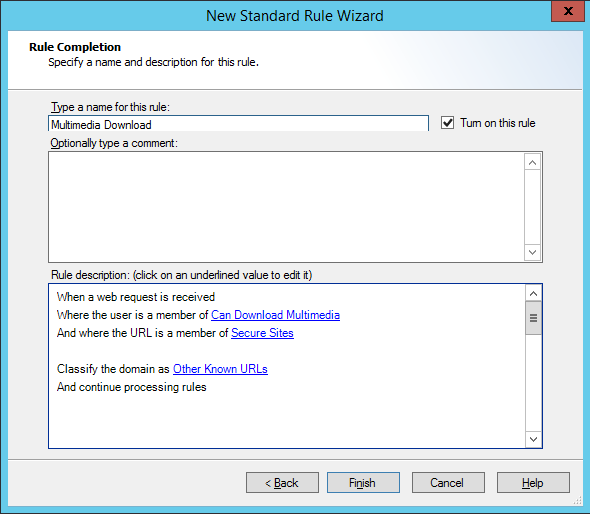
New Standard Rule Wizard, Rule Completion page
- Enter a name for the rule.
- Optionally enter a comment or description for the rule.
- Choose whether to enable the rule immediately (default) or not, using the Turn on this rule checkbox.
- Click Finish to return to the WebMarshal Console.
*. A notice also displays in the status bar.Editing rules
The following procedure applies to all types of WebMarshal Rules and Rule Containers. To edit a rule or rule container:- In the left pane of the console, expand Access Policy.
- Select the Rule type or Rule Container that includes the item you want to edit.
- Double-click the rule or rule condition in the right pane. The rule is presented in the Rule Wizard–Rule Completion page.
- Click any hyperlinked item to change it. If you want to make more basic changes to the actions or conditions, click Back to view the User Matching, Conditions, or Actions pages.
- When satisfied, click OK.
Enabling and disabling rules
You can enable or disable individual rules or rule containers. Disabled rules (or rules in disabled containers) are not used to evaluate web requests. Disabled rules and containers display with a rule-disabled icon (dimmed, with a red ⊘).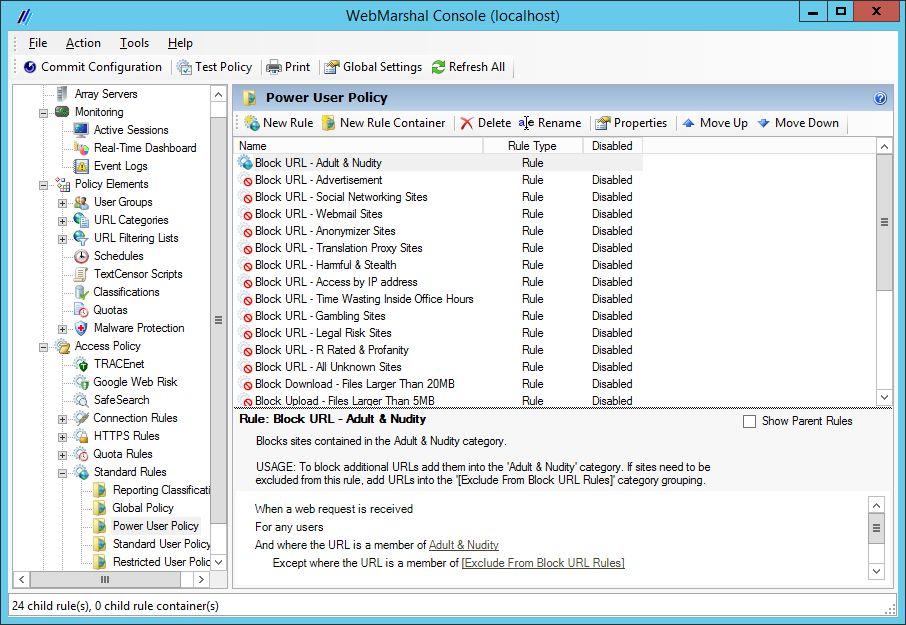
WebMarshal Console, Rules window
- Expand Access Policy, and select a rule type in the left pane.
- Double-click a particular rule or rule container in the right pane.
- On the Rule Wizard page, check or uncheck Turn on this rule.
- Click OK.
Understanding user matching
User Matching allows you to apply policies to specific users (login accounts) or to specific workstations.User matching conditions
All WebMarshal Rules and Rule Containers can include one or more of the following User Matching conditions.Where the user is a member of User Group
If this User Matching Condition is selected, the Rule will apply to all members of the User Group(s) listed in the Rule Description pane with this condition (except for members of any of the exception groups, as described below). To add or edit User Groups in this condition:- Click a UserGroup link to open the User Matching Condition window.
User Matching Condition window
- In this window, you can select an existing user group. You can also create or import a new group. If you create or import a group, it is selected for use when you return to the User Matching Condition window.
If your WebMarshal installation allows more than one type of authentication, remember to include all authentication types in Rules. For instance, if both Windows and IP authentication are enabled, User Matching should include both user names and workstation names as appropriate.
Except where the user is a member of User Group
If this User Matching Condition is selected, the Rule will not apply to any member of the User Groups listed in the Rule Description pane with this condition. To add or edit user groups in this condition:- Click a UserGroup link to open the User Matching Condition window.
- Select existing or create new groups as described above.
Where the server is a member of Server Group
If this Condition is selected, the Rule will apply only for requests processed on the WebMarshal Processing Servers contained in the Server Group(s) listed in the Rule Description pane with this condition (except for members of any of the exception groups, as described below).- Click a ServerGroup link to open the Server Condition window.
- In this window, you can select an existing server group. You can also click New to start the New Server Group wizard and create a server group, as described in Configuring server group properties. If you create a new server group, it is selected for use when you return to the Server Matching Condition window.
Except where the server is a member of Server Group
If this Condition is selected, the Rule will not apply for requests processed on the WebMarshal Processing Servers contained in the Server Group(s) listed in the Rule Description pane with this condition.Understanding rule conditions
Each WebMarshal Rule or Rule Container includes one or more conditions. Not all conditions are available for all WebMarshal Rule types.Rule conditions
The complete list of conditions includes:- When a web request is received for Direction
- Where the protocol/application is of type
- Except where the protocol/application is of type
- Where the URL is a member of Category
- Except where the URL is a member of Category
- Where the time of day is inside or outside of Schedule
- Where the server certificate is invalid
- Where the security protocol is
- Where the site requests a client certificate during SSL/TLS negotiation
- Where SSL/TLS could not be negotiated
- Where the content is/is not inspected HTTPS content
- Where the request contains cookies
- Where the header(s) match
- Where the URL domain name is an IP address
- Where the transferred data size is size
- Where the content matches all/any of TextCensor Script(s)
- Where the result of a malware scan is
- Where the file type is
- Except where the file type is
- Where the file is or contains a file of type
- Where the parent file type is
- Except where the parent file type is
- Where the file name matches
- Except where the file name matches
- Where the parent file name matches
- Except where the parent file name matches
- Where the download content type is
- Except where the download content type is
- Where an error occurs while unpacking
When a web request is received for direction
If this Condition is selected, the Rule will apply to all requests of the selected type (upload or download). Downloads include standard web page views and file access. Uploads include form and file posting. Click Direction to open the Data Direction window. Select Downloading or Uploading, and then click OK.Where the protocol/application is of type
If this condition is selected, the Rule will apply for requests from specific Instant Messaging, Streaming Media, and WebSocket applications. Click Protocol/Application to open the Select Application window.- Select one or more applications to match by checking the boxes. To view the detailed description of the protocol, hover over an item.
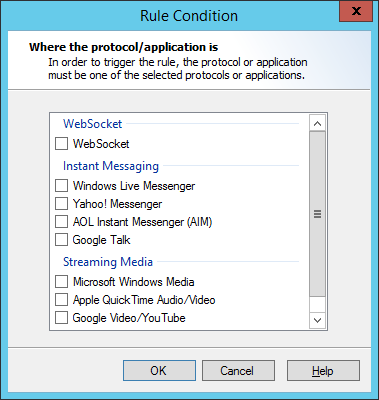
Rule Condition window, Where the protocol/application is
- Click OK to return to the parent Wizard.
Except where the protocol/application is of type
If this condition is selected, the Rule will not apply for requests from specific Instant Messaging, Streaming Media, and WebSocket applications listed in the Rule Description pane with this condition. Within a Rule, this condition overrides the condition Where the protocol/application is of type.Where the URL is a member of category
If this Condition is selected, the Rule will apply for requests to all members of the URL Category (or Categories) listed in the Rule Description pane with the condition.- Select one or more URL Categories to match by checking the boxes. To view the detailed description of a category and the number of URLs it includes, select the category name and then click Properties.
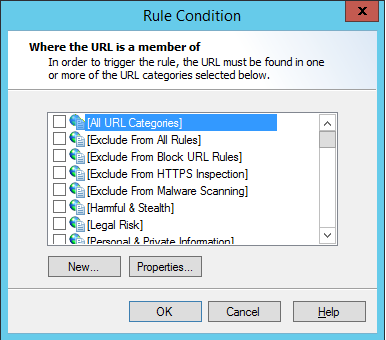
Rule Condition window, Where the URL is a member of
- Optionally click New to create a new URL Category.
- Click OK to return to the parent Wizard.
Except where the URL is a member of category
If this Condition is selected, the Rule will not apply for requests to any member of the URL Category (or Categories) listed in the Rule Description pane with this condition. Within a Rule, this condition overrides the condition Where the URL is a member of category. See Where the URL is a member of category for details on how to select Categories to match. Exception based rules are the key to good resource management. General rules should be created to cover most cases; exceptions should be made for small numbers of sites. For instance, a Rule might applyWhere addressed to any URL, except where the URL is a member of Tabloids.)
Where the time of day is inside or outside of schedule
If this Condition is selected, the Rule will apply at specific times depending on the Schedule selected. Click Schedule to select a schedule using the Select Schedule window.- Select a Schedule to match using the radio buttons. To view or edit the details of a schedule, select the schedule name and then click Properties.
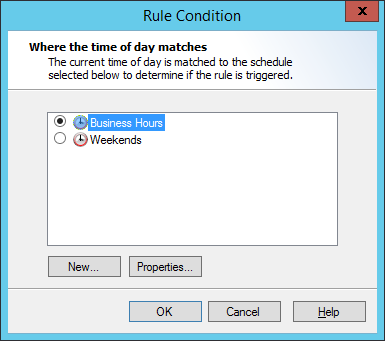
Rule Condition window, Where the time of day matches
- Optionally click New to create a new Schedule, as described in Configuring access using schedules.
- Schedule conditions normally match times within the schedule (blue area in the schedule policy element). If you want to match times outside the schedule, click inside and select Inside or Outside.
- Click OK to return to the parent Wizard.
Where the server certificate is invalid
This condition allows you to apply a rule based on the validity conditions of a security certificate used by a HTTPS website. Click the Invalid link to open the Invalid Certificate window and select the certificate problems you want to check for.- Select one or more problems. If any of the problems occurs, the condition is met. WebMarshal can check for the following problems:
- Certificate is not valid for the web site: The certificate presented is not valid for the website (URL) the user is trying to access.
- Certificate has expired: The security certificate has expired.
- Certificate is not yet valid: The start of the certificate validity period has not been reached. Security certificates can have a future start date.
- Certificate is self-signed: The certificate has not been validated by a root certificate. It is validated only by the remote web server.
- Certificate chain is not trusted: The certificate cannot be chained back to a trusted root certificate, or WebMarshal does not recognize enough of the certificate chain.
- Certificate breaks certificate validation rules: The certificate does not conform to the industry standard for security certificates used to authenticate a website (typically due to usage constraints encoded in the certificate).
- Certificate is revoked: The certificate is marked as revoked by the issuer.
- Certificate revocation check failed: WebMarshal could not check the certificate revocation status. For more information about possible reasons see Help.
Before you can use the two revocation options you must enable certificate revocation checking. See Enabling certificate revocation checking. - Click OK to return to the parent Wizard.
Where the security protocol is protocol
This condition allows you to check for the specific security protocol that was used for a HTTPS connection. The available protocols are distinguished by the difference in their cipher strength. The minimum protocol strength recommended is TLSv1.0.Where the site requests a client certificate during SSL/TLS negotiation
This condition allows you to take action when the remote web server requires the client browser to supply a security certificate, which will be used in addition to the server certificate. The client certificate uniquely identifies the user and can help to ensure security of a connection. WebMarshal cannot inspect HTTPS content when a page requires a client certificate. Use this condition with a rule action to block access, or to permit access without inspecting content.Where SSL/TLS could not be negotiated
This condition allows you to take action when the user enters a HTTPS URL, but WebMarshal and the server cannot agree a security protocol.Where the content is inspected HTTPS content
This condition can be used in a Standard or Content Analysis rule to determine if a request has been made from inside an inspected HTTPS connection. You can use this condition to apply different rules to data that WebMarshal has extracted from a HTTPS connection.- Click is to open a window that allows you to select from the following options:
- Content is from inside an inspected HTTPS connection: The request was made as a HTTPS connection that WebMarshal is inspecting.
- Content is from a normal HTTP or non-inspected HTTPS connection: The request was a standard HTTP request, or a HTTPS request that has not been decrypted by WebMarshal.
- Click OK to return to the parent window.
Where the request contains cookies
This Condition allows you to apply Rules to download responses that send HTTP “cookies” as part of the response. To apply this condition, select the box.Where the URL domain name is an IP address
This Condition, available in Standard rules, allows you to check for attempts to browse by IP address including IPv4 and IPv6 addresses.Where the header(s) match
This Condition, available in Standard rules, allows you to check the existence and content of HTTP headers. Header matching can apply to request headers (sent by the client), response headers (sent by the server), or both. You can include one or more Header Match conditions in a single rule condition. Click matches to open the Header Match Conditions window.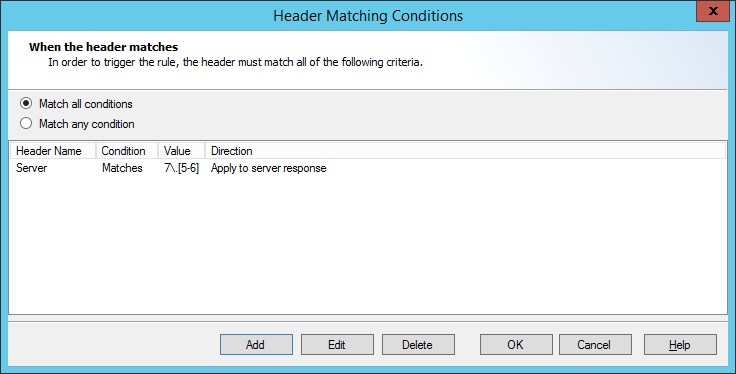
Header Matching Conditions window
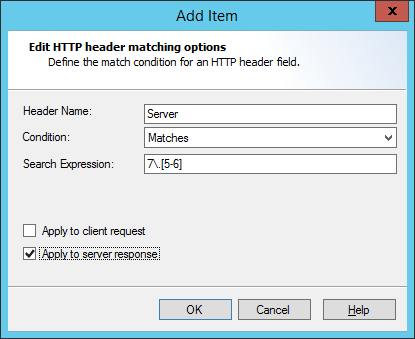
Add Item window, HTTP header matching options
Where the transferred data size is size
This Condition allows you to apply Rules based on the total size of a web request (sent or received). To choose file sizes, in the Rule Wizard click Size to open the Data Size window.- Choose whether to trigger on file transfers greater than or less than a specified size, or between two sizes.
- Enter the size(s) in KB.
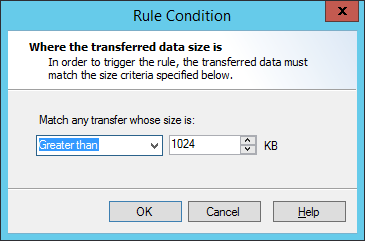
Rule Condition window, Where the transferred data size is
- Click OK to accept changes and return to the parent Wizard. Click Cancel to revert to the saved information.
WebMarshal only checks the total transfer size for each request (for instance, a HTML file, image, .zip file, or .wav file). WebMarshal does not check the sizes of individual files that could be unpacked from an archive.
Where the result of a malware scan by scanner is
This condition invokes the scanners you select to check for viruses and other malware.- The standard scanning rules exclude common image types and text from scanning.
- The “Extensive” rules scan all files. These rules are typically 2 to 4 times slower than the standard rules.
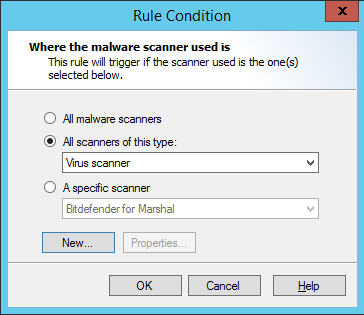
Rule Condition window, Where the malware scanner used is
- Choose which scanners to use. You can only select scanners you have configured in WebMarshal.
If you have installed scanner software but you have not yet configured it, you can configure it by clicking New.
- All malware scanners: This condition will check files using all configured scanners.
- A specific scanner: This condition will check files using a specific scanner. Use the menu to choose from the configured scanners. To view details of a selected scanner, click Properties.
- Click OK to return to the parent Wizard.
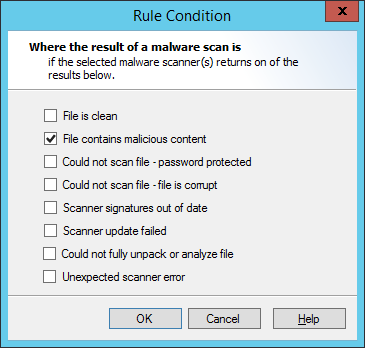
Rule Condition window, Where the result of a malware scan is
- Check the boxes to select the desired conditions. In general, the more boxes selected, the more restrictive the conditions on downloads or uploads.
- File is clean: The condition will trigger if the file is reported as clean by all scanners selected within this rule condition.
- File contains malicious content: The condition will trigger if the file is reported to contain malware by any scanner selected within this rule condition. This is the basic condition.
- Could not scan file - Password protected: When this box is checked, the condition will trigger if any scanner reports the file as password protected.
- Could not scan file - File is corrupt: When this box is checked, the condition will trigger if any scanner reports the file as corrupt.
- Scanner signatures out of date: When this box is checked, the condition will trigger if any scanner reports its signature files are out of date.
- Scanner update failed: When this box is checked, the condition will trigger if the last update attempt for any scanner was unsuccessful.
- Could not fully unpack or analyze file: When this box is checked, the condition will trigger if any scanner reports that it could not unpack the file.
- Unexpected scanner error: When this box is checked, the condition will trigger if any scanner reports an unknown error or the code returned is unknown.
- Click OK to return to the parent Wizard.
Best practice is to block files that are reported as password protected or corrupt (since these cannot be scanned) as well as files containing malware.
Where the content matches TextCensor script
This Condition invokes one or more TextCensor Scripts to check the text content of a web page or other text file.- Select one or more Scripts to match by checking the boxes in the Select TextCensor Script window.
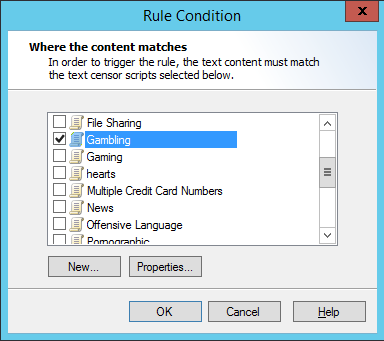
Rule Condition window, Where the content matches
- To create a new TextCensor Script, click New. For more information see Identifying web content using TextCensor scripts.
- To review and edit an existing TextCensor script, select the script name and then click Properties.
- Click All to open the Multiple Scripts window. Choose from the following
- Match all selected scripts: If you choose this option, the condition will only be true if all of the selected scripts trigger.
- Match any of the selected scripts: If you choose this option, the condition will be true if any of the selected scripts trigger.
- Select an option, and then click OK to return to the parent Wizard.
Where the file type is
This Condition allows you to apply Rules to specific file types. File types are recognized by their internal structure, and not by their name or extension.- In Standard rules, this Condition only checks the top level file that was directly requested.
- In Standard rules applied to uploads, this condition checks the type of files directly uploaded (attached to the upload form).
- In Content Analysis rules, this Condition checks the top level file and each file unpacked from archive files.
- For more file type matching options, see the Conditions Where the file is or contains a file of type and Where the parent file type is.
- The Condition Where the file name is allows for file matching by name or extension.
- The condition Where the content type is allows for file matching by the type declared in the web request headers.
- Within the Rule Wizard click Type to open the Select File Types window.
- Expand any category to see the particular types available.
- Choose the categories or specific types of files to match.
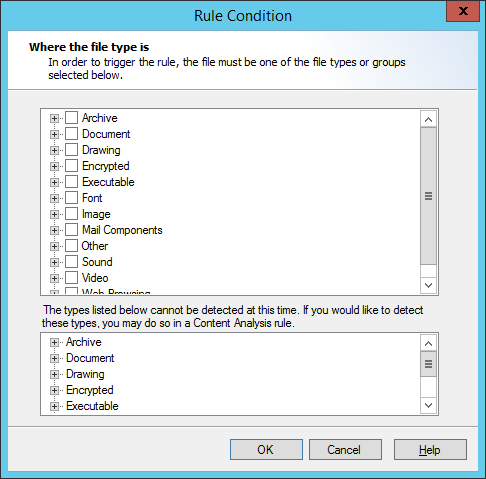
Rule Condition window, Where the file type is
Some types cannot be checked by Standard rules. The Select File Types window for Standard rules shows these types in the lower pane. You can check for these types in Quota or Content Analysis rules. - Click OK to accept changes and return to the parent Wizard. Click Cancel to revert to the saved information.
Except where the file type is
This Condition allows you to apply Rules to all files that are not of specific file types. Before using this condition in Standard Rules, see the note to Where the file type is.- In Standard rules, this Condition only checks the top level file that was directly requested.
- In Standard rules applied to uploads, this condition checks the type of files directly uploaded (attached to the upload form).
- In Content Analysis rules, this Condition checks the top level file and each file unpacked from archive files.
- For more file type matching options, see the Conditions Condition Where the file is or contains a file of type and Where the parent file type is.
Where the file is or contains a file of type
This Condition allows you to create Content Analysis Rules that check a condition for a file that was requested, or all files that are contained within it (if it is a document or archive that WebMarshal can unpack). For instance, you can apply a rule to document files that contain images. For other options, see the condition Where the parent file type is. To choose file types to match, within the Rule Wizard click Type to open the Select File Types window. See the condition Where the file type is for details on how to select types. You can choose to include or exclude the originally requested file from matching. To choose an option:-
Click is or contains to open the Trigger window. Choose from the following
- The transferred file or any unpacked file: If you choose this option, the condition will consider the type of the originally requested file, and any files unpacked from it.
- Any unpacked file: If you choose this option, the condition will ONLY consider the type of unpacked files, and will not consider the type of the originally requested file.
- Select an option, and then click OK to return to the parent Wizard.
Where the parent file type is
This Condition allows you to create Content Analysis Rules that apply to a file that was unpacked from an archive or other unpackable type, depending on the type of the parent file.-
Click the immediate to open the Checks window. Choose from the following
- The immediate parent file: If you choose this option, the condition will consider the type of the file that explicitly contains the unpacked file.
- The top-level parent file: If you choose this option, the condition will consider the type of the originally requested file (that contains the unpacked file, perhaps within other archives).
- Any parent file: If you choose this option, the condition will consider the type of each file in the set of archives.
- Select an option, and then click OK to return to the parent Wizard.
Except where the parent file type is
This Condition allows you to apply Rules to a file that was unpacked from an archive, if the parent files in the archive are not of specific file types. To choose file types to match, within the Rule Wizard click Type to open the Select File Types window. See the condition Where the file type is for details on how to select types. You can choose to perform matching on the originally requested file, all unpacked files, or only the immediate parent container. To choose a matching option, click the immediate to open the Checks window. See the condition Where the parent file type is for details of the options on this window.Where the file name matches
This Condition allows you to apply Rules to files with specific names or extensions. This condition is useful to allow specific files, or to block text files that WebMarshal cannot recognize by their structure or content-type header.- The condition Where the content type is allows for file matching by the type declared in the web request headers.
- The condition Where the file type is allows for file matching by internal structure of files.
* wildcard is supported (* matches any number of characters; for instance, *.exe matches any exe file).
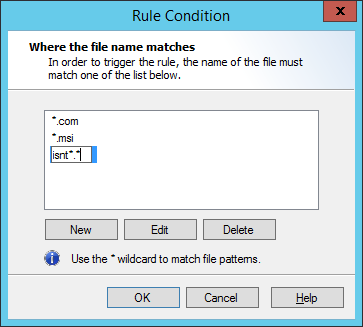
Rule Condition window, Where the file name matches
- To add a name to the list, click Add, and then enter the desired name or wildcard string to match partial names. Press Enter or click away from the name when done.
- To edit an existing name, select it and then click Edit.
- To delete an existing name, select it and then click Delete.
- Click OK to accept changes and return to the parent Wizard. Click Cancel to revert to the saved information.
Except where the file name matches
This Condition allows you to apply Rules to all files that are not specific file names. To choose file names to exclude within the Rule Wizard click Name to open the Except where the file name matches window. The* wildcard is supported (* matches any number of characters; for instance, *.exe matches any exe file).
- To add a name to the list, click Add, and then enter the desired name or wildcard string to match partial names. Press Enter or click away from the name when done.
- To edit an existing name, select it and then click Edit.
- To delete an existing name, select it and then click Delete.
Where the parent file name matches
This Condition allows you to apply Rules to a file that was unpacked from an archive or other unpackable type, depending on the name of the parent file.- Click the immediate to open the Checks window. Choose from the following
- The immediate parent file: If you choose this option, the condition will consider the name of the file that explicitly contains the unpacked file.
- The top-level parent file: If you choose this option, the condition will consider the name of the originally requested file (that contains the unpacked file, perhaps within other archives).
- Any parent file: If you choose this option, the condition will consider the name of each file in the set of archives.
- Select an option, and then click OK to return to the parent Wizard.
archive1.zip. archive1.zip contains archive2.cab, and archive2.cab contains data.txt
archive1.zip>>archive2.cab>>data.txt
archive1.zipis the top level parent.archive1.zipis the immediate parent ofarchive2.cab.
archive1.zip and archive2.cab are the any level parents of data.txt.
Except where the parent file name matches
This Condition allows you to apply Rules to a file that was unpacked from an archive, if the parent files in the archive do not match specific names or extensions. To choose file names to match, within the Rule Wizard click Name to open the File Names window. See the condition Where the file name matches for details of this window. You can choose to perform matching on the originally requested file, all unpacked files, or only the immediate parent container. To choose a matching option, click the immediate to open the Checks window. See the condition Where the parent file name matches for details of the options on this window.Where the download content type is
This Condition allows you to apply Rules to specific content types. Content types are recognized by the header information of the web request. Content type information is only available for downloads (not uploads or postings). The web browser uses the content type information to determine how to display the content, or what helper application to invoke. For instance, a PDF document with content typeapplication/pdf usually opens in a PDF plug-in or reader.
- The Condition Where the file name is allows for file matching by name or extension.
- The condition Where the file type is allows for file matching by the internal structure of the file.
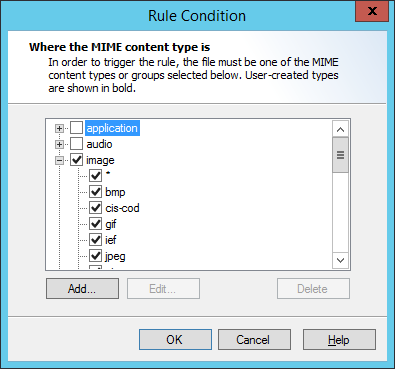
Rule Condition window, Where the MIME content type is
- Expand any category to see the particular types available.
- Choose the categories or specific types of files to match.
- To match a type not in the list, click Add. Enter the new type and optional subtype (for instance,
application/x-my-application) and then click OK. The new type is permanently added to the list of types you can select.
Except where the download content type is
This Condition allows you to apply Rules to all files that are not of specific content types. Content type information is only available for downloads (not uploads or postings). To choose content types to exclude, within the Rule Wizard click Type to open the Select Content Types window. See the condition Where the content type is for details on how to select types.Where an error occurs while unpacking
This Condition allows you to check for archive and document files that WebMarshal cannot unpack. You may want to block files that cannot be unpacked, or notify the administrator. To apply this condition, select the box.Understanding rule actions
Each WebMarshal Rule includes one or more actions. Not all actions are available for all WebMarshal Rule types.Rule actions
The complete list of actions includes:- Permit Access
- Permit Access after displaying Warning Page
- Permit access and inspect content
- Permit access and do not inspect content
- Block the connection and return a 503 service unavailable return code.
- Block Access and display blocked page
- Display Warning page once per period and continue processing rules
- Strip cookies from this site
- Rewrite headers
- Classify the domain as classification
- Classify the file as classification
- Add the User to User Group
- Add the URL to a Category
- Send a notification to the administrator
- Exclude the request from reporting (do not log browsing)
- Apply Quota to the user
- Stop processing quota rules.
- Skip any remaining rules in this container
Permit access
The web page, download, or upload is delivered.Permit access after displaying warning page
WebMarshal displays a Notification Page in the user’s browser. The page asks the user to accept a note or warning. If the user accepts, the original web page, download, or upload will be delivered. Click Warning Page to open the Select Web Page window.- Select a web page to display from the list
- Click OK to return to the parent Wizard.
Permit access and inspect content
This action is available in Connection rules and HTTPS rules. When this action applies, WebMarshal continues processing the web page, download, or upload. Quota, Standard, and Content Analysis rules are evaluated.Permit access and do not inspect content
This action is available in Connection rules and HTTPS rules. When this action applies, WebMarshal delivers the web page, download, or upload. Quota, Standard and Content Analysis rules are not applied.Block access and display blocked page
The web page, download, or upload is not delivered. A WebMarshal Notification Page is shown instead. Click Blocked Page to open the Select Web Page window.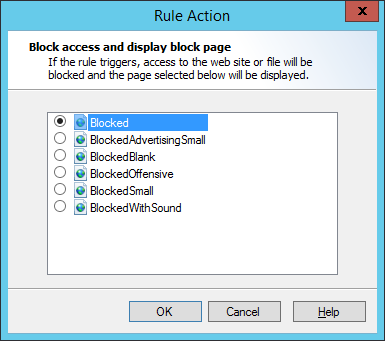
Rule Action window, Block access and display block page
- Select a web page to display from the list
- Click OK to return to the parent Wizard.
Block the connection and return a 503 service unavailable return code
When this action is selected, WebMarshal will return a 503 Service Unavailable HTTP response, and the web request will be terminated. This action is available in Connection Rules. Typically it would be used if you do not want to allow an Instant Messaging, Streaming Media, or WebSocket application to connect through WebMarshal.Display warning page once per period and continue processing rules
If this rule has not been triggered for this user during the time configured, a WebMarshal Notification Page is displayed in the user’s browser. Click Warning Page to open the Select Web Page window.- Select a web page to display from the list.
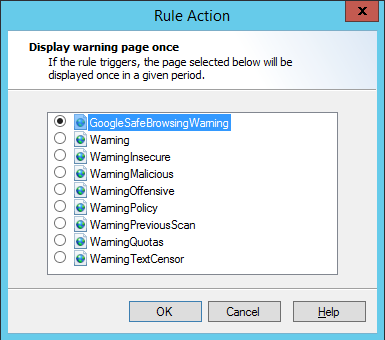
Rule Action window, Display warning page once
- Select the period during which this Rule action will not display the page again. Available periods include the current browsing session, day, week, or month.
- Click OK to return to the parent Wizard.
Strip cookies from this site
HTTP cookies returned with the response are removed.Rewrite headers
One or more HTTP headers are added, deleted, replaced, or modified using Regular Expressions. Header rewriting can apply to request headers (sent by the client), response headers (sent by the server), or both.- Header rewriting is not available for HTTPS CONNECT.
- Header rewriting is not available for response headers in the Websocket protocol.
- Some rule conditions do not affect request header rewriting, because the required information is not available at the time this action is applied. See Help for details.
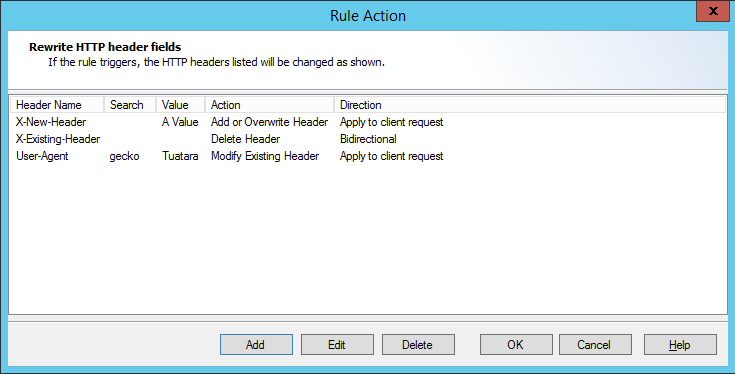
Rule Action window, Rewrite HTTP header fields
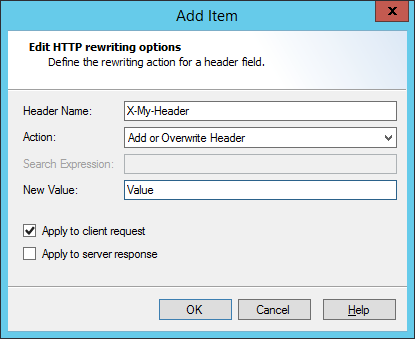
Add Item window, HTTP rewriting options
Classify the domain as classification
A Domain Classification is logged in the WebMarshal database (if database logging is enabled). This record shows that the user browsed to a URL which met the Rule conditions. For instance the URL could be in a specific category, or it could be a page with content matching a TextCensor script. Select one or more Domain classifications for this request by checking the boxes in the Select Logging Classification window.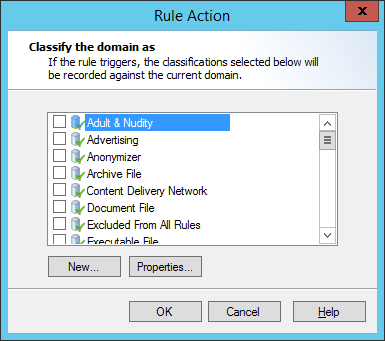
Rule Action window, Classify the domain as
Classify the file as classification
A File Classification is logged in the WebMarshal database (if database logging is enabled). This record shows that the user uploaded or downloaded a file which met the Rule conditions. For instance the file could be large or could contain a virus. A file classification applies to a specific upload or download request. Select one or more File Classifications for this request by checking the boxes in the Select Logging Classification window. To create a new classification, click New. To review and edit an existing classification, click Properties. For more information about adding and editing classifications, see Logging activity with classifications.Add the user to a user group
The user who triggered a Rule is added into one or more WebMarshal Groups. Select an existing WebMarshal Group or new WebMarshal Group using the Select User Groups window.Add the URL to a category
The URL domain or path of a request is added to a WebMarshal URL category. For instance, if a URL triggered an offensive language TextCensor script, you may want to add the URL to a permanent block list.- Click Category to open the Select URL Categories window.
- Choose one or more categories into which this site should be placed by checking the boxes.
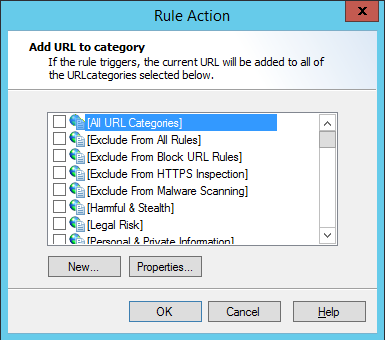
Rule Action window, Add URL to category
- To create a new category, click New. To review and edit an existing category, click Properties. See Understanding URL categories for more information on URL categories.
- Click URL to choose whether to add the entire domain, or only the subdomain (path) to the category.
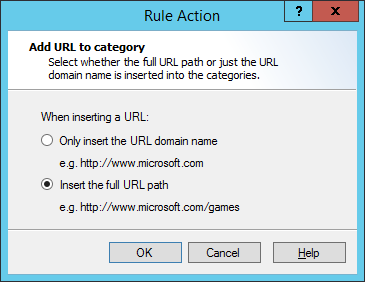
Rule Action window, Add URL to category options
You cannot add filename or query string parts automatically. You can add URLs containing these parts manually. See Adding URLs to a URL category.
Send a notification to the administrator
A notification email is sent to the administrator email address as configured on the Email Notifications page of Global Settings.Exclude the request from reporting
Any request that matches the rule conditions is completely exempted from logging (including aggregate browsing time and bandwidth records). For instance, you can use this action:- With a User Matching condition to allow unmonitored Web access for the corporate executive group.
- With a URL Category condition to allow unmonitored access for all users to a company extranet site.
Apply quota to user
A time or volume browsing quota is applied to the user. Select one or more quotas from the Apply Quotas to User window.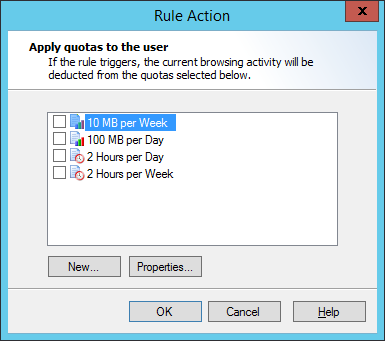
Rule Action window, Apply quotas to the user
Stop processing quota rules
Any Quota rules that would be evaluated after this rule are not evaluated. The intended user of this action is to avoid charging a browsing action against more than one quota.Skip any remaining rules in this container
Any additional rules in the container (or in sub-containers) are not evaluated. This action allows conditional checking of groups of rules.Understanding the order of evaluation
WebMarshal evaluates Connection Rules first, then HTTPS Rules, Quota Rules, Standard Rules, and finally Content Analysis Rules. Within each type, rules are evaluated in a defined order, which you can configure. The order of evaluation can affect the outcome, because WebMarshal bases its action on the first rule triggered. For instance, the default WebMarshal rules block the virus scanner test fileeicar.com using the rule Block Dangerous File Extensions. Since this rule is applied before the malware scanning rules, eicar.com is not reported as containing malware.
Rules are evaluated in “top down” order as presented in the console display.
To change the order of evaluation of rules:
- Ensure that Rules is expanded.
- Select a rule type in the left pane.
- Select a particular rule or rule container in the right pane.
- Move the item up or down in the evaluation order using the up and down arrow icons in the tool bar.
- Commit configuration to apply the changes.
Testing access policy
Testing rules involves entering various combinations of User, URL, and File Type or text, and viewing the results. Because the results of rule evaluation are dependent on the order of evaluation, all applicable rules are evaluated each time a test is performed. To test rules:-
In the WebMarshal Console, click the Test Policy icon in the tool bar to open the Test Access Policy window.
Select the test to perform using the tabs. Tests include:For a more complete description of all test options and results, see Help for this window.
- Browse Site (Checks the protocol and URL)
- Scan Page Content (Includes the Browse Site test as well as TextCensor)
- Simulate File (Includes the Browse Site test as well as file type and content type)
- Test File (Includes all rules)
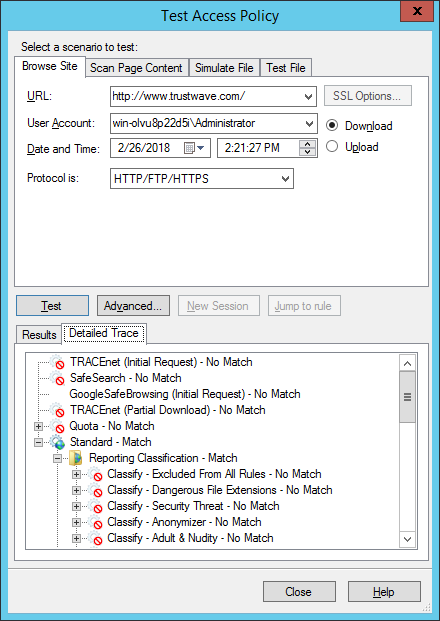
Test Access Policy window
- Enter the URL and the user account you want to use for the test.
- Enter a date and time you want to use for schedule dependent rules.
- Choose whether to test download or upload processing.
- For the Scan Page Content tab, which applies TextCensor scripts to text and HTML documents, enter text in the box. You can enter text by typing directly, by cut-and-paste, or from a web page you are viewing in Internet Explorer (by clicking Grab).
- For the Simulate File tab, you can select a number of features to simulate including the file type, MIME content type, file size, and presence of malware and cookies.
- For the Test File tab, you can enter the path to a local file you want to use for the test.
- Click Advanced for additional testing options.
- Click Test to begin rule testing. The result of the evaluation is displayed in the Test Results pane.
- Standard rules are evaluated first. If the result of Standard rule evaluation is “permit with warning page”, click Accept Result and Reprocess Rules (at bottom of the results) to proceed to the evaluation of Content rules. If the result of Standard rule evaluation is “deny” then Content rules are not tested.
- If an Alternate Upstream Proxy would be used for the URL, this information is shown following the rule results.
- Quota Rules that would be applied and Classifications that would be logged are indicated at the bottom of the results pane.
- To view details of the rule evaluation (such as the TextCensor script results), select the Detailed Trace tab and expand the evaluation tree.