

Planning checklist
Plan your WebMarshal installation by reading the following sections and completing the following checklist:Understanding WebMarshal components
WebMarshal implementations include several components. A small organization can install all components on one server. A larger organization can scale WebMarshal by installing the components on a number of different servers and workstations within the network, as shown below.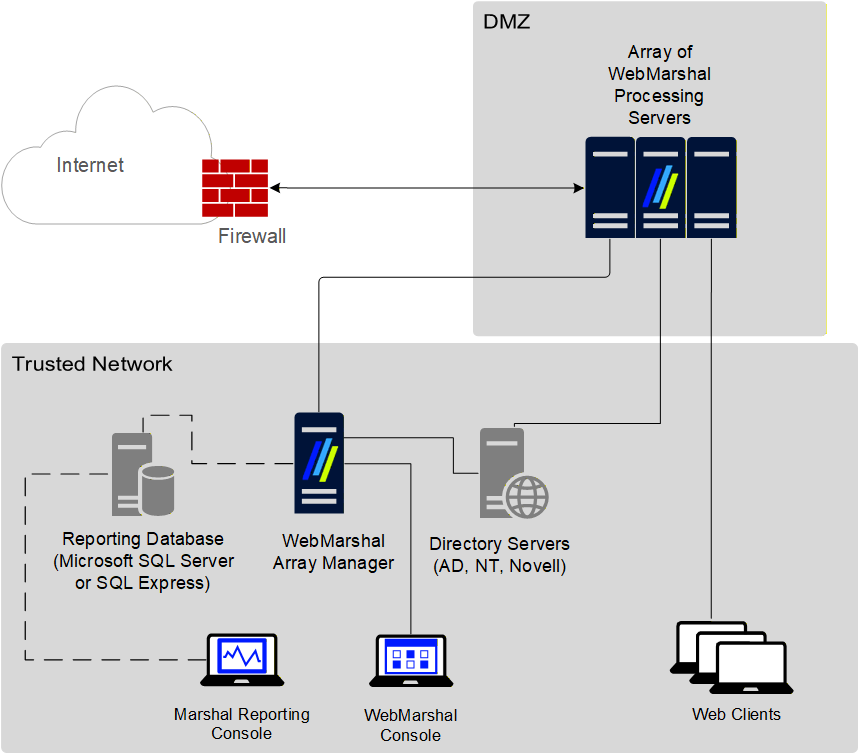
WebMarshal components
WebMarshal components
Array Manager Manages an array of WebMarshal Processing Servers. The Array Manager stores policy and controls communications between components. Processing Server Accepts Web requests, retrieves resources from the Web or local cache (Proxy service), and applies policy in the form of rules (Engine service). You can use one or more WebMarshal Processing Servers in your installation. Processing servers are also known as array nodes.WebMarshal caching uses a local directory to store Web content. This directory must be excluded from on-access or resident virus and malware scanning. If it is not excluded, WebMarshal caching is disabled. The default location of the cache directory is within the WebMarshal install directory, but for most production servers it will be located elsewhere. If you change the location of the cache directory, be sure that you also update virus scanner exclusions.
Other software and services
In addition to the above, most WebMarshal installations use the following software and network services. Microsoft SQL Server or SQL Express If you want to use the Marshal Reporting Console (MRC), you will need a Microsoft SQL Server to host the WebMarshal database that stores log information. If your web traffic volume and log retention requirements permit, you can use the free SQL Express (this could be the SQL Express Advanced instance required by MRC). If the volume of data exceeds the limit imposed by SQL Express, use Microsoft SQL Server. Directory Server If you want to import existing users and groups from your directory service for use in applying a Web Acceptable Use Policy, all WebMarshal servers must be able to connect with your directory server. WebMarshal can connect with Microsoft Active Directory or other Windows environments, as well as Novell NDS/eDirectory. Malware Scanning Software If you want to scan Web content for malware, you can install one or more supported malware scanners. See Supported malware protection software. If you want to ensure protection of your servers, you can install scanning software of your choice on the servers.WebMarshal uses a temporary directory to unpack and scan Web content. This directory must be excluded from on-access or resident virus scanning. If it is not excluded, the WebMarshal Engine and/or the WebMarshal Controller service may be unable to start. By default, WebMarshal uses the
\temp subdirectory of your install directory. You can change this location by editing XML configuration files on each processing server and restarting the WebMarshal services. If you change the location of the temporary directory for either or both services, be sure that you also update virus scanner exclusions.Understanding installation scenarios
When planning a WebMarshal installation, you can use a single server for all functions, or an array of servers. You can install the WebMarshal Proxy Server in several scenarios.Single server or array
You should consider an Array installation of WebMarshal if the following requirements apply:- High or growing Web request volume: An Array allows you to add WebMarshal Processing Servers to provide additional capacity.
- Multiple Web gateways: at separate locations with the same access policies and centralized reporting. A WebMarshal Array Manager can manage policy for multiple gateways over WAN connections, with a single TCP port required for connectivity in many cases.
- Redundancy: Each WebMarshal Processing Server can continue to process requests independently if other servers fail.
To maintain session logging correctly, each client must use a single processing server for an entire browsing session. One way to achieve this requirement is to set up Microsoft Windows Network Load Balancing using the NLB Client “Single Affinity” setting.
WebMarshal Proxy Server
The WebMarshal Proxy Server can be installed in any of three scenarios.In each case you can configure a single WebMarshal server or an array of servers.
-
As a standalone proxy server. In this scenario, all Web requests are passed to the WebMarshal server, and all responses are returned from the Web (or WebMarshal proxy cache) through the WebMarshal server. Firewall rules should be configured to restrict Web traffic so that users cannot bypass WebMarshal.
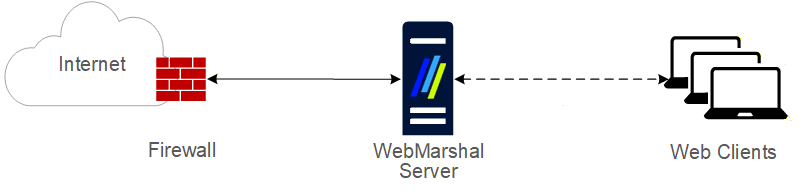
WebMarshal proxy installation
-
Chained to another proxy server running on another physical server. In this scenario, all Web requests are passed to the WebMarshal server. WebMarshal delivers the requests to the other server, and all responses are returned from the Web through the other server to WebMarshal and then to the clients. Firewall rules should be configured to restrict Web traffic so that users cannot bypass WebMarshal. Access rules on the other proxy server should be configured to allow traffic only from WebMarshal.
In any chained installation, WebMarshal usually must be the first server in the chain (the client browsers must connect to WebMarshal directly). If WebMarshal is not the first server in the chain, the WebMarshal access policy will not be applied correctly because the client cannot be determined.
- A proxy server or load balancer can be inserted before WebMarshal if it can forward the client credentials, or if it inserts an X-Forwarded-For header and you use IP based authentication (see LevelBlue Knowledge Base article Q21183).
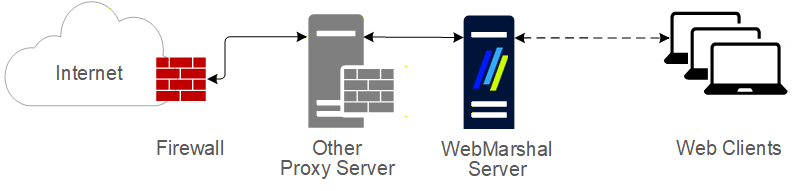
Separate server chained installation
-
Chained to another proxy server running on the same physical server.
If WebMarshal is installed on the same server as another proxy server, each must use a different port. Configure WebMarshal using the WebMarshal Configuration Wizard or the Proxy Settings pages in WebMarshal Global Settings. Be sure the other proxy software is configured appropriately. For example, WebMarshal could be configured to accept requests at the address 10.3.1.1:8080. The other proxy software might use 127.0.0.1:3128. The other proxy should only accept requests from WebMarshal.
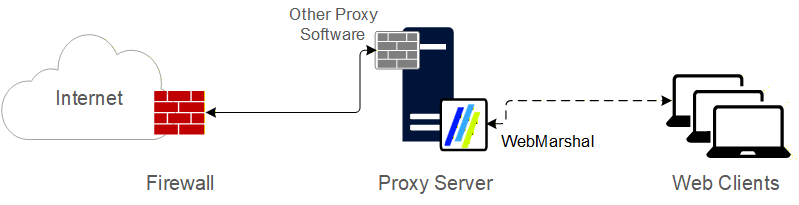
Same server chained installation
System requirements
A single server installation of WebMarshal, or a Processing Server within an array, typically requires the following minimum hardware.| Category | Requirements |
|---|---|
| Processor | Minimum: Dual core, 2 GHz Note: Use of HTTPS Content Inspection significantly increases the CPU load on processing servers (due to decryption and encryption of content). Depending on the amount of HTTPS traffic that is inspected, you may need to improve the CPU specification |
| Disk Space | Minimum: 20 GB free. • Additional disk space will be required on each processing server if Proxy Caching is enabled (30GB additional recommended if using default settings). See LevelBlue Knowledge Base article Q12720 • Additional disk space will be required on each processing server if text logging is enabled |
| Memory | Minimum: 4 GB available to the application (more if CRL checking is enabled) |
| Supported Operating System | • Windows Server 2025 • Windows Server 2022 • Windows Server 2019 • Windows 11 (permitted but not recommended) Note: WebMarshal does not prevent installation or upgrade on earlier Windows versions. However, LevelBlue cannot provide technical support if you encounter issues with these earlier versions |
| Network Access | • TCP/IP protocol • External DNS name resolution to allow WebMarshal Servers to resolve Web addresses |
| Software | • Microsoft Visual C++ 2015 runtimes • Microsoft .NET 4.8 Note: The above software will be installed as part of the WebMarshal installation if necessary. Installation of .NET might require system restart • Antivirus scanning software supported by WebMarshal. For more information, see Supported malware protection software |
| Port Access (IPv4 and/or IPv6) | • Port 19100: To Array Manager, from Console (.NET remoting) • Port 19101 To Array Manager, from Controller on processing servers • Port 19102: To Controller on processing servers, from Array Manager • Port 8080 and 8181 (by default) and/or others as configured: To processing servers, from web browsers and other client applications. By default WebMarshal accepts authenticated connections on port 8080 and controls access by IP address on port 8081. • Directory service ports: From all WebMarshal servers to the Active Directory, Windows, or NDS directory environment • NetBios over TCP: enabled for all WebMarshal servers. For more information see LevelBlue Knowledge Base article Q12207 |
Hardware requirements are dependent on the number and complexity of Rules enabled.
- The suggested configuration supports a typical rule set for about 250 to 500 concurrent sessions.
- If the optional WebMarshal reporting database will be hosted using SQL Express on the same computer, additional free disk space and RAM will be required.
- If optional URL Filtering Lists will be used, please see Chapter 12, WebMarshal and filtering lists for additional requirements
Additional software
Some scenarios require the following additional software:- To enable database logging for the Marshal Reporting Console (MRC) application, use Microsoft SQL Server or SQL Server Express. You can use SQL 2017, 2019, or 2022. Apply the latest service pack.
Be aware of the database size limitations set by Microsoft for SQL Express. Supported versions of Express allow databases up to 10 GB in size.
- The database can be located on any server accessible from the WebMarshal Array Manager component.
- With SQL Express, you can use the instance installed by the MRC installer. You can also install SQL Express during the WebMarshal installation from the “with SQL Express” version of the installation package, or download a standalone installer from the LevelBlue website.
- To enable user authentication for Novell NDS users, the Novell client software must be installed on the WebMarshal Array Manager computer. The current version is Novell Client 2. The latest versions of this client support all Windows versions supported by WebMarshal and are freely available for download from Novell.
Supported operating systems for WebMarshal Console
The WebMarshal Console can be installed on the following Windows versions:- Windows Server 2019
- Windows Server 2022
- Windows Server 2025
- Windows 11
Supported malware protection software
WebMarshal supports a number of third-party malware scanners to scan for and block viruses, malware, and other threats. To ensure a good browsing experience for users, WebMarshal requires high-throughput DLL integration. LevelBlue licenses several of the malware solutions directly. Licensing for these solutions is separate from the WebMarshal license. Trial versions of several malware solutions are included in the main product installer, or as downloads from www.levelblue.comThe “spyware” scanners supported in previous WebMarshal versions are no longer available. The available scanners provide good protection against “spyware” type threats.Symantec AntiVirus Scan Engine and Sophos Anti-Virus (SAVI interface) are not available with this release because the interfaces are not available in 64 bit format.Customers using Sophos Anti-Virus (SAVI interface) can move to Sophos for Marshal and should contact LevelBlue for details.Kaspersky for Marshal is no longer sold. Signature updates end December 31, 2023.
Collecting information for installation
Before you install WebMarshal, you may want to collect the following information about your environment. When you run the Configuration Wizard after you install the product, having the following details handy can help you quickly configure WebMarshal.| Information required | My information |
|---|---|
| Names of computers where you plan to install WebMarshal components including: Servers, Array Manager, database, Console, and optionally, Marshal Reporting Console. | |
| Prerequisite software for each computer where you will install software and the best time to restart each system, if necessary. | |
| If installing an array, load balancing configuration details for the processing servers. | |
| Firewall administrator contact information, and best time to make and propagate firewall settings changes. | |
| Proxy server administrator contact information (if required). | |
| Malware protection software to use with WebMarshal. | |
| Company name for WebMarshal license. | |
| Name or IP address and access port for your existing Microsoft SQL server computer (if required). User name and password with Database Creator permission. | |
| IP address and access port for your existing proxy server. | |
| IP address and logon credentials for your directory servers (Active Directory/domain Controller and/or NDS). | |
| Email address where WebMarshal will send administrator notification emails (existing or new account). | |
| Server name and port of email server used to deliver administrator notification emails. |