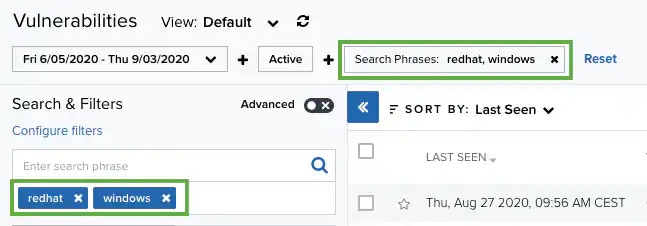
The number between brackets displayed by each filter indicates the number of items that matches the filter. You can also use the filter controls to provide a method of organizing your search and filtered results.
The following table shows the icons displayed with each filter box.
Icons Next to the Filter Title
| Icon | Meaning |
|---|---|
  | Sort the filters alphabetically. |
  | Sort the filters by number of items that matches them |
 icon next to the filter. Or clear all filters by clicking Reset.
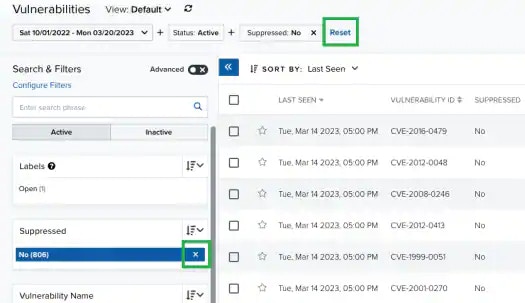
Note: When applying filters, the search uses the logical AND operator if the used filters are different. However, when the filter is of the same type, the search uses the logical OR operator.
 icon appears to the right of the Filter Values search field. Click this icon to download a CSV containing up to 1024 results.
USM Anywhere enables you to toggle the mode of search. The available modes are Standard and Advanced. You can change from one mode to the other by clicking the
icon appears to the right of the Filter Values search field. Click this icon to download a CSV containing up to 1024 results.
USM Anywhere enables you to toggle the mode of search. The available modes are Standard and Advanced. You can change from one mode to the other by clicking the  icon or clicking the
  icon located in the upper left corner of the page.
Standard Mode
This mode enables you to select one value per filter at the same time, and then the search is automatically performed. This mode is on by default. To activate the standard mode when the advanced mode is on- Go to Activity > System Events.
-
In the upper-left corner of the page, click the icon.
-
This turns the icon gray, .
If you exit the advanced mode and the selected filters are not compatible with the standard mode, a warning dialog box opens to inform you the current filters will be removed.
Advanced Mode
Advanced mode enables you to select more than one value per filter at the same time. This mode is off by default. To activate the advanced mode- Go to Activity > System Events.
-
In the upper-left corner of the page, click the icon to activate the advanced mode.
This turns the icon green, .
- Go to Activity > Alarms.
-
In the upper-left corner of the page, click the icon to activate the advanced mode.
This turns the icon green, .
-
Click the filters that you want to select.
The selected filters display inside a dashed rectangle.

-
In the lower-left corner of the page, click Apply Filters. Or in the upper side of the page, click Apply.
The result of your search displays.

- Go to Activity > Alarms.
-
In the upper-left corner of the page, click the icon to activate the advanced mode.
- Click the filter that you want to exclude.
-
In the filter group, click Not.
he selected filter displays the
 icon and the filter chiclet is labeled in red.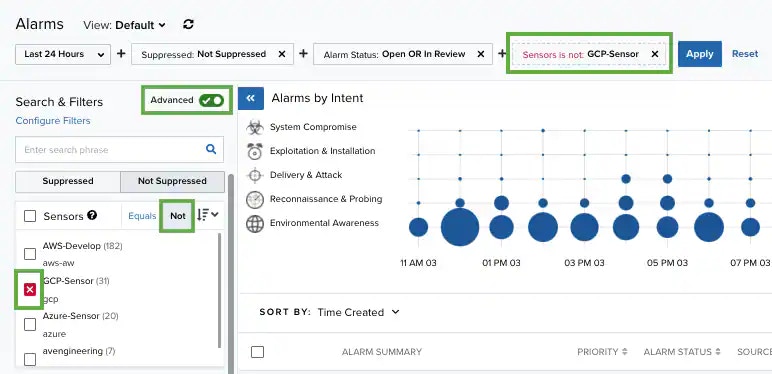
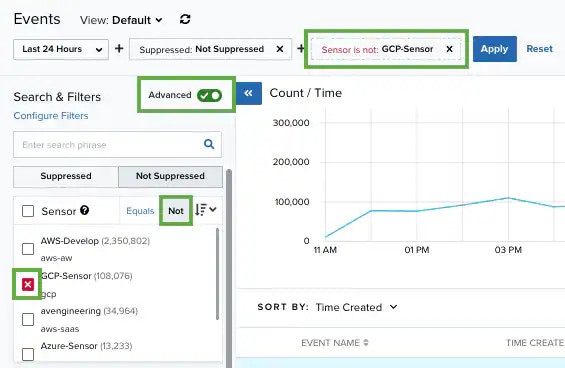
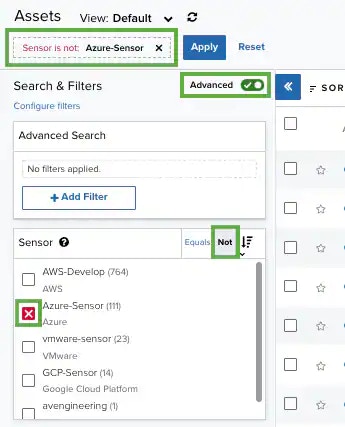
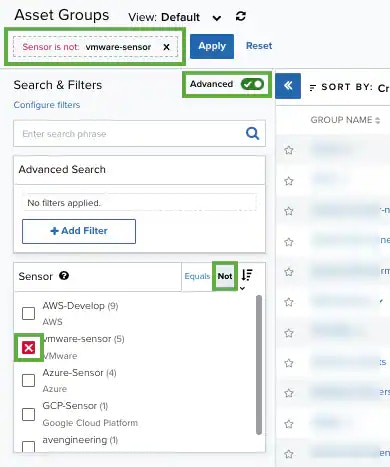
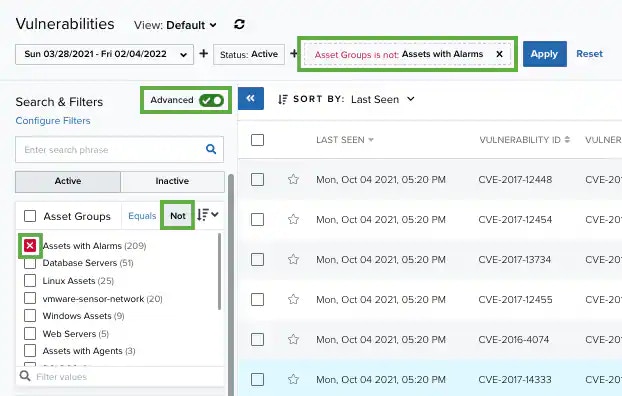
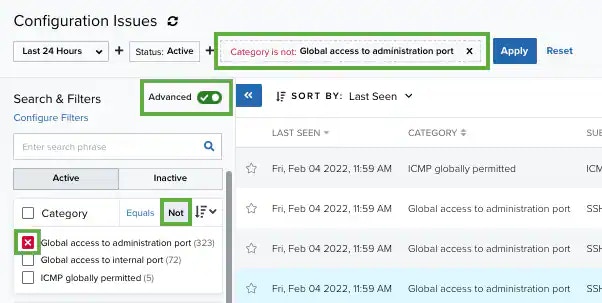
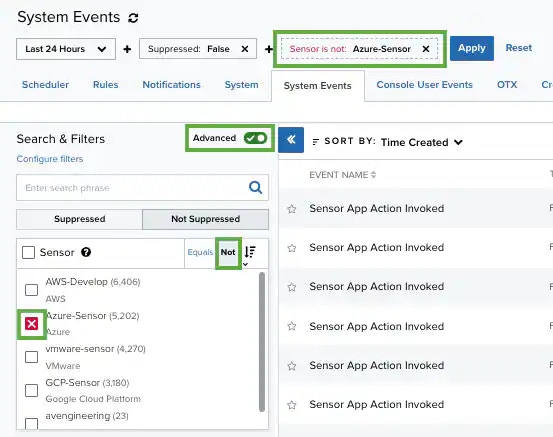
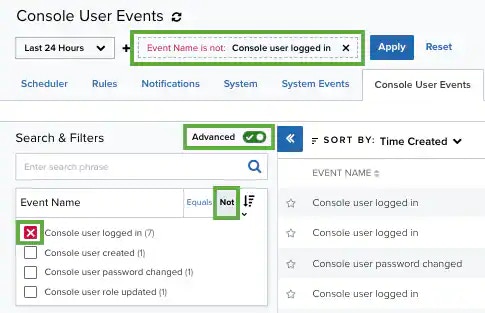
- Click Apply.
- Go to Settings > System Events.
- In the upper-left corner of the page, click the icon to activate the advanced mode.
- Select a filter title to select all filters below that title.
Searching System Events by Using the Search Field
To search for System Events using the search field- Go to Settings > System Events.
-
Enter your query in the search field.
If you want to search for an exact phrase having two or more words, you need to put quotation marks around the words in the phrase. This includes email addresses (for example, “bob@mycompany.com”).
Wildcard characters are considered as literal characters.
-
Click the
 icon.
icon.