

- At the bottom of the expanded pane of the USM Central web user interface (UI), hover over the
 icon and select Profile Settings > API Clients.
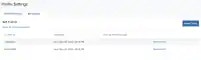
- Click New Client.
- In the Create New Client pop-up box, enter the client ID in the text box.
-
Click Create Client.
Note: Only users with the Manager role are allowed to create new API clients.
- At the bottom of the expanded pane of the USM Central web user interface (UI), hover over the icon and select Profile Settings > API Clients.
- Click the Edit icon of the corresponding client ID you want to edit.
- On the Edit Client pop-up box, enter the new client ID, and then click Update Client.
-
At the bottom of the expanded pane of the USM Central web user interface (UI), hover over the icon and select Profile Settings > API Clients.
-
Locate the API client that you want to delete and click Delete Client.
The delete client dialog box opens.
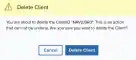
- Click Delete Client.