

-
Download the template files from LevelBlue:
- Template: https://storage.googleapis.com/usm-saas-gcp-util/log-export-templates/logExport.py
- Project Schema: https://storage.googleapis.com/usm-saas-gcp-util/log-export-templates/exportProjectLogs.py.schema
- Organization Schema: https://storage.googleapis.com/usm-saas-gcp-util/log-export-templates/exportOrganizationsLog.py.schema
- Create a Type Registry to deploy the templates by going to the Type Registry page under your Cloud Deployment Manager.
- Click Add Composite Type.
- Import the templates you previously downloaded.
-
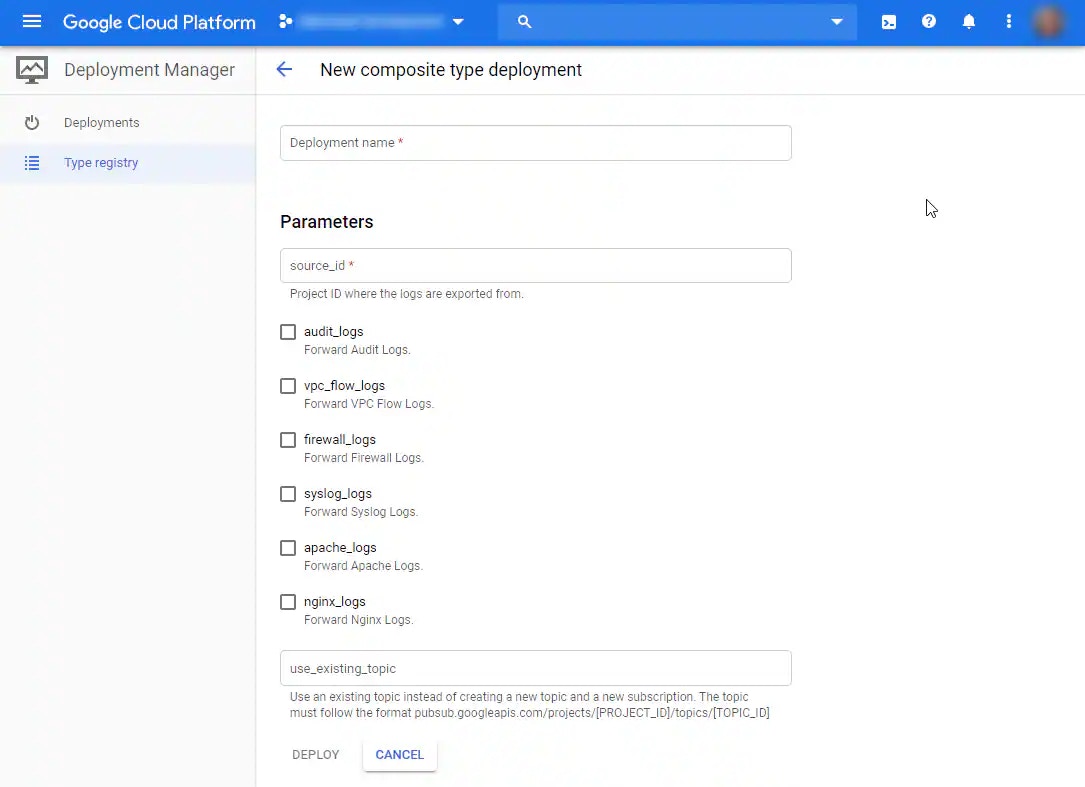
Provide the following information:
- Deployment name: A name for this deployment
- source_id: The identification (ID) of the project exporting these logs.
-
If you are executing this deployment at the project level, use the list to select the log types to export.
Note: See the Log Export Filters table to see how these log queries are formatted.
- (Optional) Specify the name of an existing topic to use instead of creating a new one.
- If you choose to use an existing topic, you must ensure that you grant the Writer Identity service account “Pub/Sub Publisher” permissions.
- Click Deploy. You can verify that your topic and subscription have been created by checking the Topics page under Pub/Sub.
- In USM Anywhere, go to your GCP Sensor under Data Sources > Sensors or the Google Cloud Platform Log Collection app under Data Sources > AlienApps > Available Apps.
- On the Log Subscriptions tab, click Enable to enable the subscription you just created.
GCP Log Discovery and Collection in USM Anywhere
Configure Log Collection Using Templates
For your USM Anywhere Sensor to receive logs from your Google Cloud Platform (GCP) environment, you must have an export sink to define which logs are exported, a topic to receive those logs, and a subscription to deliver those exported logs to the sensor. The easiest way to create and configure all of these disparate pieces is by using the templates LevelBlue provides.
See Manually Create a Cloud Pub/Sub Topic or Manually Create and Configure an Export Sink if you would like to perform these steps manually rather than using these templates.
To configure log collection using templates