

Note: The heartbeat events are important for monitoring LevelBlue Agent connectivity. It is important that you do not create any filtering rules to remove these notifications. If you don’t want to see heartbeat events, LevelBlue recommends that you create a suppression rule instead.
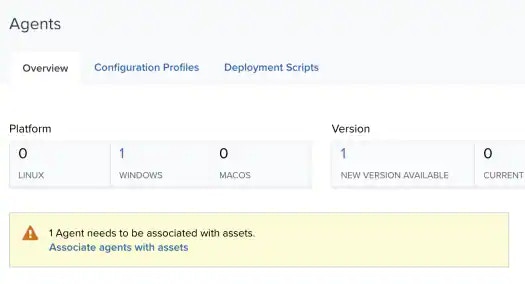

Associate or Unassociate the LevelBlue Agent with an Existing Asset
To associate an agent with an existing asset, you can allow USM Anywhere to suggest a matching asset. If the suggested asset is incorrect, manually search and select the correct existing asset to associate it with the agent. To make an association to an existing asset- In the row for the unassociated agent, click Associate Agent with Asset. The dialog box displays a list of one or more suggested asset matches if USM Anywhere is able to locate potential matches in the asset library.
-
Select an asset for the agent:
- If one of the suggested assets is correct, select the asset.
-
If the correct asset is not displayed or there are no suggested assets, enter part of the name or IP address of the asset in the Search field to display matching items and select the asset you want.
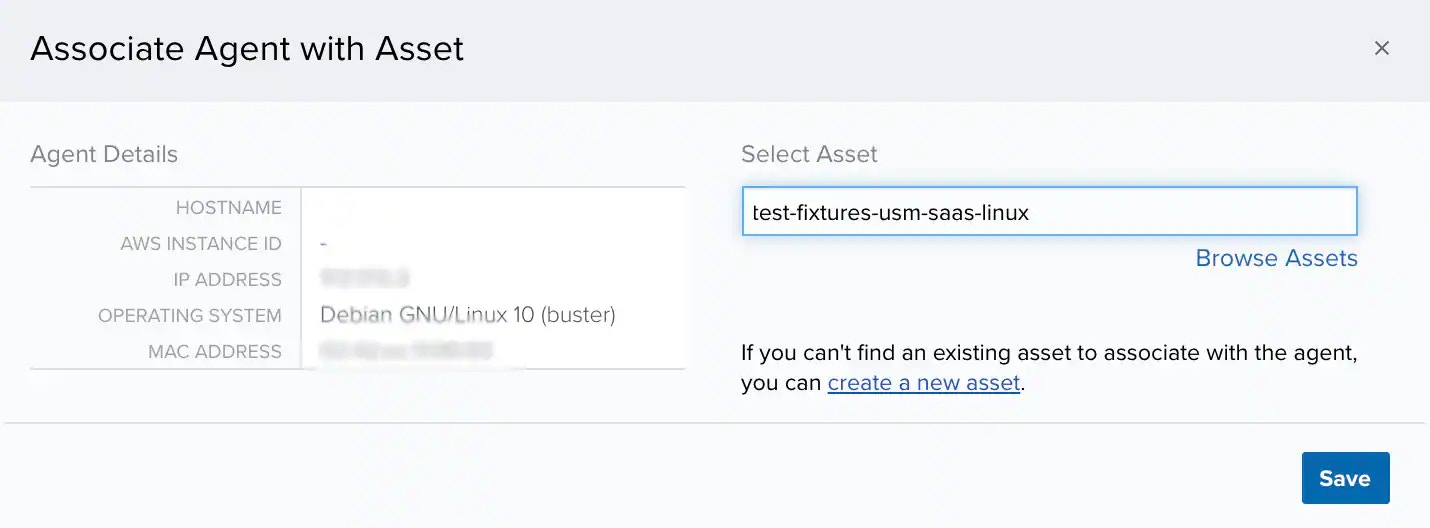
- You can also click Browse Assets to open the Select Asset dialog box and browse the asset list to make your selection. If you are unable to locate the correct asset and determine that it does not currently exist in the asset inventory, click Create a New Asset to generate a new asset for the agent.
- Click Save. A confirmation dialog box opens.
- If you want to view the Asset Details page for the associated asset, click View Asset. Otherwise, click Cancel to close the dialog box and return to the Associate Agents with Assets page.
-
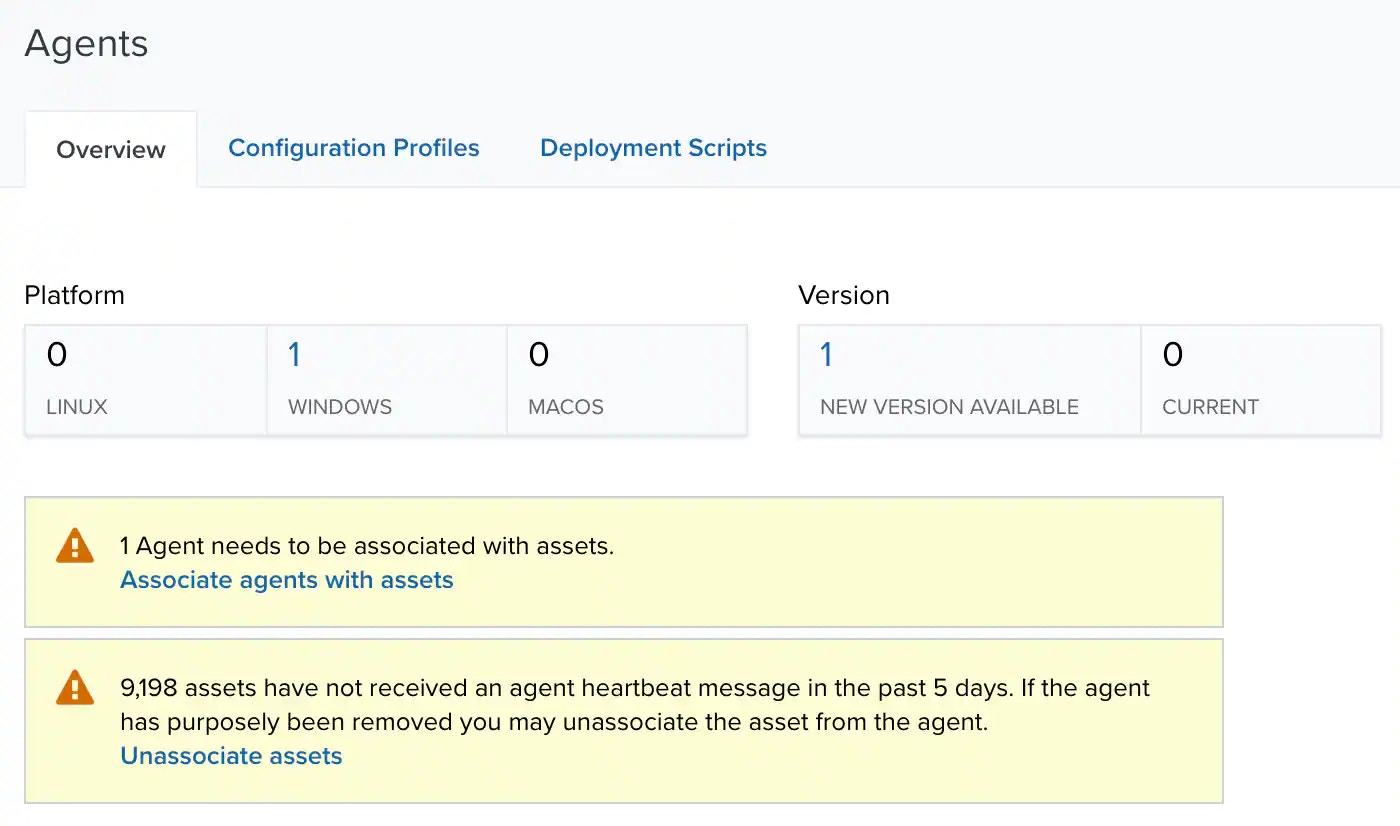
Go to Data Sources > Agents.
-
Click Unassociate Assets.
The link between the asset and the agent is removed.
Note: When an asset is deleted, all of its associated LevelBlue Agents automatically become unassociated.
Create New Assets for the Association
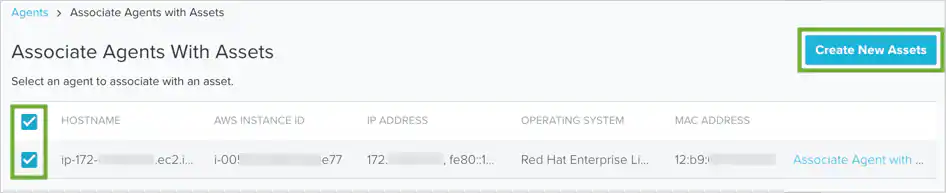
You can automatically create an asset for one or more selected LevelBlue Agents if an asset for that agent does not already exist in the asset inventory. When USM Anywhere creates a new asset for the agent, it uses the hostname value for the asset name. After creation, you can modify various asset details as needed. See Editing Assets for more information. To create new assets for unassigned agents- Select the checkbox in the row for each agent where an asset does not already exist in the asset inventory. Select the checkbox at the top if you want to create new assets for all of the listed agents.
-
At the upper right of the page, click Create New Assets.
A confirmation dialog box opens.
- Close the dialog box to return to the Associate Agents with Assets page.