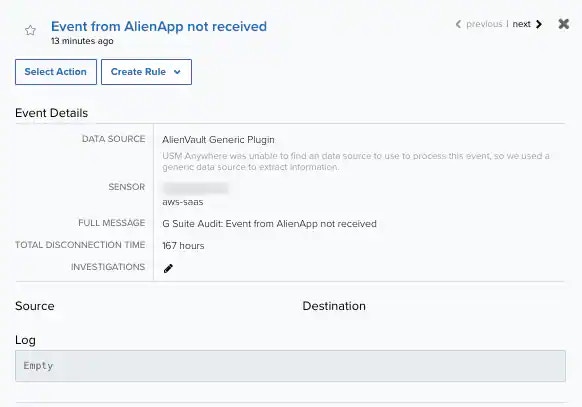
Warning: Monitoring events are generated when your BlueApp has not received data from a data source either because the data source is not sending data or because of a filtering rule. If you have a rule that filters data coming from a data source, from the perspective of USM Anywhere, that data source is not sending data.
Warning: Currently, the Event created when BlueApps stop receiving data event is generated at the same time as the regular event and system event. Soon, this event will be generated only as a system event. See Regular Events and System Events and Orchestration Rule for the “Event from BlueApp Not Received” System Event for more information.
- Go to Data Sources > BlueApps.
- Navigate to your BlueApp and scroll to the bottom of the page.
-
On the bottom of the page, set a period of time in the Create Events If the BlueApp Stops Consuming Data field by clicking the drop-down list.
You can select a predefined value of None, 30 minutes, 1 hour, 2 hours, 4 hours, 6 hours, 8 hours, 12 hours, 24 hours, 72 hours, 1 week, or 2 weeks.
 Note: By defualt this field is set to None.
- Go to Settings > System.
- In the left navigation pane, click BlueApps Settings to open the page.
-
Set a period of time in the Create Events If the BlueApps Stop Consuming Data field by clicking the drop-down list. You can select a predefined value from the options provided.
 Note: By default this field is set to None.
- Go to Activity > Events.
-
In the Event Name filter, select Event from BlueApp not received.
The results are shown with the filtered events.
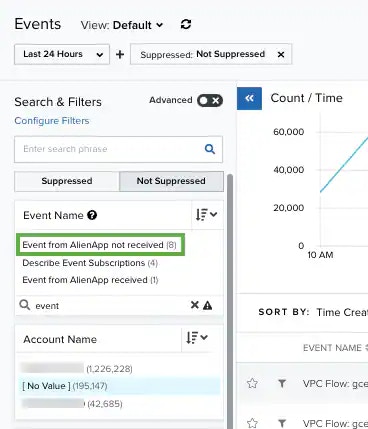
-
Click the event to see its details.