

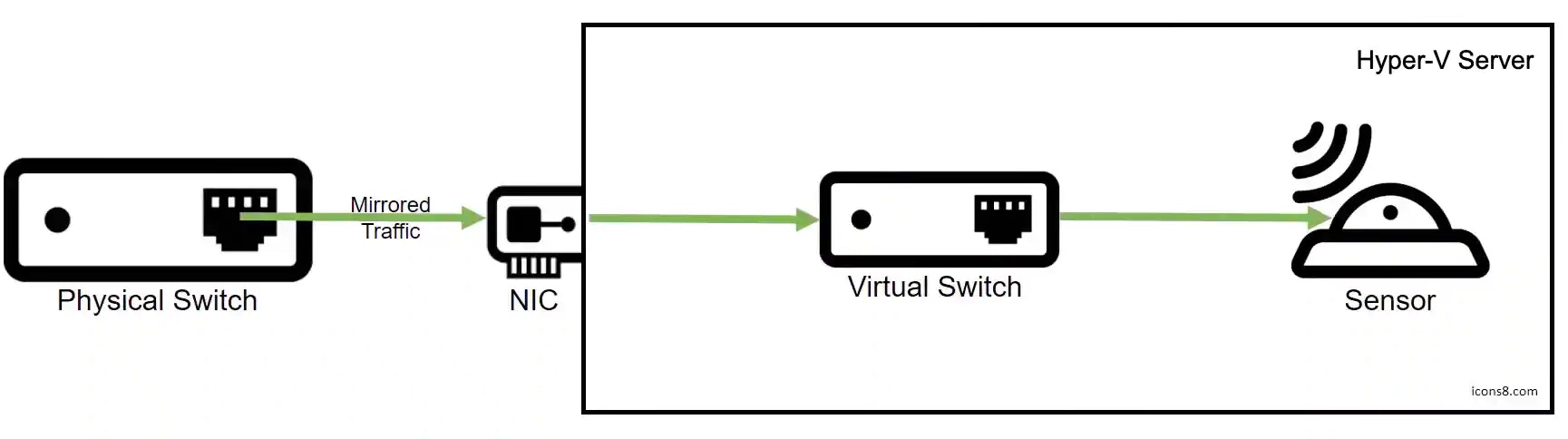
Illustration for Directing Network Traffic from Your Physical Network to the Hyper-V Sensor
- Enabled port mirroring on the network you want USM Anywhere to monitor.
- Allocated a spare network interface card (NIC) to direct the mirrored traffic to the virtual switch.
Configure a Port Mirroring Destination
When configuring your Hyper-V Sensor to capture mirrored traffic, you need to set the appropriate network adapter on the Hyper-V Sensor VM as the destination for port mirroring. To configure your Hyper-V Sensor to capture mirrored traffic- Open the Microsoft Hyper-V Manager and right-click the Hyper-V Sensor VM.
- Select Settings.
-
Expand the available network adapter and select Advanced Features.
Note: Network adapter 1 is reserved for the management interface. See Configure Network Interfaces for On-Premises Sensors for more information.
- Scroll to the Port mirroring section and set the Mirroring mode to Destination.
- Click Apply.
- In the same network adapter, select Hardware Acceleration and uncheck Enable virtual machine queue. If virtual machine queue (VMQ) is enabled on the associated network adapter, the Hyper-V Sensor is not able to detect any mirrored traffic.
- Click Apply and then OK.
Configure the Port Mirroring Source
To complete the port mirroring configuration in Hyper-V, you need to specify the source of the mirrored traffic. In our case, this is the virtual switch connected to your spare NIC.Note: For the virtual switch to monitor network traffic, you must enable the Microsoft Network Driver Interface Specification (NDIS) Capture extension on the switch.
- Open the Microsoft Windows PowerShell console.
-
Enter the following:
Additional Configurations for Port Mirroring Setup from VLAN Traffic
If your environment uses a VLAN to route traffic, you will also need to configure Microsoft Hyper-V to accept packets from the designated VLAN identifier (ID) range. To set up VLAN port mirroring-
In Hyper-V Guest, create a NIC designated as “management” using the following PowerShell command:
-
Add the port you will use as a mirror. For example:
If you have multiple NICs you are mirroring, repeat this step for each NIC.
-
Add the VLAN ID ranges to be mirrored. For example:

Related Video Content