

- Go to Data Sources > Hunting Library.
- Click Create Custom Query. The New Query section appears.
- Enter your query in the New Query field.
- Click Generate CSV Report. The Configure Report section appears.
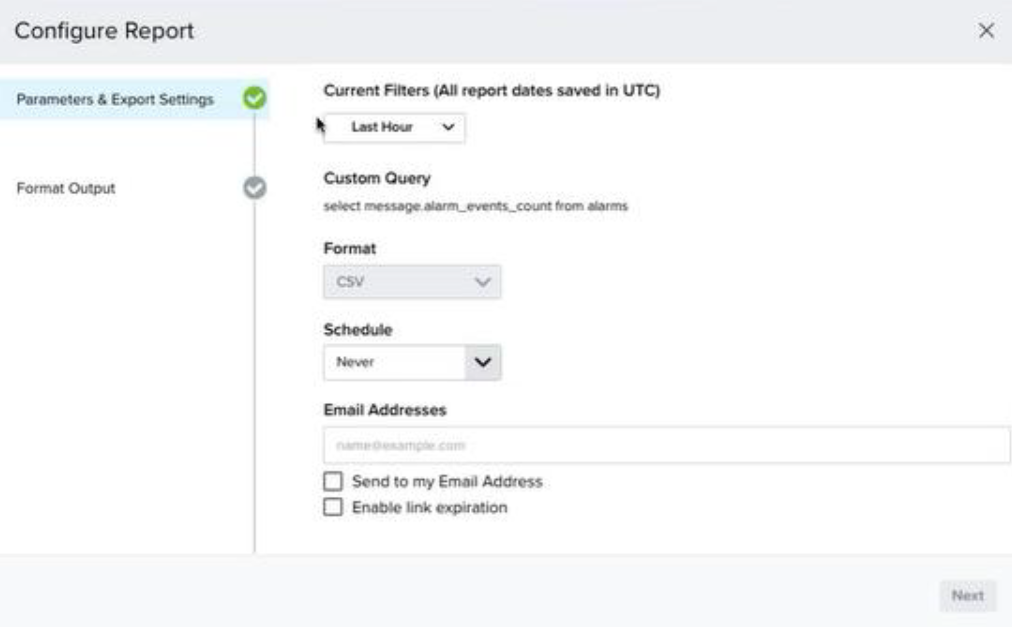
- Configure the Parameters & Export Settings of the report:
- Current Filters (All report dates saved in UTC): Select the date filter to be used for the report from the dropdown list. The default value is Last Hour.
-
Schedule: Select the recurring schedule of the report to be generated.
The scheduling parameters in Advanced Query follow the same format as in the USM Anywhere Scheduled Reports. Refer to Create and Schedule Reports for more information.
-
Email Addresses: Enter one or more email addresses that will receive the report.
Press Enter after each email address. No commas or semicolons are needed.
-
Send to My Email Address: When selected, your email (as a logged-in user) is automatically added as a recipient.
Manually typing your email also automatically selects this checkbox.
- Enable Link Expiration: When selected, a download link will be included in the email. This link expires 14 days after it is clicked.
- Click Next to continue.
- Configure the Format Output of the report.
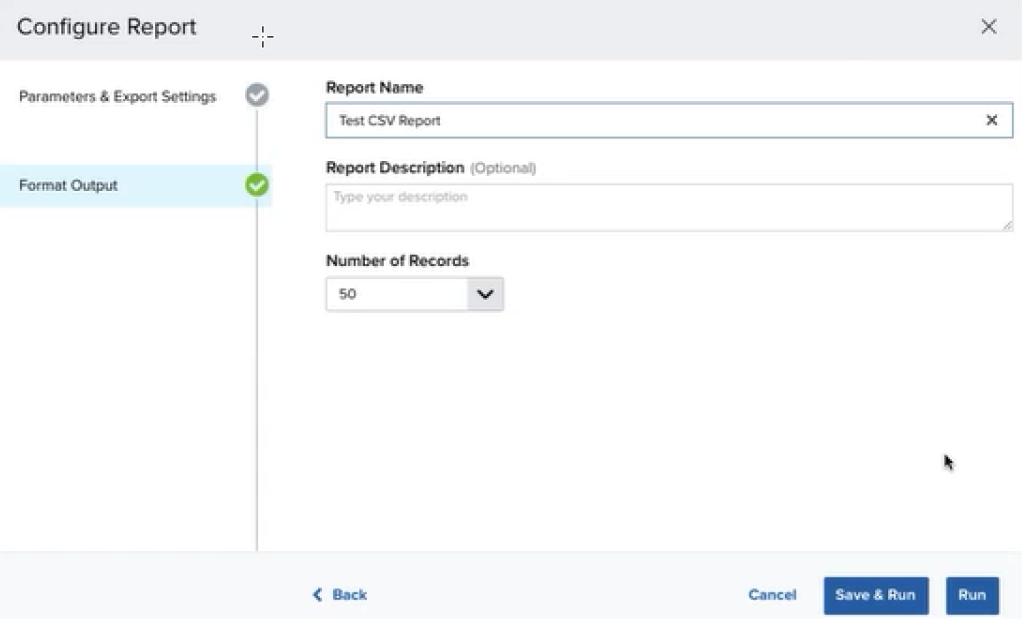
- Report Name: Enter the name of the report.
- Report Description [OPTIONAL]: Describe what the report is about.
- Number of Records: Select the number of records to be included in the report.
-
Click Save & Run or Run to generate the report.
- Clicking Save & Run generates the report and saves it to the Saved Reports list. Refer to Saved Reports on USM Anywhere for more information.
- Clicking Run generates the report without saving it.
A download link will be sent to the email addresses upon generation of the report.