

- Go to Data Sources > Hunting Library.
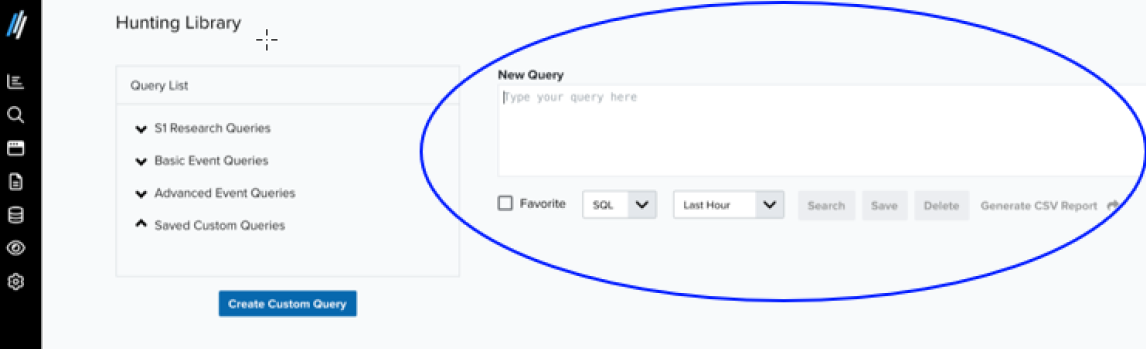
- Click Create Custom Query. The New Query section appears.
-
Enter and set your query:
- Enter your New Query using Structured Query Language (SQL) or Piped Processing Language (PPL) syntax.
- Select the Favorite checkbox for any new custom query that you want to appear at the top of the Saved Custom Queries list. See Favorite a query.
-
Select SQL or PPL as the query language from the dropdown list.
The selected language must match the syntax of your query; otherwise, it will not run. See SQL Queries and PPL Queries for more information.
- Select the time range for your query. The default value is Last Hour.
- Click Search to run the query. Results are displayed and can be generated in CSV format. Refer to Generating CSV Report for more information.
If you are unsure of a field name, refer to the List of Fields for a complete list of available queryable fields across Events, Alarms, Vulnerabilities, and more.