

- Go to Settings > Rules > Orchestration Rules.
- Select Create Orchestration Rule > Notification Rule.
-
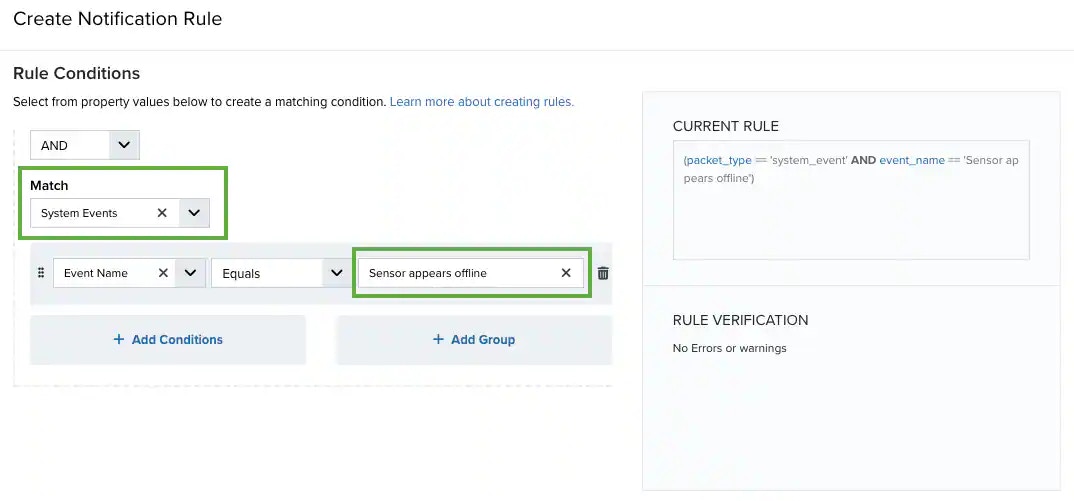
Select System Events in the Match drop-down list.
-
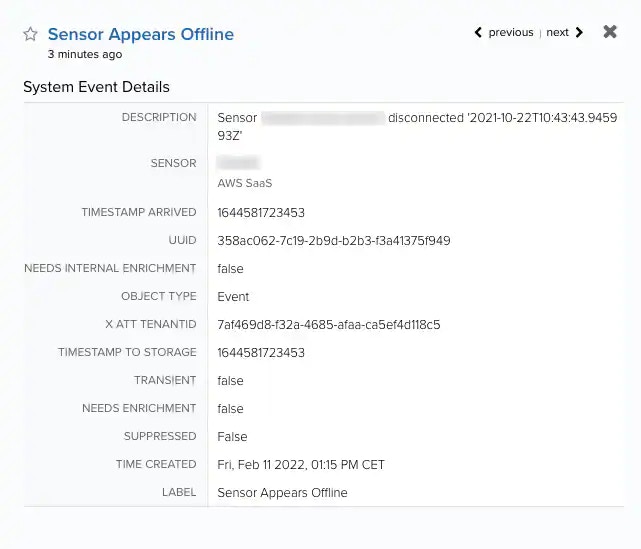
Click Add Conditions and select the property values you want to include in the rule to create a matching condition.
You can check the fields from Settings > System Events. See Viewing System Event Details for more information.
-
(Optional.) Click Add Group to group your conditions.
See Operators in the Orchestration Rules for more information.
-
In the Occurrences text box, enter the number of event occurrences that you want to produce a match on the conditional expression to trigger the rule.
You can enter the number of occurrences or use the arrows to scroll the value up or down. You can enter a number between 1 and 100.
The current rule box shows you the syntax of your rule, and the rule verification box reviews that syntax before saving the rule.
-
Click Next.
- Enter a name for the rule.
- (Optional.) Enter a description for identifying this rule.
-
Select a notification method:
- Amazon SNS: This method requires the setup of the Amazon Simple Notification Service (SNS) API call from the USM Anywhere server. There is no limit to the number of Amazon SNS endpoint notifications sent. However, this method requires having an Amazon Web Services (AWS) account for setup and use. The Amazon SNS allows the first 1000 email notifications per month to fall into the free messaging tier. See Sending Notifications Through Amazon SNS for more information.
- Datadog: This method requires the creation of a Datadog API key and additional steps. See Sending USM Anywhere Notifications to Datadog for more information.
-
Email: This method sends the notification by email. You need to enter information for the email subject and enter a destination email address. Multiple comma-separated email addresses are possible. This method uses a built-in integration with the Amazon Simple Email Service (SES) function and is limited to a maximum of 200 emails per rolling 24-hour period. The only user-customizable information available is the email subject line.
Select the Sanitize Email Content checkbox to replace detailed email contents with a generic message and a link that requires user authentication to view further information.The rolling 24-hour, 200-email limit refers to all email accounts. For example, you can have a rule with multiple emails, which counts as a single email delivery. Alternately, if you have several rules with several emails, each of these counts as an individual email account. Sensor-disconnect emails do not count against this number because they are critical and are only sent to users whose role is manager.
- PagerDuty: This method is performed using an integration in the product, and user setup is required. See Sending USM Anywhere Notifications to PagerDuty for more information.
- Slack: This method makes use of a user-created Slack Webhook integration. Slack integration can also be performed using Amazon SNS. See Sending USM Anywhere Notifications to Slack for more information.
-
In the Length text box, specify the timespan that you want to use to identify a match for multiple occurrences. Enter the number in the text box, and then use the drop-down menu to select a value of seconds, minutes, or hours.
This duration identifies the amount of time that transpires from the beginning to the end of the occurrence. If the number of occurrences is not met within this period, the rule is not a match.
Your defined length and occurrences function together to specify the number of occurrences within a time period that will produce a match for the rule. For example, you can define a rule to trigger an for an unauthorized access attempt when a failed occurs three times within a five-minute window.
- Click Save. The created rule displays in the list of rules. You can see it from Settings > Rules > Orchestration Rules. See Orchestration Rules for more information.
Regular Events and System Events
Orchestration Rule for the "Event from Asset Not Received" System Event
Role Availability | ❌ Read-Only ❌ Investigator ✔️ Analyst ✔️ Manager
LevelBlue recommends that you create new orchestration rules regarding the Event from asset not received system event.
The usual way is to create alarm rules or notification rules. See Alarm Rules from the Orchestration Rules Page and Notification Rules from the Orchestration Rules Page for more information.
To create a notification rule for the Sensor appears offline system event