

Filtering rules are not retroactive. The rule applies to future items, but not to previous items even if those items follow the rule.
- Go to Settings > Rules.
-
Select Create Orchestration Rule > Filtering Rule.
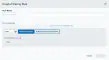
- Enter a name for the rule.
- Select a deployment.
- Select the property values you want to include in the rule to create a matching condition.
-
Click Add Condition or Add Group Of Conditions. See Operators in the Orchestration Rules for more information.
If the field is related to the name of a country, you should use the country code defined by the ISO 3166.
- Click Save Rule. The created rule displays in the list of rules.
- Go to Settings > Rules.
- Click the box next to Filter By.
- Enter your search.
- Go to Settings > Rules.
- In the left navigation pane, click Filtering Rules.
- Click the box Deployment.
- Select All Rules, Enabled, or Disabled.
- Go to Settings > Rules.
- Click the combo box next to Rule Status.
- Select All Rules, Enabled, or Disabled.
- Go to Settings > Rules.
- On the left navigation pane, click Filtering Rules.
- Click the
 icon of the rule you want to edit.
 - Modify the data of the items that need to be modified.
- Click Save Rule.
- Go to Settings > Rules.
- On the left navigation pane, click Filtering Rules.
- Click the
 icon of the rule you want to delete.
 - Confirm by clicking Accept.
- Go to Settings > Rules.
- On the left navigation pane, click Filtering Rules.
- Click the
 icon of the rule you want to enable.
- Go to Settings > Rules.
- On the left navigation pane, click Filtering Rules.
- Click the
 icon of the rule you want to disable.
- Go to Settings > Rules.
- On the left navigation pane, click Filtering Rules.
- In the list of rules, select the first checkbox in the first column to select all the rules.
- Click Enable All Rules.
- Go to Settings > Rules.
- On the left navigation pane, click Filtering Rules.
- In the list of rules, select the first checkbox in the first column to select all the rules.
- Click Disable All Rules.
- Confirm by clicking Accept.