

The investigations details view provides in-depth information on an investigation and provides easy access to the investigation. When you use this feature to access the investigation, you can modify some of the fields related to the investigation. You can also add notes and create associated alarms, files and events.
To view the details of an investigation
- Go to Investigations.
-
Click the title of an investigation to display its details.
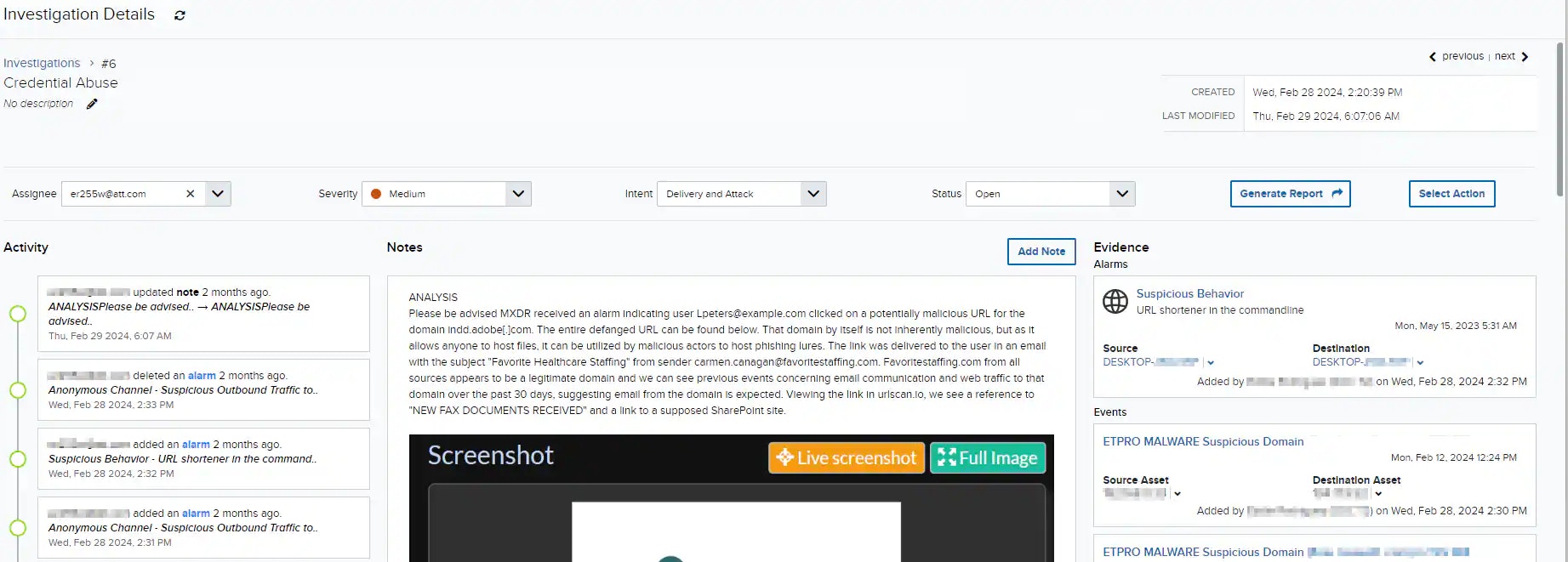
In the upper-left side of the page is the name of the investigation. Click the
 icon next to the name if you want to make changes. See Investigations List View for more information about the fields.
Above the investigation name displays the ID of the investigation. The upper-right side of the page displays the Created and the Last Modified dates.
icon next to the name if you want to make changes. See Investigations List View for more information about the fields.
Above the investigation name displays the ID of the investigation. The upper-right side of the page displays the Created and the Last Modified dates.
Below the Created and Last Modified dates is the rating option. Select the thumbs up or thumbs down
  icon to rate this investigation as Credible or Not Credible. You can filter your investigations by rating on the Investigations List View page.
You can change the values displayed in the Assignee, Severity, Intent, and Status drop-down lists. The modification is automatic, so once you change a value, it is updated.
icon to rate this investigation as Credible or Not Credible. You can filter your investigations by rating on the Investigations List View page.
You can change the values displayed in the Assignee, Severity, Intent, and Status drop-down lists. The modification is automatic, so once you change a value, it is updated.